1
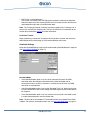
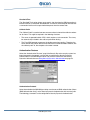
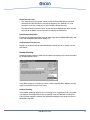
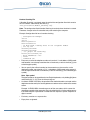
Diva Server for Windows NT
Reference Guide
www.eicon.com/divaserver
Seventeenth Edition (February 2003)
206-288-17
Diva ISDN is a registered trademark of Eicon Networks Corporation.
Microsoft, Windows, and Windows NT are registered trademarks of Microsoft Corporation.
Security Dynamics, ACE/Server and SecurID are registered trademarks and PASSCODE and
PINPAD are trademarks of Security Dynamics Technologies Inc.
All other brand and product names are trademarks or registered trademarks of their respective
owners.
Changes are periodically made to the information herein; these changes will be incorporated into
new editions of the publication. Eicon Networks may make improvements and/or changes in the
products and/or programs described in this publication at any time.
To contact Eicon Customer Support, refer to the ‘Customer Services’ section in the printed guide
that came with your adapter.
Eicon Networks may use or distribute whatever information you supply in any way it believes
appropriate without incurring any obligations to you.
Copyright 1999-2003 Eicon Networks Corporation. All rights reserved, including those to reproduce
this publication or parts thereof in any form without permission in writing from Eicon Networks
Corporation.
www.eicon.com/divaserver
Contents
About This Online Guide .............................................................................. 5
How to use this online guide ................................................................................... 5
Structure of this guide ............................................................................................. 5
General information on this guide ........................................................................... 6
About Diva Server for Windows NT ............................................................. 7
Features .................................................................................................................. 7
Supported hardware ............................................................................................... 9
Requirements for software installation .................................................................. 10
Overview of the software ....................................................................................... 12
Installation and Configuration.................................................................... 15
Basic drivers .......................................................................................................... 15
WAN-Miniport driver .............................................................................................. 25
Remote Access Service (RAS) ............................................................................. 37
Eicon Port driver .................................................................................................... 41
AT-command set of the Eicon ISDN Port ............................................................... 47
CAPI 2.0 ............................................................................................................... 56
Installing Additional Components ............................................................. 59
Installing virtual modems ...................................................................................... 59
Installing the Diva Server Telephony Service Provider ......................................... 61
Using Dial-Up Networking or RAS Administration ................................... 65
RAS client setup .................................................................................................... 65
RAS server setup .................................................................................................. 69
Dial-Up Networking monitor .................................................................................. 70
Using Shorthold Mode ................................................................................ 72
Breaking and re-establishing connections ............................................................ 72
Exclusive allocation of charges ............................................................................. 73
Shorthold and Multilink PPP ................................................................................. 74
Callback numbers ................................................................................................. 75
Using Security Dynamics Authentication ................................................. 76
Via modem emulation ........................................................................................... 76
www.eicon.com/divaserver
Via the WAN Miniport ............................................................................................ 78
Changing Your Installation ......................................................................... 82
Adding Diva Server adapters ................................................................................ 82
Changing the configuration ................................................................................... 83
Updating the software settings .............................................................................. 84
Uninstalling ............................................................................................................ 84
Installation in Unattended Mode ................................................................ 86
Options file ............................................................................................................ 87
Script file (OEMSETUP.INF) ................................................................................ 106
Running the installation ....................................................................................... 107
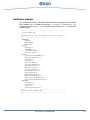
Installation example ............................................................................................ 111
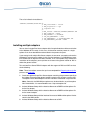
Installing multiple adapters .................................................................................. 112
Management Tools .................................................................................... 113
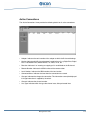
Diva Server Monitor ............................................................................................ 113
Troubleshooting......................................................................................... 117
Line Check .......................................................................................................... 117
Diva Server Diagnostics ...................................................................................... 119
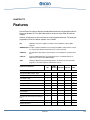
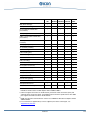
Features...................................................................................................... 124
On-board switching and conferencing ................................................................. 127
Supplementary Services ..................................................................................... 128
www.eicon.com/divaserver
CHAPTER
1
About This Online Guide
How to use this online guide
• To view a section, click the corresponding bookmark located on the left.
• To view a topic that contains further information, click the corresponding blue underlined
phrase.
• You may wish to print out the pages required for installing the drivers.
Structure of this guide
This guide provides a detailed description of how to install and configure Diva Server for
Windows NT, and how to troubleshoot your ISDN connection.
This guide is structured as follows:
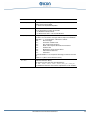
Section
Contents
About Diva Server for Windows NT
Diva Server for Windows NT features, supported hardware,
and requirements for software installation.
Discussion of how the Diva Server for Windows NT software
interacts with your Eicon Diva Server adapter.
Installation and Configuration
Automatic installation process. Installation and
configuration of the basic drivers, the WAN-Miniport driver,
Remote Access Service, the Eicon Port driver (COM port),
and CAPI 2.0.
Installing Additional Components
Installation of virtual modems which are to use the Eicon
Port driver (COM port) and installation of the Diva Server
Telephony Service Provider.
Using Dial-Up Networking or RAS
Administration
RAS client or RAS server setup.
Using Shorthold Mode
Information on the shorthold feature.
Using Security Dynamics
Authentication
Information on the Security Dynamics Authentication
feature.
Changing Your Installation
New Diva Server adapter, changing configuration data,
software update, uninstalling.
Installation in Unattended Mode
Installation of Diva Server for Windows NT without user
input.
About This Online Guide
5
Section
Contents
Management Tools
Tools available for monitoring and managing connections.
Troubleshooting
Debugging tools available for locating installation errors or
connection problems.
Tips and explanations on common installation problems.
Features
Overview of the functions provided by the various
interfaces.
General information on this guide
• This manual describes the installation of the Diva Server for Windows NT software.
• All screen shots in this manual are based on Windows NT 4.0.
• Paths of the CD-ROM drive are indicated with the drive letter ‘D’ in this manual. If
necessary, change the drive letter according to your system configuration.
About This Online Guide
6
CHAPTER
2
About Diva Server for Windows NT
Diva Server for Windows NT enables you to use your Eicon Diva Server adapter with
Windows NT 4.0. Diva Server for Windows NT provides modem emulation, connectivity
via the Windows NT Remote Access Service (RAS) over ISDN, a CAPI interface for
ISDN-based applications, and a TAPI interface for telephony-based applications.
Features
General features
The list below provides an overview of the features supported by Diva Server for
Windows NT.
• Connection of Windows NT servers and clients over ISDN or channelized T1
• Support for ISDN basic-rate interface, ISDN primary-rate interface, and channelized
T1 interface
• Automatic detection of Eicon Diva Server adapter during installation
• Connection to ISDN routers, enabling access to a remote LAN or the Internet
• Support for ISDN lines with a transfer rate of 64 kbps or 56 kbps (e.g. USA)
• Support for channelized T1 lines with a transfer rate of 56 kbps (see Channelized T1
(RBS) features on page 9)
• Support for fractional lines
• Network access for Windows NT, Windows 95/98, Windows for Workgroups 3.11, DOS,
and OS/2-Clients
• Connection to a Windows NT server from digital, analog, and mobile networks with
only one telephone number
• Automatic protocol detection
• Synchronous/asynchronous conversion
• Support for LAN protocols: TCP/IP, IPX/SPX, NetBIOS, NetBEUI, LAN Manager API
• Support for B-channel protocols: HDLC, X.75, X.25, V.120, V.110, PIAFS 1.0 and 2.1,
modem V.34+ and V.90, fax connections, V.42/LAPM (error correction), and V.42bis
compression (see Features on page 124)
• Up to 120 B-channels with an ISDN primary-rate interface or up to 96 channels with a
channelized T1 line
About Diva Server for Windows NT
7
• Channel-bundling using the Multilink PPP standard
• Modem connections up to 56 kbps (V.90)
• COM Port (modem emulation)
• Support for CAPI-based applications through CAPI 2.0 DLL (32-bit and 16-bit version)
for Windows NT
• Support for TAPI-based applications through Diva Server TSP (see Diva Server TSP
features on page 9)
• Can be used internationally with support for all known ISDN protocols (switch types)
• Support for Q-Sig protocol (see Q-Sig features on page 9)
• Encryption, data compression, number checking, shorthold mode, callback function
• Additional security through Security Dynamics support
Fax and voice features
Diva Server for Windows NT supports the following fax and voice features:
• Fax Class 1 and 2
• Fax support via CAPI
• Fax compression (MH, MR 2Dcoding, MMR T.6 coding), error correction mode (ECM)
• Fax connections up to 33,6 kbps
• Fax polling
• Extended fax
• Fax tone detection
• Reversal of fax direction
• Dynamic switching of B-channel protocols
• DTMF transmission, detection
• Standard, fine, super-fine, and ultra-fine resolution
• Page formats: ISO A4, ISO B4, and ISO A3
• Cross-board switching and conferencing via line interconnect
• Echo cancellation
• Real time protocol
• Comfort noise generation (CNG)
• Voice activity detection (VAD)
• Dynamic anti-jitter buffer
About Diva Server for Windows NT
8
Diva Server TSP features
• Supplementary services based on CAPI: CLIP, CLIR, COLP, COLR, HOLD, CFU, CFB,
CFNR, ECT, AoC
• Media mode (unknown, interactive voice, automated voice)
• Wave audio format (8 bit 8 kHZ a-law, 8 bit 8 kHz µ-law, 8 bit 8 kHz PCM)
• DTMF tone generation and detection (based on CAPI)
Q-Sig features
Diva Server for Windows NT supports the following Q-Sig features:
• Basic call
• Redirected number
• Connected name
• AoC (Advice of Charge)
• Message waiting
Channelized T1 (RBS) features
Diva Server for Windows NT supports the following channelized T1 features:
• Trunk types (loop, ground, and wink start)
• Tone dialing (DTMF and MF)
• Pulse dialing
• Ringer and busy tone detection
• 56 kbps transfer rate
Supported hardware
Diva Server for Windows NT supports the following Eicon Diva Server adapters:
ISDN BRI adapters
• Diva Server 2FX
• Diva Server BRI-2M ISA
• Diva Server BRI-2M PCI
• Diva Server BRI-2M 2.0 PCI
About Diva Server for Windows NT
9
• Diva Server Voice BRI-2M 2.0 PCI
• Diva Server 4BRI-8M PCI
• Diva Server Voice 4BRI-8M PCI
• Diva Server 4BRI-8M 2.0 PCI
• Diva Server Voice 4BRI-8M 2.0 PCI
ISDN PRI adapters
• Diva Server PRI PCI: Diva Server PRI PCI, Diva Server PRI-9M PCI, Diva Server
PRI-23M PCI, Diva Server PRI-30M PCI
• Diva Server PRI 2.0 PCI: Diva Server PRI-0M PCI, Diva Server PRI-4M PCI, Diva
Server PRI-8M PCI, Diva Server PRI-30M 2.0 PCI
• Diva Server Voice PRI PCI: Diva Server Voice PRI-4M PCI, Diva Server Voice PRI-8M
PCI, Diva Server Voice PRI-30M PCI
T1 adapters
• Diva Server T1/PRI PCI: Diva Server T1/PRI PCI, Diva Server T1/PRI-4M PCI, Diva
Server T1/PRI-8M PCI, Diva Server T1/PRI-24M PCI
• Diva Server Voice T1/PRI PCI: Diva Server Voice T1/PRI-4M PCI, Diva Server Voice
T1/PRI-8M PCI, Diva Server Voice T1/PRI-24M PCI
Diva Server for Windows NT supports the installation of multiple (max. 4) Eicon Diva
Server adapters in one computer.
Requirements for software installation
• PC/AT-compatible computer (80486 or higher processor with 32 MB RAM)
• Windows NT Version 4.0 (with Service Pack 5 or higher) as workstation or server
version
• Installed network services
• At least 8 MB free space on the drive on which the Windows NT system is installed
• An installed Eicon Diva Server adapter
To install your Diva Server adapter in your computer, refer to the printed guide that came
with your adapter.
About Diva Server for Windows NT
10
Note on downloaded software
If updates of the Diva Server for Windows NT software are later downloaded from the
Eicon web site, please note the following:
• Extract the files to your hard disk drive. Do not change the directory structure of the
extracted files.
• This manual assumes that the installation files have been copied into the directory
C:\ISDN. If necessary, change the drive letter or path according to your system
configuration.
About Diva Server for Windows NT
11
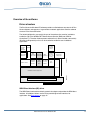
Overview of the software
Driver structure
The Diva Server for Windows NT software provides a unified software structure for all Diva
Server adapters and supports a large number of network applications. See the software
structure in the illustration below.
The fields highlighted in gray specify the part of the software that must be installed to
enable the use of the Windows NT Remote Access Service (RAS) over ISDN or
channelized T1. The other fields represent software that is either installed automatically
(Diva Server Diagnostics) or that can be installed to enable the use of additional
applications.
Security
Dynamics
service
ACOPY2
CAPI2032.DLL
CAPI20.DLL
CAPI 2.0 driver
TAPI
Other
applications RAS under
applications
such as IVR Windows NT
Telephony
Service
Provider
WAN
Miniport
driver
Other drivers
such as
NDIS3
Virtual
modems for
fax, V.110
V.120, and
analog
Diva Server
Diagnostics
Software
CAPI20.DLL
16-bit and
32-bit
applications
Port
driver
DIMAINT
ISDN Protocol software
Diva Server adapter
Hardware
ISDN Direct Interface (IDI) driver
ISDN Direct Interface (IDI) driver
The ISDN Direct Interface driver directly controls the adapter and provides the ISDN direct
interface. All additional drivers use the IDI to provide higher-level interfaces for
applications. See Basic drivers on page 15.
About Diva Server for Windows NT
12
WAN-Miniport driver
The Eicon WAN-Miniport driver allows Diva Server for Windows NT to use the Windows
NT Remote Access Service (RAS) over ISDN. In this case, it acts as an NDIS 4.0
WAN-Miniport driver. See WAN-Miniport driver on page 25.
CAPI
CAPI 2.0 (Common ISDN Application Interface version 2.0) is a standardized interface for
ISDN applications. Diva Server for Windows NT provides the CAPI 2.0 interface for 16-bit
and 32-bit CAPI-based applications. See CAPI 2.0 on page 56.
Eicon ISDN Port
Diva Server for Windows NT provides an option called Eicon ISDN Port. This port allows
you to install different virtual modems for fax, V.110, V.120 and analog modem. See Eicon
Port driver on page 41.
Important: Since all three networking applications (WAN-Miniport, CAPI, and
ISDN Port) can be installed, it might be useful to configure a unique MSN per
application. Doing this would ensure that incoming calls are answered by the
correct application.
To do so, see Phone numbers/extensions and subaddresses on page 28 for the
Eicon WAN-Miniport.
For CAPI, the MSN has to be set in the application itself. The Eicon file transfer
program ACOPY2 is such an application. See the ACOPY2 manual on your Diva
Server CD-ROM in the following path: D:\DOC\ENGLISH\ACOPY_E.PDF for
the configuration of MSNs.
For the Eicon ISDN Port, the MSN has to be configured in the Eicon Port driver
setup, see Phone numbers/extensions on page 44.
Diva Server Telephony Service Provider
The Diva Server Telephony Service Provider provides a TAPI (Telephony Application
Programming Interface) interface for the Diva Server adapters. This interface offers the
possibility of Computer Telephony Integration (CTI) for Microsoft operating systems.
Additional drivers and interfaces
The modular structure of Eicon ISDN driver software enables simultaneous installation of
additional drivers for other interfaces, e.g. the NDIS3 driver.
DIMAINT, Diva Server Diagnostics
The DIMAINT driver and the Diva Server Diagnostics tool are automatically installed with
the Eicon drivers. They can be used to analyze problems. See Diva Server Diagnostics
on page 119.
About Diva Server for Windows NT
13
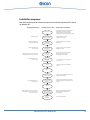
Installation sequence
See the illustration below for a schematic view of the installation sequence of Diva Server
for Windows NT:
Required Information
Installation Procedure
Preparation
ISDN adapter type
Install the
Diva Server adapter
Required Documentation
Chapter: About Diva Server for Windows NT
Requirements for software installation
Chapter: Installation and Configuration
Preparing for the installation of the basic drivers
Printed guide that came with
your Diva Server adapter
ISDN D-channel protocol,
SPID and ISDN number
Install and
configure the
adapter software
Chapter: Installation and Configuration
Basic drivers
Perhaps EAZ/MSN of your
own connection
Install the
WAN-Miniport
driver
Chapter: Installation and Configuration
WAN-Miniport driver
Network protocols for the RAS connection,
PPP settings of the other end of the line
Install and
configure the
RAS service
Chapter: Installation and Configuration
Remote Access Service (RAS),
Microsoft RAS documentation
Perhaps EAZ/MSN of your
own connection
Install and
configure the
Port driver
Chapter: Installation and Configuration
Eicon Port driver
Install
CAPI 2.0
Chapter: Installation and Configuration
CAPI 2.0
Reboot
Perhaps EAZ/MSN of your
own connection
Install the
virtual modems
Chapter: Installing Additional Components
Installing virtual modems
Install the
Telephony Service
Provider
Chapter: Installing Additional Components
Installing the Diva Server Telephony Service
Provider
Reboot
ISDN number of the other end of the line,
PPP settings of the other end of the line,
User rights, user names
Configure the
Dial-up network or
RAS administration
Test the
installation
About Diva Server for Windows NT
Chapter: Using Dial-up Networking and
RAS Administration, Microsoft RAS
documentation
Chapter:Troubleshooting
14
CHAPTER
3
Installation and Configuration
Basic drivers
Preparing for the installation of the basic drivers
Before installing the software, check the following items:
• What type of Diva Server adapter is installed?
• For the Diva Server BRI-2M ISA adapter:
Is resource allocation by your computer’s BIOS enabled?
Enabling resource allocation ensures that the computer’s BIOS allocates hardware
resources. In some BIOS setups, you enable resource allocation by specifying that
your operating system is not Plug&Play. See the BIOS manufacturer’s manual for more
information.
Note: If the Diva Server BRI-2M ISA is installed in an EISA PC, the EISA system
configuration must be updated before starting the system. Additional information may
be found in the printed guide that came with your adapter.
All other Diva Server adapters are Plug&Play adapters and do not need resource
allocation by your computer’s BIOS.
• Which ISDN protocol does the ISDN switch use?
And if you are in North America and use a basic rate interface, which SPIDs are to be
configured or does the ISDN switch support AutoSPID?
• Is Windows NT networking installed?
The Windows NT networking services should always be installed before the ISDN
adapter. If a network adapter is not installed when the Windows NT networking services
are installed, select the MS Loopback Adapter.
• Is Windows NT RRAS installed?
It is recommended to install Windows NT Routing and Remote Access Service (RRAS)
before installing Diva Server for Windows NT. For information on installing RRAS, see
the documentation that came with your copy of Windows NT. For configuring Diva
Server for Windows NT to use RRAS, refer to the information given on Diva Server for
Windows NT and RAS. See Remote Access Service (RAS) on page 37 and Using
Dial-Up Networking or RAS Administration on page 65.
Note: If you install RRAS, you have to re-install your Windows NT Service Pack.
Basic drivers
15
Installing the network protocols
Depending on the purpose of the ISDN connection, different network protocols are
required. Install the network protocols that you want to support (NetBEUI, TCP/IP, or IPX).
Before installing Diva Server for Windows NT, check that the required protocols are
installed on the system:
1. Select ‘Start > Settings > Control Panel’. Double-click ‘Network’.
2. Select the ‘Protocol’ tab.
• If the required protocols are shown in the list of network protocols, they are already
installed on the system. Click ‘Close’.
• If one or more required protocols are not shown in the list, they will have to be
added. Click ‘Add’. Select the required protocol and click ‘OK’. Follow the on-screen
instructions and then close the network configuration. Restart the computer when
prompted.
Installing the basic drivers
You should not attempt to install your Eicon Diva Server adapter at the same time as the
Windows NT operating system.
Installation of the adapter drivers under Windows NT 4.0 is described below. If you want
to install the Diva Server for Windows NT software in unattended mode, refer to the chapter
Installation in Unattended Mode on page 86.
Note: You must be logged on as ‘administrator’ to install Diva Server for Windows NT.
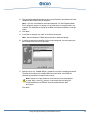
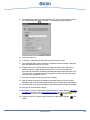
1. Click ‘Start > Run’.
2. Type the path to the installation file:
• Insert your Diva Server CD-ROM and enter the following path:
D:\DRIVER\WINNT\ENGLISH\SETUP.BAT
(where D: is your CD-ROM drive letter).
• Or enter the path to the installation file on the hard disk, e.g.:
C:\ISDN\SETUP.BAT
(where C: is your hard disk letter).
Click ‘OK’.
Basic drivers
16
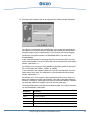
3. In the ‘Select OEM Option’ dialog box, select the Diva Server adapter installed in the
computer.
• ‘Eicon detect and install all adapters’: The Diva Server for Windows NT software
will be installed for all Diva Server adapters installed in the computer.
• ‘Eicon Diva Server ...’: The Diva Server for Windows NT software will be installed
for the selected adapter. If multiple adapters of the same type are installed in the
computer, Diva Server for Windows NT will be installed only for the first adapter
found.
Note: To install a Diva Server BRI-2M ISA bus adapter in an EISA bus computer, it
is important that the adapter has previously been logged onto the computer with the
aid of the EISA system configuration. Additional information on this can be found in
the printed guide that came with your adapter.
Click ‘OK’.
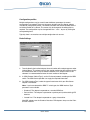
Configuring the basic drivers
When the copy process is complete, the setup dialog box for configuring the Diva Server
adapter appears. The parameters that are to be set here depend on the type of adapter.
See Basic Settings on page 18.
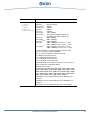
The following table shows the basic operation of the dialog box:
Control field
Description
<F1> key
Opens the online help for the active control element.
Help
Opens the online help for an explanation of every configurable parameter.
Note: When you have installed the basic drivers, you can open the online help
from the program group ‘Eicon ISDN Tools (Common)’.
OK
Terminates parameter settings and continues the installation.
Defaults
Sets all parameters to their default values.
Cancel
Cancels the installation.
Basic drivers
17
Configuration profiles
Multiple configurations may be saved if several different parameters for several
configurations are needed. There are 10 memory locations per Diva Server adapter
available for configuration profiles. The memory locations are labeled ‘Untitled Profile 1’
to ‘Untitled Profile 10’ by default. The names may be changed in the editing field as
required. The configuration may be changed with the ‘+’ and ‘–’ keys or by clicking the
corresponding icons.
Typically, there is no need to save multiple configurations for servers.
Basic Settings
1. To easily identify the installed adapter, the serial number of the adapter appears under
‘Adapter Name’. The adapter name is also used for configuring other software and by
the maintenance tools. It may be edited as desired, but a unique name must be
selected. It is recommended to leave the serial number of the adapter.
2. In ‘ISDN Protocol (Switch Type)’, set the D-channel protocol according to the ISDN
switch. The ISDN service provider can supply the required information.
3. For ‘ISDN Interface Type’, select the type of interface to which your Diva Server
adapter is connected:
Note: If you have selected the ‘RBS T1’ switch type, the ‘ISDN Interface Type’
parameter is not available.
• ‘Standard’: The adapter is operated on a standard ISDN bus.
• ‘Point to Point’: The adapter is operated on a point to point (or direct dialing) NT2
interface.
• ‘Leased Line’: The adapter is operated on a group 2 leased line.
Most BRI adapters use the ‘Standard’ interface. PRI adapters always use the ‘Point
to Point’ interface.
Basic drivers
18
4. If you have selected the ‘RBS T1’ switch type:
• Select the trunk type that corresponds to the trunk type of your switch:
• Wink Start
• Loop Start
• Ground Start
Default setting is ‘Wink Start’.
All trunk types are defined in the TIA/EIA-464B specification; the ‘Wink Start’ trunk
type is also defined in AT&T TR4158.
• Select the dial type that corresponds to the dial type of your switch.
• Pulse
• DTMF (Dual-Tone Multifrequency Signaling)
• MF (Multifrequency Signaling)
Default setting is ‘DTMF’. Most analog telephones use dual-tone multifrequency
signaling.
5. If you have selected the ‘Q-Sig’ switch type:
• Select your ‘PBX Type’ from the list. If your PBX is not listed, select ‘Generic PBX’.
• Specify the Q-Sig standard. Normally, the correct Q-Sig standard is automatically
set for the selected PBX type. Change this value only if your PBX requires a different
value.
Specifics of all Diva Server 4BRI and Voice 4BRI adapters
With a Diva Server 4BRI or Voice 4BRI adapter, each of the four controllers (controller [1]
to controller [4]) can be enabled or disabled individually. To do so, check or clear the check
boxes for each of them.
Basic drivers
19
You must also specify the ISDN Interface Type for each individual controller. To do so,
select ‘[<controller number>] Basic Settings’ for each of them and select the required
‘ISDN Interface Type’.
SPID Settings
If you are in North America and use a BRI interface, select the option ‘SPID Settings’ from
the ‘Page’ box.
Note: With a Diva Server 4BRI or Voice 4BRI adapter, SPIDs must be specified
individually for each of the four controllers (controller [1] to controller [4]). Select
‘[<controller number>] SPID Settings’ for each of them.
Configuring SPID settings
1. In ‘SPID Mode’, specify how the SPIDs (Service Profile Identifiers) are set for your
line. Your ISDN service provider can supply the required information. The following
options are available:
• Auto SPID: If your ISDN switch supports AutoSPID, select this option. AutoSPID
allows your adapter to detect and load the SPIDs and subscriber numbers
automatically. You do not need to enter them manually when initializing the ISDN
line.
• No SPID: Select this option if your ISDN switch does not require SPIDs to enable
ISDN services.
• One SPID: Select this option if your ISDN line uses one logical terminal and you
need to specify the SPID that the driver has to use to communicate with the switch.
• Two SPIDs: Select this option if your ISDN line uses two logical terminals and you
need to specify the SPIDs that the driver has to use to communicate with the switch.
2. If you have selected ‘One SPID’ or ‘Two SPIDs’, enter the subscriber numbers (ISDN
numbers) specified by your ISDN service provider in ‘Subscriber Number’. Enter these
numbers directly without spaces or hyphens.
Basic drivers
20
3. If you have selected ‘One SPID’ or ‘Two SPIDs’, enter the SPID numbers specified by
your ISDN service provider in ‘SPID’.
Hardware Settings
If you are using a Diva Server BRI-2M ISA-bus adapter and you need to configure specific
hardware resources, select ‘Hardware Settings’ from the ‘Page’ box.
Disable ‘Automatic Configuration’ and enter the required I/O port base address and
interrupt number.
For a list of supported base addresses and interrupt numbers, see the printed installation
guide that came with your adapter.
Advanced Parameters
Configuration of additional parameters is required only in a few special cases. Mark the
‘Advanced Parameters’ field for this. The options ‘Advanced Settings, ‘ISDN Protocol
Settings’, and ‘ISDN Line Settings’ appear under ‘Page’. See Advanced Settings below,
ISDN Protocol Settings on page 22, and ISDN Line Settings on page 23.
Advanced Settings
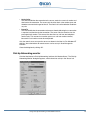
The ‘Advanced Settings’ tab contains parameters for configuring your Diva Server adapter
for specific application environments.
Note: With a Diva Server 4BRI or Voice 4BRI adapter, the ‘Advanced Settings’ must be
specified individually for each of the four controllers (controller [1] to controller [4]). Select
‘[<controller number>] Advanced Settings’ for each of them.
• Specify how voice data are transmitted over the ISDN line.
• Specify if your Diva Server adapter is used as terminal equipment or network
termination.
Basic drivers
21
• Specify if the adapter should generate internal ring tones when they are not provided
by the switch or PBX.
• Specify if your adapter is operated in a hunt group or used as monitoring device.
For detailed explanations of the ‘Advanced Settings’, see the online help (‘Help’ or ‘F1’).
ISDN Protocol Settings
The ‘ISDN Protocol Settings’ tab contains parameters for configuring the protocol
software. Specific information on the ISDN, Q-Sig, or RBS T1 protocol is requested here.
These parameters can usually remain at their standard values.
Note: With a Diva Server 4BRI or Voice 4BRI adapter, the ‘ISDN Protocol Settings’ must
be specified individually for each of the four controllers (controller [1] to controller [4]).
Select ‘[<controller number>] ISDN Protocol Settings’ for each of them.
Specifics of all Diva Server PRI and Diva Server Voice PRI adapters
Note: Not all of these parameters are available with the Q-Sig or RBS T1 protocol.
The following values must be set for primary rate adapters (PRI):
• ‘TEI’ must be set to ‘TEI 0’.
• ‘Connect Mode’ must be set to ‘Permanent’.
These values should be changed only on instruction of the ISDN provider.
Detailed explanations of the parameters can be found in the online help (‘Help’ or ‘F1’).
Basic drivers
22
ISDN Line Settings
The ‘ISDN Line Settings’ tab contains different parameters depending on whether you use
a Diva Server basic rate adapter or a Diva Server primary rate adapter. See ISDN line
settings for BRI interfaces or ISDN line settings for PRI or T1 interfaces below.
ISDN line settings for BRI interfaces
If you are using a North American switch type and a BRI interface, use the ‘ISDN Line
Settings’ tab to activate supplementary services for your line.
Specify the feature activators for the supplementary services that you ordered with your
BRI line. Your ISDN service provider can supply the required values.
For detailed explanations on the ‘ISDN Line Settings’ see the online help (‘Help’ or ‘F1’).
ISDN line settings for PRI or T1 interfaces
If you are using a Diva Server PRI adapter, use the ‘ISDN Line Settings’ tab to configure
fractional T1 or E1 lines, i.e. primary rate interfaces with a reduced number of B-channels.
Basic drivers
23
Enable the ‘Fractional T1/E1 Line’ option. Indicate the number of B-channels that your line
offers in ‘Number of B-Channels’. Also, indicate the lowest B-channel that is assigned to
your line in ‘Lowest B-Channel’.
For detailed explanations of the ‘ISDN Line Settings’, see the online help (‘Help’ or ‘F1’).
Completing the basic installation
After you confirm the configured parameters, additional files are copied. Follow the
on-screen instructions and read the corresponding section in this documentation:
• If the Diva Server adapter is to be used with the Windows NT Remote Access Service
(RAS), the WAN-Miniport driver may now be installed. Confirm the corresponding query
with ‘Yes’. See Configuring the WAN-Miniport driver on page 26 and finally Remote
Access Service (RAS) on page 37.
• If you wish to install the Eicon Port driver, click ‘Yes’ to confirm. See Eicon Port driver
on page 41.
• If the Eicon driver for CAPI 2.0 is to be installed, click ‘Yes’ to confirm. See CAPI 2.0
on page 56.
Basic drivers
24
WAN-Miniport driver
To install the WAN-Miniport driver, you must have a fully installed Eicon Diva Server
adapter. If the WAN-Miniport driver has already been installed, see Configuring the
WAN-Miniport driver on page 26 for more information.
The WAN Miniport is required if you want to use Windows NT Remote Access Service.
See Remote Access Service (RAS) on page 37.
Installing the WAN-Miniport driver
Note: You must be logged on as ‘administrator’ to install Diva Server for Windows NT.
Install the WAN-Miniport driver as follows:
1. Click ‘Start > Run’.
2. Type the path to the installation file:
• Insert your Diva Server CD-ROM and enter the following path:
D:\DRIVER\WINNT\ENGLISH\SETUP.BAT
(where D: is your CD-ROM drive letter).
• Or enter the path to the installation file on the hard disk, e.g.:
C:\ISDN\SETUP.BAT
(where C: is your hard disk letter).
Click ‘OK’.
3. In the ‘Select OEM Option’ dialog box, select the ‘Eicon WAN-Miniport’.
Click ‘OK’ to accept.
After some files are copied to your hard disk, the ‘Eicon WAN-Miniport Driver Setup’
dialog box appears. See Configuring the WAN-Miniport driver on page 26.
WAN-Miniport driver
25
Configuring the WAN-Miniport driver
Remote Access Service handles communications through ports. The WAN-Miniport driver
assigns one ISDN B-channel or channelized T1 channel to each port. These ports can
be configured using the ‘Eicon WAN-Miniport Driver Setup’ dialog box.
Port List
In the ‘Port List’, you configure the ISDN or channelized T1 ports that are to be made
available to the RAS for communications. The ports are assigned automatically to the first
installed adapter.
If only one adapter is installed and MSNs do not need to be assigned, and if no special
parameters need to be configured, you can finish the configuration immediately by clicking
‘OK’. See Completing the installation of the WAN-Miniport driver on page 36.
If multiple Diva Server adapters are installed, assign each adapter to every
communications port to which it needs access. Each port will use one B-channel or
channelized T1 channel on the assigned adapter. This means for example that one Diva
Server BRI-2M adapter can be used by two ports and one Diva Server 4BRI-8M adapter
can be used by eight ports.
When installing the WAN-Miniport driver, the ports are set up automatically according to
the type and number of currently installed adapters.
Configuring ports
The buttons ‘Add’ and ‘Delete’ can be used to add and delete ports as desired.
1. To change a port, select the port to be changed in the ‘Eicon WAN-Miniport Driver
Setup’ dialog box.
2. Click ‘Change’.
WAN-Miniport driver
26
3. In the ‘Change Port’ dialog box, select the adapter that is to be assigned to the port.
Click ‘OK’.
4. You can also leave a port unassigned so that the port number is reserved for
subsequent configurations (see the illustration below).
Click ‘OK’. The configured port is displayed in the ‘Eicon WAN-Miniport Driver Setup’.
Note: If new ports are added or deleted, the changes will become effective only when
the system is restarted.
5. If you do not plan to use the Eicon WAN Miniport with advanced configuration, click
‘OK’ to terminate the WAN-Miniport driver configuration.
Advanced parameters for the WAN-Miniport driver
The ‘Advanced Parameters’ are only required in the following circumstances:
• To configure MSN/EAZs or subaddresses
• To use the shorthold mode
• For additional access security
• If there are problems with the driver
Select the option ‘Advanced Parameters’ in the ‘Eicon WAN-Miniport Driver Setup’ dialog
box. You may now configure MSNs or subaddresses in the ‘Add Port’ or ‘Change Port’
dialog boxes (see Configuring phone numbers/extensions and subaddresses on page 29).
WAN-Miniport driver
27
The following options appear under ‘Page’ in addition to the ‘Port List’:
• Advanced Settings: Accept analog calls, B-channel protocol, no answer timeout (see
Advanced Settings on page 30)
• Shorthold Settings: To configure the shorthold timer (see Shorthold Settings on
page 31)
• Authentication Features: Access security with RAS authentication or with Security
Dynamics, if an ACE/Server is available (see Authentication Features on page 32)
• Number Checking: Access security by call number checking (see Number Checking
on page 33)
• Callback Settings: Special callback settings such as to ignore the callback number or
use defaults for callbacks (see Callback Settings on page 35)
Phone numbers/extensions and subaddresses
Since all three networking applications WAN Miniport, CAPI, and virtual COM port can be
installed in parallel, you should configure phone numbers (MSNs/EAZs) or extensions to
ensure that the WAN-Miniport driver accepts only incoming calls that are intended for it.
Phone numbers are also required, for example, if a PC is set up as an extension of the
PBX (Private Branch Exchange) and can be reached only by a specific extension number.
Phone numbers
When using Euro-ISDN (E-DSS1) or any other national ISDN protocol that enables
Multiple Subscriber Numbering (MSN), different MSNs (up to 23 digits in length) may be
used to distinguish the ports. Enter the corresponding value as a phone number/extension
parameter. In general, MSNs are assigned by the telephone company and are used in the
terminal description.
WAN-Miniport driver
28
When using the German ISDN protocol 1TR6, the terminal device selection digit (EAZ) is
used to distinguish the ports. The EAZ consists of only one digit. This enables up to 9
ports to be distinguished.
Note: EAZ = 0 is a global call so every call is accepted by any port. Therefore, EAZ = 0
should be used only if no other similar devices are on the same ISDN line.
To specify the called port, the caller needs to attach the EAZ to the normal telephone
number. See the terminal description of your telecommunications system or consult the
telephone company.
If the shorthold mode is used with Multilink PPP, different phone numbers should always
be assigned to the RAS-Ports on the client side (see Shorthold and Multilink PPP on
page 74).
Subaddresses
The ports can be further distinguished by subaddressing (up to 23 digits) if the ISDN
terminal is set up for subaddressing. This means that the call will not only be distinguished
by the destination code but also by an additional element, invisibly attached to the call
number.
In this case, both sides will have to work with subaddressing, or the terminals on both
sides will need to support subaddressing.
The calling subscriber will have to enter the SUB in addition to the normal telephone
number as a Destination SubAddress (DSA). When entering the telephone number in the
RAS telephone book, the SUB must be separated from the normal telephone number by
a vertical character [|], (the pipe symbol or [Alt] + [0], [1], [2], [4]).
Configuring phone numbers/extensions and subaddresses
1. Check the ‘Advanced Parameters’ option in the ‘Eicon WAN-Miniport Driver Setup’
dialog box.
2. Select the port to which you want to assign an MSN or EAZ.
3. Click ‘Change’.
WAN-Miniport driver
29
4. Enter the corresponding MSN or EAZ in ‘Phone number’.
5. If required, enter the corresponding subaddress in ‘SUB’.
6. Click ‘OK’.
Advanced Settings
Select the ‘Advanced Settings’ page if the following parameters need to be configured:
Accept Analog Calls
Leave this option enabled if analog calls are also to be accepted.
Note: If there are other devices on the same bus, such as a telephone or fax, and the
WAN Miniport has not been assigned a special MSN, this option may cause problems. In
this case, the WAN Miniport may answer incoming calls intended for the other devices.
B-Channel Protocol (incoming)
This parameter is only available if exclusively Diva Server 2.0 adapters are installed in
your system. Normally, the WAN Miniport detects the B-channel protocol of incoming calls
automatically and the default setting ‘Automatic detection’ may stay unchanged. However,
the Chinese PIAFS B-channel protocol cannot be auto-detected.
If incoming calls use this protocol, you must specify the appropriate PIAFS version:
• PIAFS (China, fixed speed):
Select this option if the PIAFS B-channel protocol of your incoming calls uses a fixed
transfer rate, either 64 kbps or 32 kbps.
Select the appropriate transfer rate under ‘B-Channel Protocol Speed’, either ‘32000’
or ‘64000’.
WAN-Miniport driver
30
• PIAFS (China, speed detection):
The transfer rate used by your PIAFS B-channel protocol is automatically detected.
Select this option only if your incoming PIAFS calls use variable transfer rates because
speed detection might slow call establishment down.
Note: The ‘B-Channel Protocol (incoming)’ parameter applies only to incoming calls. If
you want to use PIAFS for outgoing calls, you have to indicate it as an extension to the
number to be dialed. See page 67 for further information.
No Answer Timeout
When establishing a connection, this option sets the period in seconds after which the
WAN-Miniport driver should hang up if the remote side does not answer.
Shorthold Settings
Select the ‘Shorthold Settings’ page if the shorthold mode of the WAN Miniport is required
(see Using Shorthold Mode on page 72).
Shorthold Mode
• If the ‘Shorthold Mode’ option is set, the driver automatically breaks the ISDN
connection when the configured shorthold time has been exceeded with no
transmission of data. As soon as new data is available for transmission, the ISDN
connection is re-established.
• If the ‘Shorthold Mode’ option is set, but the ‘Shorthold Time’ is ‘0’, the driver will never
initiate a shorthold of its own accord, though shorthold requests by the remote side will
be accepted.
• If the ‘Shorthold Mode’ option is not set, the driver will not initiate a shorthold nor will
it accept shorthold requests from the remote side.
Note: The Diva Server for Windows NT shorthold functions only between Eicon ISDN
adapters. For the basic shorthold functions see also Using Shorthold Mode on page 72.
WAN-Miniport driver
31
Shorthold Time
The ‘Shorthold Time’ option allows you to specify after how long the ISDN connection is
broken if no data is transmitted. Shorthold time = 0 means that the computer will not break
a connection itself but will accept shorthold requests from the remote side.
Callback Prefix
The ‘Callback Prefix’ is used to insert one or more numbers in front of the callback numbers
for all clients. This might be required in the following situations:
• The server is operated behind a PBX, which requires a 0 for connection. The 0 may
be automatically included in the callback prefix when dialing.
• The Euro-ISDN protocol suppresses the leading zero when sending. Therefore, the
server will normally not be able to call the client back in shorthold mode. However, with
the callback prefix ‘0’, the complete call number is dialed.
Authentication Features
Select the ‘Authentication Features’ page if the Security Dynamics security system has
been integrated in the network, and you wish to configure the Security Dynamics
Authentication in the WAN-Miniport driver. For the basic functions of the Security
Dynamics Authentication see Using Security Dynamics Authentication on page 76.
Authentication Protocol
Select here whether the WAN-Miniport driver runs the normal RAS authentication (‘None
(RAS Authentication Only)’) or the Security Dynamics Authentication with incoming calls.
The following parameters can be configured for Security Dynamics Authentication:
WAN-Miniport driver
32
Server Security Level
• The ‘Security Dynamics relaxed’ setting causes the Eicon WAN-Miniport driver to
attempt to have the ACE/Server authenticate incoming calls. However, if it is not
successful, it will also accept the call with the RAS authentication only.
• The setting ‘Security Dynamics strict’ causes the Eicon WAN-Miniport driver to place
only calls to the RAS that have first been accepted by the ACE/Server.
Name/Password Delimiter
Enables you to specify the special character which separates the PASSCODE query user
name and the PASSCODE (default setting is: ;).
Authentication Timeout (sec)
Enables you to specify how long the WAN Miniport should wait for an answer from the
ACE/Server.
Number Checking
Configure ‘Number Checking’ when the call numbers of incoming calls are to be checked
by the WAN-Miniport driver.
If the ISDN numbers of all clients are known, number checking offers additional security
against unauthorized access to the server.
Number Checking
If the ‘Number Checking’ option is set, an incoming call is accepted only if its call number
is included in the configuration file that is specified in the field ‘Number Checking File’.
Calls with other telephone numbers are rejected immediately by the driver and are not
forwarded to the RAS.
WAN-Miniport driver
33
Number Checking File
If ‘Number Checking’ is activated, enter the path of the configuration file which contains
the call numbers authorized by the RAS, e.g.
‘Data_Files\Eicon\Number_Checking.cfg’.
Note: The configuration file for Number Checking is read only when the driver is started.
Therefore, changes to the file take effect only after restarting the computer.
Example: Configuration file for call number checking
; Configuration Example
765765
765766
8154711^08154711
8154712^08154712
; In Euro-ISDN, leading zeros in the telephone number
; are cut off
3334444^993334444
3334445^993334445
; ‘99’ preset for answering
123456|789^99123456|789
; With subaddress ‘789’
; 55555
; commented out
• Every entry must be the telephone number of a terminal. If a subaddress (SUB) needs
to be entered, it must be separated from the call number by a vertical character [|] (also
called the pipe symbol).
• You can specify the callback number for the connection on the same line as the
telephone number, separated by a [^]. If a subaddress (SUB) needs to be entered, it
must be separated from the call number by a vertical character [|] (also called the pipe
symbol).
Note: Pipe symbol
The pipe symbol can be typed directly from English keyboards, or by holding [Alt] down
and entering [0], [1], [2], [4] on the numeric keypad.
• A callback number must always be specified if the shorthold mode is activated and the
telephone number sent by the exchange does not conform to the number of the remote
station.
Example: In EURO-ISDN, the exchange cuts off the area codes, which causes the
attempt to re-establish the connection after a shorthold to fail. A similar problem occurs
if the ISDN adapter is operated on an extension that requires a specific sequence of
digits to answer.
• Each entry must be on a separate line.
• Empty lines are ignored.
WAN-Miniport driver
34
• If a semicolon [;] is placed at the beginning of a line, all subsequent characters until
the end of the line will be ignored. This can be used to place comments next to call
numbers.
• A maximum of 1000 entries may be included, corresponding to 1000 configured call
numbers.
Callback Settings
Select the ‘Callback Settings’ page if you wish to configure special callback settings.
Ignore Callback Number
Note: This option is only relevant if you use your server also in client mode.
The ‘Ignore Callback Number’ option sets the WAN-Miniport driver to accept any callback,
even if the number of the calling RAS server does not match the number that the RAS
client called when asking for a callback. By default the ‘Ignore Callback Number’ option
is disabled. A callback can only be accepted if the number of the calling RAS server
matches the number that the RAS client called before.
Use Defaults for Callback
The ‘Use Defaults for Callback’ option causes the WAN-Miniport driver to set the default
bearer capability to outgoing calls (callback calls) regardless of the bearer capability of
the incoming call.
Normally, when a call comes in and is identified as a callback request, all call parameters
are stored and used for the outgoing call. In special cases, e.g. in PBX environments, this
does not work because the PBX can only deal with default bearer capabilities and not with
the extended capabilities that might have been signaled. If ‘Use Defaults for Callback’ is
enabled, the bearer capability of the incoming call is ignored and the default bearer
capability is used for the callback.
WAN-Miniport driver
35
Completing the installation of the WAN-Miniport driver
After accepting the configured parameters, the installation of the Eicon WAN-Miniport
driver for RAS is complete. Follow the directions on the screen and read the corresponding
section in this guide:
• To continue with the RAS installation or configuration, click ‘Yes’ to confirm. See Remote
Access Service (RAS) on page 37.
• If you wish to install the Eicon Port driver, click ‘Yes’ to confirm. See Eicon Port driver
on page 41.
• If you wish to install the Eicon driver for CAPI 2.0, click ‘Yes’ to confirm when prompted.
See CAPI 2.0 on page 56.
• If the Security Dynamics Authentication in the ‘Advanced Parameters’ of the
WAN-Miniport driver has been configured, the Eicon Authentication Service must be
installed. Click ‘Yes’ when the program prompts for this service to be installed. See also
Eicon Authentication Service on page 81.
WAN-Miniport driver
36
Remote Access Service (RAS)
Note: Before continuing, you should read the documentation on Remote Access Service
that came with your copy of Windows NT.
Installing RAS
If Windows NT Remote Access Service is not yet installed on the computer, install it now.
The Diva Server for Windows NT installer prompts you automatically to install RAS if you
chose to install the WAN-Miniport driver. In this case, RAS Setup appears during
installation.
Otherwise, if you plan to install RAS later, follow the instructions in the Windows NT
documentation.
Note: If you install RAS, you have to re-install your Windows NT Service Pack.
Configuring RAS ports
The RAS interfaces are configured in the ‘Remote Access Setup’ dialog box. Start the
RAS Setup as follows:
1. Click ‘Start > Settings > Control Panel’. Double-click ‘Network’.
2. Select the ‘Services’ tab.
3. Select ‘RAS Service’ and click ‘Properties’.
RAS setup
The ‘Remote Access Setup’ dialog box shows the current port setup. The Eicon
WAN-Miniport driver ports can be recognized by the DIWAN designation.
Remote Access Service (RAS)
37
When installing Diva Server for Windows NT for the first time, the new ports must be added
first.
1. Click ‘Add’.
2. Select ‘ISDN1-DIWAN’, and click ‘OK’.
3. Repeat this procedure for each additional B-channel to be set up as a port in the RAS
Setup.
The ‘Remove’ function may be used to delete a port. The ‘Clone’ function sets up the next
new port with the same parameters as the selected port.
Port configuration
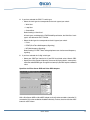
Select a port to configure and click ‘Configure’. The ‘Configure Port Usage’ dialog box
appears:
The following settings may be configured for every port:
• Dial out only: Client configuration. Only outgoing ISDN connections can be
established.
• Receive calls only: Server configuration. Only incoming calls are accepted.
• Dial out and Receive calls: If the port is to be used both as a client and a server port.
Outgoing connections can be established and incoming calls can be received.
In the server version of Windows NT, ‘Receive calls only’ is preset. In the workstation
version, ‘Dial out only’ is preset.
Note: In the workstation version of Windows NT, only one port can be configured to
receive calls. This enables a peer-to-peer connection of two workstations. This does not
limit the number of simultaneous outgoing calls. Operation as a server for multiple clients
remains limited to the server version of Windows NT.
Remote Access Service (RAS)
38
Network configuration
Click the ‘Network’ button in the ‘Remote Access Setup’ dialog box to specify the network
protocols that RAS should support. It is not possible to specify different protocols for
individual ports.
Dial-out Protocols
Under ‘Dial-out Protocols’, select the protocols that you wish to make available for outgoing
ISDN connections:
• If connections to a Windows NT RAS server are required, select the protocol that is
configured on the remote RAS server.
• If connections to a TCP/IP router or an Internet Service Provider are required, select
TCP/IP.
Server Settings
Under ‘Server Settings’, select and configure the protocols that you want the RAS server
to accept from clients.
The ‘Configure’ buttons are used to define specific access authorizations and protocol
settings. Client access permission is set here.
Under ‘Encryption settings’, select an encryption type that corresponds to the encryption
used by clients with access permission.
Remote Access Service (RAS)
39
Enable Multilink (Windows NT Server only)
The ‘Enable Multilink’ option activates channel bundling according to the Multilink PPP
standard. This means that two or more (max. 6) B-channels or channelized T1 channels
can be bundled for a single higher-speed connection.
Note: Additional information on setting up the network protocols can be found in the RAS
online help or the Windows NT RAS documentation.
Completing the RAS interface configuration
To close the network configuration: Click ‘OK’ in the ‘Network Configuration’ dialog box
and then click ‘Continue’ in the ‘Remote Access Setup’ dialog box. Close the ‘Adapter’
dialog box. This completes the RAS configuration.
Follow the directions on the screen and read the corresponding section in this manual:
• If the Security Dynamics Authentication in the ‘Advanced Parameters’ of the
WAN-Miniport driver has been configured, the Eicon Authentication Service must be
installed. Click ‘Yes’ when the program prompts for this service to be installed. See also
Eicon Authentication Service on page 81.
• If you wish to install the Eicon Port driver, click ‘Yes’ to confirm. See Eicon Port driver
on page 41.
• If you wish to install the Eicon driver for CAPI 2.0, click ‘Yes’ to confirm. See CAPI 2.0
on page 56.
• When the installation and configuration are finished, restart the computer.
Remote Access Service (RAS)
40
Eicon Port driver
Diva Server for Windows NT provides the Eicon Port driver, i.e. virtual COM port, for
modem emulation. It behaves in the Windows NT system like a serial interface with a
connected modem.
The virtual COM port allows you to install virtual TAPI modems for a variety of connections:
fax, V.110, V.120, HDLC, X.75, or analog modem. Thus, with Diva Server for Windows NT
you can send and receive faxes, access ISDN mailboxes or communicate with analog
modems.
To make use of modem emulation, you first have to install the Eicon Port driver. Then, you
can configure the Port driver and select the desired number of serial COM ports in the
‘Eicon Port Driver Setup’. After the installation process of Diva Server for Windows NT is
complete and you have restarted your computer, you can install and configure the virtual
modems that are to use the COM ports; see Installing virtual modems on page 59 for
more information.
If the Port driver has already been installed, see Configuring the Eicon Port driver on
page 42 for more information.
Installing the Eicon Port driver
Install the Eicon Port driver as follows:
1. Click ‘Start > Run’.
2. Type the path to the installation file:
• Insert your Diva Server CD-ROM and enter the following path:
D:\DRIVER\WINNT\ENGLISH\SERVICE\SETUP.BAT
(where D: is your CD-ROM drive letter).
• Or enter the path to the installation file on the hard disk, e.g.:
C:\ISDN\SERVICE\SETUP.BAT
(where C: is your hard disk letter).
Click ‘OK’.
Eicon Port driver
41
3. In the ‘Select OEM Option’ dialog box, select ‘Eicon Port Driver’.
Click ‘OK’. After some files are copied to your hard disk, the ‘Eicon Port Driver Setup’
dialog box appears. See Configuring the Eicon Port driver below.
Configuring the Eicon Port driver
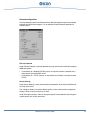
The Port driver is configured in the ‘Eicon Port Driver Setup’ dialog box.
By default, one port is installed for each B-channel during the installation of the Port driver.
Note: If you install further Diva Server adapters after the Port driver has been installed,
you need to add the ports manually to the port list (see Configuring ports on page 43).
Port List
In the ‘Port List’, you configure the ISDN ports that are to be made available to the Port
driver for communications.
If only one adapter is installed and MSNs do not need to be assigned, and if no special
parameters need to be configured, you can finish the configuration immediately by clicking
‘OK’.
Eicon Port driver
42
If multiple Diva Server adapters are installed, assign each adapter to every
communications port to which it needs access. Each port will use one B-channel on the
assigned adapter. This means for example that one Diva Server BRI-2M adapter can be
used by two ports and one Diva Server 4BRI-8M adapter can be used by eight ports.
When installing the Port driver, the ports are set up automatically according to the type
and number of currently installed adapters.
Assigning the first port
During installation of Diva Server for Windows NT, the ISDN ports are automatically
assigned to the installed serial ports starting from the first installed serial port counting
consecutively upwards.
If you want to assign other serial ports to the Port driver, select a new port, e.g. COM 9,
as ‘First port’ on the port list page of the ‘Eicon Port Driver Setup’ dialog box.
Configuring ports
The buttons ‘Add’ and ‘Delete’ can be used to add and delete ports as desired.
1. To change a port, select the port to be changed in the ‘Eicon Port Driver Setup’ dialog
box.
2. Click ‘Change’.
3. In the ‘Change Port’ dialog box, select the adapter that is to be assigned to the port.
Click ‘OK’.
4. You can also leave a port unassigned so that the port number is reserved for
subsequent configurations (see the illustration below).
Eicon Port driver
43
5. Click ‘OK’. The configured port is displayed in the ‘Eicon Port Driver Setup’.
Note: If new ports are added or deleted, the changes will become effective only when
the system is restarted.
6. If you do not plan to use the Eicon virtual COM Port driver with advanced configuration,
click ‘OK’ to terminate the Port driver configuration.
Advanced parameters of the Eicon Port driver
The ‘Advanced Parameters’ are only required in the following circumstances:
• To configure MSN/EAZs
• To configure the Generic Server Modem
• If there are problems with the driver
Select the option ‘Advanced Parameters’ in the ‘Eicon Port Driver Setup’ dialog box. You
may now configure MSNs/EAZs in the ‘Add Port’ or ‘Change Port’ dialog boxes (see Phone
numbers/extensions below).
The following ‘Generic Server Modem’ option appears under ‘Page’ in addition to the ‘Port
List’. To configure the Generic Server Modem (see Generic Server Modem on page 46)
Phone numbers/extensions
Since all three networking applications, WAN-Miniport, CAPI, and Port driver can be
installed in parallel, you should configure phone numbers (MSNs/EAZs) or extensions to
ensure that the Port driver accepts only calls that are intended for it.
Phone numbers or extensions are also required, for example, if a PC is set up as an
extension of the PBX and can be reached only by a specific extension number.
Eicon Port driver
44
MSN
When using Euro-ISDN (E-DSS1) or any other national ISDN protocol that enables
Multiple Subscriber Numbering (MSN), different MSNs (up to 23 digits in length) may be
used to distinguish the ports. Enter the corresponding value as ‘Phone number/extension’
parameter. In general, the MSNs are assigned by the telco company and are used in the
terminal description.
When using the German ISDN protocol 1TR6, the terminal device selection digit (EAZ) is
used to distinguish the ports. The EAZ consists of only one digit. This enables up to 9
ports to be distinguished.
Note: EAZ = 0 is a global call so every call is accepted by any port. Therefore,
EAZ = 0 should be used only if no other similar devices are on the same ISDN line.
To specify the called port, the caller needs to attach the EAZ to the normal telephone
number. See the terminal description of your telecommunications system or consult the
telephone company.
Configuring phone numbers/extensions
1. Check the option ‘Advanced Parameters’ in the ‘Eicon Port Driver Setup’ dialog box.
2. Select the port to which you want to assign an MSN or EAZ.
3. Click ‘Change’.
4. Enter the corresponding phone number (MSN/EAZ) or extension in ‘Phone number’.
5. Click ‘OK’.
Eicon Port driver
45
Generic Server Modem
To configure the Generic Server Modem, check the ‘Advanced Parameters’ check box
and select ‘Generic Server Modem’.
Support calls with synchronous PPP
Check the option ‘Support calls with synchronous PPP’ if the virtual COM Port driver
should accept incoming calls with synchronous PPP (ISDN-specific framing method used
by ISDN networking products). By default, the virtual COM Port driver can only be used
for incoming calls from asynchronous devices.
Accept analog calls
Check the option ‘Accept analog calls’ if the server should accept calls from analog remote
devices. This option should be enabled in most cases.
Allow Callback
The Generic Server Modem is designed for incoming calls only. Nevertheless, callback is
possible. If you want the virtual COM Port driver to support RAS callback, enable the
option ‘Allow Callback’. In the RAS callback scenario, the remote user is automatically
disconnected after authentication and then called back. The virtual COM Port driver
registers the properties of the incoming call and applies the same properties to the
outgoing callback.
Callback Timeout [s]
The option ‘Callback Timeout [s]’ sets the period in seconds after which the incoming call
properties are deleted from the virtual COM Port driver if no callback has been established.
The callback cannot be established after the callback timeout has expired.
Eicon Port driver
46
Completing the Eicon Port driver installation
After accepting the configured parameters, the installation of the Eicon virtual COM Port
driver is complete. Follow the directions on the screen and read the corresponding section
in this manual:
• If you wish to install the Eicon driver for CAPI 2.0, click ‘Yes’ to confirm when prompted.
See CAPI 2.0 on page 56.
• If the Security Dynamics Authentication in the ‘Advanced Parameters’ of the
WAN-Miniport driver has been configured, the Eicon Authentication Service must be
installed. Click ‘Yes’ when the program prompts for this service to be installed. See also
Eicon Authentication Service on page 81.
• After the installation process of Diva Server for Windows NT is complete and you have
restarted your computer for the new settings to become effective, you can install the
virtual modems which are to use the Port driver. See Installing virtual modems on
page 59.
AT-command set of the Eicon ISDN Port
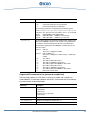
The Eicon ISDN Port driver supports the following AT-command set (parameters enclosed
in square brackets are optional, variables are enclosed in angle brackets). These
commands must be used from within your communications application.
Standard AT commands
Command
Description
A/
Repeats the previous command.
AT
No operation.
AT A
Answer - Has to be issued to accept an incoming call that has been
indicated by a RING.
AT D <Number>
Dial - Dials the given number and switches to data mode after successful
connection establishment. (For subaddresses see Subaddress on
page 55.)
AT D <Number>;
Dial - Dials the given number but remains in command mode when the
connection has been established. (For subaddresses see Subaddress
on page 55.)
AT DP <Number>
Pulse Dialing - Dials according to the pulse code convention (is ignored
with ISDN and treated as ATD). (For subaddresses see Subaddress on
page 55.)
AT DT <Number>
Tone Dialing - Dials according to the multiple frequency convention (is
ignored with ISDN and treated as ATD). (For subaddresses see
Subaddress on page 55.)
AT-command set of the Eicon ISDN Port
47
Command
Description
AT E [<n>]
Echo Mode - In echo mode, all commands sent to the modem are
echoed back to the terminal.
n > 0:
Echo Mode ON
n = 0:
Echo Mode OFF
AT H [<n>]
Hangup - Disconnects the line.
0 < n < 3 is accepted for compatibility, but ignored by the driver.
AT I [<n>]
Info - Returns the modem identification string.
+++
Escape - This escape sequence switches the modem back from the data
mode to the command mode.
AT O [<n>]
Online - Switches the modem from the command mode to the data
mode.
0 < n < 2 is accepted but ignored.
AT S <r> = <n>
Set S-Register - Stores the value <n> into the S-register <r>. The ISDN
has only one register.
0
Auto answer
n = 0:
Disables auto answer. Incoming calls are indicated by a
RING.
0 < n < 255: Enables auto answer.
n = 255:
Ignores all incoming calls.
AT S <r[=]>
Query S-Register - Queries the value of the S-register <r>.
AT Q [<n>]
Quiet - In quiet mode the modem driver does not return result codes for
the commands.
n = 0:
Returns result codes.
n > 0:
Suppresses result codes.
AT V [<n>]
Verbal Mode - In verbal mode the modem driver returns result codes in
plain text. Otherwise it returns numeric result codes.
n = 0:
Numeric result codes
n > 0:
Plain text result codes
AT Z [<n>]
Soft Reset - Resets the modem and restores the predefined modem
configuration profile <n>. See AT&F[<n>] below for the list of
predefined modem driver configurations.
AT &C [<n>]
Ignored for compatibility.
AT &D [<n>]
Ignored for compatibility.
AT-command set of the Eicon ISDN Port
48
Command
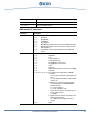
AT &F [<n>]
Description
Factory Setting - Resets the modem and restores the predefined modem
configuration profile <n>.
n=1 X.75 (L1:HDLC framing, L2:X.75 SLIP, L3:transparent)
+iM1 +iP1 +iS7/0 +iN255 +iB255 +iC1 E1 Q0 V1 X4 &D2 &K0 &Q0 \V0
\N3 %C3 -J1 +iU0 +iD0 +iF0 S0=0 S7=60 S9=6 S10=14
n=2 V.110 syncron (L1:V.110 syncron, L2:transparent,
L3:transparent)
+iM1 +iP2 +iS7/0 +iN255 +iB255 +iC1 E1 Q0 V1 X4 &D2 &K0 &Q0 \V0
\N3 %C3 -J1 +iU0 +iD0 +iF0 S0=0 S7=60 S9=6 S10=14
n=3 V.110 asyncron (L1:V.110 asyncron, L2:transparent,
L3:transparent)
+iM1 +iP3 +iS7/0 +iN255 +iB255 +iC1 E1 Q0 V1 X4 &D2 &K0 &Q0 \V0
\N3 %C3 -J1 +iU0 +iD0 +iF0 S0=0 S7=60 S9=6 S10=14
n=4 Analog syncron (L1:analog syncron, L2:transparent,
L3:transparent)
+iM1 +iP4 +iS1/2 +iN255 +iB255 +iC1 E1 Q0 V1 X4 &D2 &K0 &Q0 \V0
\N3 %C3 -J1 +iU0 +iD0 +iF0 S0=0 S7=60 S9=6 S10=14
n=5 Analog asyncron (L1:analog asyncron, L2:transparent,
L3:transparent)
+iM1 +iP5 +iS1/2 +iN255 +iB255 +iC1 E1 Q0 V1 X4 &D2 &K0 &Q0 \V0
\N3 %C3 -J1 +iU0 +iD0 +iF0 S0=0 S7=60 S9=6 S10=14
n=6 V.120 (L1:HDLC framing, L2:V.120, L3:TA)
+iM1 +iP6 +iS7/0 +iN255 +iB255 +iC1 E1 Q0 V1 X4 &D2 &K0 &Q0 \V0
\N3 %C3 -J1 +iU0 +iD0 +iF0 S0=0 S7=60 S9=6 S10=14
n=7 V.120 56K (L1:HDLC framing, L2:V.120, L3:TA)
+iM1 +iP6 +iS7/170 +iN255 +iB9 +iC1 E1 Q0 V1 X4 &D2 &K0 &Q0 \V0
\N3 %C3 -J1 +iU0 +iD0 +iF0 S0=0 S7=60 S9=6 S10=14
n=9 PPP (L1:HDLC framing, L2:transparent, L3:transparent)
+iM4 +iP9 +iS7/0 +iN255 +iB255 +iC1 E0 Q0 V0 X4 &D2 &K0 &Q0 \V0
\N3 %C3 -J1 +iU0 +iD0 +iF5 S0=0 S7=60 S9=6 S10=14
n=10 PPP 56K (L1:HDLC framing, L2:transparent, L3:transparent)
+iM4 +iP9 +iS7/170 +iN255 +iB9 +iC1 E0 Q0 V0 X4 &D2 &K0 &Q0 \V0
\N3 %C3 -J1 +iU0 +iD0 +iF5 S0=0 S7=60 S9=6 S10=14
n=13 Group 3 Fax (L1:T.30, L2:T.30, L3:T.30)
+iM1 +iP7 +iS1/2 +iN255 +iB255 +iC1 E1 Q0 V1 X4 &D2 &K0 &Q0 \V0
\N3 %C3 -J1 +iU0 +iD0 +iF0 S0=0 S7=60 S9=6 S10=14
n=14 Generic Server Modem (protocol will be detected)
+iM1 +iP0 +iS255/255 +iN255 +iB255 +iC1 E1 Q0 V1 X4 &D2 &K0 &Q0
\V0 \N3 %C3 -J1 +iU0 +iD0 +iF0 S0=0 S7=60 S9=6 S10=14
n=15 X25 DTE Mode (L1:HDLC framing, L2:X.75 SLIP, L3:ISO 8208)
+iM1 +iP12 +iS9/0 +iN255 +iB255 +iC1 E1 Q0 V1 X4 &D2 &K0 &Q0
\V0 \N3 %C3 -J1 +iU0 +iD0 +iF0 S0=0 S7=60 S9=6 S10=14
n=16 SDLC (L1:HDLC framing, L2:SDLC, L3:transparent)
+iM1 +iP13 +iS7/0 +iN255 +iB255 +iC1 E1 Q0 V1 X4 &D2 &K0 &Q0
\V0 \N3 %C3 -J1 +iU0 +iD0 +iF0 S0=0 S7=60 S9=6 S10=14
AT-command set of the Eicon ISDN Port
49
Command
Description
AT &V [<n>]
Displays the current configuration of the modem driver and the last
number that has been dialed.
n != 0: Also lists all predefined profiles.
AT \T [<n>]
Inactivity Timeout - The modem driver releases the connection if there
was no data traffic for n times 10 seconds.
n = 0: Disables inactivity timeout.
n > 0: Disconnects after n * 10 seconds idle time.
AT \D [<n>]
Debug Level - Specifies the kind of events that should be reported by
the driver. You can view the messages with the help of the DITRACE
application. <n> is interpreted as a bit mask as follows:
Bit 0:
Error messages
Bit 1:
Connection related events
Bit 2:
PPP control protocol frames
Bit 3:
Read / write requests directed to the Port driver
Bit 4:
Function calls
Bit 5:
Notifications sent by the Port driver
Bit 6:
Full B-channel data trace
Bit 7:
Parameters
Set the related bit to '1' for every kind of message you want to see in the
log.
Default: n = 3 (Errors and connection events)
AT +MS?
Modulation Selection Query
The response to the query has the following form:
AT +MS: <mod>,<auto>,<min>,<max>,<min_rx>,<max_rx>
See ‘Modulation Selection Set’ below for explanations on the variables.
AT-command set of the Eicon ISDN Port
50
Command
Description
AT +MS=[<mod>]
[,[<auto>]
[,[<min>]
[,[<max>]
[,[<min_rx>]
[,[<max_rx>]]]]]]
Modulation Selection Set
Modulation
mod = B103:1)
mod = B212A:
mod = V21:
mod = V22:
mod = V22B:
mod = V23C:1)
mod = V32:
mod = V32B:
mod = V34:1)2)3)
mod = V90:
mod = V90A:1
Data Rate Range
300 bps
1200 bps
300 bps
1200 bps
1200 - 2400 bps
Tx:75 bps/Rx:1200 bps Outgoing call
Tx:1200 bps/Rx:75 bps Incoming call
4800 - 9600 bps
4800 - 14400 bps
2400 - 33600 bps
28000 - 56000 bps send (server -> client)
2400 - 33600 bps receive (server <- client)
2400 - 33600 bps send (server -> client)
28000 - 56000 bps receive (server <- client)
Try other modulations if specified modulation cannot be used.
auto = 0: Use only the specified modulation.
auto = 1: Try other modulations with lower data rate.
min = Minimum (transmit) data rate.
max = Maximum (transmit) data rate.
min_rx = Minimum (receive) data rate.
max_rx = Maximum (receive) data rate.
Only V90 modulation has a different transmit/receive rate. Rate = 0
means no minimum or maximum limitation.
Valid Rate Values (in bps):
75, 300, 600, 1200, 2400, 4800, 7200, 9600, 12000, 14400, 16800,
19200, 21600, 24000, 26400, 28000, 28800, 29333, 30667, 31200,
32000, 33600, 33400, 34667, 36000, 37333, 38000, 38667, 40000,
41333, 42000, 42667, 44000, 45333, 46000, 46667, 48000, 49333,
50000, 50667, 52000, 53333, 54000, 54667, 56000, 0
1) Modulations
are not available with Diva Server BRI-2M (rev.1)
adapters.
2) Modulations
are not available with Diva Server 4BRI-8M (rev. 1)
adapters.
3)
Modulations are not available with Diva Server 2FX adapters.
AT-command set of the Eicon ISDN Port
51
Command
AT \V<n>
Description
Indication of connection parameters in CONNECT response.
n=0
n=1
Connection parameters are not indicated.
Connection parameters are indicated.
The connection parameters are displayed in the following format:
CONNECT <modulation>/<options>/<txspeed>:TX/<rxspeed>:RX>
modulation:
options:
txspeed:
rxspeed:
AT #CID=<n>
V21, V22, V23, V32, V34, V90 etc. (see AT +MS command)
LAPM/V42BIS, LAPM, MNP5, MNP
300, 1200, 2400, ..., 33600 etc. (transmit rate)
300, 1200, 2400, ..., 33600 etc. (receive rate)
The Port driver indicates the origination and destination number in the
RING and/or CONNECT response. This enables a server application
for example to forward incoming faxes directly to their destination.
The information appended to the CONNECT or RING response can
have two formats:
Format 1:
CID: xxx,
where xxx = calling party number
Format 2:
CID: xxx DAD: yyy,
where xxx = calling party number and yyy = called party
number
n=0
n=1
n=2
n=3
n=5
n=6
n=7
n=?
Turn CID off
Turn CID on, RING with format 1
Turn CID on, CONNECT with format 1
Turn CID on, RING and CONNECT with format 1
Turn CID on, RING with format 2
Turn CID on, CONNECT with format 2
Turn CID on, RING and CONNECT with format 2
Returns the current mode
Supported AT commands for fax (excerpt of complete list)
The Port driver functions as a Fax Class 1 and Class 2 modem and it supports all
standardized AT +F commands. However, only the AT +F commands that can reasonably
be used manually are described below.
Command
AT +FCLASS?
Description
Queries the configured modem class.
0 = Data Mode
1 = EIA Class 1
1.0 = EIA Class 1.0 (V.34 Fax)
2 = EIA Class 2
AT +FCLASS=?
Displays all supported modem classes.
AT +FCLASS=<n>
Configures the modem for modem class <n>.
AT +FMFR?
Returns the name of the modem manufacturer.
AT-command set of the Eicon ISDN Port
52
Command
Description
AT +FMDL?
Returns the name of the modem model.
AT +FREV?
Returns the product version.
ISDN-specific AT commands
Command
AT +iM <n>
Description
Working Mode - Sets the working mode of the modem.
n = 0:
n = 1:
n = 2:
n = 3:
n = 4:
n = 5:
n = 6:
AT +iP <n>
Undefined
Data Modem
Fax Modem
Voice Modem
RNA Modem (Enables frame conversion for RNA networking.)
BTX Modem (Enables frame conversion for modem based
BTX decoders.)
Frame Mode - Keeps frame boundaries of the ISDN data
frames.
B-channel Protocol
n = 0:
Undefined
n = 1:
X.75
n = 2:
V.110 synchronous
n = 3:
V.110 asynchronous
n = 4:
Analog Modem synchronous
n = 5:
Analog Modem asynchronous
n = 6:
V.120
n = 7:
T.30 (Fax)
n = 9:
HDLC Framing (for PPP connections over ISDN)
n =10:
T.70 (BTX
n = 12,<m>,<w>,<l>,<h>: X.25 with protocol parameters for ISO8208
m: modulo:
m = 8: sequence numbers of data packets are
0 to 7.
m = 128: sequence numbers of data packets
are 0 to 127.
w: window size: specifies how many packets
can be sent before an ACKNOWLEDGE
must be received.
w = 1-8, if modulo is 8
w = 1-128, if modulo is 128
l: lowest two-way channel: the number of the
lowest usable channel
l = 1-4095
h: highest two-way channel: the number of the
highest usable channel
h = 1-4095; must be higher than lowest
channel
n=13:
SDLC
AT-command set of the Eicon ISDN Port
53
Command
Description
AT +iS <x>/<y>
Service Indicator/Additional Service Indicator
It tells the remote site which kind of connection you want to establish.
Command affects the Low-Layer Capabilities (LLC) element on the SETUP
message.
x: Service Indicator
y: Additional Service Indicator
x/y = 1/1
ISDN Voice call 3,1 kHz
x/y = 1/2
Analog Voice call
x/y = 1/3
ISDN Voice call 7 kHz
x/y = 2/1
Fax Group 2
x/y = 2/2
Fax Group 3
x/y = 2/3
Data over modem connection
x/y = 2/4
BTX over modem connection
x/y = 7/0
64 kbps Data
x/y = 7/170 56 kbps Data
x/y = 7/197 V.110 Rate Adaptation
AT +iN <x>/<y>
Numbering Plane Identifier
x: Identification for the local phone number
y: Identification for the remote phone number
Note: The modem driver applies default numbering plane identifiers that
need not be changed.
AT +iO <Number> Origination Address - The modem driver places this number as the
origination address. (For subaddresses see Subaddress on page 55.)
AT +iA <Number> Accepted Address - The modem driver only accepts incoming calls if the
called party number equals the phone number configured here. (For
subaddresses see Subaddress on page 55.)
AT-command set of the Eicon ISDN Port
54
Command
Description
AT +iF <n>
RNA-Framing (applies only to the RNA mode)
n = 0:
No Framing check
n = 1:
Force synchronous conversation
n = 2:
Force asynchronous conversation
n = 3:
Detect necessary conversation by analyzing incoming data
packets.
AT +iB <n>
B-channel Data Rate for digital protocols
n = 0:
Not Supported
n = 1:
600 bps
n = 2:
1200 bps
n = 3:
2400 bps
n = 4:
4800 bps
n = 5:
9600 bps
n = 6:
19200 bps
n = 7:
38400 bps
n = 8:
48000 bps
n = 9:
56000 bps
n = 10:
64000 bps
n = 11:
7200 bps
n = 12:
12000 bps
n = 13:
14400 bps
n = 14:
28800 bps
n = 255:
Default (V.110: 38400 bps; others. 64000 bps)
Note: The supplied data transfer rates depend on the selected protocol:
V.110 syncron: 600 bps - 48000 bps
V.110 asynchron: 600 bps - 56000 bps
others:
56000 bps and 64000 bps
Some telephone switches in the USA only support 56000 bps. If there are
any connection problems with 64000 bps, you can reduce the data transfer
rate of the X.75, V.120, PPP and other digital protocols to 56000 bps. But
this has to be done on both sides of the connection (the calling side as well
as the called side).
Subaddress
If a subaddress (SUB) needs to be entered, it must be separated from the rest of the call
number by a vertical character [|] (also called the pipe symbol). The pipe symbol can be
typed directly from English keyboards, or by holding [Alt] down and entering [0], [1], [2],
[4] on the numeric keypad.
AT-command set of the Eicon ISDN Port
55
CAPI 2.0
Diva Server for Windows NT provides the CAPI 2.0 interface for CAPI-based applications.
If CAPI 2.0 has already been installed, see Installing and configuring CAPI 2.0, step 4 (on
page 57).
About CAPI installation and configuration
• The CAPI 2.0 driver makes the supported Diva Server adapters available for CAPI 2.0
applications.
• Applications that use CAPI 2.0 can use the CAPI 2.0 drivers to access various
controllers, numbered from 1 to n. Every controller provides a basic-rate access or a
primary-rate access to the ISDN or access to channelized T1.
• When installing the CAPI driver, the number of controllers is defined by the number of
ISDN adapters installed on the system. This standard assignment may be accepted if
all ISDN adapters are to be used with the CAPI interface.
• Normally, each adapter is assigned to one controller. The Diva Server 4BRI or Voice
4BRI adapters appear to the system as four separate adapters and therefore have four
CAPI controllers.
Installing and configuring CAPI 2.0
1. Click ‘Start > Run’.
2. Type the path to the installation file:
• Insert your Diva Server CD-ROM and enter the following path:
D:\DRIVER\WINNT\ENGLISH\SOFTWARE\SETUP.BAT
(where D: is your CD-ROM drive letter).
• Or enter the path to the installation file on the hard disk, e.g.:
C:\ISDN\SOFTWARE\SETUP.BAT
(where C: is your hard disk letter).
Click ‘OK’.
CAPI 2.0
56
3. In the ‘Select OEM Option’ dialog box, select ‘Eicon CAPI 2.0 Driver’.
Click ‘OK’. CAPI 2.0 will then be installed.
4. CAPI can now be configured in the ‘Eicon CAPI 2.0 Driver Setup’ dialog box.
An installed Eicon Diva Server adapter may be assigned to every CAPI controller in
the ‘Eicon CAPI 2.0 Driver Setup’ dialog box on the ‘Controllers’ page. Additional CAPI
controllers may be added, changed or deleted as desired.
Note: Diva Server 4BRI and Voice 4BRI adapters appear to the system as four
separate adapters and therefore have four controllers.
5. Click ‘Add’ to set up an additional controller.
Controller numbers may also be reserved for later installations by defining a controller
without an associated adapter.
CAPI 2.0
57
If you select the ‘Advanced’ option in the ‘Eicon CAPI 2.0 Driver Setup’ dialog box under
‘Page’, you can configure additional settings. For further information, see the online help.
CAPI sharing for the Windows NT Network
Your Diva Server CD-ROM offers the channel sharing software solution by EES. EES
Channel Sharing enables you to use the Windows NT Server CAPI interface in the
network.
The provided EES Channel Sharing software is an evaluation version. It supports only
one ISDN channel and 100 ISDN connections via that channel. Customers who are
satisfied with the product can purchase a licensed version (if required, with support for
several ISDN channels) at EES.
To install EES Channel Sharing, see the EES Manual on your Diva Server CD-ROM under
D:\BONUS\NETCAPI\ENGLISH\EESCSE.RTF. After having installed the server and
client components, the shared CAPI can be tested with the application ACOPYDLL.EXE
(available in the winnt\system32 directory).
Note: EES Channel Sharing supports only CAPI.DLL interfaces. It cannot be tested with
ACOPY2.
Completing the CAPI 2.0 installation
After confirmation of the configured parameters, installation of Eicon CAPI 2.0 is finished.
Follow the instructions on the screen and, if required, read the corresponding chapter in
the manual.
• If the Security Dynamics Authentication in the ‘Advanced Parameters’ of the
WAN-Miniport driver has been configured, the Eicon Authentication Service must be
installed. Click ‘Yes’ when the program prompts for this service to be installed. See also
Eicon Authentication Service on page 81.
• If the virtual COM Port driver has been installed, the virtual modems which are to use
the COM port need to be installed after the installation process of Diva Server for
Windows NT is complete. Restart your computer and see Installing virtual modems on
page 59.
• If the Diva Server Telephony Service Provider is required, it can be installed after the
installation process of Diva Server for Windows NT is complete. Restart your computer
and see Installing the Diva Server Telephony Service Provider on page 61.
CAPI 2.0
58
CHAPTER
4
Installing Additional Components
Installing virtual modems
If you want to use Diva Server for Windows NT to send faxes, access ISDN mailboxes or
communicate with analog modems, you first have to install and configure the Eicon Port
driver (which you might have done during the installation process, see Eicon Port driver
on page 41). When the Eicon Port driver is installed, you have to install the virtual modems
which are to use the Port driver.
Note: You have to restart your computer after the installation process of Diva Server for
Windows NT is complete before you can install virtual modems.
Install the virtual modems as follows:
1. Click ‘Start > Settings > Control Panel’.
2. Double-click ‘Modems’.
If a modem has already been installed before, the ‘Modem Properties’ dialog box
appears. Click ‘Add’.
3. In the ‘Install New Modem’ dialog box, check the option ‘Don’t detect my modem; I
will select it from a list’. Click ‘Next’.
4. In the displayed dialog box, click ‘Have Disk’.
5. Type the path to the installation files:
• Insert your Diva Server CD-ROM into the CD-ROM drive and type:
D:\DRIVER\WINNT\ENGLISH\SERVICE
(where D: is your CD-ROM drive letter).
• Or enter the path to the files on your hard disk, e.g.:
C:\ISDN\SERVICE
(where C: is your hard disk letter)
Click ‘OK’.
6. Select the modem you want to install. The following modems are available:
• Eicon Diva Analog Modem: Install this modem for analog data communications to
analog modems over ISDN or channelized T1.
• Eicon Diva PPP-Modem (56K): Install this modem for digital ISDN connections with
a transfer rate of 56 kbps.
• Eicon Diva PPP-Modem (64K): Install this modem for digital ISDN connections with
a transfer rate of 64 kbps.
Installing Additional Components
59
• Eicon Diva Fax Modem: Install this modem for sending and receiving faxes of fax
group III.
• Eicon Diva Generic Server Modem: This modem is designed for incoming calls
only. It supports automatic B-channel call distribution which means that it can
distinguish incoming calls according to service and protocol and distribute each
call to the corresponding application (e.g. fax or data). Nevertheless, callback is
possible with the Eicon Diva Generic Server Modem. It should be used for a dial-in
server, e.g. RAS server, with different kinds of remote counterparts.
• Eicon Diva V.110 Modem: Install this modem for low-speed connections over ISDN,
e.g. for RAS connections and data transfer via GSM.
• Eicon Diva V.120 Modem (56K): Install this modem for CompuServe access over
ISDN and for some ISDN mailboxes.
• Eicon Diva V.120 Modem (64K): Install this modem for CompuServe access over
ISDN and for some ISDN mailboxes.
• Eicon Diva X.75 Modem (56K): Install this modem for connections to some mailbox
types such as certain ISDN bulletin board systems in Europe.
• Eicon Diva X.75 Modem (64K): Install this modem for connections to some mailbox
types such as certain ISDN bulletin board systems in Europe.
• Eicon Diva X.25 Modem: Install this modem for connections to devices such as
credit card terminals, POS, or others that use dial-up connections and require the
X.25 protocol for communication. When this modem is installed, a credit card
terminal, for example, is able to call the Diva Server adapter directly and the two
devices communicate using the X.25 protocol in the B-channel. Note that you can
establish one permanent virtual connection per channel if you use the Diva X.25
Modem.
Notes:
• The suffix ‘(56K)’ or ‘(64K)’ determines the transmission rate for the virtual
modems. Some regions in the USA only support 56 kbps. Thus, for connections to
such remote terminals, you have to select the 56K version of a modem.
• Diva Server 2FX adapters support the following virtual modems: Eicon Diva Fax
Modem, Eicon Diva V.120 Modem (64K), Eicon Diva X.75 Modem (64K), Eicon
Diva PPP-Modem (64K), Eicon Diva X.25 Modem, Eicon Diva Generic Server
Modem.
7. Click ‘Next’.
8. Select one of the ports that you have installed during the basic installation of Diva
Server for Windows NT.
Note: You can install several modems on the same COM Port but you can only use
one modem assigned to this COM Port at a time. You can also install the same modem
on several COM Ports (for example V.120 and analog modem each of them twice on
both COM Ports).
Installing Additional Components
60
9. Click ‘Finish’ and afterwards ‘Close’.
• If you want to use the configured modem with RAS, click ‘Yes’ in the corresponding
dialog box. Go on to step 10.
• If you do not want to use the configured modem with RAS but only with applications
such as HyperTerminal, click ‘No’. You can select the modem in your application.
10. In the ‘Remote Access Setup’ add the port which you have selected before (see RAS
setup on page 37). Before you can use the modem, you have to restart your computer.
Installing the Diva Server Telephony Service Provider
The Diva Server Telephony Service Provider provides a TAPI interface for the Diva Server
adapters.
The TAPI (Telephony Application Programming Interface) offers the possibility of
Computer Telephony Integration (CTI) for Microsoft operating systems. The TAPI is only
responsible for establishing and terminating a connection. The media stream in a
connection is controlled by a wave/audio driver. The Diva Server Telephony Service
Provider includes the Eicon Wave driver that controls the media stream. Based on this,
TAPI applications such as Interactive Voice Response (IVR), Automatic Call Distribution,
etc. can be used.
If you want to use the Diva Server Telephony Service Provider, you first have to install the
CAPI 2.0 driver (which you might have done during the installation process, see CAPI 2.0
on page 56).
Install the Diva Server Telephony Service Provider as follows:
1. Click ‘Start > Settings > Control Panel’. Double-click the ‘Telephony’ icon.
Note: If you are prompted to provide your ‘Location Information’, select the country
you are located in and enter your area code and number to access an outside line if
necessary. Click ‘Close’.
2. In the ‘Dialing Properties’ dialog box, click the ‘Telephony Drivers’ tab. Click ‘Add’.
3. In the ‘Add driver’ dialog box, select ‘Diva Server Telephony Service Provider’ and
click ‘Add’.
Installing Additional Components
61
4. In the ‘Diva Server TSP Configuration’ dialog box, click the ‘Adapter and Properties’
tab.
5. Select and enable the adapter in the list for which you want to configure TSP
properties.
6. Select the maximum number of lines that you want to use for Diva Server TSP.
7. Indicate whether multiple subscriber numbers or a range of extensions are assigned
to your ISDN or channelized T1 line.
• If multiple subscriber numbers (MSNs) are assigned to your line, enter the number
that you want to assign to the Diva Server TSP under ‘New MSN’ and click ‘Add’
to add it to the list of ‘MSNs to be used for incoming calls’.
• If a range of extensions is assigned, enter the lowest and highest extension that
you want to assign to your TAPI application. If a single extension is to be used,
enter the same value for highest and lowest extension.
Installing Additional Components
62
8. Click the ‘Common’ tab in the ‘Diva Server TSP Configuration’ dialog box.
9. Enter the prefixes that should be added to the calling party number and connected
number for your TAPI application.
• If you are working behind a PBX, enter the prefix that is required for an external
line, e.g. ‘9’.
• Enter the area code prefix that should be added to the area code for all national
calls if necessary, e.g. ‘0’.
• Enter the international code prefix that should be added to the country code for all
international calls, e.g. ‘01’.
The Diva Server TSP always adds the PBX prefix (if enabled) and adds either the
national or the international prefix (if enabled). For example, using the prefixes given
above, a call with the international number 4317711 would be presented to the TAPI
application as 9 01 4317711.
10. Select the logging level that should be used for your Telephony Service Provider and
the Wave driver. The following options are available:
• None: No errors, warnings, or messages are logged.
• Errors Only: Only messages that affect the operation of the driver are logged.
• Errors and Warning: Messages that affect the operation of the driver and other
warnings are logged.
• Details: Complete status information on the driver and the ISDN connection is
given.
Installing Additional Components
63
11. Click ‘OK’.
The installation of the Diva Server TSP is completed and the wave driver for the Diva
Server TSP is installed.
12. In the displayed message box (which informs you that the wave driver has been
installed), click ‘OK’.
13. Restart your computer to make the wave driver available for your system.
To check if the wave driver has been installed successfully, click ‘Start > Settings >
Control Panel’. Double-click the ‘Multimedia’ icon. Click the ‘Devices’ tab. The wave
driver for the Diva Server TSP should be listed under ‘Audio Devices’.
Installing Additional Components
64
CHAPTER
5
Using Dial-Up Networking or RAS
Administration
In the terminology used by the Remote Access Service, the calling station is referred to
as the Client and the called station as the Server. The RAS client/server architecture
allows a station to be defined simultaneously as a server and as a client and therefore
enables simultaneous initiation of outgoing and incoming ISDN. For example, this enables
the peer-to-peer connection of two Windows NT workstations.
RAS client setup
The RAS client can be used to establish connections to the following remote stations:
• Windows NT computer with RAS in server mode
• Internet Service Provider
• TCP/IP router
The RAS client is set up in Dial-Up Networking:
1. Click ‘Start > Programs > Accessories > Dial-Up Networking’.
The ‘Dial-Up Networking’ dialog box contains the call numbers and connection
properties of the RAS client. Connections may be established or broken and statistical
information on active connections can be found using this dialog box.
2. Click ‘New’. A dialog box appears that prompts you to enter the connection name,
phone number, and other data required for the connection.
Using Dial-Up Networking or RAS Administration
65
3. The name of the telephone book entry that is to be dialed may be entered in the ‘New
Telephone Book Entries Wizard’ dialog box.
Note: If you click ‘No Additional Information Required’, the ‘Edit Telephone Book
Entry’ dialog box appears. All settings can be made here, but no explanations are
available. The dialog box for setting up the RAS client explained below is no longer
visible.
4. Click ‘Next’.
5. If only RAS is required, click ‘Next’ in the ‘Server’ dialog box.
Note: See the Windows NT RAS documentation for additional settings.
6. If more than one port for outgoing calls has been configured, you must specify the
port through which the call is to be made:
7. Specify the port, e.g. ‘DIWAN (ISDN1)’ to dedicate a line to this outgoing connection.
The effect of the setting ‘All available ISDN lines multi-linked’ is that RAS will
automatically establish a connection over all lines.
Note: Note that a larger number of active lines may increase telephone
charges. With a normal S0 interface, a connection with the setting ‘All
available ISDN lines multi-linked’ would be established over both
B-channels.
Click ‘Next’.
Using Dial-Up Networking or RAS Administration
66
8. Enter the phone number of the server required in the ‘Phone Number’ dialog box.
If the server is configured to use subaddresses, you must specify the appropriate
subaddresses in the ‘Phone Number’ dialog box, separated by the vertical stroke ‘|’,
(the pipe symbol or [Alt] and the digits [0], [1], [2] and [4] on the numeric keypad).
For example, if the phone number is 07152932940 SUB 41, you must enter
07152932940|41.
If your connection protocol is something other than synchronous HDLC, you must
specify which protocol is used. This information can be attached to the server phone
number, separated by a ‘^’.
For example, for an analog call, add ‘^MODEM’ to the phone number of the server.
For a call to GSM, add ‘^GSM1’, ‘^GSM2’, or ‘^GSM3’.
If your connection uses something other than a transfer rate of 64 kbps, you must
specify which rate is used. This information is also attached to the server phone
number, separated by a ‘^’.
For example, for a call to a region in the United States where a line, a switch, or a
device only supports a transfer rate of 56 kbps, add ‘^56K’ to the phone number of
the server. The ‘RBS T1’ switch type always uses a transfer rate of 56 kbps. Therefore,
you must add ‘^56K’ for all outgoing calls if you use this switch type.
The required information can be found in the following table. The various parameters
can also be entered in combination.
Designation
Description
Framing
^HDLC
synchronous HDLC
^X.75
synchronous X.75
^ASYNC
additional information asynchronous
^SYNC
additional information synchronous
Using Dial-Up Networking or RAS Administration
67
Designation
Description
Services
^XP
synchronous HDLC transparent (standard)
^V.120
synchronous, also requires the transfer rate to be entered
^V.110
asynchronous, also requires the transfer rate to be entered
^GSM1
V.110/9600/intermediate rate 16 kbps, async. without flow control
^GSM2
V.110/9600/intermediate rate 16 kbps, async. with flow control
^GSM3
V.110/9600/intermediate rate 16 kbps, async. with flow control, without LLC
^PIAFS
PIAFS 2.1/64K (Diva Server BRI-2M 2.0, Voice BRI-2M 2.0, 4BRI 2.0, Voice
4BRI 2.0 adapters, and PRI 2.0 and T1/PRI adapters with additional DSPs
only)
^PIAFS^32K
PIAFS 1.0/32K (Diva Server BRI-2M 2.0, Voice BRI-2M 2.0, 4BRI 2.0, Voice
4BRI 2.0 adapters, and PRI 2.0 and T1/PRI adapters with additional DSPs)
^MODEM
asynchronous, entry of transfer speed is ignored, since this is handled by
the modem
Speeds
^600
asynchronous only with ^V.110
^1200
asynchronous only with ^V.110
^2400
asynchronous only with ^V.110
^4800
asynchronous only with ^V.110 and ^MODEM
^9600
asynchronous only with ^V.110 and ^MODEM
^14400
asynchronous only with ^MODEM
^19200
asynchronous only with ^V.110
^28800
asynchronous only with ^MODEM
^33600
asynchronous only with ^MODEM
^38400
asynchronous only with ^V.110
^56K
HDLC, X.75, V.120, synchronous
^64K
HDLC, X.75, V.120, synchronous
With the option ‘Alternates’, additional numbers can be entered as alternative phone
numbers in case the line is busy. You can also delete alternate numbers. See also the
Windows NT documentation for more information.
9. Click ‘Next’.
10. To save the newly set-up RAS client, click ‘Finish’. If you need to make changes, click
‘Back’ until you reach the dialog box where changes are to be made. Click ‘Cancel’
to avoid saving the settings.
11. Click the ‘Dial’ button to connect.
Using Dial-Up Networking or RAS Administration
68
To observe the progress of a connection, click ‘Next’ and then click ‘Monitor Status’ in
‘Dial-Up Networking’ (see also Dial-Up Networking monitor on page 70).
By clicking ‘Next’, then ‘Edit Entry and Modem Properties’ and selecting the server
adapter, the desired network protocol(s) can be set for every telephone entry.
More detailed information can be found in the Windows NT RAS documentation.
RAS server setup
The Remote Access Administration application enables you to configure and control the
RAS server.
Click ‘Start > Programs > Administrative Tools (Common) > Remote Access Admin’.
The RAS server is launched automatically when Windows NT Server starts. The RAS
server is not launched automatically when Windows NT Workstation starts. To start the
RAS server on a Windows NT Workstation, open the ‘Remote Access Administration’
program, and select from the ‘Server’ menu the ‘Start RAS’ option. Only then will the
configured port appear in the dialog box.
Access authorizations are assigned to the users of the RAS server by selecting
‘Permissions’ from the ‘User’ menu.
Authorizations for the RAS server can be assigned to every registered user in the ‘Remote
Access Permissions’ dialog box. Select the ‘Grant dialin permission to user’ option to allow
the user to dial into the server.
The following callback options can also be configured:
• No Call Back
The client establishes the connection to the server and maintains the connection. The
user assumes all charges.
Using Dial-Up Networking or RAS Administration
69
• Set by Caller
The client establishes the connection to the server, sends its current call number and
then breaks the connection. The server calls the client back at the number given and
therefore assumes the charges for the call. The client’s call can therefore be made from
any site.
• Preset To
The client establishes the connection to the server, thereby indicating that a connection
is required, and then breaks the connection. The server calls the client back at the
preassigned call number. This ensures that the client can call from one telephone
terminal only. This ensures that no other partner can call from another terminal,
because this call number cannot be manipulated.
Only the users that are set up on the server are shown in the User list. For Windows NT
domains, the authorizations for remote access can be set up in ‘User Manager for
Domains.’
Close the dialog box by clicking ‘OK’.
Dial-Up Networking monitor
Click the ‘Next’ button in ‘Dial-Up Networking’ and then click ‘Monitor Status’. The ‘Dial-Up
Networking Monitor’ dialog box appears, which shows line activity in the ‘Status’ tab.
Using Dial-Up Networking or RAS Administration
70
Click the ‘Preferences’ tab. In this tab, you can change settings such as ‘Display as icon
beside the clock in the taskbar’ or ‘Display as a window on the desktop’. The following
window then appears on the desktop:
If the fields are in color, this indicates an activity. Status information can be displayed by
clicking on the active fields:
Abbreviation
Meaning
TX
Data transfer (data quantity sent)
RX
Data reception (data quantity received)
ERR
Error (error message)
CD
Active connection (duration of connection)
Using Dial-Up Networking or RAS Administration
71
CHAPTER
6
Using Shorthold Mode
During data exchange between computers, there are always idle periods. If the connection
continues during these periods, unnecessary charges will be incurred.
The shorthold mode reduces these charges. It breaks the physical connection during
periods where no transmission takes place and only reconnects to the remote station
when data needs to be transmitted. Therefore, the physical connection over the ISDN or
channelized T1 line is established only during actual data transmission. The shorthold is
not displayed in the data transmission monitor.
The Diva Server for Windows NT shorthold is an Eicon WAN-Miniport option and therefore
only functions between two computers equipped with Eicon ISDN adapters.
Note: The shorthold mode can only be used efficiently with straight TCP/IP connections.
Other protocols send regular broadcasts, with the result that no periods are really
transmission-free. The autonomous data compression in the Windows NT RAS does not
provide a mechanism to filter out these broadcasts.
When using shorthold, make sure to deactivate the autodisconnect in the RAS (standard
setting 20 min). Or set the value so high (e.g. at 1000 min) that the connection cannot be
broken while the computer is in shorthold mode. The ‘RAS Autodisconnect’ is set in the
Windows NT registry under:
HKEY_LOCAL_MACHINE\SYSTEM\CURRENTCONTROLSET\SERVICES
\REMOTEACCESS\PARAMETERS
To deactivate, set the value of ‘Autodisconnect’ to 0.
Breaking and re-establishing connections
Shorthold is activated and configured during configuration of the Eicon WAN-Miniport
driver (see Shorthold Settings on page 31).
To enable shorthold mode, the option ‘Shorthold Mode’ must be selected by both sides.
The value in seconds after which a shorthold should be initiated must be entered for
‘Shorthold Time (sec)’.
Only one side can initiate and reestablish a shorthold at any time. The other side should
set a ‘0’ as ‘Shorthold Time (sec)’.
Once the specified shorthold time has expired, the side that controls the shorthold breaks
the connection. When it needs to send new data, it will reestablish the connection.
Using Shorthold Mode
72
However, if the other side wishes to be the first to send a data packet, it will have to ‘notify’
the side that initiated the shorthold. This means that it calls without establishing a
connection. The side controlling the shorthold will then call back and establish the
connection.
Exclusive allocation of charges
When Diva Server for Windows NT shorthold is appropriately configured, charges are
allocated exclusively either to the calling computer (see … Charged to the RAS client,
below) or to the called computer (see … Charged to the RAS server on page 74).
Note: In countries where a dial attempt is subject to a charge even when a connection
is not established (e.g. Switzerland), charge allocation does not function exclusively. In
this case the side that notifies the other after a shorthold and therefore requests the
establishment of a connection will pay the charges for the notification.
… Charged to the RAS client
The RAS client establishes the connection, initiates the shorthold and reconnects the
subsequent calls. In this way, the charges are allocated to the RAS client only.
RAS Server
RAS Client
Initiates
Connection
Monitors
Shorthold
Client configuration (see Shorthold Settings on page 31):
• Shorthold Mode = selected
• Shorthold Time must be set to a value not equal to zero. It should be set to the charge
period or a multiple to enable the most efficient possible usage of already paid charge
periods.
Server configuration (see Shorthold Settings on page 31):
• Shorthold Mode = selected
• Shorthold Time = 0
• No different MSNs should be assigned to the RAS ports. This will ensure that not just
one server port will be available for the initial establishment of a connection on the client
side (see Phone numbers/extensions and subaddresses on page 28).
Using Shorthold Mode
73
… Charged to the RAS server
The RAS client calls the RAS server and requests a callback. The RAS server establishes
the connection using the callback function of RAS, initiates the shorthold and reconnects
the subsequent calls.
For example, in the case of remote workstations, users can call the company server and
have the RAS server call back. This ensures that the server bears all charges for the call.
RAS Server
RAS Client
Callback
Query
Initiates
connection
by Callback
Monitors
Shorthold
Client configuration (see Shorthold Settings on page 31):
• Shorthold Mode = selected
• Shorthold Time = 0
Server configuration (see Shorthold Settings on page 31):
• The RAS callback mode must be activated (see RAS server setup on page 69).
• No different MSNs should be assigned to the RAS ports. This will ensure that not just
one server port will be available on the first call or for the client’s ‘notification’ (see
Phone numbers/extensions and subaddresses on page 28).
• Shorthold Mode = selected
• Shorthold Time must be set to a value not equal to zero and set to the charge period
or a multiple to enable the most efficient possible usage of already paid charge periods.
Note: The number checking file may be used for access control to prevent the charges
accepted by the server from uncontrolled use. See Number Checking on page 33.
Shorthold and Multilink PPP
If the shorthold mode is to be used with Multilink PPP, the RAS ports on the RAS client
must definitely be assigned different MSNs. The RAS server requires the MSNs so that
it can reestablish the connection correctly after a shorthold.
Note: If the RAS client needs to use the callback, it cannot work with Multilink PPP.
However, if Multilink PPP is wanted, for example to transfer larger files more quickly, the
callback must be deactivated and the RAS client must carry the charges.
Using Shorthold Mode
74
Callback numbers
Regardless of whether the RAS client or the RAS server carries the charges, the server
requires the client’s correct callback number.
Note: If the exchange does not send the client’s call number, the WAN-Miniport driver
will reject the RAS server’s shorthold requests. In this case, it will have no information on
what number it should dial for a callback.
If the RAS client numbers provided by the exchange cannot be called back, for example
because the leading zero for the area code (Euro-ISDN) or the number required for
external calls with PBX systems is not provided, there are two options:
• Call number check (see Number Checking on page 33):
The correct callback number is preconfigured for every RAS client.
• Callback prefix (see Callback Prefix on page 32):
One or more digits are placed before the callback numbers of all RAS clients (e.g. for
an external call).
Callback numbers with callback
If the server is being operated in callback mode, the call number or the callback prefix is
not checked when establishing the connection after a shorthold. The WAN-Miniport driver
records all PPP callback queries and the negotiated callback period internally and
compares them with the incoming and outgoing calls. Because the server has already
dialed the right number on callback, it makes no difference if the exchange has provided
an incomplete number. If all calls are made with unique identifiable MSN/EAZs, the
WAN-Miniport driver will recall the right number.
Determining correct callback numbers
The call number provided by the exchange and the actual number called can be displayed
as follows:
Set up a trace file with the Diva Server Diagnostics tool (see Diva Server Diagnostics on
page 119). The number can be read at the entries ‘Called by xxx’ or ‘Dialing xxx.’
Using Shorthold Mode
75
CHAPTER
7
Using Security Dynamics
Authentication
Diva Server for Windows NT supports Security Dynamics authentication as an additional
security feature against unauthorized access to your Windows NT server. If there is a
Security Dynamics ACE/Server (ACE = Access Control & Encryption) on the network and
all authorized clients have the corresponding SecurID tokens, access to the Windows NT
server via ISDN can also be made secure with Security Dynamics authentication.
The Security Dynamics System functions as follows:
On the server side there is the ACE/Server and on the client side the SecurID tokens.
Every client requires an individual SecurID token to generate its own time-dependent
PASSCODEs. The SecurID token generates a six-digit number code in accordance with
an individual algorithm adjusted to the server, which changes every 60 seconds. The token
code together with the personal PIN, that is assigned to every client, yield the PASSCODE.
See the diagram of a standard SecurID token below:
582976
SECUR ID
The Security Dynamics authentication is a special server feature independent of the client
side. The only requirement for the client is that it must be able to implement PPP
connections over the ISDN or channelized T1 and enter a user name with password.
Security Dynamics authentication can be done via modem emulation (see Via modem
emulation below) or via the WAN Miniport (see Via the WAN Miniport on page 78).
Via modem emulation
The Remote Access Security Solution from Security Dynamics is designed to work with
external modems. If RAS is configured to work with the Eicon Diva Generic Server Modem,
Remote Access Security can be supported without any restrictions. (For information on
configuring RAS with the Eicon Diva Generic Server Modem, see Eicon Port driver on
page 41.)
Using Security Dynamics Authentication
76
The server side
The Security Dynamics ACE/Server can be installed on the Windows NT Server directly.
It is not necessary to add additional protocols like RADIUS or TACACS+. The ACE/Agent
from Security Dynamics should also be installed on the server. The ACE/Agent controls
the Dial-Up Networking connection. See in the illustration below how the Security
Dynamics authentication functions:
SecurID
Token
Windows NT Server
with
Diva Server for Windows NT
ACE/Server
ACE/Agent
Windows 95
Client
Security Dynamics
Authentication +
Remote Access
582976
SECUR ID
ISDN
582976
SECUR ID
SecurID
Token
Windows NT
Client
For information on the installation and configuration of the ACE/Server and ACE/Agent,
see your Security Dynamics documentation.
The client side
On the client side, the Dial-Up Networking connection must also work with an
asynchronous device such as:
• External or internal analog modem
• External ISDN modem
• ISDN modem emulation
The client must be configured with a pop-up terminal window after the connection is made.
To configure the client with a pop-up terminal window:
1. Click ‘Start > Programs > Accessories > Dial-up Networking’.
2. In the ‘Dial-up Networking’ dialog box, select the connection for which Security
Dynamics authentication is required. Then click ‘More’ and select ‘Edit entry and
modem properties’.
3. From the ‘Edit Phonebook Entry’ dialog box, click the ‘Script’ tab.
Using Security Dynamics Authentication
77
4. In ‘After dialing (login)’, check the option ‘Pop up a terminal window’.
Click ‘OK’.
5. After dialing into the server, the ‘After Dial Terminal’ window pops up.
This terminal window is used for the Security Dynamics authentication and for some
additional conversation to the server, such as ‘Next Tokencode’ and ‘Next PIN’ mode.
Enter your username, domain and passcode. To continue, click ‘Done’.
Via the WAN Miniport
Note: Security Dynamics authentication via the WAN Miniport is only possible if the
ACE/Server is based on a Unix system.
During configuration of the Eicon WAN-Miniport driver (see Authentication Features on
page 32), the user can require incoming calls to be checked by the Security Dynamics
Server (ACE/Server) before they are forwarded to the RAS (Remote Access Service). In
this type of configuration, the WAN-Miniport driver forwards the Security Dynamics user
name and the individual Security Dynamics PASSCODE to the ACE/Server. The
WAN-Miniport driver will accept the call and forward it to the Windows NT RAS only after
the ACE/Server has confirmed the user’s access authorization.
Using Security Dynamics Authentication
78
See in the illustration below how the Security Dynamics authentication functions:
SecurID
Token
Windows NT Server
with
Diva Server for Windows NT
Windows 95
Client
582976
SECUR ID
Query over
TACACS+
Protocol
ISDN
582976
SECUR ID
SecurID
Token
Windows NT
Client
ACE/Server
The server side
The authentication query by the WAN-Miniport driver uses the following principle:
Example: With the WAN-Miniport driver, a client logs on with the following entries:
User: sales;fred;4893776253
Password: cat
Domain:
In this case the WAN-Miniport driver will filter out ‘fred’ and ‘4893776253’ and forward
them to the ACE/Server for authentication. When the ACE/Server reports that the user is
authorized, the WAN-Miniport driver forwards the user name ‘sales’ and the password
‘cat’ to the RAS.
Windows NT server configuration with Diva Server for Windows NT
The Windows NT server is configured using the Eicon WAN-Miniport driver configuration
on Security Dynamics authentication (see Authentication Features on page 32).
ACE/Server configuration
Note: Please read the Security Dynamics documentation to configure the ACE/Server.
Please note the following points specifically for setup with the Windows NT server and
Diva Server for Windows NT:
• Communication between the Eicon WAN-Miniport driver and the ACE/Server uses the
TACACS+ protocol. Therefore, set support for authentication via TACACS+ on the
ACE/Server and edit the /etc/services file accordingly.
• Add a client of the ‘Communication Server’ type in ‘sdadmin’.
Using Security Dynamics Authentication
79
• Edit the password in ‘sdtacplus.cfg’, which is used for the TACACS+ encryption
between ‘_sdtacplusd’ and Diva Server for Windows NT (valid for ACE/Server, version
2.2, on a HP-X computer, version 10.01, with Security Dynamics D200 SecurID tokens).
In Diva Server for Windows NT this password can be edited in NCPA/ ‘Eicon
authentication Service’/Config. The password must of course be identical on both sides.
PINs must be assigned using the ‘Set PIN to next Tokencode’ setting, because a dialog
between server and client is not possible. When adding or changing clients in the
ACE/Server database, the ‘New PIN’ mode has to be suppressed and set to PIN
generation ‘Set PIN to next Tokencode’.
The client side
In general, a client wanting to dial into the Windows NT server Remote Access Service
must enter a user name and a password. If the Windows NT server is secured with the
Security Dynamics authentication in addition to the RAS authentication, the client must
also enter a Security Dynamics user name and a SecurID PASSCODE.
User: RASusername;SDusername;SDPASSCODE
Password: RASPassword
Domain:
The client takes the PASSCODE from his or her individual SecurID token, to which a
four-digit PIN (Personal Identification Number) is normally assigned. For authentication,
the ACE/Server requires the Security Dynamics user name and the PASSCODE.
In the standard version, the (usually) 10 digits (i.e. 4-digit PIN and 6-digit number code)
are entered consecutively. When the Windows NT server logs on to the WAN-Miniport
driver again, the last entered SecurID PASSCODE appears in the RAS logon dialog box,
enabling the PIN of the last user to be determined without problem.
If there are different users on the client computers, for security reasons we recommend
the use of SecurID PINPAD cards. When using this token, the user PIN is entered into the
token and automatically added on to the current number code by the token. The SecurID
PASSCODE therefore consists of only six digits, but the PIN cannot be determined from
the PASSCODE when a connection is established again.
Note: The ‘Next Tokencode’ is transparent for the user, i.e. the message ‘Please enter
the next code’ is not shown. (In the case of the Windows NT Dial-Up Networking, the error
code ‘648 PASSWORD has expired’ is returned.) As a result, an initial dial attempt with
the current code will fail. However, a second logon with the following code will be
successful.
Using Security Dynamics Authentication
80
Eicon Authentication Service
If the Security Dynamics authentication has been configured in the WAN-Miniport driver,
the Eicon Authentication Service still has to be installed. You will be prompted when the
network configuration is complete. Click ‘Yes’ in the appropriate dialog box to confirm.
Finally, the ‘Eicon Authentication Service Setup’ dialog box will appear:
Enter the IP address of the ACE/Server and the required password. If there is a backup
server available, configure an IP address and password for the backup server also.
Finally, click ‘OK’ to confirm.
Start or stop authentication service
The authentication service can be stopped and restarted manually to investigate error
functions.
If the service is restarted from the command line, the service will not run in the background,
but in a DOS window, and therefore will show its status information on screen. Thus, you
can see whether the ACE/Server has given a positive (green) or negative (red) answer to
the access logon before the WAN Miniport detects this information.
To start the service from the command line, enter:
net start diehl_diauthsv
To stop the service from the command line, enter:
net stop diehl_diauthsv
To view debug information on the screen, enter:
diauthsv -debug
Stop debugging with ‘Ctrl’ + ‘C.’
The authentication service can also be started and stopped from the Control Panel using
‘Services.’
Select ‘Eicon Authentication Service’ in the ‘Services’ dialog box and click ‘Finish’ or ‘Start’.
Using Security Dynamics Authentication
81
CHAPTER
8
Changing Your Installation
Adding Diva Server adapters
If additional Diva Server adapters are added, the WAN-Miniport and the Eicon Port driver
configuration must be updated after installation.
Adding driver software
1. Click ‘Start > Settings > Control Panel’. Double-click ‘Network’.
2. Click the ‘Adapter’ tab.
3. Click ‘Add’ and follow the instructions on the screen (see also Installing the basic
drivers on page 16).
Update WAN-Miniport configuration
1. Click the ‘Adapter’ tab.
2. Select ‘Eicon WAN-Miniport Adapter’.
3. Click ‘Properties’.
4. Select the ‘Port List’ page.
5. Click ‘Add’.
6. Add the newly installed adapter and set up the ports (see Configuring the
WAN-Miniport driver on page 26).
7. Click ‘OK’.
8. After the configuration, you will be prompted to update the Remote Access Service.
See Configuring RAS ports on page 37.
Update Eicon Port driver configuration
1. Click the ‘Services’ tab.
2. Select ‘Eicon Port Driver’.
3. Click ‘Properties’.
4. Select the ‘Port List’ page.
5. Click ‘Add’.
Changing Your Installation
82
6. Add the newly installed adapter and set up the ports (see also Configuring the Eicon
Port driver on page 42).
7. Click ‘OK’.
Changing the configuration
Reconfiguring the Diva Server adapter, the WAN-Miniport driver, the Port
driver, or the CAPI 2.0
Reconfigure the settings for the adapter, the WAN-Miniport driver, the Port driver, or CAPI
2.0 as follows:
1. Click ‘Start > Settings > Control Panel’. Double-click ‘Network’.
2. Click the required tab:
• Select the ‘Adapter’ tab, if you wish to reconfigure the adapter or the WAN-Miniport
driver.
• Select the ‘Services’ tab, if you wish to reconfigure the Port driver.
• Select the ‘Software’ tab, if you wish to reconfigure CAPI 2.0.
3. Select the component that you wish to reconfigure and click ‘Properties’.
4. The required configuration dialog box in which the settings can be changed will appear.
5. After closing the configuration dialog box, the new configuration data is written into
the system.
The changes will be effective only after restarting the computer. When the ‘Network’ dialog
box is closed, a restart prompt will appear.
Reconfiguring the Diva Server TSP
Reconfigure the Diva Server TSP as follows:
1. Click ‘Start > Settings > Control Panel’. Double-click ‘Telephony’.
2. Click the ‘Telephony Drivers’ tab.
3. Select the ‘Diva Server Telephony Service Provider’ and click ‘Configure’.
4. The required configuration dialog box in which the settings can be changed appears.
5. After closing the configuration dialog box, the new settings are written into the system.
Changing Your Installation
83
Updating the software settings
For updates to the Eicon software, or to install additional network protocols, follow the
steps below:
1. Click ‘Start > Settings > Control Panel’. Double-click ‘Network’.
2. Click the ‘Adapter’ tab.
3. If you want to install an additional network protocol, select the Diva Server adapter
on which the protocol is to be executed. Click ‘Update’.
4. Enter the path to the update files, i.e.:
• Insert your Diva Server CD-ROM into the CD-ROM drive and enter the
corresponding path:
D:\DRIVER\WINNT\ENGLISH\ if an adapter or the WAN-Miniport driver is to be
updated,
D:\DRIVER\WINNT\ENGLISH\SOFTWARE\ if the CAPI 2.0 or the DIMAINT
maintenance driver is to be updated,
D:\DRIVER\WINNT\ENGLISH\SERVICE\ if the Port driver is to be updated.
• Or enter the path of the files on the hard disk:
C:\ISDN\ if an adapter or the WAN-Miniport driver is to be updated,
C:\ISDN\SOFTWARE\ if the CAPI 2.0 or the DIMAINT maintenance driver is to be
updated,
C:\ISDN\SERVICE\ if the Port driver is to be updated.
Click ‘OK’ to accept.
5. If no configuration is required, the software update is complete. If an adapter has been
selected, the associated configuration dialog box will appear.
6. Closing the configuration dialog box with ‘OK’ will start the software update.
If more than one component is to be updated, each component must be updated
separately.
When closing the ‘Network’ dialog box, you are prompted to restart the computer. Click
‘Yes’ to accept the activation of the new driver versions.
Uninstalling
It may be necessary to uninstall Eicon software if, for example, there are older Eicon ISDN
software components on the computer. To uninstall the Eicon software, use the Remove
script. The Remove script can be used to remove all Eicon ISDN software components
from the computer in one step.
1. Select ‘Start > Programs > Eicon ISDN Tools (Common) > Uninstall’.
2. In the displayed message box, click ‘Yes’ to confirm you want to remove the software.
3. In the displayed message box, click ‘OK’ to start uninstalling.
Changing Your Installation
84
4. In the displayed message box, click ‘OK’ to confirm the new network settings.
5. Restart the computer.
Note: The Remove script does not uninstall the Diva Server Telephony Service Provider.
To uninstall the Diva Server TSP, click ‘Start > Settings > Control Panel’. Double-click the
’Telephony’ icon. Click the ‘Telephony Drivers’ tab. Select the ‘Diva Server Telephony
Service Provider’ and click ‘Remove’.
In some cases, the Remove script may not delete the ‘DIEHLISD’ subdirectory, which was
created for the Eicon ISDN driver files in the drivers directory in Windows NT. The script
will then report a non-critical error ‘Cannot delete subdirectory because it still contains
files’.
In this case, select ‘Ignore’ and manually delete the folder
<WINDOWS_NT_ROOT>\SYSTEM32\DRIVERS\DIEHLISD, which is usually empty. When
the computer is restarted, all files associated with the WAN-Miniport driver and the
installed Eicon Diva Server adapters will be deleted by Windows NT.
Note: Individual Eicon software components can also be deleted using the ‘Adapter’ tab.
However, the Remove script is more reliable when all components are removed
simultaneously.
Changing Your Installation
85
CHAPTER
9
Installation in Unattended Mode
This chapter describes how to install the Diva Server for Windows NT software in
unattended mode. The unattended installation requires no user input; the required
parameters are read from a plain text file.
Note: As the unattended installation requires specific knowledge about the installation
process it should be done by the administrator.
The following files are required for the unattended installation (or removal) of the Diva
Server for Windows NT drivers:
• Options file: This file contains the parameters required for the installation of the drivers
(see Options file on page 87). For an example of an options file refer to the file
ANSWER.TXT that is included with the Diva Server for Windows NT software. You may
also edit this file according to your requirements and use it as your own options file.
• OEMSETUP.INF: This is the script file which calls the Windows NT 4.0 setup (see Script
file (OEMSETUP.INF) on page 106).
• One or more batch files (or a third-party product in whose installation process the
installation of Diva Server for Windows NT will be integrated). For an example of a
batch file refer to the file UNATTEND.BAT that is included with the Diva Server for
Windows NT software. You may also edit this file according to your requirements.
• UNATTRM.BAT: This is the batch file to remove the Diva Server for Windows NT drivers.
To create an unattended installation either on a special drive or a CD-ROM follow these
steps:
Preparing the files
1. Copy all files from the Diva Server for Windows NT software into the target directory
(of the special drive or the CD-ROM), but do not modify the structure of the three
subdirectories (remove, service and software).
2. Create the options file(s) (see Options file on page 87).
3. Prepare the script file (see Script file (OEMSETUP.INF) on page 106).
Running the installation
1. Run the installation (see Running the installation on page 107).
2. Restart the server (see Restarting the server on page 110).
Installation in Unattended Mode
86
Options file
In unattended mode, the instructions and parameters for the installation are read from a
plain text file known as the options file. The format of the options file is based on the
standard Windows INI format.
[SECTION NAME]
PARAMETER1=VALUE1
For each component a section in the options file is checked. As the Diva Server for
Windows NT software consists of several components (see Driver structure on page 12),
several sections are required in the options file.
See below for possible components of the Diva Server for Windows NT software. Some
components must be installed, others can be installed depending on the application
requirements:
• Diva Server adapter drivers (must be installed).
• WAN-Miniport driver for RAS support (optional).
• Eicon Port driver for modem-based applications (optional).
• CAPI 2.0 interface for CAPI-based applications (optional).
Note: The CAPI interface must be configured after unattended installation.
The section names (see General rules on section names below) are predefined and
depend either on the type of Diva Server adapter or on the type of interface. To keep the
installation easy, one options file handles the installation of all components, if only one
adapter is installed. For the installation of multiple adapters see Installing multiple adapters
on page 112.
Numeric values can be given as decimal or hexadecimal values. By default, the system
interprets the values as decimal: Hexadecimal values need the prefix ‘0x’ or the suffix ‘H’.
The following examples show how to edit numeric values.
Parameter1=100
Parameter2=0x64
Parameter3=64H
General rules on section names
There are three types of sections in the unattended installation options file:
• General section (see General section on page 88).
• Diva Server adapter section (see Diva Server adapter section on page 88): The names
of the Diva Server adapter sections must be identical to the <InstanceName> in the
batch file used to initiate the unattended installation (see Running the installation on
page 107). For installing the Diva Server BRI adapter the section name is ‘DSBRI’.
Installation in Unattended Mode
87
• Common components section (see Common components section on page 101): The
components that are common for all Diva Server adapters are the WAN Miniport, the
Eicon Port driver and the CAPI interface driver. You can configure the WAN Miniport
and the Eicon Port driver. The section names for the WAN Miniport and the Port driver
are ‘WAN’ and ‘MODEMS’.
General section
The general section defines which optional components will be installed. The default
values are shown below:
[GENERAL]
WAN=YES
MODEMS=YES
CAPI=YES
Use the general section only, if you want to install the optional components with their
standard values and do not define a common component section for them. If you want to
define common component sections for the optional components, change the settings
shown above to ‘NO’ or delete the general section.
If you are installing multiple adapters, change these settings to ‘NO’ as well (see also
Installing multiple adapters on page 112).
Diva Server adapter section
This section describes the parameters for the basic ISDN driver. The name of the section
depends on the type of adapter that is installed. See the following table for the correct
section names:
Adapter
Section name
Diva Server BRI-2M
DSBRI
Diva Server BRI-2M 2.0
DSBRI_2
Diva Server 2FX
DS2FX
Diva Server Voice BRI-2M 2.0
DSBRI_2_VOICE
Diva Server 4BRI-8M
DS4BRI
Diva Server Voice 4BRI-8M
DS4BRI_VOICE
Diva Server 4BRI-8M 2.0
DS4BRI_2
Diva Server Voice 4BRI-8M 2.0
DS4BRI_2_VOICE
Diva Server PRI versions (PRI, PRI-9M, PRI-23M, DSPRI
PRI-30M)
Installation in Unattended Mode
88
Adapter
Section name
Diva Server PRI 2.0 versions (0M, 4M, 8M, 30M 2.0), DSPRI_2
Diva Server T1/PRI versions (T1/PRI, T1/PRI-4M,
T1/PRI-8M, T1/PRI-24M)
Diva Server Voice PRI versions (4M, 8M, 24M), Diva DSPRI_2_VOICE
Server Voice T1/PRI versions (4M, 8M, 24M)
Depending on the type of Diva Server adapter and the selected options, some parameters
are optional.
For all adapters that serve only one ISDN BRI or PRI or channelized T1 interface, all Diva
Server adapter-specific parameters are handled in the common section.
For Diva Server 4BRI or Voice 4BRI adapters, which serve four ISDN BRI interfaces, there
are several sections. Some parameters are handled in the common section (which is called
DS4BRI or DS4BRI_VOICE for example), but because most parameters are line-specific
they are handled in special line-specific sections (which are called by the instance name
followed by the index of the line, e. g. DS4BRI1 or DS4BRI_VOICE1). If a parameter
appears in both, the common section and the line section, the parameter of the line section
would be selected.
Note: For examples of Diva Server adapter sections, refer to the options file example
ANSWER.TXT supplied with the Diva Server for Windows NT installation files. You may
edit the file according to your requirements and use it as your own options file.
Parameters of the Diva Server adapter section
BusType
This setting depends on the adapter type. The bus type must be set to:
• 1: for ISA adapters
• 5: for PCI adapters
BusNumber
For most adapters, this value must be set to 0. Depending on the PC hardware there might
be another bus available. In this case, the bus number depends on the slot where the
adapter is inserted.
EnableLayer1Tristate
EnableLayer1Tristate defines if layer 1 is immediately activated when the Diva Server
adapter is connected to the line. Possible settings are:
• 0 (off): Layer 1 is activated as soon as the Diva Server adapter is loaded. The switch
is signaled that the adapter is active and ready to receive calls.
Installation in Unattended Mode
89
• 1 (on): The Diva Server adapter is switched to high-impedance state and layer 1 is not
activated until an application signals that it is ready to service calls.
Note: If your Diva Server adapter is operated in a hunt group, the ‘EnableLayer1Tristate’
parameter must be used in combination with the ‘AutomaticLayer1Down’ parameter in the
[CAPI] section, see AutomaticLayer1Down on page 106.
InterruptNumber
The interrupt number must be set according to the hardware configuration of the adapter.
For valid options, refer to the hardware description of your Diva Server adapter.
Note: With PCI adapters, the interrupt number is automatically configured and cannot be
set here. With the Diva Server BRI-2M ISA adapter, the interrupt number may or may not
be set here; this depends on your computer. Generally, you do not need to configure the
interrupt number.
MemoryMappedBaseAddress
The memory mapped base address must be set according to the hardware configuration.
It is typically entered as a hexadecimal value (e.g.
MemoryMappedBaseAddress=D0000H). For valid options; refer to the hardware
description of your Diva Server adapter.
Note: With PCI adapters, the base address is automatically configured and cannot be
set here. With the Diva Server BRI-2M ISA adapter, the base address may or may not be
set here; this depends on your computer. Generally, you do not need to configure the base
address.
Cardname
The card name allows the adapter to be easily identified in the system. The default card
name is ‘#’ followed by the serial number of the adapter. It is recommended to leave the
serial number of the adapter.
Logging
Logging specifies the level of traces. Possible settings are:
• 0: for error traces only
• 1: for standard tracing
• 2: for a full trace level.
The default is 1.
Installation in Unattended Mode
90
Protocol
Defines the ISDN D-channel protocol by a keyword. Use the table below to find the keyword
that specifies your country’s protocol.
Keyword
Area used
ETSI
Europe, other countries, Euro-ISDN (ETSI-DSSI)
1TR6
Germany, national (1TR6)
BELGIAN
Belgium, national (NET3)
FRANCE
France, national (VN3)
AUST-MCL
Australia, Microlink (TPH1962)
NI1
USA/Canada, Nortel DMS100 (National ISDN 1)
NI1-EWSD
USA/Canada, Siemens EWSD (National ISDN 1)
NI1-5ESS
USA/Canada, Lucent Avaya 5ESS (National ISDN 1)
5ESS
USA/Canada, AT&T protocol (5E4 or higher)
JAPAN
Japan, national (INS-64)
ITALY
Italy, Euro-ISDN (ETSI-DSS1)
CHINA
China, Euro-ISDN (ETSI-DSS1)
TAIWAN
Taiwan, Euro-ISDN (ETSI-DSS1)
AUS-ETSI
Australia, OnRamp (ETSI-DSS1)
J-ETSI
Japan, Euro-ISDN (ETSI-DSS1)
HONGKONG
Hongkong, Euro-ISDN (ETSI-DSS1)
Q-SIG
PBX, Q-Sig
SWEDEN
Sweden, Euro-ISDN (ETSI-DSS1)
Protocols available for PRI adapters only:
Keyword
Area used
4E-SDN
USA, AT&T Software Defined Network (4ESS)
4E-SDS
USA, AT&T Switched Digital Service (4ESS)
4E-LDS
USA, AT&T Long Distance Service (4ESS)
4E-MCOM
USA, AT&T Megacom (4ESS)
4E-MCI
USA, AT&T Megacom International (4ESS)
T1RBS
USA, RBS T1
Q-SIG-T1
PBX, Q-Sig T1
E1R2
China, R2 Signaling E1 (CN1)
Installation in Unattended Mode
91
ForceLaw
ForceLaw specifies which voice coding is used. Voice coding defines how voice data are
transmitted over the ISDN. Possible settings are:
• 0 (Protocol Default): Voice coding is used as specified in the respective switch type
standard specification.
• 1 (Force a-law): a-law is generally used in Europe
• 2 (Force µ-law): µ-law is generally used in North America.
The default value is ‘0’. This automatically sets the correct voice coding for the selected
switch type.
In most cases you can leave ForceLaw at its default value. Only if your PBX requires a
special voice coding that does not correspond to the voice coding of the switch type, you
need to change the setting.
GenerateRingTone
For NT-mode or point-to-point connections only. Normally, ring tones are generated by the
switch or PBX. If the switch or PBX do not provide busy or alert tones for incoming calls,
set ‘GenerateRingTone’ to ‘1’ to enable the Diva Server adapter to generate these tones
locally.
• 0 (off): Do not generate tones.
• 1 (on): Generate tones locally.
FractionalLine
FractionalLine (Fractional T1/E1 Line) is only used for Diva Server PRI adapters. Specify
if you use a fractional E1 or T1 line, i.e. an ISDN PRI or channelized T1 line with a reduced
number of B-channels. Possible values are:
• 0 (off): A full E1 or T1 line offering 30, 23, or 24 channels is used.
• 1 (on): A fractional E1 or T1 line is used.
Channels
Channels (Number of B-Channels) can only be used if FractionalLine is set to ‘1’. Specify
the number of B-channels that your fractional E1 or T1 line provides. Possible values are
‘1’ up to ‘29’ for all switch types except North American ones, ‘1’ up to ‘22’ for all North
American switch types except RBS T1, and ‘1’ up to ‘23’ for RBS T1.
LowChannel
LowChannel (Lowest B-Channel) can only be used if FractionalLine is set to ‘1’. Specify
the lowest B-channel that is assigned to your fractional E1 or T1 line. The ISDN service
provider can supply the required information.
Installation in Unattended Mode
92
Role
Role specifies if the Diva Server adapter is operated as terminal endpoint or as network
termination, e.g. as switch emulator. If you set this parameter to ‘0’, the adapter is operated
as terminal endpoint. If you set it to ‘1’, the adapter is used as network termination.
The default value is ‘0’.
Parameters for all switch types except RBS T1
IIfType
IIfType (ISDN Interface Type) specifies the type of ISDN interface to which the adapter is
connected. This parameter is mainly used for the graphical user interface (GUI) and must
be changed together with the parameters ‘TEI’, ‘NT2’, ‘Permanent’ and ‘StableL2’.
Possible settings are:
• 0 (Standard): The adapter is connected to a standard ISDN bus. Default values for
specific parameters: TEI=0, Permanent=0, StableL2=0, NT2=0. This option is only
available with BRI adapters.
• 1 (Point to Point): Choose this setting if the adapter is connected to a point to point
(NT2) interface (also referred to as ‘direct dialing interface’ (DDI)). It provides you with
an ISDN line with a basic phone number that is able to accept any extension digits and
pass them to the ISDN applications. Note that the parameter ‘NT2’ should be set to ‘1’
if point to point is selected. In special cases it might need to be set to 0. Default values
for specific parameters: TEI=1, Permanent=0, StableL2=2, NT2=1.
• 2 (Leased Line): This setting indicates that the adapter is operated on a group 2 leased
line. Default values for specific parameters: TEI=1, Permanent=1, StableL2=2, NT2=0.
The default ISDN Interface Type for BRI adapters is ‘0 (Standard)’ and for PRI adapters
‘1 (Point to Point)’.
StableL2
StableL2 controls the D-channel layer 2 connection mode. Possible values are:
• 0 (On Demand): The D-channel layer 2 control connection is activated to establish the
B-channel data connection and is deactivated as soon as the B-channel data
connection is released.
• 1 (No DISC): The D-channel layer 2 control connection is activated when the B-channel
data connection is established for the first time and is kept active afterwards.
• 2 (Permanent): The D-channel control connection is activated as soon as the ISDN
protocol is loaded and is kept active.
The default is ‘No DISC’ for Diva Server BRI adapters and ‘Permanent’ for Diva Server
PRI adapters.
Note: The American ISDN protocols National ISDN 1 and all AT&T protocols as well as
point to point interfaces always require ‘Permanent’.
Installation in Unattended Mode
93
TEI
TEI identifies the terminal endpoint identifier. If you set this value to ‘0’, the TEI is assigned
automatically (automatic mode). If you set it to any number from 1 to 64, a fixed TEI is
used (0=TEI automatic, 3=TEI 1, 5=TEI 2, 7=TEI 3, ... 19=TEI 9).
NT2
In general, the NT2 should be set to ‘1’ for the interface type Point to Point and to ‘0’ for
all other interface types, for both basic-rate adapters and primary-rate adapters. However,
specific switches might require a different setting.
NumberLen
NumberLen (Phone Number Length) specifies the length of the called number. The phone
number length includes the basic phone number and the extension. Area or country codes
are not included.
Possible settings are:
• 0 (Application): This setting indicates that an incoming call is forwarded to the
application (CAPI, WAN Miniport) directly and the application collects the digits until
the signaled phone number is complete.
• 1 to 23: This setting indicates the number of digits to collect. The adapter collects the
digits of the called number that is signaled with an incoming call and the call is not
forwarded to the application (CAPI, WAN Miniport) until the number of dialed digits
corresponds to the given phone number length.
Example: If you use an ISDN PRI line with the area code 030, the basic phone number
893617 and an extension range from 800 to 899, you have to enter the value ‘9’ for
‘NumberLen’.
The default value is ‘0’.
Permanent
Permanent specifies whether the line is operating in a switched or a leased environment.
If this parameter is set to ‘0’, a switched line is assumed. If it is set to ‘1’, a leased line is
assumed. The default is ‘0’. This parameter must be set according to the ‘IIfType’
parameter.
CRC4
This parameter is only used for primary-rate adapters. It specifies whether the information
element CRC4 is transmitted to the switch and whether CRC4 is checked in the packets
received from the switch. Possible settings are:
• 0 (Automatic): CRC4 is handled as described in the respective ISDN protocol standard
specification.
• 1 (Force Off): CRC4 is not transmitted.
• 2 (Force On): CRC4 is always transmitted.
Installation in Unattended Mode
94
The default value is ‘0 (automatic)’ and this works in most environments. In a few parts of
the ISDN, automatic processing of the CRC4 is not implemented and requires a special
setting.
Specific parameters for RBS T1
RBSStart
RBSStart specifies which trunk type is used with the RBS T1 protocol. The trunk type
specified here must correspond to the trunk type that your switch uses.
Possible settings are:
• 0: for Wink Start
• 1: for Loop Start
• 2: for Ground Start
The default value is ‘0’.
Note: All trunk types are defined in the TIA/EIA-464B specification; Wink Start is also
defined in AT&T TR41458.
RBSDial
RBSDial specifies which dial type is used with the RBS T1 protocol. The dial type selected
here must correspond to the dial type that your switch uses. Possible settings are:
• 0: for Pulse
• 1: for DTMF (Dual-Tone Multifrequency Signaling)
• 2: for MF (Multifrequency Signaling)
The default value is ‘1’. Most analog telephones use dual-tone multifrequency signaling.
RBSBearerCapability
RBSBearerCapability (RBS Bearer Capability) specifies which bearer capability should
be included with the incoming call that is signaled to the application. Possible settings are:
• 4 (Voice/Analog): Select this value if your application is meant to accept voice calls, fax
group III calls, and analog modem calls.
• 8 (Data/Digital): Select this value if you application handles digital calls, e.g. digital RAS.
The default is ‘4’.
Note: If your switch can support only voice or data calls at one time, make certain that it
is configured to correspond with the ‘RBSBearerCapability’ value.
Installation in Unattended Mode
95
RBSAnswerDelay
RBSAnswerDelay (RBS Answer Delay) specifies the time interval, in seconds, after which
the adapter hangs up if the remote station does not answer a call. Any value between 1
and 255 seconds is allowed.
The default is 120 seconds.
RBSGlaResPa
RBSGlaResPa (RBS Glare-resolving Party) specifies which party resolves a call collision
if both ends of a line simultaneously attempt to initiate a call. Possible settings are:
• 0 (off): When a call collision occurs, your server will not abort its call attempt to resolve
the collision but will wait for the other party to do so. It will then start sending address
digits.
• 1 (on): When a call collision occurs, your server will stop dialing and return to on-hook
status. It will prepare to receive address digits and the call attempt from the other end
of the line can be completed.
The default is ‘1’ if your adapter is operated as terminal endpoint and ‘0’ if it is operated
as network termination.
RBSDID
RBSDID (RBS Direct Inward Dialing) is used in terminal endpoint mode only. It specifies
how an incoming call is handled. Possible settings are:
• 0 (off): An incoming call is accepted and forwarded as soon as the destination party
indicates off-hook status. The incoming dialed digits are not collected and the dialed
number is not forwarded.
• 1 (on): The incoming dialed digits are collected. When all dialed digits are received, a
CONNECT indication is sent to the application and the connection is established.
The default value is ‘1’.
RBSSignalMode
For ‘GroundStart’ and ‘LoopStart’ trunk modes only. Specify which signaling mode is used.
Possible settings are:
• 0 (FXO/FXS): A foreign exchange station (FXS) is simply a device connected to a PBX.
It is controlled by the local PBX and the remote switch at the central office. A foreign
exchange office (FXO) is the central office when the adapter is connected through a
PBX.
• 1 (SAS/SAO): The special access (SAS, SAO) is a dedicated line through the central
office going directly to a long-distance carrier.
The signaling mode that you select here must correspond to the setting of your switch or
carrier. Your telco company can supply the required information.
Installation in Unattended Mode
96
RBSNoAnswerSupervision:
For ‘GroundStart’ and ‘LoopStart’ trunk modes only. ‘Answer Supervision’ detects when
the remote side answers a call and thus ensures accurate billing of a call. Possible settings
are:
• 0 (off): Answer supervision is disabled and the standard connection detection based
on tones is used.
• 1 (on): Answer supervision is enabled and the line detects when the remote side
answers a call.
Specific parameters for Q-Sig
QSIGPBXType
QSIGPBXType defines the type of your PBX. If your PBX is not listed, use the value for
‘Generic PBX’. Possible settings are:
• 0: Generic PBX
• 1: Siemens HICOM 300
• 2: Siemens HICOM 150
• 3: Alcatel 4400, 4410, 4200
• 4: Ericsson MD110
• 5: Ericsson BP250
• 6: Lucent Definity
• 7: matra6500
• 8: Nortel
QSIGStandard:
Set the ‘QSIGStandard’ that is required for the selected Q-Sig PBX type. Possible settings
are:
• 0: Automatic
• 1: ISO
• 2: ECMA
• 3: ECMAV1
• 4: ECMAV2
For the proper setting refer to the documentation that came with your PBX.
Installation in Unattended Mode
97
QSIGDialect:
Since several switches apply various Q-Sig protocol variants, it is important that your Q-Sig
configuration corresponds exactly to the switch that you are using. Set the ‘QSIGDialect’
that matches your switch and its Q-Sig standard. See the following table for correct values:
Q-Sig PBX type
Q-Sig standard
Q-Sig dialect
Generic PBX
Automatic
0
Generic PBX
ISO
3
Generic PBX
ECMA
1
Siemens HICOM 300
ECMAV1
1
Siemens HICOM 300
ECMAV2
3
Siemens HICOM 150
Automatic
0
Siemens HICOM 150
ISO
3
Siemens HICOM 150
ECMA
1
Alcatel 4400, 4410, 4200
Automatic
0
Alcatel 4400, 4410, 4200
ISO
9
Alcatel 4400, 4410, 4200
ECMA
8
Ericsson MD110
ISO
7
Ericsson MD110
ECMA
6
Ericsson BP250
Automatic
6
Lucent Definity
Automatic
0
Lucent Definity
ISO
3
Lucent Definity
ECMA
1
matra6500
Automatic
0
matra6500
ISO
3
matra6500
ECMA
1
Nortel
Automatic
0
Nortel
ISO
3
Nortel
ECMA
1
QSIGBriChannelId
Basic rate lines only. Set the channel identifier format for your PBX type. Possible settings
are:
• 0 (Standard): The channel ID is given in PRI format (three bytes).
• 1 (Short): The channel ID length is one byte.
Installation in Unattended Mode
98
For the proper setting, refer to the documentation that came with your PBX.
Call Reference Format:
Set the call reference format for your PBX type. Possible settings are:
0 (Standard): The call reference length is two bytes.
1 (Short): The call reference length is one byte.
For the proper setting, refer to the documentation that came with your PBX.
QSIGLogicalChannelId:
If you are using an E1 primary rate line, specify if your PBX assigns the channel IDs of
the B-channels according to time slots or continuous numbering to ensure correct
switching of the B-channels. Possible settings are:
• 0: Time slots
• 1: Continuous numbering.
For the proper setting, refer to the documentation that came with your PBX.
An E1 line has 32 time slots. Time slot 0 is used for synchronization. Time slots 1 to 15
are used by the first fifteen physical B-channels. Time slot 16 is used by the D-channel
and time slots 17 to 31 are used by the next fifteen B-channels.
If your PBX assigns the channel ID according to time slots, the channel ID is identical to
the time slot that the B-channel uses.
If your PBX numbers the B-channels continuously, the channel ID is not identical to the
used time slot. For example, channel ID 16 corresponds to time slot 17.
Since the applications assume that the channel IDs are identical to the used time slots,
the line must provide an interpretation of the IDs for continuous numbering. Thus, correct
switching of the B-channels is ensured.
Settings for North American protocols in combination with basic rate lines
DisableAutoSpid
• 0: The AutoSPID function is enabled. If your switch supports AutoSPID, the Diva Server
adapter can detect and load the SPIDs and subscriber numbers automatically. You do
not need to enter them manually when initializing the ISDN line.
• 1: The AutoSPID function is disabled. In some cases, you may want to specify your
SPIDs and subscriber numbers manually. To be able to do so, set ‘DisableAutoSpid’ to
‘1’.
Installation in Unattended Mode
99
TerminalCount
This parameter specifies the number of logical terminals that are assigned to your ISDN
line.
The default value is ‘2’.
If your telephone company assigned one phone number for your ISDN line, select ‘1’. This
is the typical case for National ISDN 1 and AT&T switches. If your telephone company
assigned two different phone numbers for the ISDN line, select ‘2’ logical terminals. This
usually applies for Nortel Networks (formerly known as Northern Telecom) switches and
for National ISDN 1 switches in some regions. For the proper setting refer to the
documentation provided when you ordered the ISDN line, or contact your telco company.
OAD1 / OAD2, SPID1 / SPID2
These parameters define the SPIDs (Service Profile Identifiers) and the corresponding
subscriber numbers (MSNs) specified by your ISDN service provider. The default setting
is an empty string for all values. See below for an example of a SPID and subscriber
number configuration:
OAD1=608124323
OAD2=608124324
SPID1=6081243230000
SPID2=6081243240000
UsEktsNumCallAppearances
Set a value for UsEktsNumCallAppearances to activate the CACH (Call Appearance Call
Handling) feature that allows you to handle more than one call on an individual device.
The value corresponds to the number of indicator lamps that signal incoming calls.
Possible values are 0 to 20.
UsEktsFeatAddConf:
The ‘Add to conference’ feature allows you to start a conference or to add a new participant
to a conference. Set the command code value that activates this feature for your switch
type. Your ISDN service provider can supply the required information.
Possible values are 0x00 to 0xff.
UsEktsFeatRemoveconf
The ‘Remove from Conference’ feature allows you to disconnect the last participant who
joined a conference. Set the command code value that activates this feature for your switch
type. Your ISDN service provider can supply the required information.
Possible values are 0x00 to 0xff.
Installation in Unattended Mode
100
UsEktsFeatCallTransf
The ‘Call Transfer’ feature allows you to connect two calls and disconnect yourself from
the call. Set the command code value that activates this feature for your switch type. Your
ISDN service provider can supply the required information.
Possible values are 0x00 to 0xff.
UsEktsFeatMsgWaiting
The ‘Message Waiting’ feature indicates if the voice mail system has recorded a message.
Set the command code value that activates this feature for your switch type. Your ISDN
service provider can supply the required information.
Possible values are 0x00 to 0xff.
ForceAlert
ForceAlert specifies how incoming calls are handled when no application is active.
• 0 (off): When a call comes in while no application is active or the computer is being
restarted, the Diva Server adapter sends a DISCONNECT message and the call is
disconnected without being forwarded to the voice mail system.
• 1 (on): When a call comes in while no application is active or the computer is being
restarted, the Diva Server adapter sends an ALERT message and the voice mail
system answers the call instead of it being disconnected immediately.
Common components section
WAN-Miniport driver section
The WAN Miniport can be installed using the default parameters, which means that no
parameters are defined for the ‘WAN’ section. However, if you need to change the default
settings, you can modify the following parameters.
Note: To run the WAN Miniport properly, Microsoft Remote Access Service must be
installed.
AuthProtocol
This option specifies whether only RAS authentication ‘0’ is used or also Security
Dynamics authentication ‘1’. The default is 0. Note that, if Security Dynamics
authentication is selected, the Eicon Authentication Service must be installed.
AuthTimeout
The ‘Authentication Timeout’ parameter only applies if Security Dynamics is selected as
the authentication protocol. The parameter specifies the maximum time (in seconds) that
the WAN-Miniport driver will wait for an authentication result. Any value between 2 and
10 seconds is allowed. The default is 3 seconds.
Installation in Unattended Mode
101
CallbackPrefix
CallbackPrefix specifies a number that is used as a prefix for outgoing callbacks. The
default is an empty string.
DisabledServicesMask
DisabledServicesMask specifies whether analog calls are to be accepted. Possible
settings are:
• 15: Analog calls are not accepted.
• 0: Analog calls are accepted.
Note: If there are other devices on the same bus, such as telephone or fax, and the WAN
Miniport has not been assigned a special MSN, setting the value ‘0’ for this option might
cause problems. In this case the WAN Miniport might answer incoming calls intended for
the other devices.
ForceAnalogBcOnCallback
If this option is set to a number other than 0, the callback is initiated using standard bearer
capabilities. The default is 0.
IgnoreCallbackNumber
Note: This parameter is only relevant if you use your server also in client mode.
If ‘IgnoreCallbackNumber’ is set to a number other than 0, the WAN-Miniport driver
accepts any callback, even if the number of the calling RAS server does not match the
number that the RAS client called when asking for a callback. The default is 0.
Logging
Logging specifies the level of traces. Possible settings are:
• 0: for error traces only
• 1: for standard tracing
• 2: for a full trace level.
The default is 1.
NoAnswerTimeout
This option specifies the time (in seconds) before an unanswered outgoing call is
cancelled. Any value between 2 and 20 seconds is allowed. The default is 20 seconds.
NumberChecking / NumberCheckingFile
If ‘NumberChecking’ is set to ‘1’, only incoming calls that match an entry in the
‘NumberCheckingFile’ are accepted. The ‘NumberCheckingFile’ specifies the full path and
name of the file containing the number information. Note that the ‘NumberCheckingFile’
must exist, otherwise an error is reported.
Installation in Unattended Mode
102
Protocol
Protocol is only available if exclusively Diva Server 2.0 adapters are installed in your
system. It specifies the B-channel protocol that is used for incoming calls. Possible settings
are:
• 0: (Automatic detection): The B-channel protocol of incoming calls is automatically
detected. This setting is appropriate for most cases. Change it only if your incoming
calls use the Chinese PIAFS B-channel protocol because this protocol cannot be
auto-detected.
• 5 (PIAFS (China, fixed speed)): Use this setting if your incoming calls use the Chinese
PIAFS protocol with a fixed transfer rate, either 32 kbps or 64 kbps. Specify the transfer
rate to be used with the ‘ProtocolSpeed’ parameter (see below).
• 6 (PIAFS (China, speed detection)): Use this setting only if your incoming calls use the
Chinese PIAFS protocol with variable transfer rates because speed detection might
slow call establishment down.
The default is 0.
ProtocolSpeed
ProtocolSpeed is only available if ’Protocol’ is set to 5. This option defines the transfer
rate that is used with your incoming PIAFS calls. Possible settings are:
• 32000: for a transfer rate of 32 kbps.
• 64000: for a transfer rate of 64 kbps.
SecurityLevel
This option can be set only if ‘AuthProtocol’ is not set to 0. Security Level defines the level
of authentication:
• 0: Incoming calls only need to pass RAS authentication.
• 1: Incoming calls are authenticated through RAS and Security Dynamics if the Security
Dynamics server is available.
• 2: Incoming calls must pass RAS and Security Dynamics authentication.
ShortholdMode / ShortholdTime
This option defines whether shorthold mode should be used. This feature requires an
Eicon WAN Miniport on the client side. If ‘ShortholdMode’ is set to a number other than
0, the ‘ShortholdTime’ specifies the time (in seconds) that a line can be idle before the
physical link is disconnected.
UserNameDelimiter
This option specifies the character that is used to separate the parameters. The default
is the semi-colon ‘;’. This parameter is only used if the ‘Security Level’ is set to any number
other than 0.
Installation in Unattended Mode
103
Example of the WAN-Miniport section
[WAN]
IgnoreCallbackNumber=0
NoAnswerTimeout=14
Logging=1
Protocol=0
ShortholdMode=1
ShortholdTime=100
CallbackPrefix=0
AuthProtocol=0
SecurityLevel=2
UserNameDelimiter=;
AuthTimeout=10
NumberChecking=0
NumberCheckingFile=
IgnoreCallbackNumber=0
ForceAnalogBcOnCallback=0
Port driver section
The Port driver can be installed with default parameters which means that no parameters
are defined in the ‘MODEMS’ section. However, if you need to change the default settings,
you can modify the following parameters:
Logging
Logging specifies which protocol and status messages are logged. Possibled settings are:
• 0: for error traces only
• 1: for standard tracing
• 2: for tracing of error messages, incoming and outgoing connection plus tracing of data
traffic of the B-channels or channelized T1 channels (size of data blocks, type of data
packets of the PPP connection, etc.)
• 3: for a full trace
The default is 1.
FirstPort
FirstPort (Assigning the first port) specifies to which serial ports the ISDN or channelized
T1 ports are assigned. During installation of Diva Server for Windows NT the ISDN or
channelized T1 ports are automatically assigned to the installed serial ports starting from
the first installed serial port counting consecutively upwards. If you want to assign other
serial ports to the Port driver, select a new port, e.g. COM 9, as first port. Allowed values
are 5 to 100.
The default is ‘5’.
Installation in Unattended Mode
104
Fixes
Fixes specifies the settings of the parameters ‘Allow callback’, ‘Support calls with
synchronous PPP’, and ‘Accept analog calls’. Enter here the sum of the parameter values
plus the value 168. The parameter values are as follows:
• 1 (Allow callback): If you want the Port driver to support RAS callback, add the value
‘1’ to the ‘Fixes’ value. In the RAS callback scenario, the remote user is automatically
disconnected after authentication and then called back. The Port driver registers the
properties of the incoming call and applies the same properties to the outgoing callback.
• 2 (Support calls with synchronous PPP): If the Port driver should accept incoming calls
with synchronous PPP (ISDN-specific framing method used by ISDN networking
products), add the value ‘2’ to the ‘Fixes’ value. By default, the Port driver can only be
used for incoming calls from asynchronous devices.
• 16 (Accept analog calls): If the server should accept calls from analog remote devices,
add the value ‘16’ to the ‘Fixes’ value. This parameter should be enabled in most cases.
Example: If you want the Port driver to support RAS callback and accept analog calls but
you do not want it to accept incoming calls with synchronous PPP, enter the value ‘185’.
CallbackTimeout
CallbackTimeout specifies the interval in seconds after which the incoming call properties
are deleted from the Port driver if no callback has been established. When the callback
timeout has expired, the callback cannot be established any longer. Any value between 0
and 999 seconds is allowed.
The default is 30 seconds.
Example of the Port-driver section
[MODEMS]
Logging=0
FirstPort=5
Fixes=185
CallbackTimeout=35
CAPI driver section
The CAPI driver can be installed with default parameters which means that no parameters
are defined in the ‘CAPI’ section. However, if you need to change the default settings, you
can modify the following parameters:
Logging
Logging specifies the level of traces. Possible settings are:
• 0: for error traces only
• 1: for standard tracing
Installation in Unattended Mode
105
• 2: for a full trace level.
The default is 1.
EnableGroupOptimization
Group optimization enables the Diva Server adapter to create application groups
depending on the LISTEN parameters that each application passes to the adapter.
Possible settings are:
• 0 (Off): Every incoming call is distributed on a per-application basis. This means that
each idle application that matches the incoming call parameters receives an indication
about the call.
• 1 (On): Every incoming call is distributed on a per-group basis instead of a
per-application basis. Thus, only one idle application in a group and not every idle
application that matches the incoming call receives the indication about the call.
If the acceptance of incoming calls under heavy load shows failures, enabling ‘Group
Optimization’ may improve the situation. The parameter should also be enabled for
applications that use multiple CAPI registrations. It should not be enabled for applications
that are able to service all B-channels with one CAPI registration.
AutomaticLayer1Down
AutomaticLayer1Down is used in combination with the ‘EnableLayer1Tristate’ parameter
(see EnableLayer1Tristate on page 89). It should be enabled if your Diva Server adapter
is operated in a hunt group. In a hunt group, it might be necessary to disable the line as
long as no application can service the calls to avoid losing calls. Possible settings are:
• 0 (off): As soon as the Diva Server adapter has been loaded, layer 1 is always active.
• 1 (on): Layer 1 is not activated until an application signals that it is ready to service
calls. It is deactivated as soon as the applications are terminated or fail.
Script file (OEMSETUP.INF)
The unattended installation is based on the script file OEMSETUP.INF, which is normally
executed from the Network Control Panel. To prevent any dialog with the user, the Windows
NT 4.0 setup can be called directly with the script file and the options to install. The script
file reads all the parameters from the options file (see Options file on page 87), so that no
user input is required.
Installation in Unattended Mode
106
Preparing the script file
Before the Windows NT 4.0 setup can be called, the OEMSETUP.INF must be renamed
and copied to the %WINDIR%\SYSTEM32 directory. The file name to be used depends on
the component to be installed. See below:
• for Diva Server adapters as well as for the WAN Miniport it is OEMNAD<xx>.INF.
• for CAPI it is OEMNXP<xx>.INF.
• for the Port driver it is OEMNSV<xx>.INF.
<xx> is a number between 00 and 99. Note that existing files must not be overwritten.
Note: If you use the batch file UNATTEND.BAT that is supplied with the Diva Server for
Windows NT software, you can rename and copy the OEMSETUP.INF within this batch file.
Running the installation
The installation can be started either by executing one or more batch files (e.g. the batch
file UNATTEND.BAT that is supplied with the Diva Server for Windows NT software), or by
integrating it into the installation process of a third-party product that initiates the
installation.
Batch file syntax
If you want to use the batch file UNATTEND.BAT to run the unattended installation, open
the file with editor or notepad and edit it according to your requirements. If you are using
your own batch file or a third-party product, see Starting the Windows NT 4.0 setup on
page 108.
The syntax for the UNATTEND.BAT is as follows:
set infoption=<InstanceName>
set answerfile=.\<OptionsFile>
set inffile=%WINDIR%\SYSTEM32\<InfName>
copy oemsetup.inf %inffile% >nul
Installation in Unattended Mode
107
Parameters
Description
set infoption
Specifies which Diva server adapter or interface is to be
installed. <InstanceName> is the variable of either the adapter
or the interface to be installed, e.g. DSBRI for a Diva Server
BRI adapter. See Instance names of Diva Server adapters on
page 109 or Instance names of interfaces on page 110 for valid
instance names.
set answerfile
Specifies the options file that is to be used for the unattended
installation. <OptionsFile> is the variable for the options file
which contains the information on what is to be installed and
the specific parameters (see Options file on page 87). You may
also use the options file example ANSWER.TXT supplied with
the Diva Server for Windows NT installation files and edit the
file according to your requirements.
set inffile
Before the Windows NT 4.0 setup can be called, the
OEMSETUP.INF must be renamed and copied to the
%WINDIR%\SYSTEM32 directory. Set inffile sets the file
to which the OEMSETUP.INF is to be copied. <InfName> is
the file name to be used. It depends on the component to be
installed. For Diva Server adapters as well as for the WAN
Miniport it is OEMNAD<xx>.INF. For CAPI it is
OEMNXP<xx>.INF. For the Port driver it is OEMNSV<xx>.INF.
<xx> is a number between 00 and 99. Note that existing files
must not be overwritten.
Note: If you have already copied and renamed the
OEMSETUP.INF as described in Preparing the script file on
page 107, you do not need use this parameter of the
UNATTEND.BAT.
copy oemsetup.inf
%inffile% >nul
Copies the OEMSETUP.INF file and renames it into the file set
by set inffile.
Note: If you have already copied and renamed the
OEMSETUP.INF as described in Preparing the script file on
page 107, you do not need use this parameter of the
UNATTEND.BAT.
Starting the Windows NT 4.0 setup
The batch file that starts the Windows NT 4.0 setup is contained in the UNATTEND.BAT.
If you do not use the UNATTEND.BAT, integrate the batch file that starts the Windows NT
setup into your own batch file or third-party product.
Installation in Unattended Mode
108
The syntax for starting the setup is:
%WINDIR%\SYSTEM32\SETUP.EXE /f
/t NTN_InstallMode = install
/t NTN_Origination = ncpa
/I "ncpashel.inf"
/v
/t NTN_InfName = %WINDIR%\SYSTEM32\<InfName>
/t NTN_InfOption = <InstanceName>
/t NTN_SRCPATH = <InstallPath>
/t STF_GUI_UNATTENDED = "YES"
/t STF_UNATTENDED = <InstallPath>\<OptionsFile>
/t STF_UNATTENDED_SECTION = <InstanceName>
Description of the parameters:
Parameter
Description
<Infname>
This is the variable for the file OEMNAD<xx>.INF which has been copied
to the %WINDIR%\SYSTEM32 directory during preparation of the setup
(see Preparing the script file or set inffile above).
<InstanceName>
This is the variable for either the name of the Diva Server adapter to be
installed or the interface name if multiple adapters are installed. See
Instance names of Diva Server adapters on page 109 or Instance names
of interfaces on page 110 for valid instance names.
<InstallPath>
This is the variable for the source path where the original OEMSETUP.INF
resides. (The path to the special drive or CD-ROM to which you copied the
Diva Server for Windows NT files. See Preparing the files on page 86, step
1.)
<OptionsFile>
This is the variable for the options file which contains the information on
what is to be installed and the specific parameters (see Options file on
page 87). You may also use the options file example ANSWER.TXT supplied
with the Diva Server for Windows NT installation files and edit the file
according to your requirements.
Instance names of Diva Server adapters
The Diva Server adapters are identified by the option InstanceName. The following
instance names are available:
Instance Name
Adapter
DSBRI
Eicon Diva Server BRI-2M (ISA and PCI, see BusType on
page 89)
DSBRI_2
Eicon Diva Server BRI-2M 2.0
DS2FX
Eicon Diva Server 2FX
DSBRI_2_VOICE
Eicon Diva Server Voice BRI-2M 2.0
Installation in Unattended Mode
109
Instance Name
Adapter
DS4BRI
Eicon Diva Server 4BRI-8M
DS4BRI_VOICE
Eicon Diva Server Voice 4BRI-8M
DS4BRI_2
Eicon Diva Server 4BRI-8M 2.0
DS4BRI_2_VOICE
Eicon Diva Server Voice 4BRI-8M 2.0
DSPRI
Eicon Diva Server PRI, Eicon Diva Server PRI (9M, 23M, 30M)
DSPRI_2
Eicon Diva Server PRI 2.0 versions (0M, 4M, 8M, 30M), Eicon
Diva Server T1/PRI versions
DSPRI_2_VOICE
Eicon Diva Server Voice PRI, Eicon Diva Server Voice T1/PRI
versions
Instance names of interfaces
For the installation of additional interfaces which are needed when multiple adapters are
installed (see Installing multiple adapters on page 112), the following instance names are
available:
Instance Name
Interface
WAN
WAN Miniport: The interface to Microsoft RAS.
CAPI
Interface for legacy ISDN applications.
MODEMS
Interface for modem-based applications.
Note: The Microsoft RAS uses its own method of unattended installation and is therefore
not installed by the Eicon setup. Refer to the Microsoft documentation for information on
unattended RAS installation.
Restarting the server
The caller of the unattended installation (either the batch file or the third-party installation
process) must now restart the server.
Installation in Unattended Mode
110
Installation example
This example assumes that a Diva Server BRI-2M (ISA) is installed in the server and the
Eicon software is on a CD-ROM in the directory D:\EICON\NT\. The OEMSETUP.INF
has been copied to OEMNAD01.INF. The options file is named DSBRI.INI and has the
following format:
#-------------------------------------------------# File DSBRI.INI
#
# Options file for Diva Server BRI installation.
#-------------------------------------------------[GENERAL]
WAN=NO
MODEMS=NO
CAPI=YES
[DSBRI]
BusType=1
BusNumber=0
;CardName=#2554
Protocol=ETSI
[WAN]
IgnoreCallbackNumber=0
NoAnswerTimeout=14
Logging=1
Protocol=0
ShortholdMode=1
ShortholdTime=100
CallbackPrefix=0
AuthProtocol=0
SecurityLevel=2
UserNameDelimiter=;
AuthTimeout=10
NumberChecking=0
NumberCheckingFile=
IgnoreCallbackNumber=0
ForceAnalogBcOnCallback=0
[MODEMS]
Logging=2
FirstPort=9
Fixes=187
CallbackTimeout=20
#-------------------------------------------------# End of file DSBRI.INI
#--------------------------------------------------
Installation in Unattended Mode
111
The call to initiate the installation is:
%WINDIR%\SYSTEM32\SETUP.EXE /f
/t
/t
/I
/v
/t
/t
/t
/t
/t
/t
NTN_InstallMode = install
NTN_Origination = ncpa
"ncpashel.inf"
NTN_Infname = %WINDIR%\SYSTEM32\OEMNDA01.INF
NTN_InfOption = DSBRI
NTN_SRCPATH = D:\EICON\NT
STF_GUI_UNATTENDED = "YES"
STF_UNATTENDED = D:\EICON\NT\DSBRI.INI
STF_UNATTENDED_SECTION = DSBRI
Installing multiple adapters
You can install a single Diva Server adapter with all required interfaces with one activation
of the Windows NT 4.0 setup. In this case, all information must be present in a single
options file in the unattended format described in the previous chapters.
If you want to install multiple Diva Server adapters in one server, you need to activate the
Windows NT setup for each adapter. In this case, the interfaces, e.g. WAN Miniport, must
be installed after all adapters have been installed. Thus, in the options file(s) used for the
installation of the adapters, you may either set all items of the general section to ‘NO’ or
delete the general section.
To install two Diva Server BRI-2M adapters with the support of RAS and CAPI services
do the following:
Note: These instructions assume that you have completed the Preparing the script file
process, see page 107.
1. Create one options file per Diva Server adapter containing the parameters specific to
the adapter. Ensure that the general section is empty or that all items are set to ‘NO’.
The options for the WAN-Miniport and CAPI interfaces are defined in separate files.
Note: Generally, the WAN-Miniport options may be described in any of the options
files. Nevertheless, it is recommended to use a separate options file.
2. Activate Windows Setup with the Interface Name set to DSBRI and the options file
for the first adapter.
3. Activate Windows Setup with the Interface Name set to DSBRI and the options file
for the second adapter.
4. Activate Windows Setup with the Interface Name set to WAN and the options file that
contains the WAN section.
5. Activate Windows Setup with the Interface Name set to CAPI.
Installation in Unattended Mode
112
CHAPTER
10
Management Tools
Diva Server Monitor
The Diva Server Monitor is automatically installed with your Diva Server for Windows NT
software. It displays the status of all B-channels and thus provides information on the
currently active connections of your computer. In addition, the Diva Server Monitor records
all incoming and outgoing connections of your computer so that you can get statistic
information on successful or failed incoming and outgoing calls.
To start the Diva Server Monitor, click ‘Start > Programs > Eicon ISDN Tools (Common)
> Diva Server Monitor’.
The ‘Active Connections’ view of the Diva Server Monitor provides information on active
connections (see Active Connections on page 114). The ‘System Overview’ provides
information on the Diva Server adapters installed in your computer and statistic information
on all successful and failed connections (see System Overview on page 115).
The monitor also appears as an icon in the system tray, as shown:
Traffic on the B-channels is indicated by bright blue bars in the monitor icon. You can
display the status of the B-channels by placing your cursor over the icon. A tooltip shows
how many of your total number of channels are active.
To stop the Diva Server Monitor, select ‘File > Exit’ if the ‘Channels Connected’ view or
the ‘System Overview’ are open; or right-click the monitor icon and select ‘Exit’.
Management Tools
113
Active Connections
The ‘Active Connections’ view provides the following details for all active connections:
• Adapter: Indicates the serial number of the adapter to which the B-channel belongs.
• Service: Indicates which B-channel protocol is used for the call, e.g. Digital Data, Digital
Data T.70, Modem Data, Modem HDLC, Fax, Voice, V.110, etc.
• Direction: Indicates if an incoming or outgoing call is established on the B-channel.
• Remote Number: Indicates the ISDN number of the remote station.
• Local Number: Indicates the ISDN number of the local station.
• Connected Since: Indicates the time when the connection was started.
• Charges: Indicates the charges of a connection. This information can only be displayed
if charge information is supplied by the switch.
• Channel: Indicates the channel number.
• Line Type: Indicates which line type the channel uses, dialup or leased lines.
Management Tools
114
System Overview
The ‘System Overview’ shows detailed information on the installed adapters and gives a
statistic overview on successful and failed incoming and outgoing connections on a per
adapter basis.
• Adapter Type: Indicates the adapter that is installed in your computer, e.g. Diva Server
BRI-2M PCI.
The LED icons left from the adapter name indicate the operating status of the adapter
as follows:
• Red icon: Layer 1 is down. The Diva Server adapter is not operational.
• Yellow icon: Layer 1 is up and the Diva Server adapter is operation. The D-channel
layer 2 connection is not yet established. The D-channel layer 2 connect mode
depends on your ISDN line and your PBX. You can select the required settings
during adapter configuration (for further information see the online help).
• Green icon: Layer 1 and the D-channel layer 2 connection are up. The Diva Server
adapter is operational or running.
• Serial Number: Indicates the serial number of your adapter. This number is
automatically read from the adapter.
• Status: Indicates the current status of the Diva Server adapter, e.g. running, connecting,
layer 1 error, etc.
• Active Connections: Indicates the number of calls that are currently active on the Diva
Server adapter.
• Successful Incoming: Indicates the number of successfully established incoming calls.
• Failed Incoming: Indicates the number of incoming call attempts where no connection
could be established.
Management Tools
115
• Successful Outgoing: Indicates the number of successfully established outgoing
connections.
• Failed Outgoing: Indicates the number of outgoing call attempts that failed.
Properties
The system overview also offers detailed information on adapter properties for all installed
adapters. To view adapter details, right-click the adapter and select ‘Properties’, or select
‘Adapter Properties’ from the ‘View’ menu.
The displayed dialog box shows the adapter’s name, its serial number, and the number
of B-channels it supports. It provides information on the number of available modems
which corresponds to the number of simultaneous analog connections that can be
established via the adapter. It also shows whether the installed adapter provides fax,
modem, and VoIP support.
Management Tools
116
CHAPTER
11
Troubleshooting
The installation software creates the folder ‘Eicon ISDN Tools (Common)’ in the ‘Start’
menu under ‘Programs’. The mainenance tools available here are:
• Line Check
• Diva Server Diaganostics
The Line Check tool enables you to quickly verify that your Diva Server adapter and ISDN
or channelized T1 line are working properly.
The Diva Server Diagnostics tool can help with the analysis of problems if difficulties are
encountered with the Eicon ISDN drivers or the ISDN connection. Every Eicon ISDN driver
sends status messages, and reports any error situations that occur. The messages are
saved in a specific memory area of a fixed size, so that the oldest messages are overwritten
when the memory is full.
Diva Server Diagnostics enables the messages from various drivers to be displayed and
saved (see Diva Server Diagnostics on page 119).
Line Check
To use the Line Check utility, you must have installed your Eicon Diva Server adapter,
installed Diva Server for Windows NT, and connected your ISDN or channelized T1 line
to the adapter.
1. Run Line Check by selecting ‘Start > Programs > Eicon ISDN Tools (Common) > Line
Check’.
Troubleshooting
117
The ‘Line Check’ dialog box appears.
2. Select the adapter you want to test. Then, click the ‘Start’ button to begin the check.
If the Line Check Utility reports an error, verify that:
• Your cabling is connected correctly.
• Your ISDN switch type, network type, ISDN numbers, and SPIDs are correct.
• Your Diva Server adapter is not conflicting with any other hardware.
• Your phone company is not experiencing any problems.
If the Line Check utility reports no problems, and you are still having trouble
connecting, there might be a problem in the configuration of the application you are
using with your Diva Server adapter (such as Dial-Up Networking or fax software).
3. Click ‘Finish’.
Troubleshooting
118
Diva Server Diagnostics
The Diva Server Diagnostics tool allows you to display information on driver messages,
CAPI messages, and the operating status of the ISDN D-channel and B-channels that is
saved in the adapter memory. The tool has a graphical user interface where you can set
various trace levels or individual trace options for each driver and adapter. This allows you
to have everything up to PPP frames listed or to suppress unnecessary (in that situation)
trace information.
1. To start the Diva Server Diagnostics tool, click ‘Start > Programs > Eicon ISDN Tools
(Common) > Diva Server Diagnostics’. The Diva Server Diagnostics welcome screen
is displayed.
Troubleshooting
119
2. To configure output options for your trace files, click ‘Tracing > Configuration’ or click
the configuration button
in the toolbar. The following dialog box appears:
3. Click the ‘Output’ tab.
4. In ‘Directory’, enter the path where the trace files are to be saved.
5. To use the default file names, enable the ‘Use default file names’ option. Otherwise,
enter the desired file name in ‘File name’.
6. To generate a cyclic trace file, enable the ‘Cycle output files’ option. Specify the
number of files to be generated in ‘Maximum Files’. A cyclic trace writes trace
messages into several files, overwriting the oldest information when the last file is full.
Thus, you have a large buffer for trace messages that allows you to monitor events
and errors over long periods of time.
7. Enter the maximum size for your trace files in KBytes.
8. Specify whether existing traces should be overwritten when you restart the Diva
Diagnostics tool. If you leave this option disabled, the trace file is continued endlessly.
9. Click the ‘Editor’ tab to specify the editor that should be used to view the trace output.
10. Click ‘OK’ to save the output settings.
11. Set the trace masks according to the support personnel’s advice. See also Individual
trace options on page 121 and Predefined trace masks on page 121. Start the tracing.
Click ‘Tracing > Start Tracing’ or click the start trace button
in the toolbar.
12. To stop tracing, click ‘Tracing > Stop Tracing’ or click the stop trace button
toolbar.
Troubleshooting
in the
120
Individual trace options
You can set individual trace options for each installed adapter or software driver. To do so,
click the corresponding folder in the left pane and enable the required trace option in the
right pane.
To enable the highest trace level for the selected driver or adapter in one step, click ‘Edit
> Select All’ or click the corresponding button
in the toolbar.
To return to the minimum trace level, click ‘Edit > Clear All’ or click the corresponding
button
in the toolbar.
Note: The highest trace level requires a high computing capacity. Set this level only if you
are experiencing problems with an adapter or a driver and could not locate the error using
one of the predefined trace masks.
Predefined trace masks
The Diva Server Diagnostics tool provides predefined trace masks that allow you to record
various levels of information on your adapter or your software drivers.
The minimum trace mask gives an overview of the most important events. See Minimum
trace mask on page 122.
The basic level trace mask helps you to find the cause of a problem in a first step if any
problems occur during operation of the Diva Server adapter. If the basic level mask does
provide enough information to locate the error, set the extended level trace mask to record
further information. See Basic and extended trace masks for adapters, drivers, and
services on page 122.
Troubleshooting
121
Minimum trace mask
Set the minimum trace mask to get an overview of errors and the most important events
on the installed software drivers. To do so, click ‘Tracing > Minimum Trace Mask’ or click
the corresponding button in the toolbar
.
The minimum trace mask influences the settings for all installed adapters, drivers, and
services and changes all trace masks to a minimum level. The following messages are
displayed:
• General Logging: Records information on the startup or termination of the respective
driver.
• Fatal errors: Records fatal errors that prevent the respective driver from being started
or from working.
• Errors: Records general errors that are reported during startup or runtime and that
might be problematic or not.
Basic and extended trace masks for adapters, drivers, and services
If any problems occur during operation of the Diva Server adapter, set the basic level trace
mask to find the cause of a problem in a first step. If the basic level mask does not help
to locate the error, set the extended level trace mask to record further information.
You have to set the basic or extended trace masks for each adapter, service, or driver
separately. To select a trace mask, click ‘Tracing > Predefined Trace Mask’ and select the
required mask.
Trace masks for Diva Server adapters
The trace masks for Diva Servera adapters display information on the operating status of
the D-channel and B-channels that is saved in the adapter memory.
The following information can be recorded:
• Layer 1: Records all layer 1 state changes, i.e. activated or down.
• D-Channel: Records D-channel data as raw hex frames.
• Call Comments (SIG): Records decoded information on signaling frames.
• Data Link Errors: Records all layer 2 data link errors.
• Low Layer: Records decoded low layer information.
• Network Layer: Records B-channel establishment and data indication messages.
• Modulation: Records information on modulation and demodulation.
• Miscellaneous: Records clear text information on call states etc.
• Extended: Records detailed module-specific information.
Troubleshooting
122
Trace masks for the maintenance driver
If you are experiencing problems with the maintenance driver, ISDN Direct Interface
Device (DIDD) driver, or the IOCTL (interface for applications with additional ISDN
functions that are not available over the known standard interfaces), enable the basic trace
mask as a first step. If you cannot find the cause of the problem using the basic level trace
mask, enable the extended trace mask to record further information.
Trace masks for the adapter driver
If you are experiencing problems with the ISDN Direct Interface (IDI) driver, enable the
basic trace mask as a first step. If you cannot find the cause of the problem using the basic
level trace mask, enable the extended trace mask to record further information.
Trace masks for CAPI
If you are experiencing problems with your CAPI or your TAPI service, enable the basic
trace mask as a first step. If you cannot find the cause of the problem using the basic level
trace mask, enable the extended trace mask to record further information on the CAPI
driver.
Trace masks for RAS
If you are experiencing problems with RAS (WAN Miniport), enable the basic trace mask
as a first step. If you cannot find the cause of the problem using the basic level trace mask,
enable the extended trace mask to record further information on RAS.
Trace masks for the Eicon Port driver
If you are experiencing problems with your Port driver, enable the basic trace mask as a
first step. If you cannot find the cause of the problem using the basic level trace mask,
enable the extended trace mask to record further information.
Development-level trace options
All trace options that are not covered by the pre-defined trace masks generate traces at
development level. They are rarely used by Eicon development to locate very specific
problems.
Troubleshooting
123
CHAPTER
12
Features
Each of Eicon’s Diva Server adapters provides different features and capabilities with Diva
Server for Windows NT. The table below outlines the feature set of Eicon Diva Server
adapters.
However, all features may not be available on all the supported interfaces. The interfaces
supported by Eicon Diva Server adapters are as follows:
IDI
ISDN Direct Interface. Supports all features and capabilities of Eicon ISDN
adapters.
WAN Miniport Provides support for WAN protocols running over ISDN or channelized T1. Useful
for connecting to Windows NT Remote Access Services (RAS).
COM Port
For applications that require communications via a standard PC communications
port.
CAPI 2.0
Common ISDN Application Programming Interface. A standard interface for
applications to interact with ISDN adapters.
TAPI
Telephony Application Programming Interface. An interface for communication
programs to work with telephony and network services.
Features via interface:
IDI
WAN
MiniPort COM Port CAPI 2.0
TAPI
B-channel related:
Transparent HDLC, 64/568) kbps
•
Transparent (Voice)
•
8)
•
•
•
•6)
•
•
•
•
6)
•
•
•
•6)
X.75 64/56 kbps
•
T.70/T.90 (T-Online)
•
V.110 (GSM)1)
•
•
•
•
•6)
V.120 64/56 kbps (CompuServe)
•
•
•
•
•6)
V.34+, V.90 analog modem1)8)
•
•
•
•
•6)
V.42, V.42bis1)8)
•
•
•
•
•6)
X.75/V.42bis
•
•
Change of B-channel protocol during a
call
•
•
X.252), X.31, ISO 8208 in the B-channel
•
PIAFS 1.0 and 2.18)
•
Features
•
•
•
•6)
•
124
Features via interface:
IDI
WAN
MiniPort COM Port CAPI 2.0
TAPI
SDLC
•
•
Fax Group 4 (incl. T.90/ISO8208 and
module mode detection)
•
•
T.30 Fax Group 3 (analog), Class 1 and 21)
•
•
•
•6)
Fax with Error Correction Mode (ECM)1)
Fax with MR (D2 coding)1)
Fax with MMR (T.6 coding)1)
•
•
•
•6)
Fax 14.4 kbps1)
•
•
•
•6)
Fax 33,6 kbps (V.34)1)
Fax tone detection
Reversal of fax
1)
direction1)
Fax polling / fax on
•
•
•
•
•
demand1)
•
•5)
•
•
Speed and feature indication (polling and
ECM)1)
•
•
New fax header line1)
•
•
•
•
Resolution: standard, fine, super-fine,
ultra-fine1)7)
•
•
DTMF tone detection and transmission3)
•
•
On-board switching and conferencing (via
line interconnect)9)
•
•
Media mode (unknown, interactive voice,
automated voice)1)
•
•
Wave audio format (8 bit 8 kHz A-Law, 8
bit 8 kHz µ-Law, 8 bit 8 kHz PCM, 16 bit 8
kHz PCM)1)
•
•
Page formats: ISO A4, ISO B4, ISO A3
1)7)
Echo cancellation1)7)8)
Real time protocol
•
(RTP)1)7)8)
•
Comfort noise generation (CNG)1)7)8)
Voice activity detection
Dynamic anti-jitter
Audio tap
•
(VAD)1)7)8)
•
buffer1)7)8)
•
1)7)8)
•
GSM and G.726 voice codecs1)7)8)
Supplementary
•
•
Services:4)
MSN (multiple subscriber number)
•
Features
•
•
•
•
125
Features via interface:
IDI
DDI (direct dialing-in)
•
SUB (sub-addressing)
•
CLIP (calling line identification
presentation)
•
CLIR (calling line identification restriction)
WAN
MiniPort COM Port CAPI 2.0
•
•
•
TAPI
•
•
•
•
•
•
•
•
COLP (connected line identification
presentation)
•
•
•
COLR (connected line identification
restriction)
•
•
•
KEY (keypad protocol)
•
•
TP (terminal portability)
•
•
Call forwarding unconditional
•
•
•
Call forwarding busy
•
•
•
Call forwarding no reply
•
•
•
Call deflection
•
•
CW (call waiting)
•
•
•
HOLD (hold and retrieve a call)
•
•
•
ECT (explicit call transfer)
•
•
•
Blind transfer
•
AoC (advice of charge)
•
•
Three-party conference
•
•
Large conference
•
•
User-to-user signaling
•
•
Transparent D-channel
•
•
X.25/D-channel including AO/DI support
•
•
7)
•
•
Others:
1)
Features are not available with Diva Server PRI adapters without modules, the Diva Server
PRI-0M, or the Diva Server T1/PRI adapter without additional DSPs.
2)
CAPI 2.0 supports X.25 in the B- and D-channel, permanent virtual connections (PVC) and
switched virtual connections (SVC), and multiple logical connections per B-channel. The COM
port supports X.25 with one PVC in the B-channel.
3)
DTMF tone detection and transmission is done via soft DTMF for Diva Server adapters without
additional DSPs
4)
For an overview on supplementary services support by the various switch types, see
Supplementary Services.
Features
126
5)
The COM Port supports fax polling for Fax Class 1 only.
6)
Features are available with TAPI via Unimodem support.
7)
Features are not available with Diva Server BRI-2M (rev.1) adapters.
8)
Features are not available with Diva Server 2FX adapters.
9)
For an overview on switching and conferencing support by the various Diva Server adapters, see.
On-board switching and conferencing
Some switches do not offer supplementary services such as call transfer, overlap sending,
three-party conference, or large conference. For these switches, the Diva Server adapters
and software can provide these supplementary services by connecting or forwarding calls
directly on the adapter.
Support for on-board switching and conferencing depends on the installed Diva Server
adapter. The table below outlines the various types of switching and their support by Diva
Server adapters.
Note: On-board switching and conferencing is only possible if it is supported by your
application.
Switching and conferencing via Switching and conferencing Cross-board switching and
adapter:
(within one board)
conferencing (fully featured)
Diva Server 2FX
Diva Server BRI-2M (rev. 1)
•
Diva Server BRI-2M 2.0,
Diva Server Voice BRI-2M 2.0
•
•
Diva Server 4BRI-8M (rev. 1),
Diva Server Voice 4BRI-8M (rev. 1)
•
•
Diva Server 4BRI-8M 2.0
Diva Server Voice 4BRI-8M 2.0
•
•
•
•
•
•
Diva Server PRI (rev. 1) without
additional DSPs
Diva Server PRI (rev. 1) with
additional DSPs
•
Diva Server PRI 2.0 without
additional DSPs
•
•
Diva Server PRI 2.0 with additional
DSPs
Diva Server Voice PRI
•
•
•
•
Features
127
Switching and conferencing via Switching and conferencing Cross-board switching and
adapter:
(within one board)
conferencing (fully featured)
Diva Server T1/PRI without
additional DSPs
•
•
Diva Server T1/PRI with additional
DSPs
Diva Server Voice T1/PRI
•
•
•
•
Supplementary Services
The Diva Server for Windows NT software supports basic call services for all switch types
that are available in the Diva Server Adapter Setup. In addition to this, it offers
supplementary services for the following switch types:
• Euro-ISDN (ETSI) BRI and PRI
• 5ESS Custom (AT&T)
• 5ESS NI (Lucent/Avaya)
• DMS 100 (Nortel)
• Q-Sig
Q-Sig support is available for the derivatives ETSI-SS, ECMA-QSIG, and ETSI-QSIG.
Thus, the Q-Sig switch type can be used with any PBX based on one of these
derivatives.
Q-Sig has been tested with a number of various switches, for example, Hicom 150,
Hicom 300, Lucent Definity, Alcatel 4200, Alcatel 4400, Ericsson MD 110, Ericsson
P250, Nortel Meridian, Nortel M65xx, Siemens HiPath 3000, and Siemens HiPath
4000.
The table below gives a detailed overview of the supplementary services supported by
the switch types listed above.
Note: The availability of supplementary services also depends on your PBX. For detailed
information on supplementary services supported by your PBX, contact the PBX
manufacturer.
Supplementary services
with switch type
Euro-ISDN
(ETSI) PRI
Euro-ISDN
(ETSI) BRI
QSiG
MSN (multiple subscriber
number)
•
•
•
DDI (direct dialing-in)
•
•
•
SUB (sub-addressing)
•
•
•
Features
5ESS Custom
(AT&T),
5ESS NI
(Lucent/Avaya),
DMS 100
•
(incoming)
•
128
Supplementary services
with switch type
Euro-ISDN
(ETSI) PRI
Euro-ISDN
(ETSI) BRI
QSiG
5ESS Custom
(AT&T),
5ESS NI
(Lucent/Avaya),
DMS 100
CLIP (calling line
identification presentation)
•
•
•
•
CLIR (calling line
identification restriction)
•
•
•
•
COLP (connected line
identification presentation)
•
•
•
•
COLR (connected line
identification restriction)
•
•
•
•
KEY (keypad protocol)
•
•
•5)
•
AoC (advice of charge)
•
•
•
User-to-user signaling
•
•
•
TP (terminal portability)
•
Call forwarding unconditional
•
Call forwarding busy
•
Call forwarding no reply
•
Call deflection
•
CW (call waiting)
•
HOLD (hold/retrieve a call)
•1)
ECT (explicit call transfer)
•
•
•
•2)
•4)
•
•3)
•4)
Path replacement
•
Single-step call transfer (via
CAPI deflection)
•
•
•4)
Large conference
•4)
•4)
Drop conference
•
•4)
Three-party conference
Name identification services
•
(presented by
switch)
Generic functional
procedures (basis for
supplementary services in
Q-Sig environment)
•
Common information
•
Features
•
(presented by
network)
129
Supplementary services
with switch type
Euro-ISDN
(ETSI) PRI
Euro-ISDN
(ETSI) BRI
QSiG
5ESS Custom
(AT&T),
5ESS NI
(Lucent/Avaya),
DMS 100
•
Redirected number
translation from Q-Sig to
Q.931
Escape message types
•
(5ESS Custom
only)4)
Call Appearance/Call
Handling (CACH) plus
configuration
•4)
Feature activators plus
configuration
•
(5ESS NI + DMS
100 only)4)
•4)
Network display
conversion/treatment
Message waiting
1)
•
•
•
•4)
HOLD is not a standard supplementary serivce for Euro-ISDN PRI, nevertheless some PBXs
support call hold and retrieve.
2)
HOLD is not defined in Q-Sig but corresponding procedures are available.
3)
Call transfer is only possible if path replacement works.
4)
Services are not available with Diva Server BRI-2M (rev.1) adapters.
5)
In a Q-Sig environment, the feature is also called simple dialog.
Features
130