1
)!/
Setting the maximum amount of
cache memory for SoundFont files
does not mean setting aside or
reserving the space. The space can
still be used by your computer or
other files, if needed.
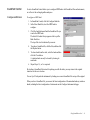
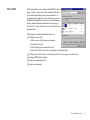
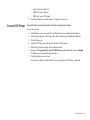
To configure an instrument:
1. In the SoundFont dialog, click the Configure
Instrument tab.
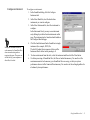
2. In the Select Bank list, select the bank whose
instruments you want to configure.
3. In the Select Instrument list, select the instrument to
configure.
In the Instrument Stack, you may see an instrument
entry although you did not load an instrument on this
page. The instrument can be found in a bank loaded on
the Configure Bank tab page.
4. Click the Load button and load a SoundFont or singleinstrument (for example, .WAV) file.
The last file loaded always appears at the top of the
Instrument Stack with an arrow pointing to it.
5. To clear an instrument from the stack, select the instrument and then click the Clear button.
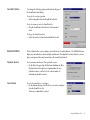
6. For faster processing of SoundFont files, the files are loaded into memory. You need to set the
maximum amount of cache memory your SoundFont files can occupy, so that your system
performance does not suffer from insufficient memory. You can also set the caching algorithm for
a balanced system performance.
Using Sound Blaster Live!
15