1
Using Your Phone
Picking up Calls
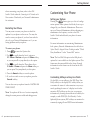
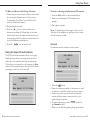
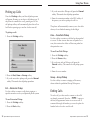
Press the Pickup softkey and the call pickup screen
will appear, allowing you to select a call pickup type. If
the phone is connected to a call, pressing one of the
call pickup softkeys will automatically place this call on
hold before opening up a new line for the new call.
To pickup a call:
1. Press the Pickup softkey.
Pickup
Group-
2. Press the Ext, Zone or Group softkey.
3. If you do not wish to pickup a call, press the Cancel
softkey. This cancels the call pickup procedure.
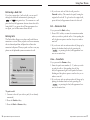
Ext — Extension Pickup
Use this softkey to answer a call that is ringing at a
specific extension on the your Sphericall phone system.
To use Extension Pickup:
1. Press the Pickup softkey.
2. Press the Ext softkey
32
Sayson 480i for Sphericall User Guide
The phone will automatically connect you to the caller
when you have finished entering the final digit.
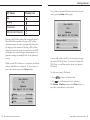
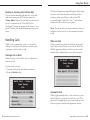
Zone — Zone Park Pickup
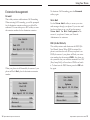
Use this softkey to retrieve a call that has been parked
at a zone. If there is more than one call parked on a
zone, this retrieves the oldest call that was parked on
that particular zone.
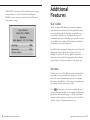
Joe Smith
101
-Ext
-Zone
-Cancel
3. If you do not wish to Pickup a call, press the Cancel
softkey. This cancels the call pickup procedure.
4. Enter the extension number or the BLF softkey of
the person you wish to pickup the call for.
To use Zone Park Pickup:
1. Press the Pickup softkey.
2. Press the Zone softkey.
3. If you do not wish to Pickup a call, press the
Cancel softkey. This cancels the call pickup procedure.
4. Enter the zone number
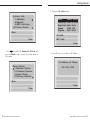
Group — Group Pickup
Use this softkey to answer a ringing call from anywhere within the predefined Group Pickup area.
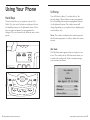
Ending Calls
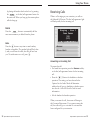
To end a call, you first need to connect to the call if
not already connected. Press the
button or
the line/call appearance button of the active call. If
connected through the handset, you can also place the
handset back on hook to end the call.
Sayson 480i for Sphericall User Guide
33