1
Drift Innovation
X170 Action Camera
Drift Innovation
X170 Action Camera
VII) Menu Options
Videos
•
•
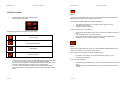
Press the Menu button to start selecting options.
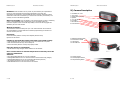
The Menu settings will appear:
Once you have selected the Video option, you will see individual thumbnail images of the
videos that are recorded on the cameras chosen memory.
The information presented with the thumbnail images will be:
•
•
•
The number of the video out of the total number of videos (e.g. 1/10)
The actual video file name
The video duration (hh:mm:ss)
To play or delete any one of the videos:
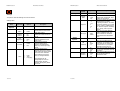
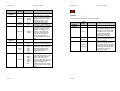
The different icons and their meanings are shown below:
Show video Clips
1.
2.
3.
4.
Scroll through the thumbnail images, until you reach the thumbnail of the chosen
video.
Press the SELECT button on the control panel.
Select either the View or Delete option by using the UP or DOWN buttons.
If deleting, you will be asked to confirm your selection.
Show Still Camera Pictures
Photos
Settings Menu
Once you have selected the Photo option, you will see individual thumbnail images of the
photos that are saved on the cameras chosen memory.
The information presented with the thumbnail images will be:
Firmware Upgrade
•
•
1.
2.
3.
15 of 28
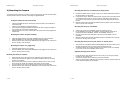
To enter one of the menus, use the UP and DOWN buttons to position the marker
over the icon / menu option you require and press the SELECT button.
The icons for Videos and Photos will adjust automatically to illustrate the number
of Videos / Photos the camera has saved onto your chosen memory.
To exit any of the menu settings or options, press the MENU button until you
revert to the Menu you require or reach the screen showing the camera current
image.
The number of the photos out of the total number of photos (e.g. 1/10)
The actual photo file name
To view or delete the photos:
•
•
16 of 28
Scroll through the thumbnail images, until you reach the thumbnail of the chosen
photo.
To delete the photo, press the SELECT button. You will be asked to confirm your
selection.