1
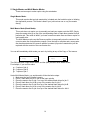
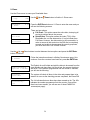
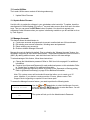
OK: 0 NG: 0 NB: 0
Input Bin > Drive01
It will then pick up the blank discs from the input spindle and place
those into drives until either all of the drives are full, or the count that
you loaded into the counter is reached.
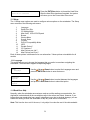
Processing...
Please Wait
It takes a few seconds for the autoloader to recognize all the discs.
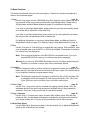
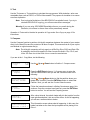
After two or three seconds of processing time, one of the following Copy Progress screens will
appear.
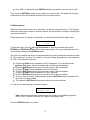
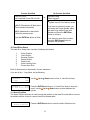
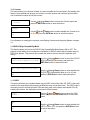
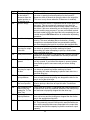
Counter Specified
Copying... H4012MB
0/21 12% 481MB
H indicates the
source of the job
resides in the Hard
Drive.
4012MB indicates the
capacity of the master
disc.
12% / 481MB
indicates the current
progress of the
duplication.
0/21 indicates you
have a project size of
21 copies and you have
made 0 copies so far.
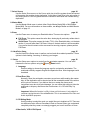
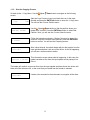
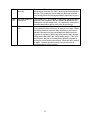
No Counter Specified
or:
Copying... H4012MB
0
12% 481MB
H indicates the source
of the job resides in the
Hard Drive.
4012MB indicates the
capacity of the master
disc.
12% / 481MB
indicates the current
progress of the
duplication.
0 indicates you have
made 0 copies so far.
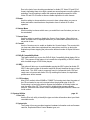
Note: It is normal to see the progress indicator stay at 0%-10% and 100% for
approximately 30 seconds for CD duplication and up to one minute for DVD/Blu-Ray Disc
duplication. That is caused by the initializing and finalizing stages.
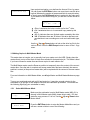
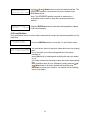
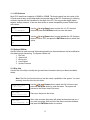
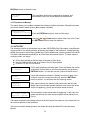
OK: 3 NG: 0 NB: 0
Drive01 -> Output Bin
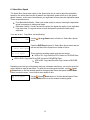
Once the duplication run is completed, the loader will remove the
finished disc from a drive and place the successful copy on the
Output Spindle.
After the loader has placed the copied disc into the Output Spindle, the loader will then pick up
another blank disc and load it into the drive.
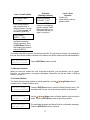
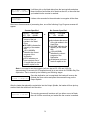
OK: 3 NG: 0 NB: 0
Input Bin > Drive01
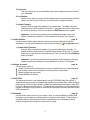
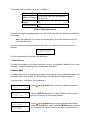
The copying process will continue until you either run out of blank
discs or until the count that you loaded into the counter is reached.
39