1
Basic Adjustment Settings
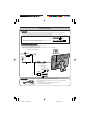
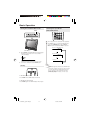
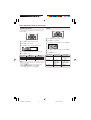
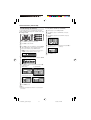
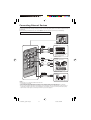
AV MODE
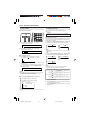
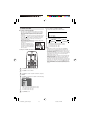
COLOR TEMPERATURE
AV MODE gives you preset options to choose from, to best
match the image based on room-brightness and playback
software used.
You can adjust the color temperature to give a better white
balance.
1
Press MENU to display the Menu Screen.
1
Press MENU to display the Menu screen.
2
Press \/| to select “PICTURE”.
2
Press \/| to select “PICTURE”.
3
Press '/" to select “AV MODE”, and press ENTER.
3
Press '/" to select “ADVANCED”, and press ENTER.
4
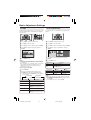
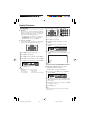
Press '/" to select desired setting, and press
AVMODE]
MENU[
PICTURE…
ENTER.
4
Press '/" to select “COLOR TEMP.”, and press
ENTER.
SELECT
OPTION
C
R
G
B
R
STANDARD
DYNAMIC
DYNAMIC(FIXED)
O
E
R
L
E
L
D
E
U
S
OR
EN
E
ET
TEMP.
[
0 ]
[
0 ]
[
0]
USER
HIGH
MIDDLE
MOVIE
LOW
GAME
5
Press MENU to exit.
A
• You can select a different AV MODE item for each input mode.
(For example, select “STANDARD” for TV input and “DYNAMIC”
for VIDEO input.)
• When “AV MODE” is set to “DYNAMIC (FIXED)”, “NO PICTURE
ADJUSTMENTS AVAILABLE IN [DYNAMIC (FIXED)].” is
displayed and the items in the PICTURE screen (except
“ADVANCED”) cannot be set.
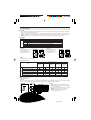
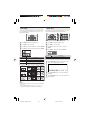
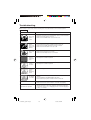
Directly setting the AV MODE
1
2
Press '/" to select the desired item, and press
ENTER.
6
Press MENU to exit.
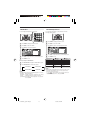
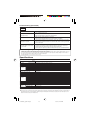
USER
Can set your desired color*
HIGH
MIDDLE
LOW
White with Bluish tone
Selected item
Before the AV MODE display disappears, press
AV MODE again and select your desired setting.
• Each time you press AV MODE, the mode changes
as shown below.
AV MODE [STANDARD]
AV MODE [MOVIE]
Selected item
AV MODE [DYNAMIC]
AV MODE [DYNAMIC (FIXED)]
Description
STANDARD
Changing image settings to standard
values.
DYNAMIC
For a clear-cut image emphasizing
high contrast for sports viewing.
DYNAMIC (FIXED)
Changing image settings to factory
preset values. No adjustments are
allowed.
MOVIE
Controlling the contrast to enable
easier viewing of dark images.
GAME
Controlling the brightness of video
games and other images for easier
viewing.
LC-20SH3U_E_P11-18.p65
Description
Selected item
White with Reddish tone
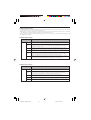
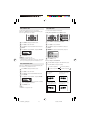
*When you select “USER”, the following items are adjustable.
Press AV MODE.
AV MODE [GAME]
5
15
\ button
| button
RED
Weaker red
Stronger red
GREEN
Weaker green
Stronger green
BLUE
Weaker blue
Stronger blue
A
• When resetting the items in the “USER” setting to factory preset
values, perform the following procedures.
1 Press '/" to select “RESET” in the ADVANCED screen, and
press ENTER.
2 Press '/" to select “YES”, and press ENTER.
05.6.8, 1:20 PM