1
Using Internet functions
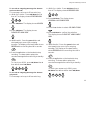
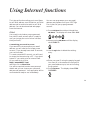
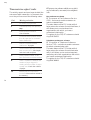
1 Press OK/Menu then 9 then 6 then OK/Menu
and select an option (PC ONLY or SHARE PC)
using the ▲ or ▼ buttons.
W
M
6
NO
XYZ
9
2 Press OK/Menu to confirm your choice.
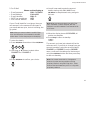
. If you choose DISTINCT PC MB: enter the
E-Mail address of the PC to which you
wish to send attached files not read by
your fax (this is only necessary if your
PC’s E-Mail is different from your f@x
machine’s E-Mail). Press OK/Menu and
choose the type of E-Mails to be sent to
your PC: all E-Mails, only E-Mails with
un-readable attachments,
• If you choose PC ONLY, when you access your
mailbox all messages will be retained in the
mailbox and your DECTf@x Plus will display
only the number of messages.
• If you choose SHARE PC: messages that can
be processed by your fax (faxes, E-mails and
voice messages) can be printed or listened
to. Other messages are kept in the mailbox
to be read by the PC.
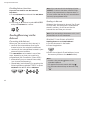
- With the ▲ or ▼ buttons choose one of
the following option (DISTINCT PC MB or
SHARED PC MBOX). Select an option and
press OK/Menu to confirm:
. If you choose SHARED PC MBOX: (if the PC
and your f@x share the same E-Mails
address) and choose: delete E-Mails
already read by the f@x, save E-Mails
already read by the f@x (in order to
receive a copy on the PC).
Note: if your have chosen SHARE PC or PC ONLY, your
fax will indicate how many E-Mails are in your
mail-box after connecting to your Internet server.
RELAY (MENU 98)
Note: if you have chosen SHARE PC, if any messages
have attachments that can’t be read by DECTf@x
Plus you will receive two print outs - a copy of the
E-Mail and then a duplicate of the header with a
note to say the message can’t be printed (this refers
to the attachment).
46
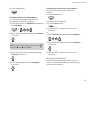
If you want to automatically transfer all
received messages (faxes, E-mail messages
or voice messages) to another telephone
and/or fax machine, or to an E-Mail address:
Note: you can use this feature only if you have a
PROVIDER selected.