1
Keypads
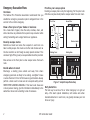
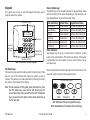
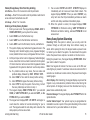
Your system has an easy to use LCD keypad that allows you to
properly operate the system.
32-Character Display
SMITH HOME
F R I 2 : 51 AM
Select Keys
Backlit Logo
and Proximity
Antenna
1
2
3
4
5
6
7
8
9
0
CMD
COMMAND Key
Back Arrow Key
Data Entry Digit keys
DMP 9000 Series Wireless Keypad
The Select keys
There are four keys under the display called the Select keys. These
keys are one of the features that make your system so easy to
operate. They allow you to make selections by pressing the Select
key under a choice shown in the display.
Note: F
or the purposes of this guide, when instructed to press
the first Select key, press the far left Select key; the
second Select key is the second from the left; third Select
key is second from the right; and the fourth Select key is
the far right key.
Introduction
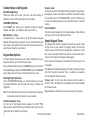
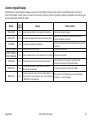
Power/Armed Logo
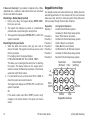
The backlit logo on the keypad indicates the keypad Power status
and Armed status of the panel. Depending on the operation, the
logo displays Red or Green as listed in the table.
Color and Activity
Green Steady
Green Blinking
No Light
Red Steady
Red/Green Alternate
Red Blinking
Armed Status
Panel Disarmed
Panel Disarmed
Panel Disarmed
Panel Armed
Panel Armed
Panel Armed
Keypad Power Status
AC Power OK, Battery OK
AC Power OK, Battery Fault
AC Power Fault, Battery OK
AC Power OK, Battery OK
AC Power OK, Battery Fault
AC Power Fault, Battery OK
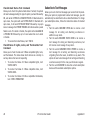
Panic Functions
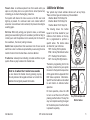
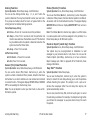
Your keypad may be set up to send a Panic, Emergency, or Fire
report to the central station. This function is optional. If this option
is programmed for your keypad, icons are located below the top
row Select keys.
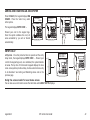
Press and hold the two Select keys adjacent to the desired icon for
2 seconds, until a beep from the keypad is heard.
Top Row Select Keys
Police
Emergency
Fire
DMP 9000 Series Wireless Keypad Panic Keys
With Shaded Buttons To Indicate Police Panic Keys
XTL Series User Guide
3