1
EPSON Stylus Color 777/777i
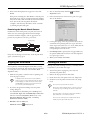
4. You see the Utility menu. Click the
Alignment button.
7. If the nozzle check pattern has no gaps in its dots, click
Finish.
If the pattern is missing dots, click Clean to clean the print
head again. If you don’t see any improvement after cleaning
three or four times, check the solutions in the Printer Basics
book. You can also turn the printer off and wait
overnight—this allows any dried ink to soften—and then
try cleaning the print head again.
Print Head
5. Follow the instructions on the screen to print a test page.
You see this window:
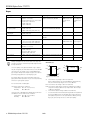
Examining the Nozzle Check Pattern
Examine the nozzle check pattern you print (the lower row
will be in color). Each staggered horizontal and straight
vertical line should be complete, with no gaps in the dot
pattern. If your printout looks okay, you’re done.
missing dots
6. On the printed page, select the pattern that shows the two
vertical lines most precisely printed on top of each other.
Select one pattern each for rows 1, 2, and 3. Then enter the
number of the best pattern for each row in the
corresponding boxes on the screen.
7. Click Realignment to print another test page. Make sure
the pattern numbered 8 in each row is the best aligned. If
not, repeat steps 6 and 7.
missing dots
missing dots
If any dots are missing (as shown here), clean the print head
again, as described on page 8.
8. When you’re finished, click Finish.
Aligning the Print Head
Cleaning the Printer
If your printouts contain misaligned vertical lines, you may
need to align the print head. Your printer must be connected
to a local port, not on a network, to use the Print Head
Alignment utility.
To keep your printer working at its best, you should clean it
several times a year. Follow these steps:
1. Make sure the printer is turned on, but not printing, and
letter-size paper is loaded.
2. Remove all the paper from the sheet feeder.
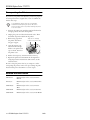
1. Turn off the printer, unplug the power cord, and
disconnect the printer cable.
3. Clean the exterior of the printer with a soft, damp cloth.
Load paper that’s at least 8.27 inches (210 mm)
wide to prevent ink from spraying inside the printer
and smudging your printouts. For the best results,
load EPSON ink jet paper in the printer whenever
you check the print head alignment.
4. Clean ink out of the printer’s interior with a soft, damp
cloth.
Don’t touch the gears inside the printer.
2. If you have an application running, access the printer
settings dialog box.
Never use a hard or abrasive brush, or alcohol or thinner
for cleaning; they can damage the printer components
and case.
Or, with Windows, click Start, point to Settings, and
select Printers. Right-click the EPSON Stylus Color 777/
777i icon, then select Properties (Windows 95 or 98),
Document Defaults (Windows NT), or Printing
Preferences (Windows 2000).
Don’t get water on the printer components and don’t
spray lubricants or oils inside the printer.
Don’t use any cleaning sheets included with special
media; they may jam inside the printer.
3. Windows: Click the Utility tab.
Macintosh: Click the
Utility button.
8/00
EPSON Stylus Color 777/777i - 9