1
L
R4C0910
long.bk
Rev. C
A5 size
1/12/00
BASIC.FM
Pass 2
Proof Sign-off:
M.Fujimori
M.Fujimori
J.Hoadley
_______
_______
_______
Displaying a preview image
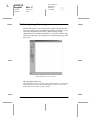
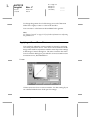
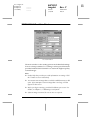
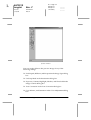
The EPSON TWAIN Pro Preview window shows you how your
adjustments will affect the image as you make them. The Preview
window is also the starting point for accessing the Image Controls
and Color Adjustment dialog boxes that contain tools for
optimizing your image.
Note:
See “Previewing Images” on page 2-17 for Preview window options, and
“Configuration” on page 2-36 for information about how to control
preview image quality.
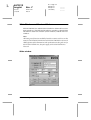
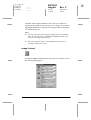
1. After selecting the Document Source, Image Type, and
Destination in the main window, click Preview to start
prescanning. If the Preview window is not open, it opens and
begins prescanning. A preview image of the document
appears on your screen.
Note:
Make sure the Fast Preview check box is clear in the Configuration
dialog box to ensure a high-quality preview.
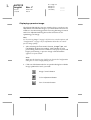
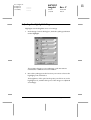
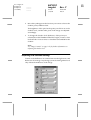
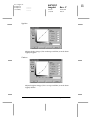
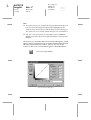
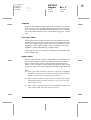
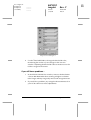
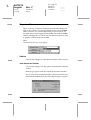
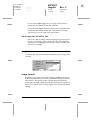
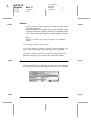
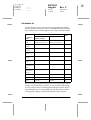
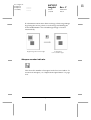
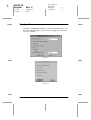
2. Click one of the buttons below to open the dialog box with the
image optimization tools you need.
Image Controls button
Color Adjustment button
Tone Correction button
1-6
Scanning Basics