1
4.02
WORKSTATION SETUP GUIDE
The Avid|DS 4.02 Workstation Setup Guide was written by Patrick Bayne and
edited by Liven Tam. Formatting, layout, and illustrations by Luc Langevin
and Jim Royal.
© 1999–2001 Avid Technology, Inc. All rights reserved. Avid, the Avid|DS Logo,
and Softimage are registered trademarks, and MEDIArray, MediaDock, and
Equinox are trademarks of Avid Technology, Inc. QuickTime and the
QuickTime logo are trademarks used under license from Apple Computer, Inc.
All other trademarks contained herein are the properties of their respective
owners.
The Avid|DS application uses JScript and Visual Basic Scripting Edition from
Microsoft Corporation. The Avid|DS application contains portions of
imaging code owned and copyrighted by Pegasus Imaging Corporation,
Tampa, FL.
This document is protected under copyright law. The contents of this
document may not be copied, duplicated or distributed in any form, in whole
or in part, without the express written permission of Avid Technology, Inc.
This document is supplied as a guide for the Avid|DS product. Reasonable
care has been taken in preparing the information it contains. However, this
document may contain omissions, technical inaccuracies, or typographical
errors. Product specifications are subject to change without notice and should
not be considered commitments by Avid Technology, Inc. Avid Technology,
Inc. does not accept responsibility of any kind for customers’ losses due to the
use of this document.
This document may contain confidential and proprietary information of Avid
Technology, Inc. and Softimage Co. and/or other third parties which is
protected by copyright, trade secret and trademark Law and may not be
provided or otherwise made available without prior written authorization.
Warranties and Liabilities
NEITHER SOFTIMAGE CO. NOR AVID TECHNOLOGY, INC. MAKE ANY
WARRANTIES, EXPRESS OR IMPLIED, INCLUDING WITHOUT
LIMITATION, ANY WARRANTIES OF MERCHANTABILITY OR FITNESS
FOR A PARTICULAR PURPOSE, IN THIS DOCUMENT WITH RESPECT
TO THIRD PARTY PRODUCT(S) CERTIFIED OR OTHERWISE MADE
AVAILABLE FOR USE WITH SOFTIMAGE PRODUCTS. ALL
WARRANTIES ARE PROVIDED BY THE ORIGINAL SUPPLIER(S) OF
SUCH THIRD PARTY PRODUCT(S).
FCC Notice
This device complies with Part 15 of the FCC Rules. Operation is subject to
the following two conditions:
1. This device may not cause harmful interference.
2. This device must accept any interference received, including interference
that may cause undesired operation.
This equipment has been tested and found to comply with the limits for a
Class A digital device, pursuant to Part 15 of the FCC Rules. These limits are
designed to provide reasonable protection against harmful interference when
the equipment is operated in a commercial environment. This equipment
generates, uses, and can radiate radio frequency energy and, if not installed in
accordance with the instruction manual, may cause harmful interference to
radio communications. Operation of this equipment in a residential area is
likely to cause harmful interference in which case the user will be required to
correct the interference at his own expense.
Canadian ICES-003
This Class A digital apparatus meets all requirements of the Canadian
Interference-Causing Equipment Regulations.
Cet appareil numérique de la classe A respecte toutes les exigences du
Règlement sur le matériel brouilleur du Canada.
European Union Notice
Declaration of Conformity (According to ISO/IEC Guide 22 and EN 45014)
Application of Council
Directives:
73/23/EEC, 89/336/EEC.
Standards to which
Conformity is Declared:
EN60950:1992 + A1 + A2 + A3 + A4 + A11
CISPR 22:1985 / EN55022:1988 Class A
EN55024:1998 + A1
Manufacturer’s Name:
Avid Technology, Inc.
1925 Andover Street
Tewksbury, MA 01876, USA
European Contact:
Nearest Avid Sales and Service Office or
Avid Technology Sales Ltd.
Sandyford Business Center
Unit 3,
Dublin 18, Ireland
Type of Equipment:
Information Technology Equipment
Product Name:
Products for the Windows NT Operating
System: Avid|DS
Base Model Numbers:
None
Product Options:
All
Year of Manufacture:
2001
Products for the Windows NT Operating System: products were tested in a
typical Avid|DS configuration.
I, the undersigned, hereby declare that the equipment specified above
conforms to the above Directives and Standards.
George R. Smith, Director of Hardware Design and Development
Australia and New Zealand EMC Regulations
John Kells, Australian Operations Manager
Avid Technology (Australia) Pty Ltd.
Unit B
5 Skyline Place
French Forest NSW 2086
Australia
Phone: 61-2-8977-4800
Taiwan EMC Regulations BSMI Class A EMC Warning
Warnings
To reduce the risk of electrical shock, do not attempt to open the equipment
unless instructed. Do not use a tool for purpose other than instructed.
Document No. 0130-04915-01 0601
Printed in Canada.
Contents
Contents
Before You Start . . . . . . . . . . . . . . . . . . . . . . . . . . . . . . . . . . . . . . . . . .7
Where to Find Information . . . . . . . . . . . . . . . . . . . . . . . . . . . . . . . . . . .8
About This Guide . . . . . . . . . . . . . . . . . . . . . . . . . . . . . . . . . . . . . . . . . . .9
Document Conventions . . . . . . . . . . . . . . . . . . . . . . . . . . . . . . . . . . . .9
Avid|DS Support . . . . . . . . . . . . . . . . . . . . . . . . . . . . . . . . . . . . . . . . . . .10
Licensing Support . . . . . . . . . . . . . . . . . . . . . . . . . . . . . . . . . . . . . . . .10
Training Support . . . . . . . . . . . . . . . . . . . . . . . . . . . . . . . . . . . . . . . . .10
Hotline Support . . . . . . . . . . . . . . . . . . . . . . . . . . . . . . . . . . . . . . . . .10
E-mail Support . . . . . . . . . . . . . . . . . . . . . . . . . . . . . . . . . . . . . . . . . .11
Avid|DS Mailing List . . . . . . . . . . . . . . . . . . . . . . . . . . . . . . . . . . . . . .11
Web Support . . . . . . . . . . . . . . . . . . . . . . . . . . . . . . . . . . . . . . . . . . . .11
Chapter 1
Package Contents . . . . . . . . . . . . . . . . . . . . . . . . . . . . . . . . . . . . . . . .13
Package Contents . . . . . . . . . . . . . . . . . . . . . . . . . . . . . . . . . . . . . . . . . .15
Hardware. . . . . . . . . . . . . . . . . . . . . . . . . . . . . . . . . . . . . . . . . . . . . . .15
Software . . . . . . . . . . . . . . . . . . . . . . . . . . . . . . . . . . . . . . . . . . . . . . .16
Documentation . . . . . . . . . . . . . . . . . . . . . . . . . . . . . . . . . . . . . . . . . .17
Chapter 2
Site Preparation. . . . . . . . . . . . . . . . . . . . . . . . . . . . . . . . . . . . . . . . . .19
Site Planning. . . . . . . . . . . . . . . . . . . . . . . . . . . . . . . . . . . . . . . . . . . . . .21
Environmental Requirements . . . . . . . . . . . . . . . . . . . . . . . . . . . . . .21
Electrical Requirements . . . . . . . . . . . . . . . . . . . . . . . . . . . . . . . . . . .21
Space Requirements . . . . . . . . . . . . . . . . . . . . . . . . . . . . . . . . . . . . . .22
Additional Equipment . . . . . . . . . . . . . . . . . . . . . . . . . . . . . . . . . . . . . .24
. . . . . . . . . . . . . . . . . . . . . . . . . . . . . . . . . . . . . . . . . . . . . . . . . . . . . . . . .25
Chapter 3
System Overview . . . . . . . . . . . . . . . . . . . . . . . . . . . . . . . . . . . . . . . .27
System Inputs and Outputs . . . . . . . . . . . . . . . . . . . . . . . . . . . . . . . . . .29
Signal Flow . . . . . . . . . . . . . . . . . . . . . . . . . . . . . . . . . . . . . . . . . . . . . . .30
Back Panel Overview . . . . . . . . . . . . . . . . . . . . . . . . . . . . . . . . . . . . . . .31
Workstation Cards . . . . . . . . . . . . . . . . . . . . . . . . . . . . . . . . . . . . . . .31
Card Placement . . . . . . . . . . . . . . . . . . . . . . . . . . . . . . . . . . . . . . . . . .32
Disk Subsystem . . . . . . . . . . . . . . . . . . . . . . . . . . . . . . . . . . . . . . . . . . . .34
Chapter 4
Assembling the System . . . . . . . . . . . . . . . . . . . . . . . . . . . . . . . . . . .35
Before Assembling the System . . . . . . . . . . . . . . . . . . . . . . . . . . . . . . .37
The Keyboard, Mouse, and Graphic Tablet . . . . . . . . . . . . . . . . . . . . .38
The Computer Monitors. . . . . . . . . . . . . . . . . . . . . . . . . . . . . . . . . . . . .39
The Avid Equinox Break-Out-Box . . . . . . . . . . . . . . . . . . . . . . . . . . . . .40
The Avid MediaDock LVD . . . . . . . . . . . . . . . . . . . . . . . . . . . . . . . . . . .43
Single Enclosure Configuration . . . . . . . . . . . . . . . . . . . . . . . . . . . . .44
Workstation Setup Guide • 5
Contents
Two-Enclosure Configuration . . . . . . . . . . . . . . . . . . . . . . . . . . . . . . 45
Three-Enclosure Configuration . . . . . . . . . . . . . . . . . . . . . . . . . . . . . 46
The Avid MEDIArray . . . . . . . . . . . . . . . . . . . . . . . . . . . . . . . . . . . . . . . 48
The Copper Cables to the Fibre Channel Controller Board . . . . . . . 48
The Machine Control Cable . . . . . . . . . . . . . . . . . . . . . . . . . . . . . . . . . . 49
Peripheral Devices . . . . . . . . . . . . . . . . . . . . . . . . . . . . . . . . . . . . . . . . . 50
Video Connections . . . . . . . . . . . . . . . . . . . . . . . . . . . . . . . . . . . . . . . 50
Audio Connections . . . . . . . . . . . . . . . . . . . . . . . . . . . . . . . . . . . . . . . 52
The Software Protection Key . . . . . . . . . . . . . . . . . . . . . . . . . . . . . . . . 53
Index . . . . . . . . . . . . . . . . . . . . . . . . . . . . . . . . . . . . . . . . . . . . . . . . . . . 55
6 • Avid|DS
Before You Start
Workstation Setup Guide • 7
Before You Start
Where to Find Information
The Avid|DS package includes a comprehensive set of learning materials. With this
Roadmap, you’ll know where to find the information you need to get up and running
quickly and effectively.
Start with the Workstation Setup Guide to prepare your site for Avid|DS and
assemble your workstation.
Use the Installation & Administration Guide if you need to reinstall and license any
of the components, or for tips on the daily maintenance of your workstation.
Refer to the Release Notes for feature limitations and workarounds.
You can join the Avid|DS Discussion Group, a worldwide network of Avid|DS users
exchanging ideas and techniques by e-mail. To subscribe, send an e-mail to
[email protected] with the following text in the body of your message:
subscribe ds.
Comments?
We’d appreciate any comments or suggestions you may
have about this guide or any other piece of our
documentation. Just send them to: [email protected].
8 • Avid|DS
About This Guide
About This Guide
This guide provides information on:
• The components of the workstation
• Proper assembly of the workstation
• Necessary additional peripherals
• Troubleshooting
Following these guidelines can help ensure the successful installation of your
workstation, and avoid delays in getting your workstation up and running.
This guide is intended for anyone who is installing an Avid|DS 4.02 HD (high
definition) or standard definition workstation for the first time, moving a
workstation, or attempting to solve problems that can arise with the
hardware.
Document
Conventions
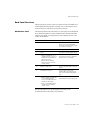
This guide uses the following symbols and conventions:
Bold
Bold is used for menu commands, dialog box and property
editor options, and file/folder names.
>
The greater than (>) sign indicates menu commands (and
subcommands) in the order that you choose them. For example,
File > Import means to open the File menu and then choose the
Import command. This applies to menus from the main menu bar
and pop-up menus that appear when you right-click on the interface.
Notes are reminders or contain important information.
Tips are useful bits of information, workarounds, and shortcuts that
you may find helpful in a particular situation.
Warnings are used when you can lose or damage information or
equipment, such as deleting data, or not being able to easily undo an
action. Warnings always appear before you attempt a task!
Workstation Setup Guide • 9
Before You Start
Avid|DS Support
Technical support for Avid|DS is provided by your Avid reseller working
together with Avid|DS Customer Service. Immediate assistance for any technical
issue is available through our hotline, e-mail, and web support services.
Licensing Support
You must contact your reseller to request a license for your Avid|DS
workstation. You can do this directly or through the license request form at
http://www.softimage.com/licensing/request.
Training Support
If you’re interested in Avid|DS training, you’ll find a complete overview of
courses, education centers, and training programs at http://avid.com/education.
Hotline Support
Avid resellers provide first line support for Avid|DS according to their specific
geographical area and time zone. Working as an extension of Avid|DS
Customer Service, these fully trained agents provide the most efficient and
effective support possible to all our customers. Contact information for your
Avid reseller is available through the Avid Reseller Locator at
http://avid.com/cgi/locator.
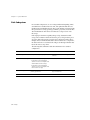
You can also reach Avid|DS Customer Service at the following hours and
telephone numbers:
North America
Avid|DS Customer Service
3510 St-Laurent Boulevard
Montreal (Quebec) Canada
H2X 2V2
Hours
9:00 am to 9:00 pm (Eastern)
2:00 pm to 2:00 am (GMT)
Hotline assistance is also available 24 hours a day, 7 days a week for an
additional fee.
U.K. and International
Avid|DS Customer Service Europe
Pinewood Studios
Pinewood Road
Iver Heath, Buckinghamshire SL0 0NH
Hours
9:00 am to 6:00 pm (GMT)
4:00 am to 1:00 pm (Eastern)
10 • Avid|DS
Avid|DS Support
Support Telephone and Fax Numbers
Worldwide
Tel: 514 845 2199
Fax: 514 845 8252
North America
Tel: 800 387 2559
Fax: 514 845 8252
U.K. and International
Tel: + 44 1 753 650 670
Fax: + 44 1 753 658 503
E-mail Support
You can contact Avid|DS Customer Service at any time by sending e-mail to
[email protected].
Avid|DS Mailing List
If you have an e-mail account, you can join the worldwide network of Avid|DS
users exchanging ideas. The mailing list has proven to be quite useful for
users, with a constant stream of new subscribers.
To subscribe, send an e-mail to [email protected] with the
following text in the body of your message: subscribe ds. You can get further
information on using the automated list server by e-mailing
[email protected] with “help” as your message.
The discussion group is provided for technical exchanges between customers.
Although Avid|DS Customer Service is not provided through these
discussions, we do contribute.
Web Support
The Avid|DS Support and Download sections at
http://avid.com/support/ds_support provide quick access to a wide range of
resources from the Avid|DS teams and user community. Downloads,
including presets, drivers, and Quick Fix Engineering (QFE), provide the
latest solutions for using with your Avid|DS workstation. Online
documentation, tutorials, and Knowledge Base articles ensure you get the
most out of your work with Avid|DS. It's like having a dedicated Avid|DS
Customer Service engineer sitting at your desk!
Workstation Setup Guide • 11
Before You Start
12 • Avid|DS
Chapter 1
Package Contents
Workstation Setup Guide • 13
Chapter 1 • Package Contents
In This Chapter...
This chapter provides an overview of the hardware, software, and
documentation included with your Avid|DS workstation.
Package Contents. . . . . . . . . . . . . . . . . . . . . . . . . . . . . . . . . . . . . . . . . . 15
14 • Avid|DS
Package Contents
Package Contents
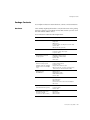
Your Avid|DS workstation contains hardware, software, and documentation.
Hardware
After carefully unpacking the hardware, verify all of the items on the packing
slip before setting up your workstation. And, make sure that you write down
the serial number of all the devices.
Your workstation contains the following hardware:
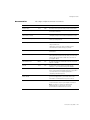
Device
Device, cables, and accessories
IBM IntelliStation Z Pro
• Base unit
• Keyboard
• IBM mouse
• 2 optical cables (for Mykerinos audio card)
• Power cable
• Rackmount kit (optional)
21-inch IBM P260 monitors
• 2 21-inch monitors
• 2 monitor cables with inputs
• 2 power cables
Avid MediaDock™ LVD
storage system
• MediaDock LVD enclosure
• 8 MediaDock LVD shuttles
• Power cable
• LVD cables
Avid MEDIArray™ Fibre
Channel storage system
• Fibre Channel Drive Enclosure (FCDE)
• 8 Fibre Channel drives
• 2 power cords
• Copper Fibre Channel cable
• Rack mount rails, clip nuts, mounting clips,
and screws (for the rackmount FCDE)
(available with the standard
definition version of Avid|DS
only)
Avid Equinox™
Break-Out-Box
• Breakout box
• Digital tether cable
• USB and BNC cables
• Power cable
WACOM tablet
• Tablet
• Pen and stand
• RS-232 cable
• Power transformer cable with AC adapter
• 4D mouse
DUA II audio convertor
(standard with HD systems)
• Convertor
• 2 optical cables
• Power cable
DataMate/Rosetta Stone
(RS-232 to RS-422
convertor for deck control)
• Convertor
• RS-232 cable
• RS-422 cable
Workstation Setup Guide • 15
Chapter 1 • Package Contents
Customers who purchase the standard definition version of Avid|DS
can choose between an Avid MediaDock LVD storage and an Avid
MEDIArray Fibre Channel storage.
Software
Most of the software that you receive on CD is also installed on your
workstation's hard drive. You should keep the software and drivers CDs in a
safe place in case you need to reinstall the software or any of the drivers.
The Avid|DS 4.02 software package contains:
• Avid|DS 4.02 CD
• Software protection key (dongle)
Your workstation comes with the following software components preinstalled on your workstation:
• Windows 2000 Professional and Windows 2000 Service Pack 1 software
and documentation
• Merging Technologies Mykerinos documentation
• WACOM software and documentation
• 3Dlabs Wildcat 4210 software and documentation
16 • Avid|DS
Package Contents
Documentation
The complete Avid|DS documentation set includes:
Document
Format
Version
Release Notes
Print
4.02
Describes known problems and provides workarounds.
Workstation Setup Guide
Print
4.02
Shows you how to prepare for and set up your
workstation hardware.
Installation &
Administration Guide
Print
4.02
Provides instructions on how to reinstall the current version
of Avid|DS, and perform workstation administration tasks.
Remote Processing Guide
Print
--
Online
4.02
Online Help
Description
Provides instructions on how to install and configure
remote processing stations.
Contains reference information on:
• Layouts and views
• Parameters in property editors and dialog boxes
• Commands in toolbars and pop-up menus.
Tutorial Instructions Sheet
Print
4.01
Special notes for Avid|DS and Windows 2000
workstations.
Quick Reference Card
Print
4.0
Contains a list of keyboard shortcuts and editing tips.
The keyboard shortcuts sheet tears away from the main
card, so that you can slide it under the cover sheet of
your graphic tablet.
Online
4.0
Provides an interactive multimedia overview of the new
features in Avid|DS.
Tutorial
Print
4.0
Contains basic step-by-step lessons with specific
examples, so you can start working with Avid|DS.
User’s Guide
Print
4.0
Describes the work processes of Avid|DS and shows you
how to perform basic and advanced tasks in every phase
of post production, from capturing material to
outputting a finished sequence.
Compositing &
Effects Guide
Print
4.0
Describes the basic types of effects in Avid|DS and shows
you how to apply them to your media. There’s also
information on when and how to process effects.
Vendor documentation
Print
--
New Features Tour
Guides from the vendors of the various hardware
components that comprise your Avid|DS workstation.
Note: For details on setting up, handling and
maintaining these components, refer to the
documentation included with each of them.
Workstation Setup Guide • 17
Chapter 1 • Package Contents
18 • Avid|DS
Chapter 2
Site Preparation
Workstation Setup Guide • 19
Chapter 2 • Site Preparation
In This Chapter...
This chapter provides you with information on preparing your site for an
Avid|DS workstation.
Site Planning . . . . . . . . . . . . . . . . . . . . . . . . . . . . . . . . . . . . . . . . . . . . . 21
Additional Equipment . . . . . . . . . . . . . . . . . . . . . . . . . . . . . . . . . . . . . . 24
20 • Avid|DS
Site Planning
Site Planning
When preparing your site, you must consider the environmental, electrical,
and space requirements for your Avid|DS 4.02 workstation, as well as any
additional equipment that you may need to purchase and its requirements.
Environmental
Requirements
The site you choose for your Avid|DS workstation should meet the following
environmental requirements:
• Clean and dust free
• Free from significant temperature or humidity changes
• Sturdy, level, and not subject to vibration
• Away from high-traffic or high-noise areas
• Provides adequate space in front of and behind the workstation
components, so that you can connect cables and service your workstation.
This also provides adequate air flow for cooling.
• A minimum clearance of 3 inches (7.6 cm) for the side and back panels of
the desk side base unit
• A table (or other surface) that is at least 60 inches wide by 48 inches deep
(150 cm × 120 cm) for the editing workstation
Electrical
Requirements
Your site should meet the following electrical requirements:
• Adequate power for each workstation component, so that extension cords
are not needed.
• At least two 15-amp circuits available; one for the workstation and one for
the Avid MediaDock LVD storage(s).
• Site is away from major electrical equipment, such as motors, air
conditioners, or elevators.
• Site is not subject to static electrical buildup.
• Uses an uninterruptible power supply (UPS) to protect your workstation
from sudden power surges or losses, and save you from the resulting loss
of work.
Plug only your Avid|DS equipment into the power strip. Do not plug
in coffee makers, radios, lights, or other such devices.
Workstation Setup Guide • 21
Chapter 2 • Site Preparation
In addition, make sure your site meets the following electrical specifications:
Component
Voltage
Frequency
IBM IntelliStation Z Pro
workstation
100 to 127 V AC (NA)
200 to 240 V AC (Intl)
47 to 63 Hz
21-inch IBM P260 monitors
100 to 240 V AC
50 to 60 Hz
Avid Equinox Break-Out-Box
100 to 240 V AC
50 to 60 Hz
Avid MediaDock LVD storage
system
90 to 264 V AC
(fully configured)
50 to 60 Hz
Avid MEDIArray Fibre Channel
storage (standard definition
version of Avid|DS only)
400 VA maximum
50 to 70 Hz
Merging DUA II audio convertor
(included with HD systems only)
100 to 240 V AC
50 to 60 Hz
120 V AC (NA)
60 Hz
WACOM tablet
(fully configured)
220 V AC (Intl)
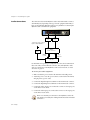
Space Requirements
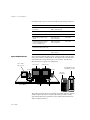
Your workstation includes either a tower or rack mount base unit, the video
storage array, and two 21-inch monitors. You can place the workstation base
unit and the video storage chassis next to your work area. The following
illustration shows a typical tower configuration:
HD or NTSC
video monitor
Left monitor
Right monitor
Speaker
Speaker
Avid MediaDock LVD
or MEDIArray storage
Graphic tablet
Keyboard
Mouse
Intellistation
Z Pro
IBM Z Pro
workstation
The speakers and video monitor are purchased separately. The video monitor
and the computer monitor(s) should be placed at least 12 inches (30 cm)
apart. Placing them closer together may cause synchronization interference
on the computer monitor(s).
22 • Avid|DS
Site Planning
If you purchase the optional rack mount kit for the base unit, it mounts in a
standard 19-inch equipment rack. The Avid Equinox Break-Out-Box,
MEDIArray, MediaDock LVD storage system, and DUA II audio convertor
can also be mounted in the same or another equipment rack.
The following table lists the dimensions of the major hardware components:
Dimensions
(inches)
Dimensions
(centimeters)
Base unit (tower)
Height: 17.3
Depth: 8.5
Width: 23.9
Height: 44.0
Depth: 21.6
Width: 60.6
Base unit (rack mount)
--
--
21-inch monitor(s)
Height: 19.8
Width: 19.6
Depth: 20.0
Height: 50.3
Width: 49.8
Depth: 50.8
Avid Equinox Break-Out-Box
(rack mountable)
Height: 5.3
Width: 17.6
Depth: 7.5
Height: 13.3
Width: 44.6
Depth: 19.5
Avid MediaDock LVD (tower)
Height: 18.8
Width: 10.5
Depth: 17.6
Height: 47.7
Width: 26.7
Depth: 44.8
Avid MediaDock LVD (rack
mount)
Height: 5.3
Width: 17.6
Depth: 17.4
Height: 13.3
Width: 44.6
Depth: 44.2
Avid MEDIArray (tower)
(standard definition version of
Avid|DS only)
Height: 26.8
Width: 9.8
Depth: 29.4
Height: 68.0
Width: 24.8
Depth: 74.7
Avid MEDIArray (rackmount)
(standard definition version of
Avid|DS only)
Height: 6.1
Width: 17.5
Depth: 24.0
Height: 15.4
Width: 44.5
Depth: 60.9
DUA II (rack mountable)
(included with HD systems only)
Height: 1.7
Width: 17.6
Depth: 6.9
Height: 4.3
Width: 44.6
Depth: 17.5
WACOM tablet
Width: 9
Depth: 12
Width: 22.9
Depth: 30.o
Hardware component
Workstation Setup Guide • 23
Chapter 2 • Site Preparation
Additional Equipment
A typical Avid|DS workstation requires the following additional peripherals
and cables:
Device
Description
House sync
generator
The house sync must have the same video format as your
video equipment and as the project that you create in
Avid|DS 4.02.
You will need a tri-level sync generator for HD projects.
Video monitor
HD or NTSC/PAL
Video tape recorder
(VTR)
VTRs connect to the base unit through an RS-422 cable.
Digital waveform
monitor
Measures the luminance and chrominance video signals
Speakers and
amplifier
Analog and/or digital audio equipment and converters for
converting audio signals
Cables
Video: Use high quality 75-ohm coaxial cables with
75-ohm BNC coaxial connectors.
(Contact your Avid|DS reseller for a list of approved HD VTRs)
Audio: Balanced cables
Standards
convertors
24 • Avid|DS
Lets you convert between HD and other (NTSC and PAL for
example) standards in order to accommodate archival
footage coming from other formats or standards
Workstation Setup Guide • 25
Chapter 2 • Site Preparation
26 • Avid|DS
Chapter 3
System Overview
Workstation Setup Guide • 27
Chapter 3 • System Overview
In This Chapter...
This chapter provides an overview of the hardware included with your
Avid|DS 4.02 workstation.
System Inputs and Outputs . . . . . . . . . . . . . . . . . . . . . . . . . . . . . . . . . . 29
Signal Flow . . . . . . . . . . . . . . . . . . . . . . . . . . . . . . . . . . . . . . . . . . . . . . . 30
Back Panel Overview . . . . . . . . . . . . . . . . . . . . . . . . . . . . . . . . . . . . . . . 31
Disk Subsystem . . . . . . . . . . . . . . . . . . . . . . . . . . . . . . . . . . . . . . . . . . . . 34
28 • Avid|DS
System Inputs and Outputs
System Inputs and Outputs
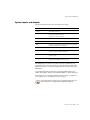
The following table describes the system inputs and outputs:
Input/output
Description
Video In
HD via BNC connector
Video Out
HD via BNC connector.
Composite via BNC connector.
S-video via S-video connectors
Optical Digital Input
ADAT and S/PDIF multichannel optical digital interface (ODI)
Optical Digital Output
ADAT and S/PDIF multichannel optical digital interface (ODI)
USB
Provides a communications link between the workstation
and the Avid Equinox Break-Out-Box
Genlock Input
BNC connector for sync input
RS-232 Remote
DB-9 connector that connects the RS-232 to RS-422
convertor. Use the supplied cable only.
Adaptec 39160
VHDCI connectors for the Avid MediaDock LVD
storage system
MIDI out
15-pin game port that enables MIDI control for the
JLCooper MCS-3800 external controller
The MIDI/game port on the lower-right corner of the workstation gives
you MIDI control of external controllers, such as the JLCooper MCS-3800.
MIDI control requires a separately purchased breakout cable and the proper
MIDI driver.
A recommended breakout cable is the Creative Labs MIDI adapter (part
number 1013251001), which provides MIDI in, MIDI out, and a joystick port.
For instructions on connecting peripherals and various video equipment to
your workstation, see Assembling the System on page 35.
Avoid using adapters as they may cause signal degradation. If you
must use them, use only high-quality, tight-fitting adapters.
Workstation Setup Guide • 29
Chapter 3 • System Overview
Signal Flow
The following provides an overview of the signal flow during capture and
playback. The Avid|DS software controls the process.
Capture
Capture mode lets you use Avid|DS to capture or play back video and audio
from the VTR.
• The video output of the VTR goes through the Avid Equinox Break-Out-Box
to the Avid Equinox PCI card, and from there to the video storage array.
• The audio output of the VTR goes through the DUA II convertor to the
Mykerinos audio card, and is stored on the audio storage area.
• The video output of the Avid Equinox PCI card goes to the Wildcat card
and then to the workstation monitors, where it is displayed as video-ina-window.
• The control signal from the COM 1 port goes to the VTR to control
device operation (the supplied RS-232/RS-422 convertor and cable must
be connected to the workstation).
• The sync signal from the house sync goes through the Avid Equinox
Break-Out-Box to the Avid Equinox PCI card, and then internally to the
Mykerinos audio card.
Playback
Playback mode allows you to use Avid|DS to record video on the VTR.
• The video stored on the video storage array goes through the Avid
Equinox PCI card to the Avid Equinox Break-Out-Box, and then goes to
the VTR and video monitor.
• The audio stored on the audio disk goes to the Mykerinos audio card,
through the DUA II convertor, and then to the VTR.
• The video output of the Avid Equinox PCI card goes to the Wildcat card
and then to the workstation monitors, where it displays as video-ina-window.
• The control signal from the COM 1 port goes to the VTR to control
device operation.
• The sync signal from the house sync goes through the Avid Equinox
Break-Out-Box to the Avid Equinox PCI card and then internally to the
Mykerinos audio card.
30 • Avid|DS
Back Panel Overview
Back Panel Overview
On the back panel of your base unit, four expansion cards are installed for use
with Avid|DS. The back panel also contains ports for connecting the mouse,
keyboard, monitors, and software protection key (dongle).
Workstation Cards
The following table describes the function of each expansion card installed in
the workstation. Expansion cards are installed in the workstation’s PCI and
AGP slots. For details on card specifications and configuration, refer to the
vendor documentation.
Slot
Card
Function
AGP
Wildcat 4210
Processes input from the Avid
Equinox PCI card, handles OGL
processing, and outputs video signal
to workstation monitor(s)
1
Empty
None (space used by Wildcat 4210)
2
Empty
None (space used by Wildcat 4210)
3
• Empty on Avid|DS HD, or on
standard definition versions of
Avid|DS with Avid MediaDock
LVD storage system
Processes input and output to the
Fibre Channel storage on standard
definition versions of Avid|DS.
• Emulex card on standard
definition systems with fibre
channel storage
4
Mykerinos audio card
Processes and ports audio to optional
devices
5
Avid Equinox PCI card
Processes video capture and
playback I/O for the VTR and ports
video to the Wildcat 4210 graphics
card
6
• Adaptec 39160 on Avid|DS HD,
or on standard definition
versions of Avid|DS with Avid
MediaDock LVD storage
Processes input and output to the
Avid MediaDock LVD storage system
• Empty on standard definition
systems with Fibre Channel
storage system
For more information on a specific expansion card, refer to the
documentation that comes with your workstation.
Workstation Setup Guide • 31
Chapter 3 • System Overview
Card Placement
The following illustration shows the placement of cards in the expansion slots
of a deskside workstation.
AGP slot: Wildcat video
PCI slot 1: Used by the Wildcat 4210.
These connectors are not used in Avid|DS
PCI slot 2: Used by the Wildcat 4210
PCI slot 3: Empty, or used by the Emulex card on
standard definition systems with Fibre Channel
storage
PCI slot 4: Mykerinos audio card
PCI slot 5: Avid Equinox PCI card
PCI slot 6: Adaptec 39160 (empty on standard
definition systems with Fibre Channel storage)
On a rack mount workstation, the AGP slot is to the left, and the
PCI slot 6 is to the right when viewing the back of the workstation
base unit.
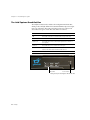
Mykerinos Audio Card Connections
The following illustration shows the connections on the Mykerinos audio
card. For more information on the Mykerinos audio card, refer to the
Mykerinos documentation.
Line out
Output B
(optical)
Output A
(optical)
Input B
(ADAT )
Input A
(S/PDIF)
The optical outputs on the card are red.
Avid Equinox PCI Card Connections
The following illustration shows the connections on the Avid Equinox PCI
card. For information on connecting your video and audio equipment to the
Avid Equinox PCI card, see Peripheral Devices on page 50.
Reference signal in
from Avid Equinox
Break-Out-Box
32 • Avid|DS
Digital Tether
(Video I/O)
Back Panel Overview
Adaptec Card Connections
The following illustration shows the connections on the Adaptec 39160 card.
This is the storage adapter included with HD systems and with standard
definition versions of Avid|DS that use the Avid MediaDock LVD storage. For
more information on the Adaptec card, refer to the Adaptec documentation.
Very high density
connectors
Channel 2/B
Channel 1/A
Emulex Card Connections
The following illustration shows the connections on the Emulex Fibre
Channel controller. This is the storage adapter included with standard
definition versions of Avid|DS that use the Avid MEDIArray Fibre Channel
storage. For more information on the Emulex card, refer to the Emulex
documentation.
DB-9 connector
Workstation Setup Guide • 33
Chapter 3 • System Overview
Disk Subsystem
In a standard configuration, one Low-Voltage Differential Signaling (LVDS)
SCSI disk drive is installed in the base unit, and eight LVDS disk drives are
installed in the Avid MediaDock LVD. The system disk drive is formatted with
three partitions for storing operating system files, project files, and audio files.
The Avid MediaDock LVD drives are formatted as a striped set for video
file storage.
Disk striping is a hardware capability that speeds up data I/O from disk
storage. The workstation divides the data into pieces, and spreads the pieces
across the disks in the striped set. Because the workstation transfers data to
multiple drives in smaller chunks than would be transferred to a single drive,
the data transfer rate is accelerated. The Adaptec 39160 adapter handles data
I/O for the video storage drives.
The following table summarizes disk drive information for a standard
configuration:
Drive
Label
Size
Contents
Format
C:
System
6 GB partition of primary system disk
Operating system
software
NT File System (NTFS)
D:
Video storage
• 8 disk drives striped (HD systems)
Video files
NTFS
• 4 disk drives striped (standard
definition versions of Avid|DS with
Avid MediaDock LVD storage)
• 8 disk drives striped (standard
definition versions of Avid|DS with
Fibre Channel storage)
F:
Projects
Approximately 11 GB partition of
primary system disk
Audio and
project-related files
NTFS
Z:
DVD-ROM
-
-
-
34 • Avid|DS
Chapter 4
Assembling the System
Workstation Setup Guide • 35
Chapter 4 • Assembling the System
In This Chapter...
This chapter provides detailed instructions for connecting an Avid|DS
workstation base unit to the peripheral devices.
Before Assembling the System . . . . . . . . . . . . . . . . . . . . . . . . . . . . . . . 37
The Keyboard, Mouse, and Graphic Tablet . . . . . . . . . . . . . . . . . . . . . 38
The Computer Monitors . . . . . . . . . . . . . . . . . . . . . . . . . . . . . . . . . . . . 39
The Avid Equinox Break-Out-Box . . . . . . . . . . . . . . . . . . . . . . . . . . . . . 40
The Avid MediaDock LVD . . . . . . . . . . . . . . . . . . . . . . . . . . . . . . . . . . . 43
The Avid MEDIArray . . . . . . . . . . . . . . . . . . . . . . . . . . . . . . . . . . . . . . . 48
The Machine Control Cable . . . . . . . . . . . . . . . . . . . . . . . . . . . . . . . . . . 49
Peripheral Devices . . . . . . . . . . . . . . . . . . . . . . . . . . . . . . . . . . . . . . . . . 50
The Software Protection Key . . . . . . . . . . . . . . . . . . . . . . . . . . . . . . . . 53
36 • Avid|DS
Before Assembling the System
Before Assembling the System
Before setting up your system, consult the Release Notes to make sure that
there are no changes, additions, or deletions to the procedures in this chapter.
The required expansion cards are installed and configured for Avid|DS. You
should not remove or modify these cards.
For detailed instructions on setting up the base unit hardware, refer to the
IBM documentation. For a rack mount workstation, you must install the base
unit into a standard rack before connecting the hardware.
To prevent equipment damage that may be caused by static
electricity, do all of the following before making any connections:
• Turn the power switch off on all the devices.
• Wear an antistatic wrist strap.
• Connect all the devices to a grounded power source.
• Touch the metal casing of the device.
Workstation Setup Guide • 37
Chapter 4 • Assembling the System
The Keyboard, Mouse, and Graphic Tablet
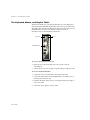
The keyboard and mouse come with attached cables for connecting them to
the back panel. The WACOM graphic tablet comes with a power transformer
and a DB-9 cable. The following illustration shows the keyboard, mouse, and
WACOM tablet connections on a deskside workstation. For more
information, refer to the WACOM documentation.
Keyboard
Mouse
WACOM tablet
To connect the keyboard and mouse
1. In the base unit, connect the keyboard to the top-left or bottom
mini-DIN port.
2. Connect the mouse to the top-right or top mini-DIN port in the base unit.
To connect the WACOM tablet
1. Connect the AC power transformer to the tablet's DB-9 cable.
2. Connect the DB-9 cable from the WACOM tablet to the COM 2 port on
the back panel of the base unit.
3. Verify that the input voltage on the power adapter matches the voltage of
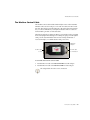
your power outlet.
4. Connect the power adapter to the AC outlet.
38 • Avid|DS
The Computer Monitors
The Computer Monitors
Your workstation comes with two 21-inch monitors for displaying Avid|DS.
Place the monitors side-by-side in your work area. Each monitor comes with a
DVI cable and a power cable. For more information on the card and cables,
refer to the Wildcat 4210 and monitor documentation.
On a rack mount workstation, the video ports are to the left when
viewing the back of the workstation base unit.
DVI connector for
left monitor
DVI connector for
right monitor
To connect the monitors
1. Verify that the power switches on the monitor(s) and the base unit are in
the Off position, and then connect these devices to a power source.
2. Attach each monitor’s video cable to the appropriate DVI connector as per
the illustration above.
Only the DVI connectors of the Wildcat 4210 are used in Avid|DS.
Workstation Setup Guide • 39
Chapter 4 • Assembling the System
The Avid Equinox Break-Out-Box
The Avid|DS workstation also includes the Avid Equinox Break-Out-Box,
which provides the high definition and standard definition input and output
from your workstation. The front panel of the break-out-box has several
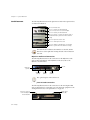
status LEDs and a power switch. The status LEDs are as follows:
LED
Status
HD
The break-out-box box is in HD mode (as opposed to SD)
SD
The break-out-box is in standard definition mode
Input Lock
The break-out-box has a valid input signal and is locked to it
(for capture)
Genlock
The break-out-box is locked to the house sync
Host Link
This LED blinks to indicate that there is communication
between the workstation and the break-out-box
Power
Indicates whether the break-out-box is on or off
Status LEDs
Power switch
Front panel of the Avid Equinox Break-Out-Box
40 • Avid|DS
The Avid Equinox Break-Out-Box
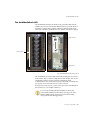
The back panel of the break-out-box has several connectors that provide
the following:
• USB connection
• Digital tether that transfers video signal data between the workstation’s
Avid Equinox PCI card and the break-out-box
• Sync output to the Avid Equinox PCI card
• HD video input from a VTR or other device
• HD video outputs to VTRs or monitors
If either of the HD video outputs is not being used, terminate it with
a 75-ohm terminating resistor.
• Standard definition video input from a VTR or other device
• Standard definition video outputs to VTRs or monitors
• Genlock input for the incoming house sync signal
• Monitoring outputs for composite and S-video monitors
You can only monitor the composite and S-video signals during
standard definition sessions.
USB connector
Power cord
connector
Sync output to
Avid Equinox PCI card
Digital tether input/output
from Avid Equinox PCI card
Standard definition
output to VTR and video
monitor
HD input
Genlock input
from VTR
from house sync
HD output to
VTR and video
monitor
Standard
definition input
from VTR
Composite and S-video
monitoring outputs
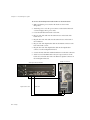
The back panel of the Avid Equinox Break-Out-Box
Workstation Setup Guide • 41
Chapter 4 • Assembling the System
To connect the Avid Equinox Break-Out-Box to the workstation
1. Make sure that the power switch on the break-out-box is in the
Off position.
2. Attach the power cord to the power connector at the back of the breakout-box and plug it into a power outlet.
3. Locate the USB cable in the break-out-box kit.
4. Plug one end of the cable into the USB connector on the back of the
break-out-box.
5. Plug the other end of the cable into the USB connector on the back of
the workstation.
6. Plug one end of the digital tether cable into the In/Out connector at the
back of the break-out-box.
7. Plug the other end of the digital tether cable into the Digital tether
connector on the Avid Equinox PCI card.
8. Secure both ends of the cable with the thumbscrews on the cable connectors.
9. Attach one end of the BNC cable to the Sync output connector on the
break-out-box and the other end to the Reference signal in connector on
the Avid Equinox PCI card.
Avid Equinox Break-Out-Box
USB cable
Digital tether cable
42 • Avid|DS
BNC cable
Avid|DS workstation
The Avid MediaDock LVD
The Avid MediaDock LVD
The Avid MediaDock LVD is the default storage system that ships with the
Avid|DS. You can connect the Avid MediaDock LVD storage system directly to
the Adaptec controller in the Avid|DS workstation with the included SCSI
cables. The controller is installed before your Avid|DS workstation is shipped.
ESM module
Drive shuttles
I/O module
Front
Back
The Avid MediaDock LVD storage system
The Avid MediaDock LVD has eight slots for LVD shuttle drives. You can use
them in either single or dual-bus configurations. With Avid|DS, however, the
Avid MediaDock LVD is used in a dual-bus configuration. In this
configuration, the slots are shared between bus A and bus B. For example, the
four top slots on bus A and the four bottom slots on bus B.
Should you need extra storage, you can connect up to three Avid MediaDock
LVD enclosures to your Avid|DS workstation.
Do not use the Avid MediaDock LVD Manager software that
comes with the MediaDock. This utility is not supported on the
Windows 2000 operating system at the present time and may
cause problems with other applications.
Workstation Setup Guide • 43
Chapter 4 • Assembling the System
Single Enclosure
Configuration
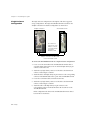
The single enclosure configuration is the simplest of the three supported
storage configurations. The single Avid MediaDock LVD is attached to the
Avid|DS workstation in a dual bus configuration as shown below.
Avid|DS workstation
Avid MediaDock LVD
SCSI cable from
channel 1/A of the
Adaptec controller
to the ESM module
of the Avid
MediaDock LVD
SCSI cable from channel 2/B of the
Adaptec controller to the I/O module
of the Avid MediaDock LVD
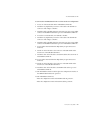
To connect the Avid MediaDock LVD in a single enclosure configuration
1. Locate one of the SCSI cables in the Avid MediaDock LVD kit. It has a
very-high-density SCSI connector at one end and a high-density 68-pin
connector at the other end.
2. Attach the very-high-density connector of the cable to the channel 1/A
connector of the Adaptec controller.
3. Attach the cable’s other high-density 68-pin connector to the corresponding
connector in the ESM module at the top rear of the Avid MediaDock LVD.
4. Locate the second SCSI cable; it is identical to the first.
5. Attach the very-high-density connector of the cable to the channel 2/B
connector of the Adaptec controller.
6. Attach the cable’s other high-density 68-pin connector to the
corresponding connector in the I/O module at the bottom rear of the
Avid MediaDock LVD.
In this configuration the drives in the Avid MediaDock LVD are shared
between the two SCSI buses.
44 • Avid|DS
The Avid MediaDock LVD
Two-Enclosure
Configuration
The two-enclosure configuration uses two MediaDock LVDs, each in a single bus
configuration (each enclosure connected to a single SCSI bus) as shown below.
In this configuration you can use a maximum of sixteen drives, eight in each
MediaDock or on each SCSI bus.
Avid|DS workstation
SCSI cable from channel 2/B
of the Adaptec controller to
Avid MediaDock LVD #2
SCSI cable from channel 1/A
of the Adaptec controller to
Avid MediaDock LVD #1
Avid MediaDock LVDs
To connect the Avid MediaDock LVD in a two-enclosure configuration
1. Locate one of the SCSI cables in the Avid MediaDock LVD kit.
2. Attach the very-high-density connector of the cable to the channel 1/A
connector of the Adaptec controller.
3. Attach the cable’s other high-density 68-pin connector to the corresponding
connector in the ESM module at the top rear of Avid MediaDock LVD #1.
4. Locate the second SCSI cable; it is identical to the first.
5. Attach the very-high-density connector of the cable to the channel 2/B
connector of the Adaptec controller.
6. Attach the cable’s other high-density 68-pin connector to the corresponding
connector in the ESM module at the top rear of Avid MediaDock LVD #2.
7. On both Avid MediaDock LVD #1 and #2, place the configuration switches
on the ESM and I/O modules into position 1.
Make sure you do not terminate the I/O modules with SCSI
terminators. The I/O and ESM modules have internal termination.
Workstation Setup Guide • 45
Chapter 4 • Assembling the System
Three-Enclosure
Configuration
The three-enclosure configuration uses two Avid MediaDock LVDs in single
bus configurations and one Avid MediaDock LVD in a dual bus configuration.
This configuration lets you use a maximum of twenty-four drives; twelve on
each SCSI bus.
Avid|DS workstation
SCSI cable from channel 2/B
of the Adaptec controller to
Avid MediaDock LVD #2
SCSI cable from channel 1/A
of the Adaptec controller to
Avid MediaDock LVD #1
SCSI cable
Avid MediaDock
LVD #3
SCSI cable
Before assembling this storage configuration, you must replace the
ESM (Enclosure Service module) on Avid MediaDock LVD #1 and
#2 with an SRM (SCSI Repeater module). Contact your Avid|DS
reseller to obtain the necessary replacement module.
46 • Avid|DS
The Avid MediaDock LVD
To connect the Avid MediaDock LVD in a three-enclosure configuration
1. Locate one of the SCSI cables in the Avid MediaDock LVD kit.
2. Attach the very-high-density connector of the cable to the channel 1/A
connector of the Adaptec controller.
3. Attach the cable’s other high-density 68-pin connector to the corresponding
connector in the SRM module at the top rear of Avid MediaDock LVD #1.
4. Locate the second SCSI cable; it is identical to the first.
5. Attach the very-high-density connector of the cable to the channel 2/B
connector of the Adaptec controller.
6. Attach the cable’s other high-density 68-pin connector to the corresponding
connector in the SRM module at the top rear of Avid MediaDock LVD #2.
7. Locate another SCSI cable that has high density 68-pin connectors at
both ends.
8. Attach one end of the cable to the connector on the I/O module at the
bottom rear of Avid MediaDock LVD #1.
9. Attach the other end of the cable to the I/O module at the bottom rear of
Avid MediaDock LVD #3.
10. Locate another SCSI cable that has high density 68-pin connectors at
both ends.
11. Attach one end of the cable to the connector on the I/O module at the
bottom rear of Avid MediaDock LVD #2.
12. Attach the other end of the cable to the ESM module at the top rear of
Avid MediaDock LVD #3.
13. On Avid MediaDock LVD #1 and #2, place the configuration switches on
the SRM and I/O modules into position 2.
14. On Avid MediaDock LVD #3:
• Place the configuration switch on the ESM module in position 1.
• Place the configuration switch on the I/O module in position 2.
Workstation Setup Guide • 47
Chapter 4 • Assembling the System
The Avid MEDIArray
The Avid MEDIArray is an optional storage solution available with the
standard definition version of Avid|DS 4.02. You can connect the Avid
MEDIArray storage directly to the Emulex fibre channel controller board in
the Avid|DS workstation. The controller board is installed before shipment.
The Copper Cables to
the Fibre Channel
Controller Board
You can connect the Fibre Channel Drive Enclosure (FCDE) directly to the
fibre channel controller board with the included copper duplex cable.
To connect the copper duplex cable to the FCDE
1. Locate the copper duplex cable in the fibre channel kit. It has a 9-pin
connector on both ends.
2. Attach one end of the cable to the controller board.
Fibre channel cable to
the Avid MEDIArray
3. Attach the cable’s other 9-pin connector to the primary (PRI) 9-pin
connector on the link control card (LCC) in slot A on the back of the FCDE.
4. Secure both ends of the cable with the thumbscrews on the cable connectors.
For more information, refer to the Avid MEDIArray documentation.
48 • Avid|DS
The Machine Control Cable
The Machine Control Cable
The machine control cable included with Avid|DS consists of the DataMate
DM 7015 or Rosetta Stone adapter, a 3-foot RS-232 cable, and a 10-foot RS422 cable. The adapters perform an RS-232 to RS-422 signal conversion that
lets you control a VTR from your Avid|DS workstation. The two cables are
both standard 9-pin male-to-male data cables.
The adapters includes two diagnostic LEDs (power and data). The power LED
shows a steady light when the adapter is receiving adequate power through the
serial port. The data LED flashes whenever data is being transmitted or
received. This helps you confirm that the serial port is active.
Datamate
adapter
RS-422 cable
to VTR
RS-232 cable
to workstation
To assemble the machine control cable
1. Attach the RS-232 cable to the RS-232 from PC end of the adapter.
2. Attach the RS-422 cable to the RS-422 to VTR end of the adapter.
The adapter label shows the correct orientation.
Workstation Setup Guide • 49
Chapter 4 • Assembling the System
Peripheral Devices
Peripheral devices, such as VTRs and DATs, connected to your workstation
allow you to capture and output video/audio material. You can control this
equipment remotely with Avid|DS.
Video Connections
You can connect HD VTRs and video monitors to your workstation.
Although you should use a house sync, Avid|DS can capture and output using
an internal sync signal generated by the Avid Equinox Break-Out-Box.
The following procedures and illustrations explain each of these variations.
For more information, refer to the documentation that comes with your
peripheral devices.
On a rack mount workstation, the input/output panel (which
contains the COM 1 serial ports) is to the left of the expansion card
slots when viewing the back of the workstation base unit.
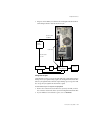
To connect video devices
1. Connect the HD In, on the Avid Equinox Break-Out-Box, to the HD Out
on the VTR.
2. Connect one of the HD Outs, on the Avid Equinox Break-Out-Box, to the
HD In on the VTR.
3. Connect the other HD Out, on the Avid Equinox Break-Out-Box, to the
HD In on the video monitor.
4. Set the VTR transport switch to Remote.
5. Plug the RS-232 end of your machine control cable into the COM 1 port
on your workstation.
6. Plug the other end of the cable to the REMOTE IN port on the VTR.
You should not substitute the machine control cable with any
other cable. The supplied machine control cable is an RS-232 to
RS-422 converter.
50 • Avid|DS
Peripheral Devices
7. Plug one end of a BNC sync cable into the Avid Equinox Break-Out-Box’s
Genlock Input and the other into the house sync.
RS-232 cable
to COM 1
RS-232 to
RS-422
convertor
USB cable
RS-422 cable
to VTR
Digital
tether
Digital VTR
House
sync
Avid Equinox
Break-Out-Box
Video
monitor
Using Internal Sync
Using internal sync lets you capture and play back video without the benefit of
having a house sync signal. During capture, the Avid Equinox Break-Out-Box
takes its sync signal from the SDI video signal. During ouput to tape, the VTR
also accepts the sync signal from the SDI video signal.
To use internal sync for capture and playback
1. Remove the connection between the house sync and your VTR, as well as
the connection between the house sync and Avid Equinox Break-Out-Box.
2. If your VTR has a Servo Reference option, set it to Automatic.
Workstation Setup Guide • 51
Chapter 4 • Assembling the System
Audio Connections
The connections between the Mykerinos audio card, DUA II audio convertor,
and VTR may vary depending on the type of audio equipment and VTR you
have. Use the following illustration and steps as a guideline for connecting the
Mykerinos audio card and audio equipment.
Output
B
Input
B
To Genlock input on Avid
Equinox Break-Out-Box
DUA II
audio convertor
House
sync
Output
to VTR
Input
from VTR
HD VTR
For information on specific port configurations, refer to the documentation
that comes with your DUA II audio convertor, VTR, and Mykerinos audio
card. For a description of the Mykerinos audio card connections, see Card
Placement on page 32.
To connect your audio equipment
1. Make sure that the power switch on the DUA II is in the Off position.
2. Attach the power cord to the power connector at the back of the DUA II,
and plug it into a power outlet.
3. Connect the Optical Output B to ODI In on the DUA II audio convertor.
4. Connect the Optical Input B to ODI Out on the DUA II audio convertor.
5. Connect the audio output ports on the audio convertor to the input ports
on the VTR or audio device.
6. Connect the audio input ports on the audio convertor to the output ports
on the VTR or audio device.
There is no external sync connection to the Mykerinos card as the
sync signal is provided by the Avid Equinox PCI card via an internal
connection.
52 • Avid|DS
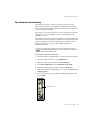
The Software Protection Key
The Software Protection Key
The software protection key (dongle) provides copy protection for the
software that is installed on your workstation. Avid|DS will not start unless
the dongle identification number matches the information in the license file
on your workstation's hard drive.
The dongle does not require batteries as it receives electrical power from the
parallel port. So, before attaching the dongle, you should verify that the
parallel port is active.
Your workstation is delivered with a license file already on the hard drive. This
license file was used for testing prior to shipment. Your Avid|DS reseller will
provide a valid license file for your dongle. For more information, refer to
Installing the License File on page 52 of the Avid|DS Installation &
Administration Guide.
On a rack mount workstation, the input/output panel (which
contains the parallel LPT1 port) is to the left when viewing the back
of the workstation base unit.
To install the software protection key
1. Attach the dongle to the parallel (LPT1) port on the back of the workstation.
2. Start the workstation and log on as an Administrator.
3. Right-click on My Computer and choose Device Manager.
4. Select Ports (COM & LPT) and select ECP Printer Port (LPT1).
5. Right-click on ECP Printer Port (LPT1) and choose Properties.
6. Click the General tab and verify that the Device Status says “This device is
working properly”.
7. If not, close the dialog box, right-click on ECP Printer Port (LPT1) and
choose Enable.
Parallel port LPT1
Workstation Setup Guide • 53
Chapter 4 • Assembling the System
54 • Avid|DS
Index
Index
A
Adaptec card connections 33
attaching software protection key 53
audio devices, connecting 52
Avid Equinox Break-Out-Box 40
connecting 42
Avid Equinox PCI card
connections 32
Avid MediaDock LVD,
connecting 43
Avid MEDIArray 48
Avid|DS discussion group 8
B
back panel, workstation 31
C
cables 42, 43
machine control, assembling 49
capture, signal flow 30
cards 31
Adaptec card connection 33
Avid Equinox PCI card
connections 32
Emulex card connections 33
Mykerinos audio card
connections 32
placement 32
signal flow, capture/playback 30
Compositing & Effects Guide 17
computer monitors, connecting 39
connecting hardware 38
audio devices 52
Avid Equinox Break-Out-Box 42
Avid MediaDock LVD 43
computer monitors 39
keyboard 38
monitors 39
mouse 38
peripheral devices 50
tablet 38
video devices 50
WACOM tablet 38
connections, card
Avid Equinox PCI 32
Emulex 33
Mykerinos 32
contents, Avid|DS system 15
documentation 17
hardware 15
software 16
conventions, document 9
customer service 10
D
devices
audio, connecting 52
peripheral, connecting 50
dimensions, hardware 23
discussion group 8, 11
disk drives 34
Low-Voltage Differential
Signaling 34
LVDS 34
standard configuration 34
document conventions 9
documentation 17
Compositing & Effects Guide 17
Guided Tour 17
Installation & Administration
Guide 17
online help 17
Quick Reference Card 17
Release Notes 17
Remote Processing Guide 17
Tutorial 17
User’s Guide 17
vendor 17
Workstation Setup Guide 17
dongle (software protection key),
attaching 53
E
electrical requirements 21
specifications 22
e-mail support 11
Emulex card connections 33
environmental requirements 21
Equinox Break-Out-Box,
connecting 42
Equinox PCI card 32
ESM module 46, 47
F
fibre-channel cable 48
G
Guided Tour 17
H
hardware 15, 24
dimensions 23
specifications 23
hardware, connecting 38
computer monitors 39
keyboard 38
monitors 39
mouse 38
tablet 38
WACOM tablet 38
hotline support 10
house sync 24
I
I/O module 47
input and outputs, system 29
Installation & Administration
Guide 8, 17
internal sync 51
K
key, software protection 53
keyboard, connecting 38
L
license
file 53
support 10
technical support 10
list, mailing 11
Low-Voltage Differential Signaling
(LVDS) SCSI disk drive 34
LVDS SCSI disk drive 34
Workstation Setup Guide • 55
Index
M
S
T
machine control cable,
assembling 49
mailing list 11
MediaDock LVD
connecting 43
drives 34
MEDIArray, connecting 48
module
ESM 46, 47
I/O 47
SRM 46, 47
monitors, connecting 39
mouse, connecting 38
Mykerinos card connections 32
SCSI cable 44, 45, 47
SCSI disk drive, LVDS (Low Voltage
Disk Drive) 34
signal flow 30
capture 30
playback 30
single enclosure configuration 44
site planning requirements 21 to 23
electrical 21
environmental 21
space 22
software 16
software protection key (dongle),
attaching 53
space requirements 22
specifications
electrical 22
hardware 23
SRM module 46, 47
storage
Avid MediaDock LVD 43
Avid MEDIArray 48
storage configurations 44 to 47
single enclosure 44
three enclosure 46
two enclosure 45
support 10
e-mail 11
hotline 10
licensing 10
mailing list 11
phone 10
training 10
web 11
system contents 15
documentation 17
hardware 15
software 16
system inputs/outputs 29
system requirements 21 to 23
electrical 21
environmental 21
space 22
tablet, connecting 38
technical support 10
telephone support 10
three enclosure configuration 46
training support 10
Tutorial 17
two enclosure configuration 45
N
New Features Tour 17
O
Online Help 17
outputs and inputs, system 29
P
package contents 15
documentation 17
hardware 15
software 16
peripherals 24
devices 50
phone support 10
planning, site 21 to 23
electrical requirements 21
environmental requirements 21
space requirements 22
playback, signal flow 30
Q
Quick Reference Card 17
R
Release Notes 8, 17
Remote Processing Guide 17
requirements 21 to 23
electrical 21
environmental 21
space 22
56 • Avid|DS
V
vendor documentation 17
video devices, connecting 50
W
WACOM tablet, connecting 38
web support 11
workstation
back panel overview 31
cards 30, 31
Workstation Setup Guide 8, 17