1
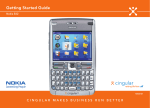
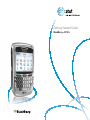
Getting Started Guide
BlackBerry® 8700c
Table of Contents
Welcome to AT&T
What’s in the Box?
Insert the Battery
Charge the Battery
Set Up Your BlackBerry® 8700c Setup Wizard
Introduction to BlackBerry® 8700c Email Set Up
Get Started Using Your BlackBerry® 8700c Send an Email
Send an SMS Text Message
Make a Phone Call
Set Up Voicemail
Check Your Voicemail Messages From Your BlackBerry® 8700c Check Your Voicemail Messages From Other Phones/Wireless Devices Add a Contact
Schedule an Appointment Go to Web Pages
Setup Bluetooth®
Push to Talk
- Setup Push to Talk
- Add a Push to Talk contact
- Create a Push to Talk group
- Edit a Push to Talk contact or group
- Make a Push to Talk call
- Make a Quick Group call
- Accept a Push to Talk invitation
4
4
5
5
6
6
6
9
12
12
13
14
16
16
16
17
18
19
20
21
21
22
22
23
24
24
25
BlackBerry® 8700c
- Respond to a Push to Talk call
- Set your Push to Talk availability status
- Send a Call Me Alert
- Set a Contact Alert
- Send a Voice Message
- Turn off Push to Talk
Synchronize Your BlackBerry® 8700c With Your Computer BlackBerry® Desktop Software
What You Need
Setup Instructions Media
Media
25
26
26
27
27
28
30
30
31
32
36
36
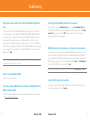
Troubleshooting
38
Tips and Tricks
44
Accessories
Icons and Indicators
BlackBerry® 8700c
46
50
Welcome to AT&T
What’s in the Box?
Insert & Charge the Battery
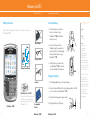
What’s in the Box?
Insert the Battery
Remove the following items from the box to help you set up your
BlackBerry® 8700c.
1. Press the battery cover release
button on the back of your
BlackBerry® 8700c and slide the
battery cover off.
Travel Charger
Getting Started Guide
BlackBerry® 8700c
USB Sync Cable
2. Insert the battery so that the
BlackBerry logo faces up and the
metal contacts on the battery align
with the metal contacts on your
BlackBerry® 8700c.
3. Slide the battery cover back onto
your BlackBerry® 8700c so that the
cover lies flat and clicks into place.
Getting Started Guide
Charge the Battery
Headset
2. Connect the small USB end of the travel charger cable to the USB
port on the side of your BlackBerry® 8700c.
BlackBerry® User Tools CD
BlackBerry® 8700c
1. Pull the plug blades down on the travel charger.
Includes User Guide, BlackBerry End
User/Software License Agreement
and warranty information for your
Rechargeable
BlackBerry® 8700c
3. Plug the travel charger into a power outlet.
Steps?
3
Takes?
1 minute
Note:
If the battery
is charged, the
BlackBerry®
8700c turns on. If
the BlackBerry®
8700c does not
turn on, charge the
battery. The length
of time to charge the
battery can take up to
an hour or more.
CAUTION: Use only
accessories that
Research In Motion
has approved for use
with your BlackBerry®
8700c. Use of other
accessories might
invalidate your
warranty and might
be dangerous.
4. Charge the battery to full power.
Battery
BlackBerry® 8700c
BlackBerry® 8700c
Set Up Your BlackBerry 8700c
Setup Wizard
Setup Wizard
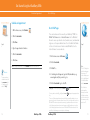
The BlackBerry® 8700c contains a Setup Wizard designed to help you
quickly and easily set up and personalize your BlackBerry® 8700c.
Setup Wizard
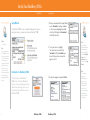
1. Once you have launched the Setup Wizard,
use the trackwheel to scroll up and down
on the screens and highlight input fields
or buttons. Click (press) the trackwheel to
select fields or buttons.
Takes?
5 - 10 minutes
Note:
As you complete the
Setup Wizard, look for
the progress indicator
to tell you how many
screens you have
completed. The more
indicator tells you if
there is more to see
on the screen and
the buttons along the
bottom allow you to
navigate through the
wizard.
2. To set your time zone, highlight
the current time zone and click the
trackwheel . Scroll the trackwheel up or
down to find your time zone and click
again to select it.
Introduction to BlackBerry 8700c
3. Review the navigation keys and click Next.
The introduction to the BlackBerry®
8700c section of the Setup Wizard will
help you choose your language, setup the
date and time, and orient you to some of
the important keys and functions on your
BlackBerry® 8700c.
BlackBerry® 8700c
BlackBerry® 8700c
Note:
You can exit the
Setup Wizard at any
time and return to
where you left off by
selecting BlackBerry
Setup from the
Home screen and
then choosing Setup
Wizard.
Note:
To save battery
power your
BlackBerry 8700c
screen is set to
Timeout (go dark
or dim) after 45
seconds. If the
screen goes dark or
dims simply press
any key to view the
screen again.
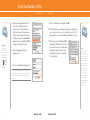
Set Up Your BlackBerry 8700c
Setup Wizard
Email Setup
4. Enter your owner information and click
Next.
Note:
If your SIM card
currently has contacts
saved to it, you will be
prompted to import
them to the device. To
import the contacts
click “Yes” then click
“Next”.
Email Setup
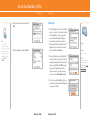
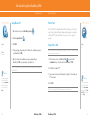
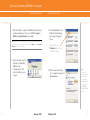
1. The Email Setup portion of the wizard will
ask you to choose to either create or add
an email address or to use a corporate
account with a BlackBerry® Enterprise
Server. Unless you have been given an
Enterprise Activation Password by your IT
department you should choose I want to
create or add an email address.
5. Select the display font and click Next.
2. You must either login to your BlackBerry®
Internet Service account (this account will
manage the supported email accounts you
setup on your BlackBerry 8700c; you may
have up to 10 supported accounts) or
create a new one. If you are a new user,
you must choose Create New Account.
Steps?
13
Takes?
5 - 10 minutes
Note:
To set up email using
web browser on your
computer, visit www.
cingular.com/
blackberrystart.
3. To continue, read the BlackBerry Internet
Service terms and conditions carefully, and
if you agree, click Yes.
BlackBerry® 8700c
BlackBerry® 8700c
Set Up Your BlackBerry 8700c
Email Set Up
Typing Tips
To capitalize a
letter, hold the
letter key until the
capitalized letter
appears or hold
the right shift
key
and press
the appropriate
letter key
4. Create a User ID and password of your
choice for your BlackBerry Internet
Service Account. The password must
be at least 6 characters long and is case
sensitive. Store this login information in a
safe place so that you can add additional
email accounts to your BlackBerry 8700c or
change your settings in the future.
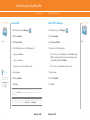
Email Set Up
7. Once the confirmation screen displays, click OK.
8. Once the summary screen displays, showing you the email account
you’ve set up you can choose to set up another account (up to 10
supported accounts), create a BlackBerry email address, or log out.
9. When you log out, your BlackBerry 8700c
will display the BlackBerry Internet Service
login screen. Be sure to close the browser
window by pressing the Menu key and
clicking Close.You have now completed
the Setup Wizard.
5. Select a language by clicking on a
language choice.
6. Enter your email address and password.
The user name must begin with a letter or number,
contain between 4 and 32 characters, and may contain
letters, numbers, underscores, dashes, and period
characters.
10
BlackBerry® 8700c
BlackBerry® 8700c
Note:
Once you add
an email account
using the email
setup application,
messages sent to
that account will
also appear in the
messages list on
your device. Also,
when you send a
message from your
device, it will be
sent using the email
address of that
account.
11
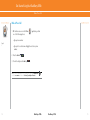
Get Started Using Your BlackBerry 8700c
Send an Email
Send an Email
Send an SMS Text Message
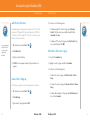
1. On the Home screen, click Messages
Steps?
7
More Info
To learn more about
email features click
the trackwheel while
in Messages, scroll to
and click Help.
Send an SMS Text Message
.
1. On the Home screen, click Messages
2. Click the trackwheel.
2. Click the trackwheel.
3. Click Compose Email.
3. Click Compose SMS Text.
4. In the To field, perform one of the following actions:
4. Perform one of the following actions:
•
Type an email address.
•
Type a contact name.
•
Type part of a contact name. Click a contact.
•
If the contact is not in your address book, click Use Once. Type an
SMS phone number (include the country code and area code) or
an email address. Click the trackwheel.
•
If the contact is in your address book, click a contact.
5. Type a message.
5. Type a message.
6. Click the trackwheel.
6. Click the trackwheel.
7. Click Send.
.
Steps?
7
7. Click Send.
If you have associated your BlackBerry 8700c with more than one supported email
address, in the Send Using field, you can set the email address that you use to send the
email message.
®
Note: You must set up an email account on your BlackBerry 8700c to send email. To learn
how to set up an email account, refer to Email Setup in the SetupWizard.
12
BlackBerry® 8700c
BlackBerry® 8700c
13
Get Started Using Your BlackBerry 8700c
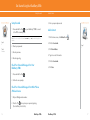
Make a Phone Call
Make a Phone Call
1. On the Home screen or in the Phone
one of the following actions:
Steps?
3
application, perform
•
Type a phone number
•
Type part of a contact name. Highlight a contact or phone
number.
2. Press the send key
.
3. To end the call, press the end key
.
Note: To turn the speakerphone on or off during a call, press the speakerphone key
or click the trackwheel and then click Activate Speakerphone/Handset.
14
,
BlackBerry® 8700c
BlackBerry® 8700c
15
Get Started Using Your BlackBerry 8700c
Setup Voicemail
Steps?
4
Takes?
2 minutes
Add a Contact
Setup Voicemail
3. Enter your personal passcode.
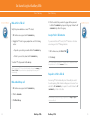
1. Press and hold the 1 key
on your BlackBerry® 8700c to connect
to the AT&T voicemail system.
Add a Contact
Note: There is no need to hold down the left
number.
1. On the Home screen, click Address Book
shift
key or alt key when dialing a phone
2. Click the trackwheel.
2. Create your password.
3. Click New Address.
3. Record your name.
.
Steps?
6
4. Type the contact information.
4. Record a greeting.
5. Click the trackwheel.
Check Your Voicemail Messages From Your
BlackBerry 8700c
1. Press and hold the 1 key
6. Click Save.
.
2. Follow the voice prompts.
Check Your Voicemail Messages From Other Phones
/Wireless Devices
1. Dial your 10-digit wireless number.
when you hear your personal greeting.
2. Press the * key
(Press the # key in Puerto Rico)
16
BlackBerry® 8700c
BlackBerry® 8700c
17
Get Started Using Your BlackBerry 8700c
Schedule an Appointment
Go to Web Pages
Schedule an Appointment
1. On the Home screen, click Calendar
Go to Web Pages
.
There are two browsers that come with your BlackBerry® 8700c : the
MEdia™ Net Browser and an Internet Browser. Use the MEdia Net
Browser to access your favorite content (weather, news...) and download
ringtones or other personalization items. Go to the Quick Start Guide
in the box to find out more information about MEdia Net. Use the
Internet Browser to access web sites.
2. Click the trackwheel.
3. Click New.
Steps?
6
4. Type the appointment information.
5. Click the trackwheel.
1. On the Home screen click Browser
6. Click Save.
2. Click the trackwheel.
Note: To change calendar views, Click the trackwheel and select the desired view.
More Info
3. Click Go To….
4. In the dialog box that appears, type the URL (web address, e.g.
www.cingular.com) that you wish to go to.
To learn more about
calendar features click
the trackwheel while
in Calendar, scroll to
and click “Help”.
5. Click the trackwheel to go to the URL.
Typing Tips: To insert a period, press the space key
twice.
To insert symbols such as @, _ and /, press the alt key
and press the appropriate letter
key.
*Your use of third party products and services shall be governed by and subject to you
agreeing to the terms of separate software licenses, if any, for those products or services.
RIM and AT&T makes no representation, warranty or guarantee whatsoever in relation
to the third party products and services and assumes no liability whatsoever in relation
to the third party products and services even if RIM and AT&T has been advised of the
possibility of such damages or can anticipate such damages.
18
BlackBerry® 8700c
BlackBerry® 8700c
Steps?
5
Note:
The Go To dialog box
tracks the web pages
that you type. To
access a web page on
the list, highlight and
click the the address
with the trackwheel.
Not all web sites
are designed for
browsing on a handheld device and may
not look or function in
the same way as they
would on a PC.
19
Get Started Using Your BlackBerry 8700c
Setup Bluetooth
Setup Bluetooth®
Push to Talk
1. On the Home screen, click BlackBerry Setup
2. Click Set up Bluetooth
Steps?
5
Takes?
1 minute
.
.
Push to Talk (PTT) is a digital walkie-talkie that allows you to instantly
reach others by eliminating the dialing and ringing steps in a regular
cellular call. PTT calls can be made to one person or to a group of
people.
3. Click OK.
Setup Push to Talk
4. If required, type the passkey for the Bluetooth enabled accessory on
your BlackBerry® 8700c.
Note: You must have a PTT subscription to set up the PTT service. PTT initialization might
take a few moments to complete.
5. Once the Bluetooth enabled accessory is paired with your
BlackBerry® 8700c, you are ready to use Bluetooth.
1. On the Home screen, click Push to Talk
or press the ptt
convenience key on the left side of the BlackBerry® 8700c.
Note: You can simultaneously use more than one Bluetooth enabled accessory with your
BlackBerry 8700c.
2. Click Yes to initialize PTT.
More Info
3. Type a name that is up to 20 characters in length. This will be your
PTT user name.
To learn more about
Bluetooth features
click the trackwheel
while in Bluetooth,
scroll to and click
Help.
20
Push to Talk Setup
4. Click OK.
Note: PTT is on when the PTT indicator appears on the Home screen.
BlackBerry® 8700c
BlackBerry® 8700c
Steps?
4
More Info
To learn more about
Push to Talk features
click the trackwheel
while using the Push
to Talk, scroll to and
click Help.
21
Get Started Using Your BlackBerry 8700c
Push to Talk Setup
Add a Push to Talk contact
4. Perform one of the following actions:
Individuals and group members that you add to your PTT contact list
must have a PTT capable AT&T device and subscribe to AT&T Push
to Talk service. When you add a PTT contact, the contact can accept,
decline, or defer your invitation.
For more information
about Push to Talk
service, visit www.
cingular.com/
pushtotalk
1. On the Home screen, click Push to Talk
Push to Talk Setup
•
To add an existing PTT contact to the group, click Existing
Contact. Click the contacts you would like to add. Click the
trackwheel . Click Save.
•
To add a new PTT contact to the group, click New Contact. Type
the contact information. Click OK.
.
2. Click Add Contact.
Edit a Push to Talk contact or group
3. Type the contact information.
1. Press the ptt
4. Click OK. An icon appears to indicate that your invitation is in
progress.
2. Highlight a contact or group and click the trackwheel.
1. On the Home screen, click Push to Talk
.
2. Click Add Group.
key.
3. Perform one of the following actions:
•
To delete the contact or group, click Delete Contact or Delete
Group.
•
To rename the contact or group, click Rename Contact or Rename
Group.
•
To add or delete members of the group, click View Members and
then click the trackwheel.
Create a Push to Talk group
A PTT group is a great way to call several people at the same time.
convenience
3. Type a name for the group and click OK.
22
BlackBerry® 8700c
BlackBerry® 8700c
23
Get Started Using Your BlackBerry 8700c
Push to Talk Setup
Push to Talk Setup
Verify that you have added one or more PTT contacts.
4. Click the contacts that you want in the group call then press and
hold the ptt convenience key to speak to the group. Release the ptt
convenience key to listen to the group.
1. On the Home screen, press the ptt
Accept a Push to Talk invitation
Make a Push to Talk call
convenience
key.
2. Highlight a PTT contact or group and perform one of the following
actions:
•
To speak to your contact, press and hold the ptt
•
To listen to your contact, release the ptt
convenience
convenience
key
key.
To end the PTT call, press and hold the end key.
Make a Quick Group call
convenience
1. On the Home screen, click Push to Talk
.
2. Click Accept.
Note: You can automatically accept all PTT invitations. In the PTT application, set Auto
Accept Invitations to On. Click the trackwheel. Click Save.
Note: To convert your PTT call to a cellular call during the call, press the trackwheel. Click
Convert to Cellular. When you hear the tone, begin speaking without using the PTT
convenience key.
1. On the Home screen, press the ptt
If you are invited to be a PTT contact, the PTT Indicator on the Home
screen changes to the PTT Message Indicator.
key.
Respond to a Push to Talk call
An incoming PTT call is indicated by a tone followed by the sound of
the caller speaking. Caller information will appear on the screen. Press
and hold the ptt convenience key to speak to the caller. Release the ptt
convenience key to listen to the caller.
2. Click the trackwheel.
Note: Depending on your profile setting, you might need to click Accept or Reject to
initiate or end the call.
3. Click Quick Group.
24
BlackBerry® 8700c
BlackBerry® 8700c
25
Get Started Using Your BlackBerry 8700c
Push to Talk Setup
Set your Push to Talk availability status
1. On the Home screen, press the ptt
convenience
Push to Talk Setup
Set a Contact Alert
key.
Contact alerts notify you when a PTT contact becomes available.
1. On the Home screen, press the ptt
2. Click the trackwheel.
convenience
key.
convenience
key.
2. Click the trackwheel.
3. Click My Availability.
3. Click Contact Alerts.
4. Click a status.
4. Click a contact.
5. Click the trackwheel.
5. Click the trackwheel.
6. Click Save.
6. Click Save.
Send a Voice Message
Send a Call Me Alert
1. On the Home screen, press the ptt
convenience
key.
1. On the Home screen, press the ptt
2. Highlight a contact.
2. Click a contact.
3. Click Call Me Alert. The recipient’s wireless phone or wireless
device displays a screen notifying them to call you. The recipient
can choose to return your call immediately.
3. Click the trackwheel.
4. Click Voice Messages.
Note: If desired, you may select more than one contact to send a voice message to.
5. Press and hold the ptt
6. Release the ptt
26
BlackBerry® 8700c
BlackBerry® 8700c
convenience
convenience
key and begin speaking.
key to send the voice message.
27
Get Started Using Your BlackBerry 8700c Push to Talk Setup
Turn off Push to Talk
1. On the Home screen, click Push to Talk
.
2. Click PTT is On.
3. Click Off.
4. Click the trackwheel.
5. Click Save.
28
BlackBerry® 8700c
BlackBerry® 8700c
29
Synchronize Your BlackBerry 8700c With Your Computer
BlackBerry® Desktop Software
What You Need
BlackBerry Desktop Software
®
You can install the BlackBerry® Desktop Software on your computer
and connect your BlackBerry® 8700c to your computer to allow you to
perform any of the following actions:
Note:
Before installing
the BlackBerry
Desktop Software,
you must agree to
the BlackBerry End
User/Software License
Agreement
BlackBerry® Desktop Software
• Synchronize organizer data such as contacts, calendar entries, tasks,
and memos between your BlackBerry 8700c and your computer.
• Intel® compatible 486 or higher computer that is compliant with USB
1.1 or later
• Microsoft® Windows® 2000, or later
• Available USB port
• CD drive
• Back up and restore BlackBerry 8700c data.
• Transfer files between your computer and your BlackBerry 8700c.
• Add applications to your BlackBerry 8700c.
• Set up and manage email message forwarding or wireless calendar
synchronization if your BlackBerry® Enterprise Server administrator
has advised you to do so.
30
BlackBerry® 8700c
BlackBerry® 8700c
31
Synchronize Your BlackBerry 8700c With Your Computer
BlackBerry® Desktop Software
Setup Instructions
Steps?
10
Takes?
5 - 10 minutes
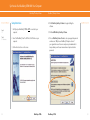
4. Click BlackBerry Desktop Software to begin installing the software.
1. Verify that your BlackBerry® 8700c is NOT connected to your
computer.
2. Insert the BlackBerry® User Tools CD into the CD drive on your
computer.
3. Follow the instructions on the screen.
32
BlackBerry® Desktop Software
BlackBerry® 8700c
5. Click Install BlackBerry Desktop Software.
6. Choose BlackBerry Internet Service to set up a supported personal
email account. Only choose BlackBerry® Enterprise Server if
your organization uses this service and your system adminstrator
has provided you with a user name and an enterprise activation
password..
BlackBerry® 8700c
33
Synchronize Your BlackBerry 8700c With Your Computer
BlackBerry® Desktop Software
7. When the installation is complete, the BlackBerry® Desktop Software
should automatically open. If it does not click Start > Programs >
BlackBerry > Desktop Manager from the taskbar.
Note: You should check the configuration of the BlackBerry Desktop Software so that
your computer can connect to your BlackBerry 8700c. Click Options and then Connection
Settings and select a USB connection.
8. Connect the smaller end of the
USB cable to your BlackBerry
8700c and connect the larger end of the USB
cable to the USB port on your
computer.
34
BlackBerry® Desktop Software
9. Click the Synchronize icon in the
BlackBerry® Desktop Manager
and setup your configuration
options.
Be sure to click on the
Configuration tab to set your
configuration settings.
10. When you have finished setting up the configuration settings, click Synchronize now.
BlackBerry® 8700c
BlackBerry® 8700c
Note:
To learn more
about synchronizing
data, backing up
or restoring data,
adding applications,
or other functions,
click Help in the
BlackBerry® Desktop
Software.
35
Media
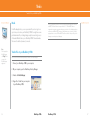
Transfer Files to your BlackBerry 8700c
Media
In the Media application, you can open media files, such as ring tones
or pictures, are stored on your BlackBerry® 8700c. You might have some
preloaded media files, including background pictures and ring tones, in
a Preloaded Media folder on your BlackBerry 8700c. Preloaded media
files cannot be deleted, renamed, or moved.
Note:
For help using the
Media Manager
click “Help” while
you are in the
Media Manager
application.
Note: Any third party products or services that are provided with Research In Motion’s
and AT&T’s Products and services are provided “as is”. RIM and AT&T make no
representation, warranty or guarantee whatsoever in relation to the third party products
and services and RIM and AT&T assume no liability whatsoever in relation to the third
party products or services if RIM and AT&T have been advised of the possibility of such
damages or can anticipate such damages.
Transfer Files to your BlackBerry® 8700c
Note: You must install the BlackBerry Desktop Software to use Media Manager.
1. Connect your BlackBerry® 8700c to your computer.
2. On your computer, open the BlackBerry® Desktop Manager.
3. Double-click Media Manager.
4. Drag a file or folder from your computer
to your BlackBerry® 8700c.
36
BlackBerry® 8700c
BlackBerry® 8700c
37
Troubleshooting
I cannot connect to a wireless network
Try performing one of the following actions:
• Verify that your SIM card is inserted correctly.
• Verify that you have turned on the connection to the wireless network.
• If you were traveling and you selected a network manually, your BlackBerry®
8700c should remain connected to that network until you select your home network
again.
I cannot associate my BlackBerry 8700c with an email address
Try performing the following actions:
• Log in to the email setup web site (www.cingular.com/blackberrystart) and add a
supported email address (up to 10) to your BlackBerry® 8700c using a browser on your
computer. If you have already created a user name and password, use this information
to log in. If you have not created a user name and password, click Create New
Account and complete the instructions on the screen.
• Verify that the email account you wish to associate with your BlackBerry 8700c is POP3
or IMAP account. If you still cannot add the email address, contact your wireless
service provider for more information on supported email accounts.
I do not know which email setup option to choose in the Setup Wizard on
my BlackBerry® 8700c Select the I want to add or create an email address option if the other options do not apply
to you. This option is the most common option for individual users. If you select this option,
an email setup screens opens. You can create a new email address for your BlackBerry®
8700c or associate your 8700c with an existing supported email address.
38
BlackBerry® 8700c
Select the I want to use a work email account with a BlackBerry Enterprise Server option
if a BlackBerry® Enterprise Server system administrator has provided you with a password
that you can use to activate your BlackBerry 8700c over the wireless network. If you select
this option, an Enterprise Activation screen appears. On this screen, you can type your work
email address and the password provided by your system administrator to activate your
BlackBerry 8700c.
Select Skip email setup if any of the following situations apply:
• A representative from the store where you purchased your BlackBerry 8700c has
already helped you to set up your email address at www.cingular.com/blackberrystart.
• You have already visited www.cingular.com/blackberrystart and have set up your email
account.
• You have an existing email account and have access to a BlackBerry® Enterprise Server,
but your BlackBerry Enterprise Server system administrator has not provided you
with a password that you can use to activate your BlackBerry 8700c over the wireless
network. Contact your system administrator for more information about setting up
email for your BlackBerry 8700c.
I cannot send messages
Try performing the following actions:
• Verify that your BlackBerry® 8700c is connected to the wireless network. If you are not
in a wireless coverage area, your BlackBerry 8700c should send the messages when
you return to a wireless coverage area.
• If the menu item for sending a message does not appear, verify that you have added a
supported email address or PIN for your contact.
BlackBerry® 8700c
39
Troubleshooting
• If you created a BlackBerry email address or added an existing supported email
address to your BlackBerry 8700c using the email setup web site, verify that you have
received an activation message on your BlackBerry 8700c from the BlackBerry® Internet
Service. If you have not received an activation message (the message might take a
short period of time to arrive), use the email setup web site to send a service book to
your BlackBerry® 8700c.
• If you have not received a registration message from the wireless network, register
your BlackBerry 8700c. In the BlackBerry 8700c Options, click Advanced Options. Click
Host Routing Table. Click the trackwheel. Click Register Now.
• Resend the message. Open the message. Click the trackwheel. Click Resend.
I cannot make or receive calls
Try performing the following actions:
• Verify that your BlackBerry® 8700c is connected to the wireless network.
• If you cannot make calls and fixed dialing is turned on, verify that the phone number
for your contact appears in your fixed dialing list or turn off fixed dialing.
• If you have traveled to another country and you have not changed your smart-dialing
options, dial the full phone number, including the country code and area code, for
your contact.
• If you are not receiving calls, verify that call blocking and call forwarding are turned off.
I am not receiving messages
I want to charge my BlackBerry 8700c using my computer
Try performing the following actions:
• Verify that your BlackBerry® 8700c is connected to the wireless network. If you are not
in a wireless coverage area, you should receive messages when you return to a wireless
coverage area.
• If you created a BlackBerry® email address or added an existing supported email
address to your BlackBerry® 8700c using the email setup web site, verify that you
have received an activation message on your BlackBerry® 8700c from the BlackBerry®
Internet Service. If you have not received an activation message (the message might
take a short period of time to arrive), use the email setup web site to send a service
book to your BlackBerry® 8700c.
• If you have not received a registration message from the wireless network, register
your BlackBerry 8700c. In the BlackBerry 8700c Options, click Advanced Options. Click
Host Routing Table. Click the trackwheel. Click Register Now.
If you have an available USB port on your computer and you install the BlackBerry® Desktop
Software on your computer to obtain the required USB drivers, you can connect your
BlackBerry 8700c to your computer to charge the battery when the computer is turned on.
Connect the smaller end of the USB cable to the USB port on the side of your BlackBerry
8700c. Connect the larger end of the USB cable to an available USB port on your computer.
Note: To view the BlackBerry Desktop Software Online Help and find more information about connecting your
device to your computer, in the BlackBerry Desktop Software, click Help.
• If you use email message filters, verify that your email message filter options are set
correctly.
40
BlackBerry® 8700c
BlackBerry® 8700c
41
Troubleshooting
My corporate email account is not associated with a BlackBerry Enterprise
Server
If you do not have access to a BlackBerry® Enterprise Server, but you want to send and
receive messages from a corporate Microsoft® Outlook® or IBM® Lotus® Notes® email
account that resides on a Microsoft Exchange or IBM Lotus® Domino® mail server, your
system administrator might permit you to set up BlackBerry Internet Service to access
your corporate email. When you add your corporate email account for use with BlackBerry
Internet Service, you might be prompted to install the BlackBerry® Mail Connector program
on your computer. For more information, in the BlackBerry® Internet Service email setup
application, click Help.
Note: If you install the BlackBerry Mail Connector your computer must be on and the installed program must be
running to send and receive messages on your device.
I have forgotten my BlackBerry Internet Service password
From the Home screen, click BlackBerry Setup and then click Personal Email Setup. Open
the BlackBerry® Internet Service email setup application. On the Login screen, click Forgot
password? Type your user name. Click Ok. Your password is sent to your device as a
message that appears in the message list.
BlackBerry Internet Service messages are not being sent to my new device
If you switch devices, you must update your BlackBerry® Internet Service account to use the
personal information number (PIN) and International Mobile Equipment Identify (IMEI) for
your new BlackBerry device. Open the BlackBerry Internet Service email setup application.
On the Login screen, type your user name and password. Click Log In. Click Change Device.
Type the PIN and IMEI for your new device. Click Save.
Note: To find the PIN and IMEI for your new device, from the Home screen click Settings, Options then Status.
I want to reset my BlackBerry 8700c
Remove and reinsert the battery.
I want to talk to a support representative
I do not have the latest BlackBerry Device Software or BlackBerry® Desktop
Manager Software update
For support using live chat with a Cingular/AT&T Technical Support Representative, go to
http://forums.cingular.com/ and click Register.
To find the latest BlackBerry® Device Software and BlackBerry Desktop Software updates,
visit www.cingular.com/bbdownloads.
42
BlackBerry® 8700c
BlackBerry® 8700c
43
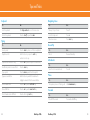
Tips and Tricks
Keyboard
Navigating Screen
To:
Do:
To:
Do:
Lock the keyboard
Click Keyboard Lock icon on the home screen.
Move up to top of screen
Press t
Unlock the keyboard
Press the star (*) key and then send
Unlock the keyboard
Press b
Move down screen
Press space key
Typing
General Tip
To:
Do:
Insert a period
Press the space key twice, next letter is capitalized
To:
Do:
Capitalize a letter
Hold the letter key or press the shift key
and then the letter key
Reboot
Remove the battery
Type alternate character on a key
Press the alt key and then press the character key
Insert @ and periods in an email field
Press the space key
Type a symbol
Press the symbol key and then click a symbol
Type an accented letter
Hold the letter key and roll the trackwheel to
highlight a character. Click the accented letter.
Turn on number lock
Press the alt key and the left
Turn on CAP lock
Press the alt key and the right
Turn off number lock or CAP lock
Press the left or right shift key
44
shift
key
shift
key
BlackBerry® 8700c
Attachments
To:
Do:
Search for text in an attachment
Press f
Phone
To:
Do:
Turn speaker phone on/off during a call
Hold speakerphone key
Voicemail
To:
Do:
Check AT&T voicemail
Press and hold the 1 key
BlackBerry® 8700c
45
Tips and Tricks
Accessories
You can buy accessories such as batteries, carrying solutions, headsets, and charging
solutions for your BlackBerry® 8700c at www.cingular.com/accessories.
CAUTION: Use only accessories that Research In Motion has approved for use with your BlackBerry 8700c. Use of
other accessories might invalidate your warranty and might be dangerous.
46
BlackBerry® 8700c
BlackBerry® 8700c
47
© 2007 AT&T Knowledge Ventures. All rights reserved. AT&T, AT&T logo, Cingular and Cingular logos and AT&T family
of related marks, images, and symbols are trademarks of AT&T Knowledge Ventures and/or AT&T affiliated companies.
Research In Motion, the RIM logo, BlackBerry, the BlackBerry logo and SureType are registered with the U.S. Patent and
Trademark Office and may be pending or registered in other countries - these and other marks of Research In Motion
Limited are used under license.
The Bluetooth word mark and logos are owned by the Bluetooth SIG, Inc.. IBM, Lotus, Domino, and Lotus Notes are
either registered trademarks or trademarks of International Business Machines Corporation in the United States, other
countries, or both. Microsoft, Outlook, PowerPoint, and Windows are either registered trademarks or trademarks
of Microsoft Corporation in the United States and/or other countries. Novell and GroupWise are either registered
trademarks or trademarks of Novell, Inc., in the United States and other countries. All other brands, product names,
company names, trademarks, and service marks are the properties of their respective owners.
The BlackBerry device and/or associated software are protected by copyright, international treaties, and various patents,
including one or more of the following U.S. patents: 6,278,442; 6,271,605; 6,219,694; 6,075,470; 6,073,318; D445,428;
D433,460; D416,256. Other patents are registered or pending in various countries around the world. Visit www.rim.
com/patents for a list of RIM [as hereinafter defined] patents.
This document is provided ‘as is’ and Research In Motion Limited and its affiliated companies (‘RIM’) and AT&T
Knowledge Ventures (AT&T) assume no responsibility for any typographical, technical, or other inaccuracies in this
document. In order to protect RIM/AT&T proprietary and confidential information and/or trade secrets, this document
may describe some aspects of RIM/AT&T technology in generalized terms. RIM reserves the right to periodically change
information that is contained in this document; however, RIM/AT&T makes no commitment to provide any such changes,
updates, enhancements, or other additions to this document to you in a timely manner or at all. RIM/AT&T MAKES NO
REPRESENTATIONS, WARRANTIES, CONDITIONS, OR COVENANTS, EITHER EXPRESS OR IMPLIED (INCLUDING
WITHOUT LIMITATION, ANY EXPRESS OR IMPLIED WARRANTIES OR CONDITIONS OF FITNESS FOR A PARTICULAR
PURPOSE, NON-INFRINGEMENT, MERCHANTABILITY, DURABILITY, TITLE, OR RELATED TO THE PERFORMANCE
OR NON-PERFORMANCE OF ANY SOFTWARE REFERENCED HEREIN OR PERFORMANCE OF ANY SERVICES
REFERENCED HEREIN). IN CONNECTION WITH YOUR USE OF THIS DOCUMENTATION, NEITHER RIM/AT&T NOR
THEIR RESPECTIVE AFFILIATED COMPANIES, DIRECTORS, OFFICERS, EMPLOYEES, OR CONSULTANTS SHALL
BE LIABLE TO YOU FOR ANY DAMAGES WHATSOEVER BE THEY DIRECT, ECONOMIC, COMMERCIAL, SPECIAL,
CONSEQUENTIAL, INCIDENTAL, EXEMPLARY, OR INDIRECT DAMAGES, EVEN IF RIM/AT&T HAS BEEN ADVISED
OF THE POSSIBILITY OF SUCH DAMAGES, INCLUDING WITHOUT LIMITATION, LOSS OF BUSINESS REVENUE OR
EARNINGS, LOST DATA, DAMAGES CAUSED BY DELAYS, LOST PROFITS, OR A FAILURE TO REALIZE EXPECTED
SAVINGS.
48
BlackBerry® 8700c
This document might contain references to third-party sources of information, hardware or software, products or services
and/or third-party web sites (collectively the ‘Third-Party Information’). RIM does not control, and is not responsible for,
any Third-Party Information, including, without limitation the content, accuracy, copyright compliance, compatibility,
performance, trustworthiness, legality, decency, links, or any other aspect of Third-Party Information. The inclusion of
Third-Party Information in this document does not imply endorsement by RIM of the Third-Party Information or the thirdparty in any way. Installation and use of Third-Party Information with RIM’s products and services may require one or
more patent, trademark, or copyright licenses in order to avoid infringement of the intellectual property rights of others.
Any dealings with Third-Party Information, including, without limitation, compliance with applicable licenses and terms
and conditions, are solely between you and the third-party. You are solely responsible for determining whether such
third-party licenses are required and are responsible for acquiring any such licenses relating to Third-Party Information.
To the extent that such intellectual property licenses may be required, RIM expressly recommends that you do not install
or use Third-Party Information until all such applicable licenses have been acquired by you or on your behalf. Your use
of Third-Party Information shall be governed by and subject to you agreeing to the terms of the Third-Party Information
licenses. Any Third-Party Information that is provided with RIM’s products and services is provided ‘as is’. RIM makes no
representation, warranty or guarantee whatsoever in relation to the Third-Party Information and RIM assumes no liability
whatsoever in relation to the Third-Party Information even if RIM has been advised of the possibility of such damages or
can anticipate such damages.
Research In Motion Limited
295 Phillip Street
Waterloo, ON N2L 3W8
Canada
AT&T Mobility, LLC
5565 Glenridge Connector
Atlanta, GA 30342
Research in Motion UK Limited
200 Bath Road
Slough, Berkshire SL1 3XE
United Kingdom
Published in Canada
BlackBerry® 8700c
BlackBerry® 8700c
49
BlackBerry 8700c Key Functions
Home Screen Status Indicators
Wireless Connection Status Indicators
You can use the phone, send and receive email, PIN, SMS text, and MMS messages, and
use the browser with a high speed data connection.
You can use the phone, send and receive email, PIN, SMS text, and MMS messages, and
use the browser.
You can use the phone and send and receive SMS text messages.
icon
description
unopened message count
missed call count
missed calendar reminder
sending data
voice mail
receiving data
Bluetooth® technology is turned on
paired with Bluetooth enabled
device
Power key
Make backlight brighter
Turn on/off the device
You are not in a wireless coverage area.
Push to Talk Indicators
unopened message
MMS message
opened message
sent message
message includes attachment
message is sending
message not sent
Full battery power
Available
message is high priority
Low battery power
PTT Message
SMS message
Battery charging
Do Not Disturb
USB port
Send key
Open the phone
Call a highlighted phone
number
Side Convenience key
Open an assigned
application
Alt key
Type the alternate character
on a key
missed call
received call
placed call
BlackBerry® 8700c
BlackBerry® 8700c
Trackwheel
Roll to move around a screen
Click (press) to select an item
Front Convenience key
Open the application list
End key
End a call
Return to the Home screen
Backspace/Delete key
Speakerphone key
Turn on/off the
speakerphone during a call
Enter key
Right Shift key
Left Shift key
Phone Call Status Indicators
Unavailable
Mute key
Headset jack
Message List Status Indicators
Your connection to the mobile network is turned off.
50
description
roaming
You can only make emergency calls.
Battery Power Level Indicators
icon
alarm set
51
Symbol key
Open the symbol list
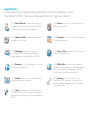
Applications
Take some time to explore the applications that are available on your
BlackBerry® 8700c. Here are a few applications to get you started.
Click Setup Wizard to learn about typing,
set options to personalize your BlackBerry
8700c, and set up your email address.
Click Phone to view a list of recent calls or
make a phone call.
Click Address Book to view your contact list
or add a new contact.
Click Calendar to view your calendar or add
a new appointment.
Click Messages to view a list of your
messages. More than one message list
might appear on your BlackBerry 8700c.
Click Push to Talk to instantly talk to family,
friends and co-workers.
Click Browser to visit web pages, or view the
browser bookmarks list.
Click MEdia Net to access your favorite
content (weather, news, etc.) and download
items like ringtones and games. See the
Quick Start Guide for more details.
Click Media to view or play saved pictures,
ring tones, videos, or songs.
Click Settings to view the main list of
BlackBerry 8700c options. You can also
access additional options from the menu in
each application.
Click Help to view the User Guide for your
BlackBerry 8700c. The user guide provides
procedures to help you use your BlackBerry
8700c.
Find More Information
• To view the User Guide on your BlackBerry® 8700c, click Help on the
Home screen or when in an application, click the trackwheel and click Help.
• To view the User Guide, Safety and Product Information Booklet, or
Software License Agreement and Warranty for your BlackBerry 8700c,
insert the BlackBerry® User Tools CD in the CD drive on your computer.
• To try a free online tutorial visit www.cingular.com/tutorials/blackberry8700.
• For support using live chat with a Cingular/AT&T Technical Support
Representative, go to http://forums.cingular.com/ and click on Register.
BlackBerry® 8700c RAT40GW
MAT-15518-001
PRINTSPEC-024
03-2007