1
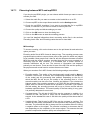
All settings on this and the other tabs can now be reviewed and changed if
required.
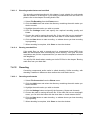
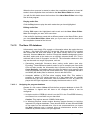
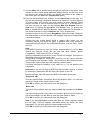
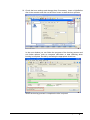
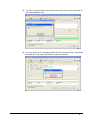
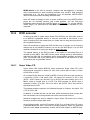
11. Click on the Burn button to start the burn process (or the simulation depending on the chosen option). All the selected steps now run in sequence
until writing is complete. You can monitor progress in a status window which
shows the individual steps being logged as they are executed. A typical final
message would be: 'Burn process was successful with 12x (1800 KB/s)‘. The
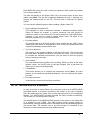
CD is then ejected. The messages shown can either be saved, printed or
discarded. Close the window by clicking on the Discard or Close buttons.
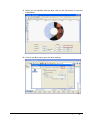
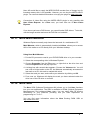
12. You can now check what has been written to your new CD by inserting it
again and clicking the 'CD Info’ icon.
Nero
Creating a CD/DVD • 90