1
RealPro Training and Consulting – The Leader in Real Estate Technology
RealPro’s Do Not Call Solution for REALTORS®
To Display Selected Records
1. In a search report, decide which records you want to display.
2. Click the “Select Box” next to those records.
3. Click “Show Selected” in the MANIPULATE DATA MENU.
4. A search report will appear showing only those records that you selected.
5. You can now further manipulate the resultant search report using the
MANIPULATE DATA MENU.
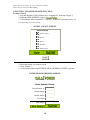
To Sort Records Within a Search Report
1. With a search report on the screen, click “Sort” in the MANIPULATE DATA
MENU.
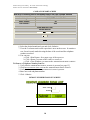
2. The “Call Power Sorting” dialog box will appear. It provides four levels of
sorting.
3. Select the basis upon which you want the sort to be performed.
4. Click “Sort”
5. A search report will appear that reflects the sorting arrangement that you
selected.
6. You can now further manipulate the resultant search report using the
MANIPULATE DATA MENU.
To Print Records Within a Search Report
1. With a search report on the screen, select those records you want to print. If
you want to print all the records in a search report, click “Select All.”
2. Click “Print View” in the MANIPULATE DATA MENU.
3. A PDF screen will appear that displays all selected records.
4. Print the records using the PDF menus.
To Download Records Within a Search Report to a Spreadsheet
1. With a search report on the screen, select those records you want to download.
If you want to download all the records in a search report, click “Select All.”
3. Click “Download” in the MANIPULATE DATA MENU.
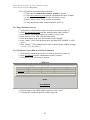
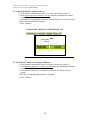
4. The “Call Power Download” dialog box will appear with the statement “What
would you like to classify this search as?”
To Print Mailing Labels for the Records Within a Search Report
1. With a search report on the screen, select those records for which you want to
print mailing labels. If you want to print mailing labels for all the records in a
search report, click “Select All.”
2. Click “Mailing Labels” in the MANIPULATE DATA MENU.
3. A PDF screen will appear that displays all selected records in mailing label
format.
4. Print the labels (use Avery standard 5160).
13