1
Viewing the Link Incident Log
6
Viewing the Link Incident Log
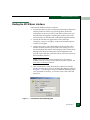
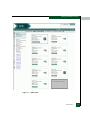
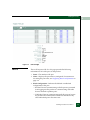
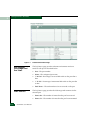
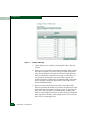
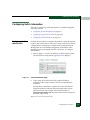
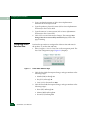
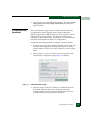
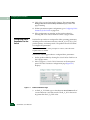
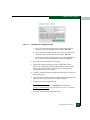
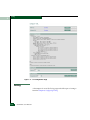
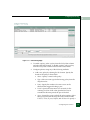
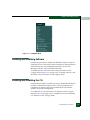
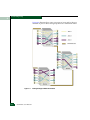
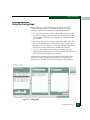
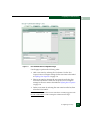
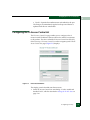
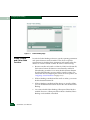
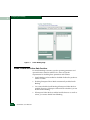
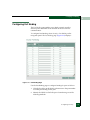
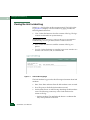
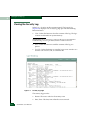
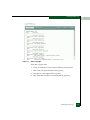
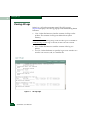
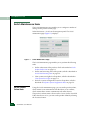
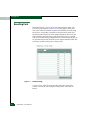
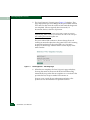
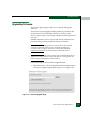
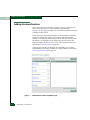
Select Logs > Link Incident on the navigation panel. The Link Incident
Log (Figure 6-2) displays. The Link Incident Log page provides the
following button functions:
•
Clear—Select this button to clear the contents of the log. The log’s
contents are deleted from system memory.
ATTENTION! Before clearing logs, make sure the logs are not needed for
troubleshooting. Once a log is cleared, the data cannot be retrieved.
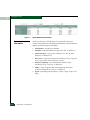
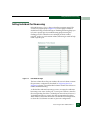
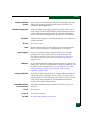
Figure 6-2
•
Print—Select this button to send the contents of the log to a
printer.
•
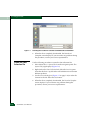
Text File—Select this button to open the log in a new window as a
text file. You can save, edit, or e-mail the file.
Link Incident Log Page
The Link Incident Log provides the following information about link
incidents:
•
Date/Time: Date and time when the link incident event occurred.
•
Port: The port on which the link incident occurred.
•
Link Incident Event: An ASCII string describing the link incident
event. The following events may cause a link incident to be
written to the log:
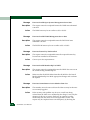
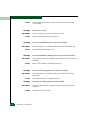
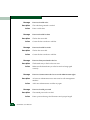
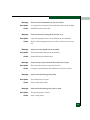
— Implicit incident. The attached node detects a condition that
may cause problems on the link.
6-4
EFCM Basic User Manual