1
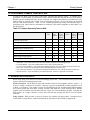
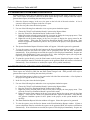
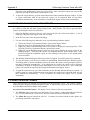
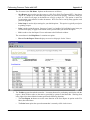
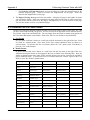
Appendix A Performing Common Tasks with HAP 1. While editing data in the Space Input Form on the "Internals" tab, press the "Schedule" button next to any one of the Schedule drop-down lists. The input form for the currently selected schedule will appear and changes can be made to that schedule. 2. Make changes to the schedule. 3. Click the OK button to save the changes and return to the space input form. Note that this special feature can only be used to edit the following kinds of items: While Entering Data In the Following Form: Spaces Spaces Spaces Spaces Spaces Spaces Systems Systems *Systems *Systems *Plants *Electric Rates *Fuel Rates *Buildings *Buildings *Buildings You Can Edit the Following Kinds of New Data Items: Schedules (Fractional) Walls Roofs Windows Doors External Shading Schedules (Fractional) Schedules (Fan/Thermostat) Cooling Towers Boilers Boilers Schedules (Time-Of-Day Utility Rate) Schedules (Time-Of-Day Utility Rate) Schedules (Fractional) Electric Rates Fuel Rates *Items marked with an asterisk are available in HAP but not HAP System Design Load. A.4 USING THE ON-LINE CALCULATOR TO ENTER DATA While entering data, you may encounter situations in which you don’t have data for an input item, but you have related information. For example, when entering the space floor area you may know the length and width of the floor but not its area. Rather than calculate the floor area by hand, you can use an on-line calculator to calculate the value and insert it into the input item. For HAP users, most numeric inputs in the energy analysis portions of the program (plants, buildings, chillers, cooling towers, boilers, electric rates and fuel rates) provide an integrated on-line calculator. To use this calculator, simply enter an equation followed by the equal sign. For example, if you want to multiply 20 by 9, type the equation 20*9=. When you press the [=] key the equation will be calculated and the result (180) will be inserted into the input item. The calculator recognizes the following mathematical symbols: Multiplication: * Division: / Addition: + Example: 46.1+85.9= Subtraction: - Example: 20*9= Example: 100/5= Example: 100-84= In addition, compound equations can be entered if necessary. For example: 100-9*8+12= A-4 HAP Quick Reference Guide