1
ACS Basic Graphics Programming Manual
26 February 2015
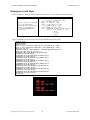
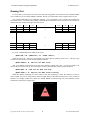
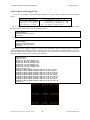
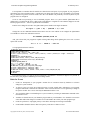
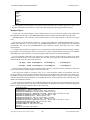
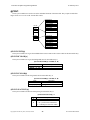
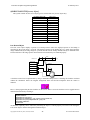
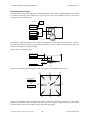
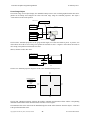
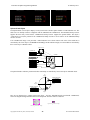
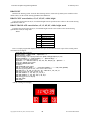
Let us use this description to construct a command that draws a white pixel at the center of the screen – don’t
worry about the @SURFACE system variable for now – we need to specify the x and y coordinates and the desired
pixel color:
draw.pixel 160,120,65535
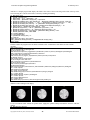
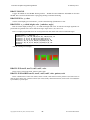
The white pixel is probably hard to see amongst the text on the screen – you could draw a red pixel that might be
easier to see but how to you specify the red color? There is a built-in function for that.
The RGB(r, g, b) function takes three arguments, red level r (0 – 255), green level g (0 – 255) and blue level b (0
– 255) and does the math to combine them into a 16-bit integer – which is its return value. So let us use this to draw
a red pixel:
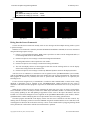
draw.pixel 160,120,rgb(255,0,0)
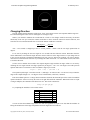
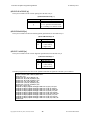
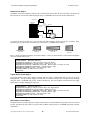
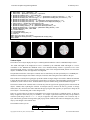
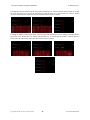
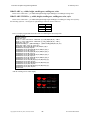
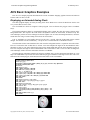
Kind of hard to see – the individual pixels are kind of small and there is a lot of clutter on the screen. Let us use
another system variable to stop showing the program text and PRINT output on the small screen – they will still
show on your connected communications device. The ANSI operating mode can be turned off by setting the
@ANSI.ENABLE system variable to zero:
@ANSI.ENABLE=0
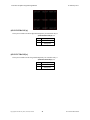
Now as you type, or PRINT, the output doesn’t affect the screen. As a default, so nobody wonders where their
PRINT output, error message or Ready prompt went, the @ANSI.ENABLE is set to one whenever a program is run
or stops running. So if you don’t want ANSI output on the screen while your program is running you will have to
turn it off at the beginning of your program, and keep your program running.
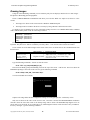
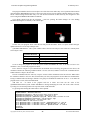
Clearing The Screen
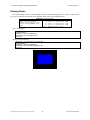
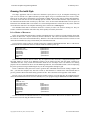
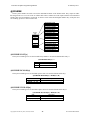
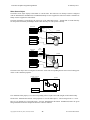
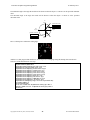
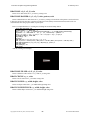
One last thing – how do we clear the screen so we can see the pixel? Turns out that there is a command for that
to – in computer terminology this is referred to a filling the screen. Here is the command format:
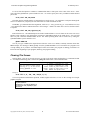
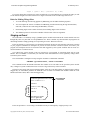
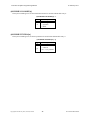
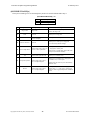
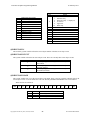
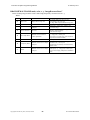
DRAW.FILL x, y, width, height, color
x screen x coordinate (0 –
Sets the width by height pixels
y screen y coordinate (0 –
starting at x, y on the current
width number of pixels wide to
drawing @SURFACE to color
height number of pixels high to
color RGB565 fill pixels color
319)
240)
fill
fill
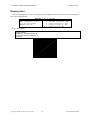
So try it:
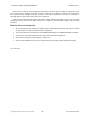
draw.fill 0, 0, 320, 240, RGB(0, 0, 0)
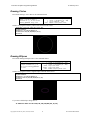
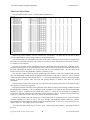
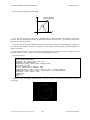
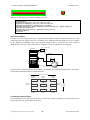
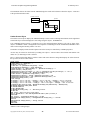
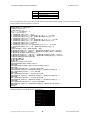
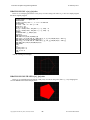
You can experiment with different positions, widths, heights and colors. So now we have enough for a simple
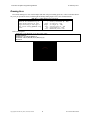
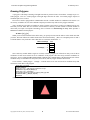
graphics program:
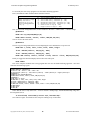
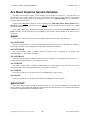
10
15
20
25
30
REM Draw a red pixel at the center of the screen
@ANSI.ENABLE=0
DRAW.FILL 0,0,320,240,RGB(0,0,0)
DRAW.PIXEL 160,120,RGB(255,0,0)
GOTO 30
Copyright©1992-2015 by ACS, Sarasota, Florida
2
ALL RIGHTS RESERVED