1
Error! Reference source not found.
29
Since all Assessments are tied to a specific Occurrence, you first need to find the Occurrence
record that relates to that Assessment before you can find the specific Assessment record.
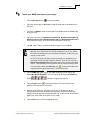
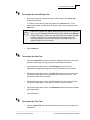
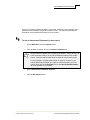
To locate your assessment records
1.
From your occurrence record, click the Details button in the Assessment
portion of the screen (bottom left).
You will be at the first weed assessment record associated with that weed occurrence.
Alternately, you could look at a list of all assessments first and then
navigate to an individual assessment record from there. To view the list
off all assessments associated with an occurrence, you would use the List
button instead in the Assessment box.
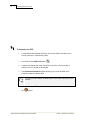
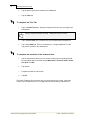
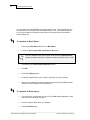
To update the assessment records:
1.
Review all the information you had entered in the field to ensure it is accurate.
Be sure to check both the top portion of the screen as well as the Status,
Measurements and Lat/Long tabs in the bottom part of the screen.
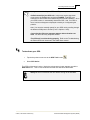
Note the time format in the WIMS desktop is different than in ArcPad.
Here time is entered in standard format with a colon between the hour and
minute.
2.
Fill in any information you may have now that you didn’t have when initially
creating the record out in the field.
3.
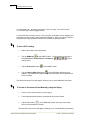
Ensure the Current box is checked.
4.
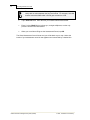
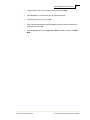
Click the Next button to advance to the next assessment associated with that
occurrence record.
5.
Repeat steps 1 – 3 for your second assessment.
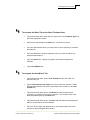
6.
Click the Save and Close button to return to the Main Menu.
© 2007, The Nature Conservancy
Weed Information Management System (WIMS)