1
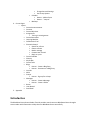
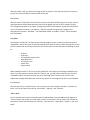
The frame structure for Course pages is the same as the My Institution Page. The Course menu is docked
on the left side of the screen and all of the Course content displays to the right of the menu. The
Orientation bar is just under the standard navigation frame; it contains the breadcrumbs for you to
distinguish where you have traveled to in your course.
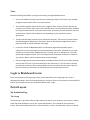
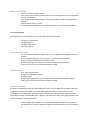
Due to the high level of customization options available to instructors, some tools may or may not be
available to you. The order can be rearranged and the names can change as well. Here is a list of the
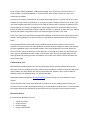
Tools and their functions that are available for instructors to add to their courses.
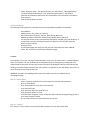
Please be aware that Instructors can delete the links they do not plan on using or they can rename links
to fit their needs. For example, your Instructor could rename "Course Materials" and call it "Syllabus".
Instructors can also change the order of the links.
•
•
•
•
•
•
•
•
•
•
•
•
•
•
•
•
•
•
•
•
•
Course Announcements
Course Information
Contacts
Course Objectives
Assignments
o Turning in an Assignment
Course Documents
Learning Modules
Collaboration Tool
Discussion Board
o Search for a forum
o Choose a forum
o Read a message
o Create a New Thread
o Reply to a post
Course Calendar
Glossary
My Grades
Course Tasks
Blogs
o How to... Create a Blog Entry
o How to... Comment on a Blog Entry
Journals
Wikis
Groups
o How to... Sign up for a Group
Messages
o How to... Create a Message
o How to... Create a Folder
Roster
User Manual
Send Email