1
Content within a Learning Module is added and managed, by your Instructor, just like content in a
Content Folder. The Learning Module is a shell into which other content, such as files, tools, and
assessments are added.
Instructors can create a structured path for progressing through the items. The path can be set so that
students must view content sequentially, or set to permit users to view the content in any order. If you
must view the path sequentially, the items in the Table of Contents will only display a hyperlink for the
current page you are viewing, the page before, and the page after. Once you move through, the next
item in the Table of Contents will become a hyperlink. If there is no path set, all the items in the Table of
Contents will appear as hyperlinks and you can move through the content in any order.
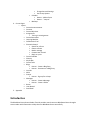
Items in the Table of Contents can be expanded and collapsed. These items can be listed using letters or
numbers. Learning Modules can be set to open in a new browser window or open within the Content
frame.
If the Learning Module is set to open in a new window you will be able to view the Course and its
contents at the same time as the Learning Module. You will be able to navigate to other areas and keep
the Learning Module open in the separate window. If the Learning Module is set to open within the
Content frame it keeps you within the Course while you are viewing the content. You can follow links
within the Learning Module and still remain in the Content frame. Once you navigate away from the
Learning Module by selecting an item on the Menu, the link will close and they will be returned to the
Content Area page.
Collaboration Tool
Blackboard’s Accessible Chat tool uses the Java Accessibility API to provide keyboard shortcuts and
descriptive Tool Tips (alt tags), that screen readers can use to help you navigate through the chat. Some
screen readers may work directly with the Java Accessibility API. However, some, such as JAWS for
Windows, require an additional utility, the Java Access Bridge.
Download the access bridge from Java Access Bridge (This link will open in a new window, or tab in
Firefox).
*Please be aware that in some cases JAWS will not read the Chat tool as being viewed. Inform your
Instructor if you encounter any problems entering or not being able to read the chat. It is recommended
that you discuss alternate methods of communication with your Instructor if this becomes an issue.
Discussion Board
In the Discussion Board tool, you can:
•
•
•
•
Search for a forum
Choose a forum
Read a message
Create a New Thread