1
PMC-VFX User’s Manual
Virtex-5 Based FPGA PMC Module
___________________________________________________________________
The development of the Xilinx PMC-VFX project was performed using
the Xilinx ISE Design Suite 11.1 with no service pack. A great deal can be
learned about how the Xilinx ISE, XPS (Xilinx Platform Studio), and SDK
tools are used to develop a custom application by performing the following
project creation procedures. The files provided in the EDK include the
completed project executed in the example design. The steps given in the
following pages will allow one to incrementally develop the project.
1. Make a new directory on your computer (XC5VFX70T_RevD) or copy
the directory structure provided on the EDK CD.
C:\Designs\PMC_V5\Programmable_FPGA\XC5VFX70T_RevD
9
2.0 Example Design
Creation
New Project
Creation
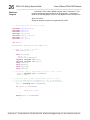
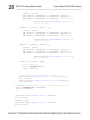
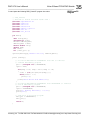
2. Copy the following files
AXM_D.vhd,
DIG_IO_8.vhd,
DP_SRAM.vhd,
RearLVDS.vhd,
v5_sysmon_v1_0.vhd,
XC5VFX70T.vhd,
and XC5VFX70T.Ucf
from the CD-ROM to the new directory XC5VFX70T_RevD.
3. Copy the PMC_VFX70_v2_2_0.xbd and *.ucf files from the EDK CD
ROM \board\Acromag\boards\PMC_VFX70\data folder to
\Xilinx\11.1\EDK\board\Acromag\boards\PMC_VFX70\data folder
4. Copy the pcores folder provided in the EDK CD ROM
edk_user_repository\MyProcessorIPLib folder to
\Xilinx\11.1\edk_user_repository\MyProcessorIPLib folder
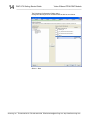
5. Start the software by selecting:
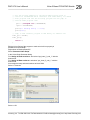
Start -> Programs -> Xilinx ISE 11.1 ->ISE-> Project Navigator
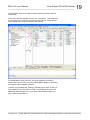
6. To create a new project the following steps can be taken. Alternatively,
the project provided on the CD-ROM can serve as a starting point.
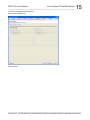
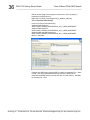
7. File -> New Project
Project Name VFX70
Project Location
Give path to VFX70 directory created
C:\Designs\PMC_V5\Programmable_FPGA\XC5VFX70T_RevD
Top-Level source type HDL
Select-> Next
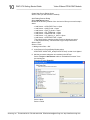
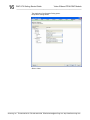
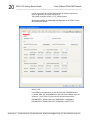
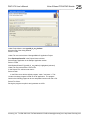
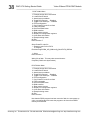
Enter the following Device Properties
Product Category
All
Family
Virtex5
Device
XC5VFX70T
Package
FF1136
Speed Grade
-1
Top-Level Source Type
HDL
Synthesis Tool
XST (VHDL/Verilog)
Simulator
Modelsim-XE VHDL
Preferred Language VHDL
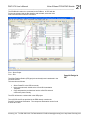
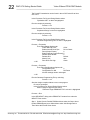
Select ->Enable Enhanced Design Summary
Select-> Next
__________________________________________________________________________
Acromag, Inc. Tel:248-295-0310 Fax:248-624-9234 Email:[email protected] http://www.acromag.com