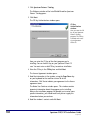
1
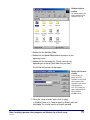
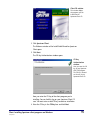
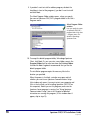
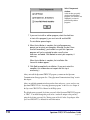
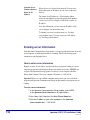
Select Components
window
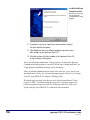
In this window you specify
whether to install add-on
programs. This window is not
displayed if you haven’t
purchased any add-on
programs.
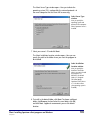
7 If you want to install an add-on program, select the check box
in front of the program(s) you want to install and click OK.
The installation process begins.
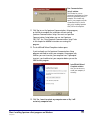
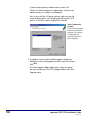
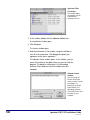
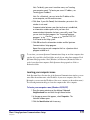
8 When the installation is complete, the install program may
prompt you to restart your computer. Although you don’t have
to restart immediately, you shouldn’t use your new Spectrum
program until you’ve restarted to make sure all system
extensions are loaded. Click Restart to restart your computer, if
necessary.
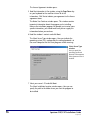
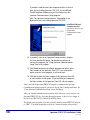
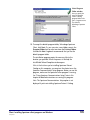
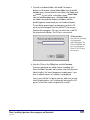
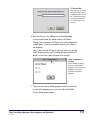
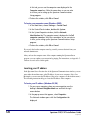
When the installation is complete, the Installation Was
Successful window appears.
9 Click Quit to complete the installation. (If you must restart the
computer, this window does not reopen and this step is
unnecessary.)
After you install the Spectrum CIRC/CAT program, you must run the Spectrum
Communications Setup program. See “Using Spectrum Communications Setup” next in
this chapter.
After you establish communication between the client and server, you are ready to start
Spectrum CIRC/CAT. See “Accessing Spectrum programs” in the Overview chapter of
the Spectrum CIRC/CAT User Manual or the Help system.
The default master password (level nine password) of the Spectrum CIRC/CAT program
is “CIRC”. You should change this password to a word more unique to the person(s)
using the level nine password. See "Setting password levels" in the Setup chapter of the
Spectrum CIRC/CAT User Manual for more information.
110
Spectrum CIRC/CAT Installations Guide
SCC5ig1200kn