1
6
Data Section
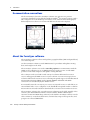
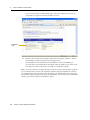
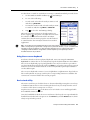
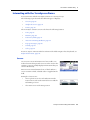
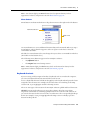
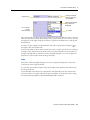
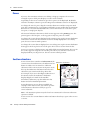
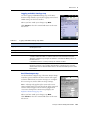
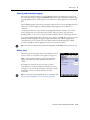
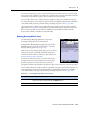
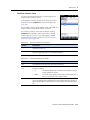
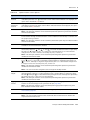
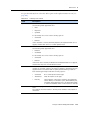
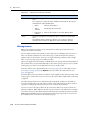
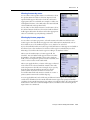
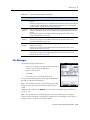
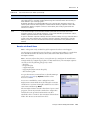
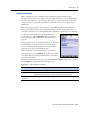
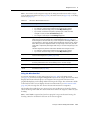
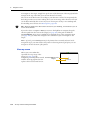
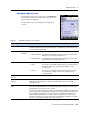
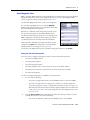
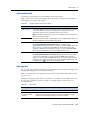
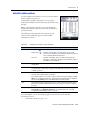
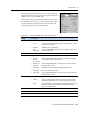
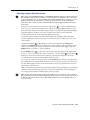
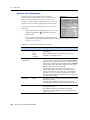
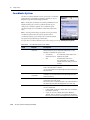
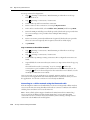
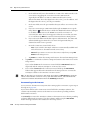
To apply a filter, simply tap OK in the Filter By form. The
form closes and the filter icon appears in the Status
bar. Each feature in the Update Features screen
(see page 129) that is filtered has a filter icon
beside
it. Unfiltered features have no icon.
Note – Any filter used applies as long as the current data
file remains open, and is cleared when you close the file.
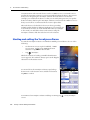
Once a filter is active, tap the Filter column heading to
sort the list by filter status. Filtered features are grouped
first, followed by unfiltered features. Tap the column
heading again to reverse the sort order, listing unfiltered
features first.
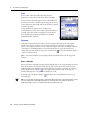
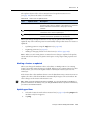
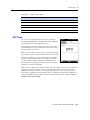
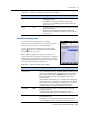
Use the Show Filtered Features and the Show Unfiltered Features options in the Update
Features screen (see page 131) to hide or show the two groups of features. When you
hide or show a group of features in the Data section, the corresponding map layer is
hidden or shown. Similarly, when you hide or show features in the Map section, they
are hidden or shown in the Data section. See Map layers, page 85.
Note – Deleted features are never displayed on the map.
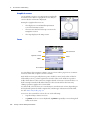
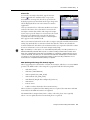
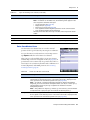
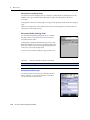
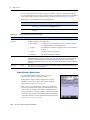
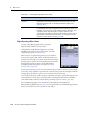
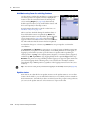
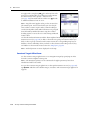
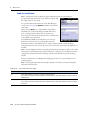
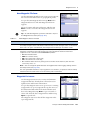
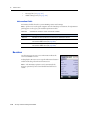
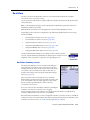
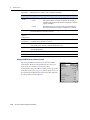
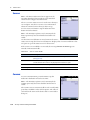
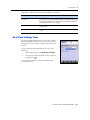
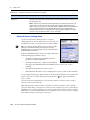
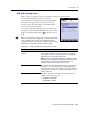
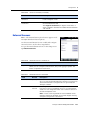
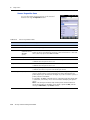
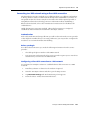
Construct Target Offset form
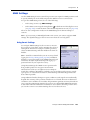
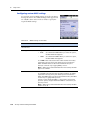
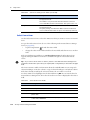
use the Construct Target Offset form to set a navigation target by specifying an offset
from the current navigation start point.
Note – The TerraSync software can be customized; the Offset option may have been
disabled and will not be visible.
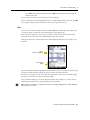
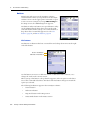
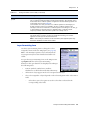
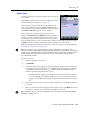
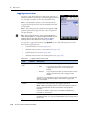
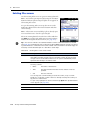
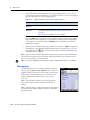
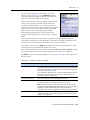
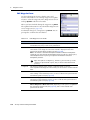
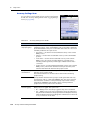
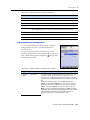
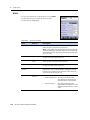
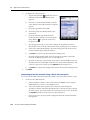
To open the Construct Target Offset form, in the Update Features screen (see page 129),
tap Options and then select Set Nav Target / Construct. The Construct Target Offset form
appears.
1 38
TerraSync Software Getting Started Guide