1
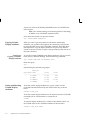
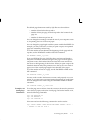
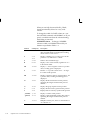
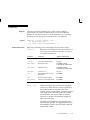
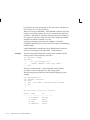
clauses. You will use the WORD_WRAPPED clause of COLUMN later
in this chapter.
Note: The column heading is truncated regardless of the setting
of WRAP or any COLUMN command clauses.
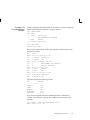
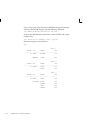
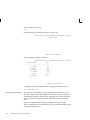
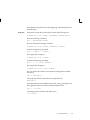
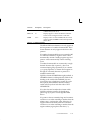
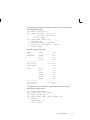
Now return the column to its previous format:
SQL> COLUMN ENAME FORMAT A10
Copying Column
Display Attributes
Example 4–6
Copying a Column’s
Display Attributes
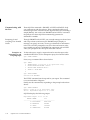
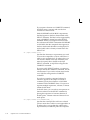
When you want to give more than one column the same display
attributes, you can reduce the length of the commands you must enter
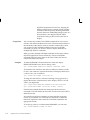
by using the LIKE clause of the COLUMN command. The LIKE clause
tells SQL*Plus to copy the display attributes of a previously defined
column to the new column, except for changes made by other clauses in
the same command.
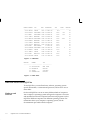
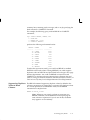
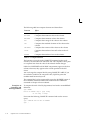
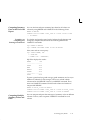
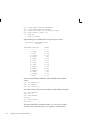
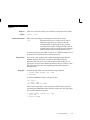
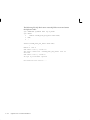
To give the column COMM the same display attributes you gave to SAL,
but to specify a different heading, enter the following command:
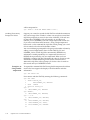
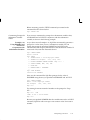
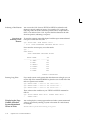
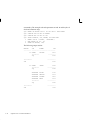
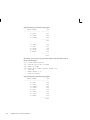
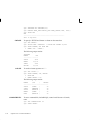
SQL> COLUMN COMM LIKE SAL HEADING Bonus
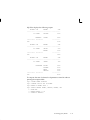
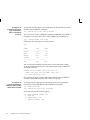
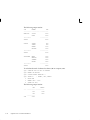
Rerun the query:
SQL> /
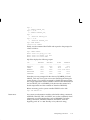
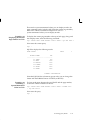
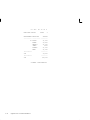
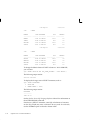
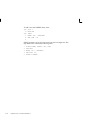
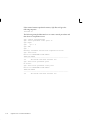
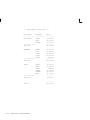
SQL*Plus displays the following output:
Department
––––––––––
30
30
30
30
Listing and Resetting
Column Display
Attributes
Employee
Name
Salary
Bonus
–––––––––– –––––––––– ––––––––––
ALLEN
$1,600
$300
WARD
$1,250
$500
MARTIN
$1,250
$1,400
TURNER
$1,500
$0
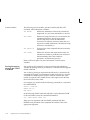
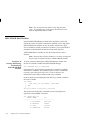
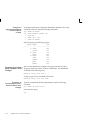
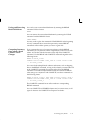
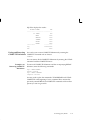
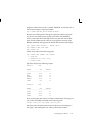
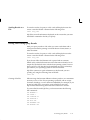
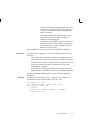
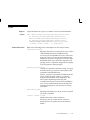
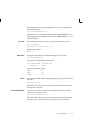
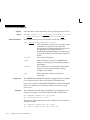
To list the current display attributes for a given column, use the
COLUMN command followed by the column name only, as shown
below:
COLUMN column_name
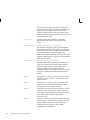
To list the current display attributes for all columns, enter the COLUMN
command with no column names or clauses after it:
COLUMN
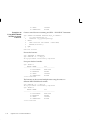
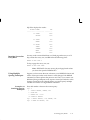
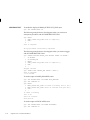
To reset the display attributes for a column to their default values, use
the CLEAR clause of the COLUMN command as shown below:
COLUMN column_name CLEAR
4–8
SQL*Plus User’s Guide and Reference