1
September 2003
CAD Mode
Applying a material to a Library item element
To apply a
material to
a Library
item
element
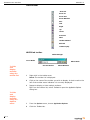
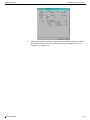
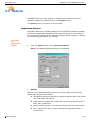
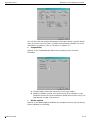
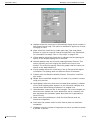
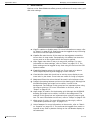
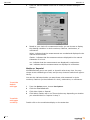
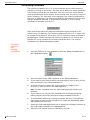
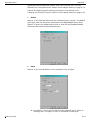
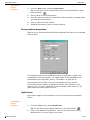
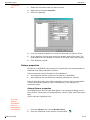
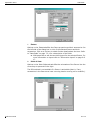
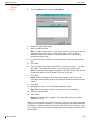
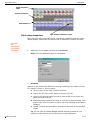
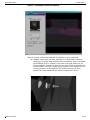
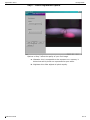
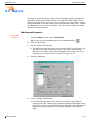
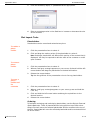
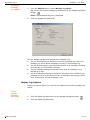
Library objects can further have different materials applied to each element of
the object using the Library Item tab in the Properties dialog box.
1
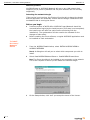
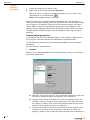
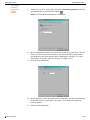
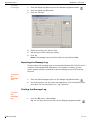
Right-click the library item to which you want to apply material.
2
Choose Properties.
3
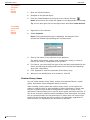
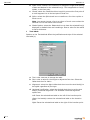
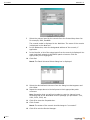
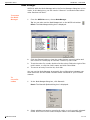
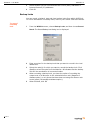
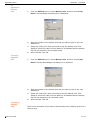
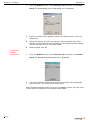
Click the Library Item tab.
4
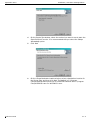
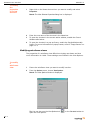
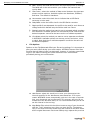
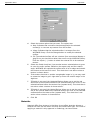
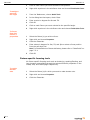
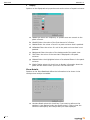
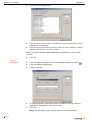
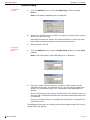
Select an element from the Element list.
5
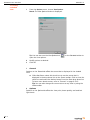
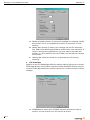
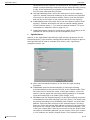
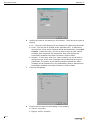
If a material was chosen previously (on the General tab), the Use Default
Material check box is selected. To choose a different material, click to clear
the Use Default Material check box. and then click the ellipsis (...) button to
choose another material.
6
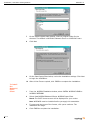
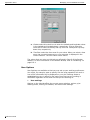
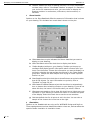
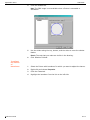
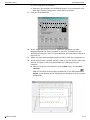
Repeat steps 4 and 5 for each element to which you want to apply
materials.
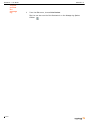
7
When finished, click OK.
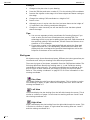
Layers
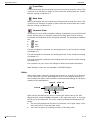
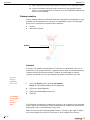
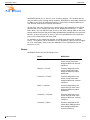
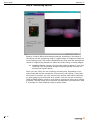
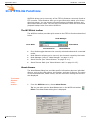
Layers are drawing aids intended to help you organize your plot. One way to
think of layers is as transparent acetate sheets upon which you can draw. In
the same way that you can view several transparent sheets at once by placing
them on top of each other you can hide and unhide layers by choosing which
sheets are in the stack. The top sheet is the layer that new objects will be
placed on and is called the current layer.
To create
new layers
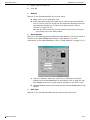
1
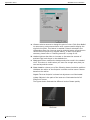
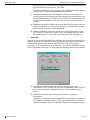
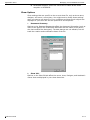
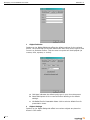
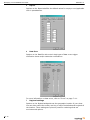
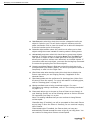
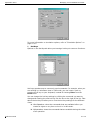
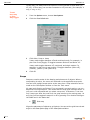
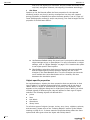
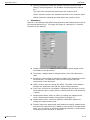
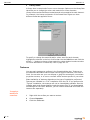
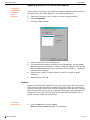
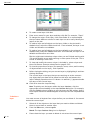
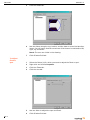
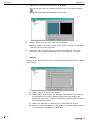
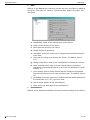
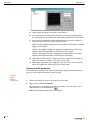
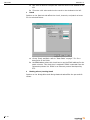
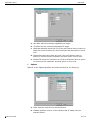
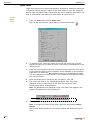
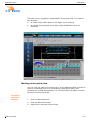
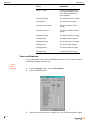
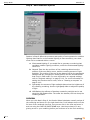
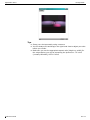
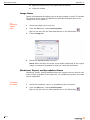
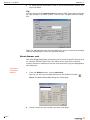
From the Edit menu, choose Layers.
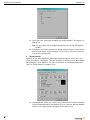
Result: The Layer Database dialog box is displayed.
Reference Guide
6.5-13