1
SEZ Online
Of Ministry of Commerce
V.
NSDL
Database Management Limited
Declaration details
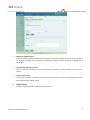
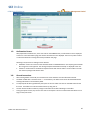
This section/tab will be displayed to the Unit Approver when the Softex request is initiated & submitted by the
Unit Maker to Unit Approver. This section displays the declaration to be made by the exporter. The user has to
enter the relevant details and click on SAVE
VI.
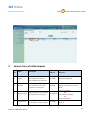
Add Documents
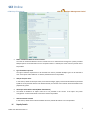
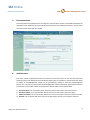
If DC office requires supporting documents for verification of Gist of Contract, the Unit user will capture the
document details in the Add Documents tab. Add documents tab is not mandatory. Once the document details
are added, an acknowledgement receipt may be generated by clicking on ‘Generate Acknowledgement
Receipt’ link. Unit user may take the print of acknowledgement receipt and attached supporting documents to
it and submit to the DC office. Details to be captured in add documents tab mentioned below:
a)
b)
c)
d)
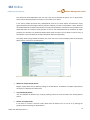
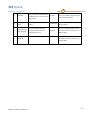
Document Name‐ This is mandatory field, wherein the Unit user will capture name of document.
Document Subject‐ This is optional field, wherein the Unit user will capture document subject.
Reference Number‐ This is optional field, wherein the Unit user will capture document reference number.
Remarks‐ This is optional field, where the Unit user will capture remarks if any related to document.
9
Softex User Manual Version 1.0