1
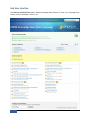
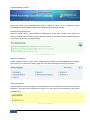
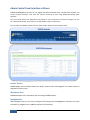
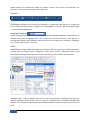
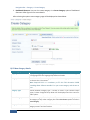
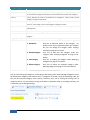
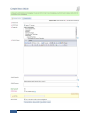
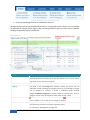
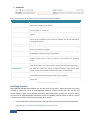
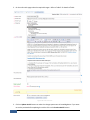
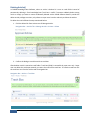
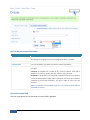
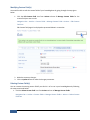
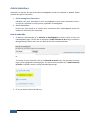
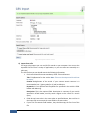
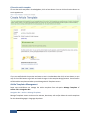
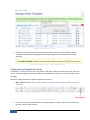
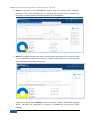
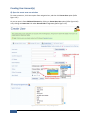
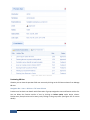
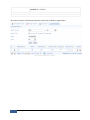
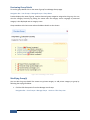
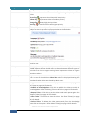
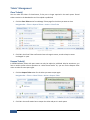
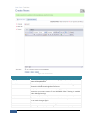
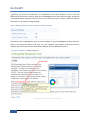
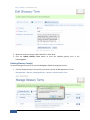
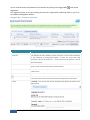
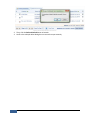
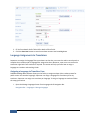
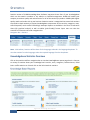
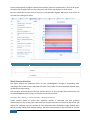
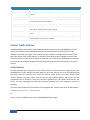
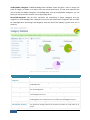
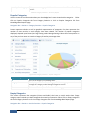
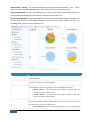
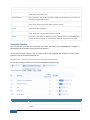
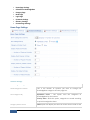
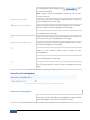
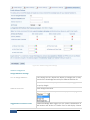
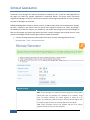
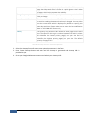
Figure 104: Article Templates Page
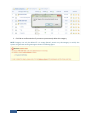
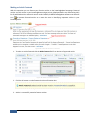
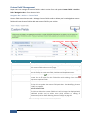
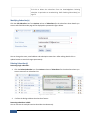
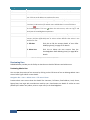
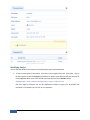
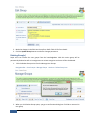
The Article Templates pop-up box displays the titles of active templates for the selected
language in language dropdown.
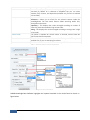
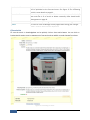
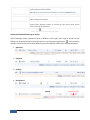
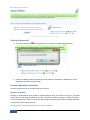
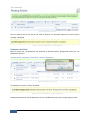
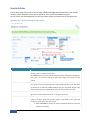
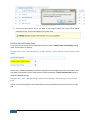
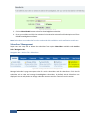
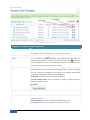
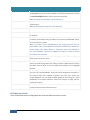
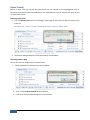
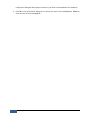
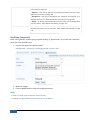
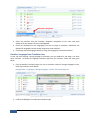
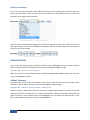
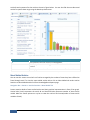
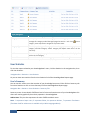
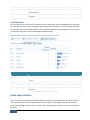
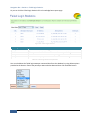
3. Click on Preview button next to template title to preview the template. Click on title to view the
template insert options.
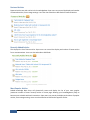
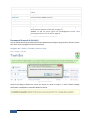
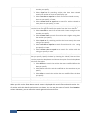
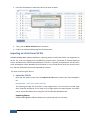
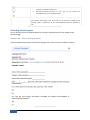
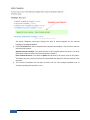
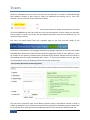
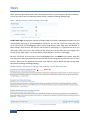
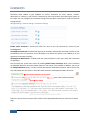
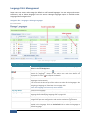
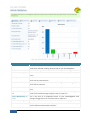
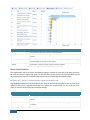
Append at Cursor Location: This pastes the text of the template where the cursor is currently
positioned. It does not affect any of the text above or below it.
Clear Contents & Insert: If you wish to replace the contents of the article, click on this option.
This deletes any text currently in the article content field and replaces it with the contents in the
template.
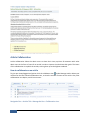
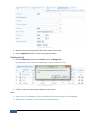
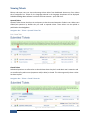
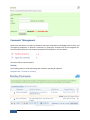
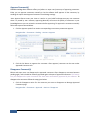
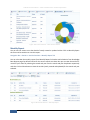
4. The contents of template are now part of article. You can insert multiple templates into an
article by repeating the steps from 1 to 3.
83
PHPKB User’s Manual