1
BTW This is a definite improvement in version 5, as one used to have
to go to the web site to get some of this
same information with SCPDFW2.
Well done, guys!
Actually, this should be your “first
stop” before calling the outstanding
“Free” Solid Documents Customer Support (See their time of operation schedule in the introduction above). The Help
file provides step-by-step assistance in
using each of the different features of
SPDFT5. But let Solid Documents take
it from here:
“Welcome to Solid PDF Tools Help!
SPDFT5 creates searchable, archivable
PDF/A documents. It’s also useful for
creating small, high-quality PDF’s that
can be easily distributed to others.” Then
they go on to list a few tips to help you
get started.
Shazam! And just like that, here
they are for you:
1. Scanning from Paper to
PDF
The simple scanning interface in
SPDFT5 allows you to easily scan documents and save them as PDF files.
Note. For more on their scanning
interface, you have but to simply click
on their Scanning Documents hyperlink
therein, and it will take you directly to
the topic.
2. Creating PDF Files from
TIFF
You can convert legacy scanned
TIFF documents into fully searchable
and archivable PDF/A documents.
Note. Again, simply click on the
hyperlink Adding TIFF Images under
their heading of Working with Pages for
more information.
3. Creating New PDF’s or Combining PDF’s
You can create new PDF’s from preexisting files, scanned page images, or
multiple documents combined into a
single PDF, then save them as standard
PDF or PDF/A files.
Note. Again, you can simply click
on their hyperlink Working with Files
for fuller details.
4. Modifying PDF Files
There are numerous ways you can
enhance or modify your PDF files. Your
PDF’s can be enhanced with watermarks, metadata, or security features4,
and pages can be rotated or deleted. You
can also drag and drop pages from one
PDF to another.
Note. Once again, simply click on
their hyperlink Working with Files and/
or Working with Pages for more “Howto” information.
5. Convert PDF to PDF/A (See
more on this subject below)
Your PDF files can be converted
to archivable files fully compliant with
PDF/A standards. You can also add a
text layer for searching if the original
PDF file was a scanned document (See
below).
Note. Again, simply click on their
hyperlink Convert PDF to PDF/A to get
additional help. Bon Appetite!
But wait, there’s lots, lots more in
the SPDFT5 Help file, as well, as you
would only expect. The following
are a few of the topics you’ll find therein (plus don’t
forget that you
also have FAQ’s
yet to see, plus
their Blogs, RSS
feeds and Tips
and Tricks, and
don’t forget the Feature Tours galore on
their web site, plus there’s always that
“Free” Customer Support, as well as,
receiving their Newsletter - “My ‘o My,
Such a Country!”). Anyway, here’s a
synapsis for you:
1. Basics - User Interface (i.e.,
Palettes, Toolbars, Page Panes,
Document Window, navigating to
a Specific page, Zooming, Changing View layout and Start page);
2. Customizing Your Program
(Customizing User Interface and
Selecting Program Options);
3.Scanning Documents (Working With Scanners, Preparing
Documents for Archive, Scanning
and OCR, Scanning Paper Documents to PDF and to Word, and
Scan to PDF Options and to Word
Options); and,
4. Working with Files and with
Pages, etc.
Page 8
Blue Chips Magazine — June 2009
Note. All the above represents a
huge database of important data. I’d
suggest right about here that you download your own 15-day “Free Trial” copy
and play around with it to your hearts
content. You certainly have nothing
to lose and everything to gain.
Besides, all incremental patches
or maintenance fixes are free for
all licensees.
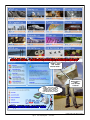
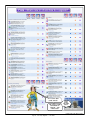
Now you are just about ready to take
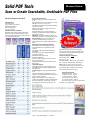
a good long look at my three (3) CBC2
graphics2 showing the major differences
between the Solid Documents Features
(which are accessible in the SPDFT5
Program Getting Started Window
as well) and the SPDFT5 Feature
Tours, plus get a better idea of the immenseness/vastness/completeness/et
al. of Solid PDF Tools. Also, that way
you can appreciate the “True value and
versatility of SPDFT5” versus Adobe
Acrobat - not only in $$$$ savings but in
total utility value(s), as well. Maybe it’ll
be a little bit easier to see and understand
then why so many organizations (some
are depicted in the CBC2 graphics for
you) “Use” Solid Documents programs.
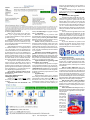
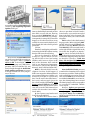
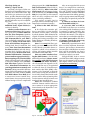
Below is another example for you
of a PDF file converted into a Microsoft
Word document (See graphics). These
graphics show how the formatting is preserved within the PDF file while making
the Word document easy to work with.
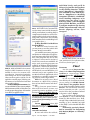
Note. In these examples we can
really see what it’s like when you
actually do have the “original PDF
fonts” to play with in MS Word.
“Bigggg difference.”
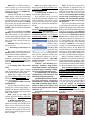
Once again, take a look at a “Before
PDF” and the “After Word” comparisons: As before, the Converted Word
is on the left and the Original PDF is
on the right. Notice. The “Graphics
are Once Again Superb” but, now
take a good look at the beautiful
font reproduction between the before
and after conversion? Yesss! Got that
one too!