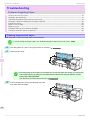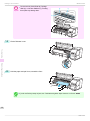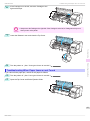
1
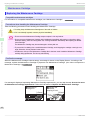
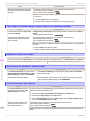
Cannot load sheets
iPF830 Series
Cannot load sheets
Cause
Corrective Action
The paper source selection is incorrect.
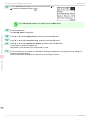
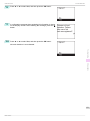
Press the Load button and select the paper source.
Paper is not cut neatly
Cause
Corrective Action
The paper is bent or curled at the cut position.
Straighten out any curling by the edges of the paper.
Paper rises by the ends of the cut position
before it is cut.
Reload the paper correctly.
You are using paper that cannot be cut with
the Cutter Unit.
Specify Manual in Cutting Mode in the Control Panel menu and use scissors or a
cutting tool to cut the roll after printing.
(See "Specifying the Cutting Method for Rolls.") ➔ User's Guide
Cut Speed is not configured correctly in the
Control Panel menu.
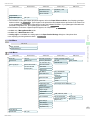
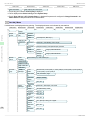
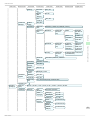
Change the Cut Speed setting in the Control Panel menu.
(See "Menu Structure.") ➔ P.56
During cutting, printed documents fall out at
an angle.
In the Control Panel menu, set Cutting Mode to Eject. Hold documents after printing, as they are cut.
(See "Specifying the Cutting Method for Rolls.") ➔ User's Guide
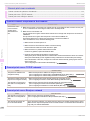
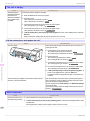
Paper is not cut
Troubleshooting
Cause
Corrective Action
Problems Regarding Paper
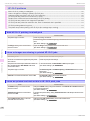
In the printer driver, No or Print Cut
Guideline is specified in Automatic
Cutting.
Specify Yes in Automatic Cutting in the printer driver.
(See "Page Setup Sheet (Windows).") ➔ User's Guide
(See "Paper Detailed Settings Dialog Box (Mac OS).") ➔ User's Guide
In the Control Panel menu, Cutting
Mode is set to Eject or Manual.
If the Cutting Mode is Eject, press the Cut button to cut the paper.
If the Cutting Mode is Manual, cut rolls with scissors or the like.
(See "Specifying the Cutting Method for Rolls.") ➔ User's Guide
Rolls are not cut when you are using
the Media Take-up Unit.
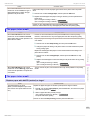
Either cut the roll paper by pressing the Cut button or lift the Release Lever and cut the roll
with scissors.
(See "Removing Printed Documents from the Media Take-up Unit.") ➔ User's Guide
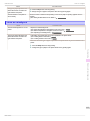
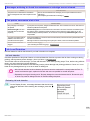
The Media Take-up Unit Continues Rotating
Cause
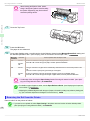
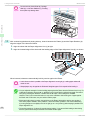
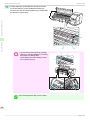
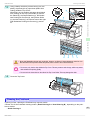
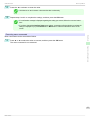
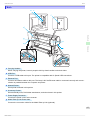
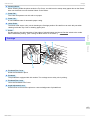
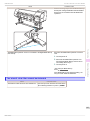
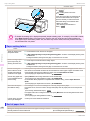
There is a foreign object in the path of the Media Take-up Sensor (indicated
by a dotted line).
Corrective Action
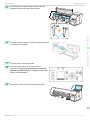
Remove the foreign object from the Media Take-up
Sensor path. Arrange the Basket Cloth and Basket
Rod so they do not interfere with the Media Takeup Sensor.
102
Basic Guide