1
3D Printer/English
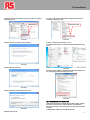
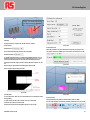
8.1.7 The Property on the right side contains: [Model Edit], [3 Axis], and
[Extruder]. Model Edit includes: [Edit Model], [Configuration parameter] and
[Generate Gcode]. (Pic 8.1-08)
(Pic 8.1-04)
8.1.4 There are 14 function icons in total in the menu. (Pic 8.1-05)
(Pic 8.1-05)
8.1.5 Open a STL file in your pc. (Pic 8.1-06)
(Pic 8.1-08)
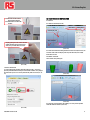
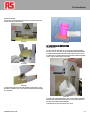
8.1.8Model Edit
In the [Data] column, you can select or enter a number for [Move], [Rotate] or
[Scale]. (Pic 8.1-09)
(Pic 8.1-06)
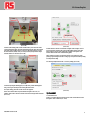
8.1.6 Adjust the viewing direction of the model by clicking the seven view icons.
(Pic 8.1-07)
(Pic 8.1-09)
[Normal], [Front], [Back], [Left], [Right], [Top], and [Bottom].
1. Move: before generating Gcode, the model should be centered and placed on
the bottom of the printing area.
Click [Move] to move the model by X/Y/Z Axis or click [Auto Layout].
AutoLayout: to place the lowest points of the model to the bottom of the building
area. It may not work for some models because such models have no horizontal
bottom surface.
2. Rotate: click [X Axis], [Y Axis] or [Z Axis] to rotate the model by X\Y\Z axis.
3. Scale: click [Zoom] to resize the model proportionally or click [X Axis], [Y
Axis] or [Z Axis] to resize the model by X\Y\Z axis.
If you are not satisfied with your edition, right click and select [Reset]. After
edition, please click [save].
Normal
Front
Left
Top
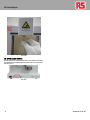
To print multiple models at one time, click [Ctrl] on your keyboard and your left
mouse at the same time to choose multiple models. (Pic d and Pic e)
(Pic 8.1-07)
9
10/03/2015 Version No. 002