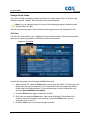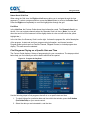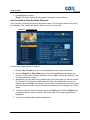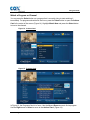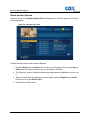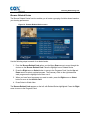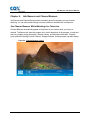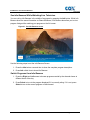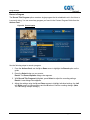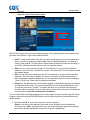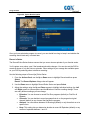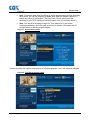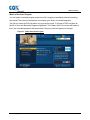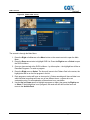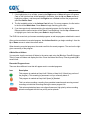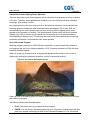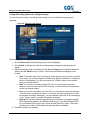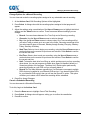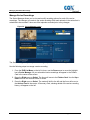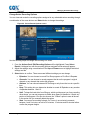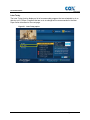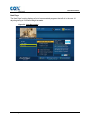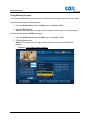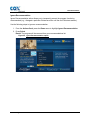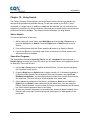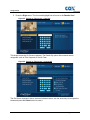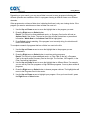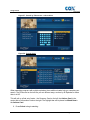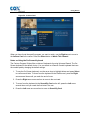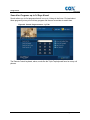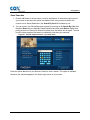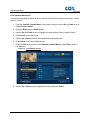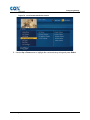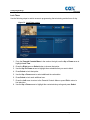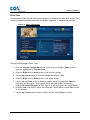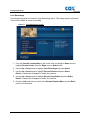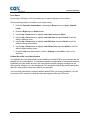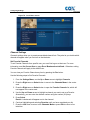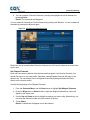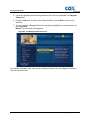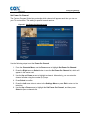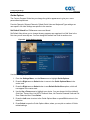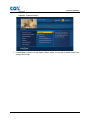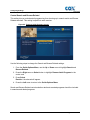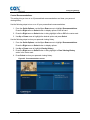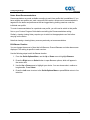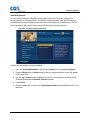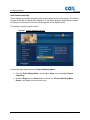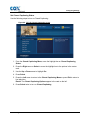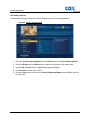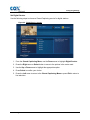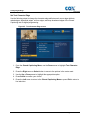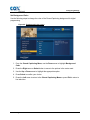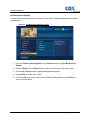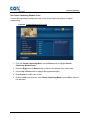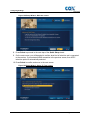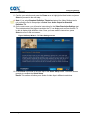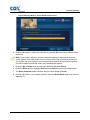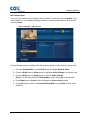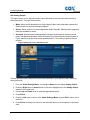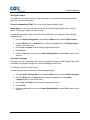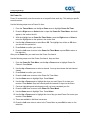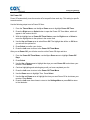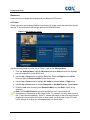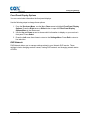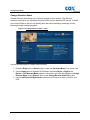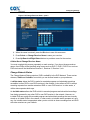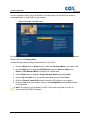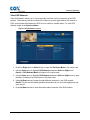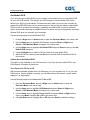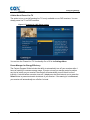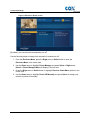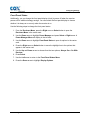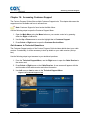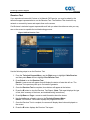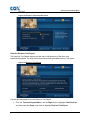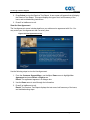
1
Contour Program User Guide January, 2015 © 2015 by Cox Communications. All rights reserved. No part of this document may be reproduced or transmitted in any form or by any means, electronic, mechanical, photocopying, recording, or otherwise, without prior written permission of Cox Communications. CE-CONUGA Table of Contents Table of Contents Chapter 1: Contour Program Guide Overview ........................................................................ 1 Chapter 2: Contour Basic Functions ....................................................................................... 1 About the Remote Control ........................................................................................................................ 1 Open the Main Menu ................................................................................................................................. 3 Access the Guide....................................................................................................................................... 3 Contour Program Guide Cards ................................................................................................................ 4 Carets .......................................................................................................................................................... 6 Chapter 3: Getting Started...................................................................................................... 9 Watch Television ....................................................................................................................................... 9 Find and Change Channels ...................................................................................................................... 9 View Program Information ...................................................................................................................... 10 View Basic Program Information .............................................................................................................. 10 View Detailed Program Information ......................................................................................................... 11 Open the Actions Menu .......................................................................................................................... 12 Switch Users ............................................................................................................................................ 13 Chapter 4: Using the Guide ...................................................................................................15 Launch the Guide .................................................................................................................................... 15 Change Guide Views ............................................................................................................................... 16 Grid View .................................................................................................................................................. 16 List View ................................................................................................................................................... 17 Find Programs Playing on a Specific Date and Time .......................................................................... 17 Use the Guide to Find Available Channels ........................................................................................... 18 Watch a Program or Channel ................................................................................................................. 19 Scroll Through the Guide ......................................................................................................................... 20 Exit the Guide........................................................................................................................................... 20 Chapter 5: Browsing Related Programs ................................................................................21 Browse Cast and Crew ............................................................................................................................ 22 Browse Related Genre ............................................................................................................................ 23 Watch Another Episode .......................................................................................................................... 24 Browse Related Series ............................................................................................................................ 25 Chapter 6: Info Banners and Channel Banners .....................................................................27 See Channel Banners While Watching Live Television ....................................................................... 27 See Info Banners While Watching Live Television .............................................................................. 28 Switch Programs from Info Banners ..................................................................................................... 28 i Table Contents Change Channels from Info Banners .................................................................................................... 29 Close Info Banners .................................................................................................................................. 29 Service Messages .................................................................................................................................... 29 Chapter 7: Using the DVR .....................................................................................................31 DVRs Offered By Cox Business ............................................................................................................. 31 About Your Dual Tuner DVR .................................................................................................................... 31 About Your Record 6 DVR ....................................................................................................................... 31 Using the DVR .......................................................................................................................................... 32 Scan a Live Program ................................................................................................................................ 32 Use the RECORD Button ......................................................................................................................... 32 Record Programs from the Contour Program Guide ............................................................................... 33 Record a Program .................................................................................................................................... 34 Record a Series ....................................................................................................................................... 36 Set a Manual Recording ........................................................................................................................... 38 Notes About Manual Recordings ............................................................................................................. 40 Notes on Start & End Times..................................................................................................................... 40 Confirm a Recording ................................................................................................................................ 41 Recording Icons ....................................................................................................................................... 41 About Recording Alerts ............................................................................................................................ 42 Chapter 8: DVR List Views ....................................................................................................45 Change DVR List Views ........................................................................................................................... 45 Watch a Recorded Program ..................................................................................................................... 47 A Note About folders ................................................................................................................................ 49 Recorded Program Icons ......................................................................................................................... 49 A Note About Auto-Clipping Series Episodes .......................................................................................... 50 Scan a Recorded Program ....................................................................................................................... 50 Use Instant Replay ................................................................................................................................... 51 Manage Recorded Programs ................................................................................................................... 51 Get Details About a Recording ................................................................................................................. 53 Browse Related ........................................................................................................................................ 53 Chapter 9: Managing Scheduled Recordings ........................................................................55 Change Recording Options for a Single Program .................................................................................... 56 Change Options for a Manual Recording ................................................................................................. 57 Cancel a Scheduled Recording................................................................................................................ 57 Manage Series Recordings ..................................................................................................................... 58 ii Table of Contents Change Series Recording Options........................................................................................................... 59 A Note About the Record To Option for Series Recordings .................................................................... 60 Change Series Priority ............................................................................................................................. 61 A Note About Change Series Priority for Multiple Network DVRs ........................................................... 62 Cancel a Series Recording ...................................................................................................................... 62 Delete All Programs from a Series Recording ......................................................................................... 62 View Missed Recordings .......................................................................................................................... 63 Chapter 10: Network DVR ...................................................................................................65 Multiple DVR Support .............................................................................................................................. 65 DVR Network Status ................................................................................................................................ 66 Naming DVRs........................................................................................................................................... 67 Setting the Default DVR ........................................................................................................................... 67 Notes About Multiple Network DVRs ....................................................................................................... 67 Watch a Recorded Program ................................................................................................................... 68 Pausing Live TV on Non-DVR Receivers .............................................................................................. 69 Notes About Pausing Live TV on Non-DVR Receivers ........................................................................... 69 Chapter 11: Recommendations ...........................................................................................71 Accessing Recommendations ............................................................................................................... 71 Personalized Recommendations Notice .................................................................................................. 72 Browsing through Recommendations ...................................................................................................... 73 On Now .................................................................................................................................................... 73 Later Today .............................................................................................................................................. 74 Next Days ................................................................................................................................................. 75 Liking/Disliking Programs ......................................................................................................................... 76 Ignore Recommendation .......................................................................................................................... 77 Chapter 12: Using Search....................................................................................................79 Start a Search........................................................................................................................................... 79 Search for Programs ............................................................................................................................... 79 Notes on Using the On-Screen Keyboard ................................................................................................ 83 Search for Programs up to 14 Days Ahead .......................................................................................... 84 Save Searches ......................................................................................................................................... 85 Chapter 13: Configuring Settings .........................................................................................87 Users ......................................................................................................................................................... 88 Add Users................................................................................................................................................. 88 User Profile............................................................................................................................................... 90 iii Table Contents Edit User................................................................................................................................................... 92 Delete User .............................................................................................................................................. 93 Parental Controls and Program Ratings ............................................................................................... 95 Set a Parental Control PIN ....................................................................................................................... 95 Edit Parental Control PIN ......................................................................................................................... 96 Restrict Access to Programming ........................................................................................................... 97 Temporarily Unlock .................................................................................................................................. 97 Lock Channels.......................................................................................................................................... 98 Lock Ratings............................................................................................................................................. 99 Lock Content Advisories ........................................................................................................................ 100 Lock Times ............................................................................................................................................. 102 Block Titles ............................................................................................................................................. 103 Lock Recordings .................................................................................................................................... 104 Lock Users ............................................................................................................................................. 105 A Note About the Lock Users feature .................................................................................................... 105 Channel Settings ................................................................................................................................... 106 Set Favorite Channels ............................................................................................................................ 106 Set Skipped Channels ............................................................................................................................ 107 Set Power On Channel .......................................................................................................................... 109 Guide Options ........................................................................................................................................ 110 Set Default Views ................................................................................................................................... 110 Control Search and Browse Related ...................................................................................................... 112 Control Recommendations ..................................................................................................................... 113 Notes About Recommendations ............................................................................................................ 114 Edit Banner Duration .............................................................................................................................. 114 Switch Keyboards .................................................................................................................................. 115 Add Closed Captioning .......................................................................................................................... 116 Set Closed Captioning Status ................................................................................................................ 117 Set Analog Service ................................................................................................................................. 118 Set Digital Service .................................................................................................................................. 119 Set Text Style ......................................................................................................................................... 120 Set Text Size .......................................................................................................................................... 121 Set Text Color ........................................................................................................................................ 122 Set Text Opacity ..................................................................................................................................... 123 Set Text Character Edge ........................................................................................................................ 124 iv Table of Contents Set Background Color ............................................................................................................................ 125 Set Background Opacity ........................................................................................................................ 126 Set Closed Captioning Window Color .................................................................................................... 127 Set Closed Captioning Window Opacity ................................................................................................ 128 Set the Guide Language ........................................................................................................................ 129 Set the Guide Text Size ......................................................................................................................... 130 Set the Guide Aspect Ratio .................................................................................................................... 130 Audio & Video ........................................................................................................................................ 130 Run Quick Setup Wizard ........................................................................................................................ 131 Set Volume Level ................................................................................................................................... 137 Set Analog Output .................................................................................................................................. 138 Set Digital Output ................................................................................................................................... 139 Set Audio Language ............................................................................................................................... 139 Set Dynamic Range ............................................................................................................................... 140 Set Video Output Format ....................................................................................................................... 140 Timers ..................................................................................................................................................... 143 Set Sleep Timer...................................................................................................................................... 143 Set Power On ......................................................................................................................................... 144 Set Power Off ......................................................................................................................................... 145 Receivers ................................................................................................................................................ 146 AC Outlet ................................................................................................................................................ 146 Front Panel Display Options ................................................................................................................ 147 DVR Network .......................................................................................................................................... 147 Change Receiver Name ......................................................................................................................... 148 A Note About Change Receiver Name .................................................................................................. 149 Change Network Status ........................................................................................................................ 149 View DVR Network ................................................................................................................................. 151 Set Default DVR ..................................................................................................................................... 152 A Note About Set Default DVR .............................................................................................................. 152 Turn Pause Live TV On or Off................................................................................................................ 152 A Note About Pause Live TV ................................................................................................................. 153 Power Manager for Energy Efficiency .................................................................................................... 153 Front Panel Status ................................................................................................................................. 155 Chapter 14: Accessing Customer Support .........................................................................157 Get Answers to Technical Questions .................................................................................................. 157 v Table Contents Receiver Test ......................................................................................................................................... 158 View the Receiver Test Report .............................................................................................................. 159 View the Use Agreement ....................................................................................................................... 160 View the Cox Privacy Policy ................................................................................................................... 161 Chapter 15: Troubleshooting .............................................................................................163 With Subscription .................................................................................................................................. 163 With DVR ................................................................................................................................................ 164 With Service ........................................................................................................................................... 165 With Guide .............................................................................................................................................. 165 With Receiver Test ................................................................................................................................ 166 vi Contour Program Guide Overview Chapter 1: Contour Program Guide Overview The Contour Program Guide, hereafter referred to as the “Contour Guide,” is an on screen program tool that is designed to work specifically with High Definition televisions and help you manage the way you watch TV. This User Manual instructs you on how the Contour Guide works and how to use the features and functions included in the tool. The manual includes information on the following topics: Chapter 1: Contour Program Guide Overview Chapter 2: Contour Basic Functions Chapter 3: Getting Started Chapter 4: Using the Guide Chapter 5: Browsing Related Programs Chapter 6: About Info Banners and Channel Banners Chapter 7: Using the DVR Chapter 8: DVR List Views Chapter 9: Managing Scheduled Recordings Chapter 10: Network DVR Chapter 11: Recommendations Chapter 12: Using Search Chapter 13: Configuring Settings Chapter 14: Accessing Customer Support Chapter 15: Troubleshooting Contour Program User Guide 1 Contour Basic Functions Chapter 2: Contour Basic Functions In this section, you will learn: How to Use the Remote Control How to Open the Main Menu How to Open the Contour Guide How to Use the Contour Guide’s “Cards” How to Navigate the Contour Guide About the Remote Control The image in Figure 1 (shown on the next page) is an example of a remote control and highlights buttons that are mentioned in this guide. It will help you navigate Contour and configure settings quicker if you familiarize yourself with your device. Important: Cox Business customers who have Contour will not use some of the buttons shown in Figure 1. Your remote control may appear differently, but button functions remain the same. Contour Program User Guide 1 Contour Basic Functions Figure 1. 2 Remote Control navigation buttons (example) Contour Program User Guide Contour Basic Functions Open the Main Menu The Main Menu is the starting point for using Contour to find programs, search for other programs that might interest you and set personal preferences. There are several ways to open the Main Menu. Use any of the steps below to open the Main Menu. From your remote control, press the Menu button. From your remote control, press the Right arrow. From your remote control, press the Left arrow. To close the Main Menu, press the Exit button, the Menu button again, or the Left arrow. Access the Guide Once you are in the Main Menu, you can access the Guide to view shows or configure settings as you wish. Figure 2. Main Menu screen Use the following instructions to open the Contour Program Guide. 1. Go to the Main Menu and highlight the Guide option at the top of the menu. 2. From your remote control, press the Select button or Right arrow to open the Guide. Result: You can now browse TV listings, search for programs, or change the guide’s settings. Note: There are several shortcut buttons for the remote control. For example, the Guide and Settings buttons take you directly to the TV listings without going through the Main Menu. Contour Program User Guide 3 Contour Basic Functions 3. Press the Info button on the remote control to browse channel listings without leaving the show you are watching. Result: An Info Banner appears across the bottom of the screen that informs you of what is playing on other channels or later in the day. 4. Press the Up, Down, Left and Right arrows to navigate. For more information on Info Banners and Channel Banners, turn to page 27. Contour Program Guide Cards To access your programming faster, the Contour Guide puts program information into columns, called cards. Each screen has three cards and most of them contain a list of channels, program titles or similar information. Other cards provide information such as instruction or program summaries. Throughout this guide, we have defined cards by the kind of information they contain: channels, programs, or action items; or by their position on the screen: left, center or right. In the image below, the Channels Card on the left shows available channels, the Programs Card in the center shows upcoming programs, and the Summary Card on the right gives a brief description of the highlighted show. In this image, the Programs Card is in focus. It’s a little darker and has the yellow highlight bar over “4:30pm Breaking Rules.” Figure 3. Channel Card screen Channels Card Programs Card Summary Card From your remote control, use the Right and Left arrows to move between cards. When you press one of these arrows, the card selected becomes more prominent and the yellow highlight bar appears at the top of the list on that card. 4 Contour Program User Guide Contour Basic Functions Use the Up and Down arrows or Page Up and Page Down buttons to scroll through the information on any specific card. On most cards, the Select button works like the Right arrow. As you move through the cards to make your choices, a second screen appears. In Figure 4, the Summary Card has moved to the left side of the screen. The card in the center is called the Actions Card. It lets you tune to your program or perform other functions such as watch a program preview. In the image below, the Actions Card is in focus and the highlight bar is on Record. Figure 4. Center Card Summary Card Actions Card Instructions Card When you select a program, the card set shifts to the left, revealing a new card set. In Figure 4, the Summary Card now appears on the left of the screen. The new center card is the Actions Card. It displays actionable items you can do for the selected program. The card on the right is the Instructions Card. It provides step procedures on how to do the selected action. It can also display informational messages. Contour Program User Guide 5 Contour Basic Functions Carets The Contour Guide provides visual clues to help you move between screens and through lists. Carets signal when there are more cards to the left or right. When you press the Right arrow, another set of cards will appear on the right until you reach the final card. If you press the Left caret, another set of cards will appear to the left, or the Main Menu, depending on where you are in the Guide. Figure 5. Card Navigational Clues Circled arrows are “carets” Carets are also used in long lists, such as channels or programs, to indicate that more information exists above or below the current screen. These carets only appear when the card is in focus (when the card’s color is slightly darker and the yellow highlight bar is present). Use the Up or Down arrows or the Page Up or Page Down buttons to scroll through long lists. 6 Contour Program User Guide Contour Basic Functions When an item is actionable, the right end of the yellow highlight bar will show a SEL[ECT] button (see circled item in Figure 6). Press the Select button on your remote control to confirm, or the Up or Down arrows to move to the next choice in the list. A black dot or check mark will appear at the left end of the yellow highlight bar when Select is pressed, indicating your choice has been registered. Figure 6. Location of Select button Contour Program User Guide 7 Getting Started Chapter 3: Getting Started This chapter discusses ways to: Watch Television Find and Change Channels View Program Information Open the Actions Menu Watch Television With your television and receiver (set top box) turned on, press the number of the channel using the (0–9) keys on your remote control. Press the Enter or Select buttons to go directly to the channel. If you don’t press either button, the desired channel will appear momentarily. Find and Change Channels To find or change the channel, press the Up or Down arrow keys on your remote control or press the channel number on the remote’s keypad (0-9) to go to the channel immediately. Contour Program User Guide 9 Getting Started View Program Information View Basic Program Information The Contour Guide displays both basic and detailed information about programs airing currently and those that are scheduled to air. This function helps you determine whether or not you want to view the show. To view basic information about a show, use your remote control and press the Info button once. A Channel Banner will appear at the bottom of the screen with information that includes the program title, a brief description of the program, its start and end time, program rating information, the channel number, and the current time. Program guide symbols such as Favorite Channel, Skipped Channel, or Locked Program will also appear. Figure 7. 10 Basic Program Information screen Contour Program User Guide Getting Started View Detailed Program Information To view more details about a program, press the Info button a second time. Press the Info button a third time to return to full-screen viewing. Figure 8. Detailed Program Information screen Contour Program User Guide 11 Getting Started Open the Actions Menu The Contour Guide includes an Actions Menu that allows you to record a program, see additional details about a program, look at programs that are similar to the one you are watching, and like or dislike the program. Use the following steps to access the Actions Menu: 1. From your remote control, press the Select button while watching Live TV in full-screen mode. Result: The Actions Menu appears. 2. Use the Up or Down arrow to highlight the actions. 3. Press Exit to close the Actions Menu. Figure 9. 12 Actions Menu screen Contour Program User Guide Getting Started Switch Users The Contour Guide allows you to set up a particular profile for different areas of your business to customize the viewing experience. For example, you may wish to list specific favorite channels in a public waiting area, like news channels, to help your guests and end users find popular channels. The user profile includes the name of the viewing area (the user), the icon for the user, Favorite Channels, preferred Guide View, preferred Keyboard, and Saved Searches. To switch to other user profiles, press the User button repeatedly on your remote control. Once you have found the user to whom you want to switch, stop pressing the User button. The selected user will appear on the screen as the current user. (See Figure 10.) If your remote control does not have a User button, refer to the step procedures in on page Error! Bookmark not defined. to switch users via the Settings button. If you want to add a user profile, see page Error! Bookmark not defined.. Figure 10. Current User screen Contour Program User Guide 13 Using the Guide Chapter 4: Using the Guide This chapter reviews ways to find the channels and programs that interest you. It also introduces the Browse Related function that allows you to find programs that are similar to the programs you like. Related programs may be in the same genre or share subject matter. They may also share actors and directors with your favorite shows. The main sections in this chapter are: Launch the Guide Browse Related Programs Access and View Channel Banners Launch the Guide There are two ways to open the Contour Guide. Option 1: Click the Guide button on your remote control. Option 2: From the Main Menu: Press the Menu button or Press the Right arrow button or Press the Left arrow button. Once the Main Menu appears, use the Up or Down arrows to move the highlight bar to Guide and press the Select button or the Right arrow to open the Contour Guide. Contour Program User Guide 15 Using the Guide Change Guide Views The Contour Guide can display program information in multiple ways: Grid, List, Theme, High Definition channels, Themes, Zone channels, and Favorite channels. Note: You can change the way the Contour Guide displays program information when the Main Menu is “open.” The two most common ways to view information about programs are the Grid and List view. Grid View The Grid view is the default view. It displays the channel and the name of the show, the names and times of upcoming programs on that channel and other channels. Figure 11. Grid View Use the following steps to scroll through the Grid Guide view. 1. While watching TV, press the Guide button once to open the Guide. The Grid view is the default view, but you can make any of the views the first view by changing the Default Guide View in the Settings section. For more information on how to change the view, see page Error! Bookmark not defined.. 2. Press the Guide button again to show the List View. 3. Each time you press the Guide button, other views will display (Theme-based, HD channels, Favorite Channels). If you continue to press the Guide button, you will eventually return to live TV. 4. Press the Last button to scroll back through the views. 16 Contour Program User Guide Using the Guide Notes About Grid View When using the Grid view, the Right and Left arrows allow you to navigate through the time segments. To select a program and time, press the Select button to move to the Action Card. Press the Right arrow repeatedly to move the highlight bar through the grid. List View In the List View, the Contour Guide shows three information cards. The Channels Card is on the left. You can navigate channels when the Channels Card is in focus. (Note: You can tell when the card is in focus because it will be slightly darker in color and will include the yellow highlight bar.) In the List View, the Summary Card is on the right. It shows the program title, a brief description of the program, its start and end time, program rating information, and channel number. Program guide symbols such as Favorite Channel, Skipped Channel, or locked program also display. This card cannot be selected. Find Programs Playing on a Specific Date and Time The Contour Guide displays 14 days of programming for your convenience. The steps provided below help you find a show you want to watch within that time period. Figure 12. Program Air Day/Date Use the following steps to find programs that will air on a specific date and time. 1. To check listings for a particular date and time within that window, press the B button (Set Guide Date) on your remote control. 2. Select the date you are interested in, and the time. Contour Program User Guide 17 Using the Guide 3. Press B again to confirm. Result: The Guide will display the programs airing on that date and time. Use the Guide to Find Available Channels In the List View, the Guide shows three information cards. The Channels Card is in the center, the Channels Card is on the left, and the Summary Card is on the right. Figure 13. Channels Card Use the steps below to find a TV channel. 1. Press the Up or Down arrow to move the highlight bar up or down one channel. 2. Press the Page Up or Page Down button to move the highlight bar up or down one screen to see as many as seven channels in the list. (Note: It will be six channels, if the font size preference is larger.) 3. Alternatively, you can jump to any channel entry in the Guide when you use the number (0-9) buttons. If you enter an invalid channel number, your highlight will move to the nearest channel available in the Guide. This is useful in situations where you don’t know the exact channel number, but you know that the channel you are looking for is in 700s range. 4. To select a channel you want to watch, press the Select button. Press the Right arrow to browse programs, which are listed in the center card. The current program will be highlighted. 5. To return to the Main Menu, press the Left arrow. 18 Contour Program User Guide Using the Guide Watch a Program or Channel You can press the Select button on a program that is currently airing to start watching it immediately. For programs scheduled in the future, press the Select button to open the Actions Card in the center of the screen (Figure 14). Highlight Watch Now and press the Select button to tune to the channel. Figure 14. Actions Card Figure 15. Program Card In Figure 15, the Programs Card is in focus. Use the Up and Down arrows to find a program. Use the Right arrow or Select to move to the Actions Card. (Figure 14) Contour Program User Guide 19 Using the Guide Scroll Through the Guide 1. To scroll through channels or programs, press the Up or Down arrow to move the highlight bar up or down one item in the list. 2. Press the Page + or Page - button to move the highlight bar up or down one screen. The list can contain up to seven channels or programs. 3. Press and hold the Page Up, Page Down, Up arrow or Down arrow to “Turbo Scroll” (scroll very quickly) through information in any view. Exit the Guide There are several ways to exit the Guide and return to the most recently viewed program. You can: 20 Press the Exit or Live button on your remote Use the Left arrow to navigate back through the information cards and Main Menu Press the Channel Up or Channel Down buttons Contour Program User Guide Browsing Related Programs Chapter 5: Browsing Related Programs Browse Related is a way to look for other programs that might interest you. It lets you find upcoming episodes of a program, programs that are similar, and programs that feature at least some of the same actors and director(s). The Browse Related function appears in the Actions Card. To access Browse Related, you must first select a program in the guide, as all Browse Related searches are keyed to a single program. To use this function, begin at the Actions Card: 1. Use the Up or Down arrow to highlight Browse Related. 2. Press the Right arrow or Select button to call up the Browse Related Cards. Result: This screen shows three cards. The Browse Related Card is on the left, the Programs Card is in the center, and the Summary Card is on the right. Contour Program User Guide 21 Browsing Related Programs Browse Cast and Crew The Browse Cast and Crew function allows you to locate other shows you might like to watch based on your previous viewing selections with similar performers or crew members. Use the following steps to select programs featuring the cast and crew. 1. From the Browse Related Card, use the Up or Down arrow to move through the choices on the Browse Related Card. 2. Place the highlight bar on the Related Cast & Crew option. 3. Press the Right arrow or Select button to move to the center card which offers several choices to help narrow your search. Use the Up and Down arrows to select an actor or director. 4. Press the Right arrow or Select button to move to the Programs Card. Use the Up and Down arrows to select a program. 5. When you have found a program you want to watch, press the Right arrow or Select button to move to the Actions Card. The Summary Card on the left describes the program you have selected. 6. Press the Select button to Watch Now. Figure 16. Cast and Crew screen 22 Contour Program User Guide Browsing Related Programs Browse Related Genre Use the following steps to select programs featuring the programs in the same genre: 1. From the Browse Related Card, use the Up or Down arrow to move through the choices on the Browse Related Card. Place the highlight bar on Related Genre. 2. Press the Right arrow or Select button to move to the center card, which offers several choices to help narrow your search. Use the Up and Down arrows to select a related program. 3. Press the Right arrow or Select button to move to the Programs Card. Use the Up and Down arrows to select a program. 4. When you have found a program you want to watch, press the Right arrow or Select button to move to the Actions Card. The Summary Card on the left describes the program you have selected. 5. Press Select to Watch Now. Figure 17. Related Genre screen The Browse Related Card appears on the left, with Related Genre highlighted. Press the Right arrow to move to the Programs Card and browse programs in similar genres. Contour Program User Guide 23 Browsing Related Programs Watch Another Episode When you arrive at the Browse Related Card, the Episode List is the first option in the list and will be highlighted. Figure 18. Episode List screen Use the following steps to watch another Episode. 1. Press the Right arrow or Select button to move to the Programs Card. Use the Up and Down arrows to select an episode you are interested in watching. 2. The Summary Card on the right describes each episode as the highlight bar moves over it. 3. When you have found an episode you want to watch, press the Right arrow or Select button to move to the Actions Card. 4. Press Select to Watch Now. 24 Contour Program User Guide Browsing Related Programs Browse Related Series The Browse Related Series function enables you to locate a grouping of similar shows based on your viewing preferences. Figure 19. Browse Related Series screen Use the following steps to search for a related series. 1. From the Browse Related Card option, use the Up or Down arrow to move through the choices on the Browse Related Card. Place the highlight bar on Related Series. 2. Press the Right arrow or Select button to move to the Programs Card. Use the Up and Down arrows to select a related program. The Summary Card on the right describes each program as the highlight bar moves over it. 3. When you have found a program you want to watch, press the Right arrow or Select button to move to the Actions Card. 4. Press Select to Watch Now. The Browse Related Card appears on the left, with Related Series highlighted. Press the Right arrow to move to the Programs Card. Contour Program User Guide 25 Info Banners and Channel Banners Chapter 6: Info Banners and Channel Banners Info Banners and Channel Banners show information about the program you are currently watching. You can also browse listings and tune to different channels with Info Banners. See Channel Banners While Watching Live Television Channel Banners automatically appear at the bottom of your screen when you tune to a channel. The Banner will show the program title, a brief description of the program, its start and end time, program rating information, channel number, and time/date information. Program guide symbols indicating Favorite Channel, Skipped Channel, locked program may also display. Figure 20. Channel Banners screen Contour Program User Guide 27 Info Banners and Channel Banners See Info Banners While Watching Live Television You can call up Info Banners in the middle of a program by pressing the Info button. While Info Banners show the same information as Channel Banners, Info Banners also allow you to view program listings while watching your program on the full screen. Figure 21. Set Info Banners screen Use the following steps to set the Info Banners Screen. 1. Press the Info button a second time to show the complete program description. 2. Press Info a third time to close Info Banners. Switch Programs from Info Banners 1. Press the Right and Left arrows to browse programs carried by the channel shown at different times of the day. 2. Press Select to tune to the program displayed if it is currently airing. If it is not, press Select to turn to the current program on that channel. 28 Contour Program User Guide Info Banners and Channel Banners Change Channels from Info Banners You can browse different channels using the Up and Down arrows. Press Select to turn the television to the channel displayed on the Info Banner. Figure 22. Change Channels from Info Banners screen Info or Channel Banners will occasionally display a Watch in HD action if you subscribe to HD programming, are tuning to a SD channel, and there is a HD version of the channel currently airing the exact same episode of the program in HD format. Pressing the A button on the remote control will tune you to the HD version of the program. Close Info Banners After an Info Banner has been idle for a few seconds, it will disappear. You can also press the Exit button to close Info Banners. Service Messages Occasionally, an on-screen message will appear asking whether you are still watching a particular program. If you see this alert and wish to continue watching this program, press Select to close it. You may also see an on-screen message stating that a channel is temporarily unavailable. Press the Guide button on your remote control to acknowledge the message and return to the Contour Program Guide to select another channel. You can also press Last to return to the last channel you were watching. Contour Program User Guide 29 Using the DVR Chapter 7: Using the DVRError! Reference source not found. The Contour Guide lets you schedule and record all your favorite individual programs or series of programs, as well as manage your library of saved programs. This chapter shows you how to use your DVR to record programs, watch recorded programs and control live television programs with your remote control. The main sections in this chapter are: DVRs Offered By Cox Business Using the DVR Manage Scheduled Recordings Manage Series Recordings DVRs Offered By Cox Business Cox Business offers two types of DVRs—a dual tuner DVR, and our newest Record 6 DVR. Both these DVRs give you the freedom to record and watch programs at your convenience. About Your Dual Tuner DVR The dual tuner DVR includes two channel tuners. With this DVR, you can: Record two programs while watching one of those programs or a previously recorded program. Begin recording an entire program that you are currently watching, up to one minute before the program ends (depending on the length of that program and available disk space on the DVR). Record both these programs in HD or SD depending on your preference. Switch back and forth between two programs you’re recording with the SWAP button on the remote control. About Your Record 6 DVR The Record 6 DVR includes six channel tuners. With this DVR, you can: Record six programs simultaneously while watching one of those programs or a previously recorded program. Record all six programs in HD or SD depending on your preference. Switch between all active tuners with the SWAP button on the remote control. Contour Program User Guide 31 Using the DVR Using the DVR Scan a Live Program You can use the same VCR-like functionality while watching live TV because the DVR temporarily stores whatever program you are watching. You can easily pause, rewind and re-watch a favorite scene, instantly jump back seven seconds with Instant Replay, or, after pausing or rewinding live TV, fast forward to the next important scene. To do this, use the Play, Pause, Rewind, Fast Forward, Instant Replay and other functions described in the Using the DVR section. To return to the currently airing portion of the program, press the Live button on your remote control. The program is still saved to temporary storage, but you will see live TV. Use the RECORD Button Figure 23. Remote Control Arrow Keys The Contour Program Guide gives you two options for recording a program. Option 1: Press the REC(ord) button on your remote control. You can do this when: You are watching a live TV program. You will be prompted whether you want to record an individual episode, entire series, or set a manual recording. Because the DVR temporarily stores any program you are currently watching, your recording will also include any portion of the program that has aired from the time you tuned to that channel. 32 You are in the Contour Program Guide with a program highlighted. Recording will begin at that program’s scheduled start time, provided it is in the future. If the program is currently airing and you are tuned to that channel, recording will begin immediately and any portion of program that has been temporarily stored on the DVR will also be recorded. You are in the Contour Program Guide with a channel highlighted. The program currently airing on that channel will begin recording. Contour Program User Guide Using the DVR If you are also tuned to that channel, the recording will include any portion of the program that has been temporarily stored on the DVR. You are browsing programs in Info Banner, which allows you to easily navigate channels or programs and quickly schedule a recording. Recording will begin at that program’s scheduled start time, provided it is in the future. If the program is currently airing and you are tuned to that channel, recording will begin immediately and any portion of program that has been temporarily stored on the DVR will also be recorded. The Actions Card is in focus. The program displayed in the Summary Card will begin recording. The highlight bar does not need to be on Record for this to happen. • A previously set program reminder appears. Recording will begin at that program’s scheduled start time, provided it is in the future. If the program is currently airing and you are tuned to that channel, recording will begin immediately and any portion of program that has been temporarily stored on the DVR will also be recorded. Record Programs from the Contour Program Guide Option 2: You can record programs that you have found using the Contour Program Guide. After selecting a program that you want to watch, you can access the Record Options Menu from the Actions Card. From the Actions Card, use the Down arrow to move the highlight bar to the Record option and press Select. The Record Options Menu offers three choices: Record This Program Record Entire Series (displayed only if program is part of a series) Set Manual Recording Your Cox Business DVR lets you record up to two programs at any given time. For more information on this topic, see the section on page Error! Bookmark not defined.. Contour Program User Guide 33 Using the DVR Record a Program The Record This Program option records a single program that is scheduled to air in the future or is currently airing. You can record any program you found in the Contour Program Guide from the Actions Card. Figure 24. Record option Use the following steps to record a program. 1. From the Actions Card, use the Up or Down arrow to highlight the Record option on the guide. 2. Press the Select button on your remote. Result: The Record Options dialogue box appears. 3. With Record This Program highlighted, press Select to adjust the recording settings. Result: A new dialogue box appears. 4. Adjust the settings using the Up and Down arrows to highlight individual settings, the Left and Right arrows to choose options and the B button to confirm a setting change. (Note: You can change multiple settings.) 34 Contour Program User Guide Using the DVR Figure 25. Record This Program option Record This Program will record an individual program. The recording option terms shown on the right side of the screen in Figure 25 are defined below. Until: To keep the hard drive from filling up, which would prevent you from recording other shows, you can set programs to delete when Space Is Needed (default) or I Viewed any portion of the program. The Keep Until I Delete option permanently saves the recording on your DVR, locking up hard drive space, until you manually delete it. Start: You can set a recording to begin On Time (default) or in one-minute increments between 1 and 5 minutes, as well as 10 minutes, 15 minutes and 30 minutes before or after the program begins. End: You can also set a recording to end On Time (default) or in one-minute increments between 1 and 5 minutes, as well as 10 minutes, 15 minutes, and 30 minutes before or after the program concludes. Additionally, you can extend the end time of the recording by 1 hour, 2 hours, and 3 hours after the program concludes. Record To: The software from Cox Business supports multiple DVRs that may be added to your Network DVR service. If you rent multiple DVRs for your Network DVR service, then you will see the Record To option. This option will allow you to select a DVR where the recording will be scheduled. For more information on this useful service from Cox Business, see the section on page Error! Bookmark not defined.. You can create different setting combinations for each program that you record through the Guide. Programs recorded using the REC[ORD] button on the remote control will automatically use the default settings. 5. Press the letter B on your remote control to confirm recording. Result: A red bar icon will appear at the bottom of the Summary Card to indicate the recording is set. (Note: As an alternative, you can accept the default settings and skip the above steps by pressing B when Record This Program is highlighted.) Contour Program User Guide 35 Using the DVR Figure 26. Space Needed option Once you have selected a program to record, you can decide how long to keep it and whether the recording should start early or extend later. Record a Series The Record Entire Series feature ensures that you never miss an episode of your favorite series. You’ll capture every show, even if the broadcast schedule changes. You can also set the DVR to record all shows or only the first-run episodes. Other settings let you manage the available space on your DVR by selecting when to delete a recording. Use the following steps to Record [an] Entire Series. 1. From the Actions Card, use the Up or Down arrow to highlight Record and then press Select. Result: The Record Options dialogue box will appear. 2. Use the Down arrow to highlight Record Entire Series and press Select. 3. Adjust the settings using the Up and Down arrows to highlight individual settings, the Left and Right arrows to choose options and the B button to confirm a setting change. There are many different settings you can change: 36 Episodes: You can choose to record First Run programs (default) or First Run & Repeats. Channels: You can decide to record programs that air on the program’s original channel (default) or any channel that carries the program. Airtimes: You can choose between All Showings (default) or only those that run at a specific time. Keep: This setting lets you determine whether to record All Episodes (default) or any number of episodes between 1 and 15. Contour Program User Guide Using the DVR Until: To keep the hard drive from filling up, which would prevent you from recording other shows, you can set programs to delete when Space Is Needed (default) or I Watch any portion of the program. The Keep Until I Delete option saves the recording on your DVR, locking up hard drive space, until you manually delete it Start: You can set a recording to begin On Time (default) or in one-minute increments between 1 and 5 minutes, as well as 10 minutes, 15 minutes and 30 minutes before or after the program begins. Figure 27. Record Series option A series recording will capture every episode of a favorite program, even if the schedule changes. Figure 28. First Run & Repeats option Contour Program User Guide 37 Using the DVR Series recordings offer a variety of settings so you only record the programs you want and keep them only as long as you want them. End: You can also set a recording to end On Time (default) or in one-minute increments between 1 and 5 minutes as well as 10 minutes, 15 minutes, and 30 minutes before or after the program concludes. Additionally, you can extend the end time of the recording by 1 hour, 2 hours, and 3 hours after the program concludes. Resolution: This option becomes available when you select Any Channel in the Channels option. If the series you wish to record is in HD format, then you would be presented with two choices HD only, and SD, if available. Otherwise, you will be presented with choices SD only, and HD, if available. Record To: The latest software upgrade from Cox Business now supports multiple DVRs that may be added to your Network DVR service. If you rent multiple DVRs for your Network DVR service, then you will see the Record To option. This option will allow you to select a DVR where the recording will be scheduled. For more information on this useful service from Cox Business, see page Error! Bookmark not defined.. 4. Press B to Record Entire Series. A red bar icon will appear at the bottom of the Summary Card to indicate the recording is set. As an alternative, you can accept the default settings and skip the above steps by pressing B when Record Entire Series is highlighted. Set a Manual Recording The Set Manual Recording option lets you schedule a single or recurring recording at a specified time. Since this is a time-based option, you have the flexibility to record portions of a program or blocks of multiple programs on a single channel. Use the following steps to Set a Manual Recording. 1. From the Actions Card, use the Up or Down arrow to highlight Record and then press Select. This will display the Record Options dialogue box. 2. Use the Down arrow to highlight Set Manual Recording and then press Select. 3. Adjust the settings using the Up and Down arrows to highlight individual settings, the Left and Right arrows to choose options and the B button to confirm a setting change. There are many different settings you can change: 38 Record: Use the Left and Right arrows to choose between One Time Only (default) and a Recurring recording. Channels: Use the Left and Right arrows to select a channel Contour Program User Guide Using the DVR Figure 29. Set Manual Recording option Manual recordings give you the flexibility to decide when to start or end a recording, even if is just part of a program or a block of programs. Day: Use the Left and Right arrows to choose a day. One Time recordings will let you select Today or a date up to one year in the future. Recurring recordings will let you select specific days of the week, Monday through Sunday, Every Day, Monday– Friday, Saturday & Sunday. Start Time: Select a time to begin your recording, using the Up and Down arrows or number buttons on the remote to input hours and minutes. Press Select to confirm the correct start time. End Time: Select a time to end your recording, using the Up and Down arrows or number buttons on the remote to input hours and minutes. Press Select to confirm the correct end time. Until: To keep the hard drive from filling up, which would prevent you from recording other shows, you can set programs to delete when Space Is Needed (default) or I Watch any portion of the program. The Keep Until I Delete option permanently saves the recording on your DVR, locking up hard drive space, until you manually delete it. Record To: The latest software upgrade from Cox Business now supports multiple DVRs that may be added to your Network DVR service. If you rent multiple DVRs for your Network DVR service, then you will see the Record To option. This option will allow you to select a DVR where the recording will be scheduled. For more information on this useful service from Cox Business, see Notes About Multiple Network DVRs on page Error! Bookmark not defined.. 4. Press B to confirm. A red bar icon will appear at the bottom of the Summary Card to indicate the recording is set. Contour Program User Guide 39 Using the DVR Figure 30. One Time Only option Notes About Manual Recordings In Scheduled Recordings, the title of an individual manual recording appears as “Untitled Recording” until recording starts. At the time recording begins, the program title will appear. In the event the requested recording program precisely matches the start time and end time of a specific program, the program title will appear in Scheduled Recordings. In Recorded Programs or Scheduled Recordings, the title assigned to an individual manual recording that spans multiple programs is the title of the first complete program in the block. If no program in the block is complete, the assigned title is the title of the program that takes up the greatest amount of space in the recording block. In the Series Manager, the title of a recurring manual recording appears as “Untitled Recording” unless the scheduled recording time happens to precisely match a program, in which case the program title will appear. In the event of a conflict, manual recordings have a higher priority than series recordings but have the same priority as single instance recordings. A Recording Conflict alert will appear in the event of a conflict between single recordings and manual recordings. Notes on Start & End Times When the highlight is on Start or End Time setting, pressing the Left button multiple times will cycle through options for earlier start or end times and pressing the Right button multiple times will cycle through options for later start and end times. 40 Contour Program User Guide Using the DVR Confirm a Recording There are several ways to see if a recording is properly scheduled. The table below shows the icons that you should look for to confirm that a recording is scheduled or is taking place. These icons will appear in several places: Whenever the Programs Card is in view, an icon will appear next to the program name. Whenever the Summary Card for a scheduled recording is in view, an icon will appear along the bottom edge of the card. Whenever an Info Banner or Channel Banner for a scheduled recording is in view, an icon will appear next to the program name. Whenever you attempt to record a previously scheduled recording with One-Touch Recording, an alert message will appear on screen. Figure 31. Confirm Recording The red dot icon will tell you when a program has been scheduled for recording. In this image, the red dot is in the Summary Card in the middle. Recording Icons There are three icons that will appear next to currently or scheduled recorded programs. Icon Description The program is currently being recorded. A single episode is scheduled to record. The same icon indicates a one-time-only manual recording. A series recording is scheduled for this program. The same icon indicates a manual recurring recording. Contour Program User Guide 41 Using the DVR About Recording Alerts Occasionally, you may run into a conflict between the programs you are trying to record or watch. Generally, there are three types of conflicts – recording conflicts between overlapped schedules, tuner conflicts between too many programs and storage conflicts when too little space remains on the DVR hard disk. Here are the messages you will receive and the best ways to resolve the conflict. Message Resolution There is not enough space on your DVR to record this program. To free up space for future recordings, change some of your “Keep Until I Delete” recordings to “Keep Until Space Needed” or delete some of them. The user tried to start a recording but there is not enough hard disk space available. Press A to acknowledge the message. Your recording will not start. Return to your recorded programs list to free up some disk space by either erasing one or more programs or changing the Keep Until setting to Keep Until Space Needed before recording the program. You can then attempt your recording again. In 5 minutes, we will need to change your channel for scheduled recordings. To continue watching this channel, you must cancel one of the following recordings. • Program 1 (by name) • Program 2 (by name) • ... • Program 6 (by name) This lets you know that all tuners are needed to record upcoming programs. You may choose to cancel one of the upcoming recordings and continue watching your current channel by moving the highlight bar to your choice and pressing Select. You may also continue recording without changing channels by pressing C to close the alert box. After one of your recordings finishes, you may change channels freely. All tuners are currently in use. In 5 minutes, we will need to change your channel for a scheduled recording. To continue watching this channel, you must cancel one of the following recordings. • Program 1 (by name) • Program 2 (by name) • ... • Program 6 (by name) This alert lets you know that all tuners are needed to record current and upcoming programs. You may choose to cancel one recording and continue watching your current channel by moving the highlight bar to your choice and pressing Select. You may also continue recording without changing channels by pressing C to close the alert box. After one of your recordings finishes, you may change channels freely. 42 Contour Program User Guide Using the DVR Message Resolution All tuners are scheduled to record programs at this time. To record this program, you must cancel a scheduled recording or record the new program on a different DVR. If you attempt to schedule a program at a time when all tuners are already scheduled to record programs, you will see this alert. • Program 1 (by name) • Program 2 (by name) • ... You may choose to cancel the recording of one of the previously scheduled programs by moving the highlight bar to the choice and pressing Select. Press A to accept the change. • Program 6 (by name) You may also elect to not record the new program – the one that caused the conflict – by pressing C to close the alert box. Some episodes of this series are conflicting with your previously scheduled recordings. We’ll do our best to record as many episodes of this series as we can. But, to record the maximum number of episodes, please change the priority of this series in the Series Manager. This alert appears during the scheduling process to let you know that your new series recording conflicts with multiple episodes of a previously scheduled series recording. There are too many conflicts to schedule this recording. You must cancel other recordings. To view a list of scheduled conflicts, please select Scheduled Recordings by going to the DVR List. You may see this alert if there are more than two schedule conflicts, most likely associated with a series recording or recording from search results. All tuners are currently in use. To change to a different channel, you must first cancel one of the following recordings. This alert occurs when you try to tune in a program at the same time all tuners are busy recording other programs. You will not be allowed to change channels until you resolve this conflict. • Program 1 (by name) • Program 2 (by name) • ... • Program 6 (by name) Press A to acknowledge the alert. Return to the Series Manager to change series priorities or do nothing if you are comfortable with the conflicts. Non-conflicting episodes of the series will be scheduled to record. Before you can record the series or search results, you must first cancel the scheduled recordings that are causing the conflicts. You can do this from Scheduled Recordings section under DVR List. You may choose to stop one recording and change channels by moving the highlight bar to your choice and pressing Select. You may also continue recording without changing channels by pressing C to close the alert box. After one of your recordings finishes, you may change channels freely. Contour Program User Guide 43 DVR List Views Chapter 8: DVR List Views The latest software upgrade from Cox Business now supports multiple DVRs that may be added to your Network DVR service. You can access combined or individual list of recordings stored on all DVRs from any receiver in your network. If you rent multiple DVRs for your Network DVR service, then you will have the option of switching between different DVR List views from across all DVRs in your network. You can move through these different views by pressing the DVR LIST button: 1. While watching TV, press the DVR LIST button once to open the DVR List Menu. 2. The very first view is the Combined DVR List view, which combines recorded programs, scheduled recordings, series recordings, and missed recordings in one unified view. 3. Press the DVR LIST button a second time to show DVR List from the first DVR associated with your account. 4. Each additional time you press the DVR LIST button, DVR List views from the remaining DVRs will come up in order until you are returned back to the combined DVR List view. 5. Pressing the LAST button will return you to the previous view, letting you navigate backwards through the different views. Change DVR List Views To enjoy Network DVR, you must be a subscriber to Cox Business’s Network DVR service. DVR rental fees may apply for any additional DVR you may choose to rent from Cox Business. If you are not a subscriber but would like to learn more, please contact your Cox Business sales representative. Change DVR List View action is displayed at the bottom of the DVR List screen only if you have multiple DVRs combined in your DVR network. When the view is a Combined DVR List View, the DVR space utilization information displayed in the top right corner is for total DVR space across all DVRs in your Network DVR service. When you switch to an individual DVR List view, then it shows only the DVR space utilization information from that particular DVR only. Contour Program User Guide 45 DVR List Views Figure 32. Combined DVR List View 1. Press DVR LIST the first time to bring up the Combined DVR List view. 2. Press DVR LIST additional times to call up individual DVR List views from across all your DVRs in your DVR network. 3. Individual DVR List from a specific DVR shows only the recordings stored and scheduled on that DVR. 46 Contour Program User Guide DVR List Views Watch a Recorded Program You can watch a recorded program anytime you like, beginning immediately after the recording has started. There are two alternatives to accessing your library of recorded programs. The first is to press the DVR List button on your remote control. It will open a DVR List Menu on the left in focus and Recorded Programs highlighted. The Folders Card in the center will feature a list of your recorded programs and series while a Summary Card will appear on the right. Figure 33. Watch Recorded Program Contour Program User Guide 47 DVR List Views Figure 34. Watch Now screen The second is through the Main Menu. 1. Press the Right or Left arrow or the Menu button on the remote control to open the Main Menu. 2. Press the Down arrow twice to highlight DVR List. Press the Right arrow or Select to open the DVR List Menu. 3. Once you have arrived at the DVR List Menu – by either option – the highlight bar will be on Recorded Programs. To watch a program: 4. Press the Right arrow or Select. The focus will move to the Folders Card in the center; the highlight bar will be on the first program in the list. 5. Each program or series will have an icon next to it. Series recordings will have a folder icon while individual recordings will have one of two different icons – a green dot or an exclamation point. For an explanation of these three icons, see below. 6. Use the Up and Down arrows to highlight a program or folder, then press the Right arrow or Select. If the highlight bar is on a program, the cards will shift left and the focus will move to the Actions Card. 48 Contour Program User Guide DVR List Views 7. If the highlight bar is on a folder, pressing the Right arrow or Select will open a Programs Card on the right that lists all the episodes in that folder. Use the Up and Down arrows to highlight a program, and then press the Right arrow or Select to select the program and open the Actions Card. 8. The first available option in the Actions Card will vary. For many programs, the first action in the list will be Watch Now. Press Select to begin watching your show. 9. If you have previously started watching the selected program, the first action will be Resume and the second action will be Watch From Beginning. Use the Up or Down arrow to highlight your choice and then press Select to begin watching. The DVR List screen lets you browse recorded programs as well as programs scheduled to record. After you have selected a recorded program, the Actions Card lets you begin watching it. Use the Up or Down arrows to select the correct action. When browsing recorded programs, the center card lists the saved programs. The card on the right gives a summary of the program. A Note About folders You may also view the contents of folders in the center card using the B button. Press B (Ungroup Titles) to open all folders and display the titles. Close the folders and Group Titles by pressing B a second time. Recorded Program Icons There are three different icons that will appear next to recorded programs. Icon Description This program is marked as Keep Until I Delete or Keep Until I Watch (any portion of the program). This recording is permanent until you manually delete it. This program is marked as Keep Until Space [is] Needed. This is a series recording, recording from persistent searches and recurring manual recordings or individual recordings having the same program title. This series episode has been auto-clipped because a high priority series recording episode overlapped with this low priority series episode. Contour Program User Guide 49 DVR List Views A Note About Auto-Clipping Series Episodes There are times when some series episodes are not scheduled to air precisely at the top or bottom of the hour. Therefore, these episodes can overlap by only a few minutes with other scheduled recordings, thus causing a conflict. Auto-clipping function can come to the rescue to deal with such situations. If a scheduled series recording episode overlaps with other scheduled series recordings by 20% or less, DVR will automatically clip the series episode having a lower priority so that the highest priority series episode will be recorded in its entirety. The series episode of lower priority will still be recorded, although up to 20% of content may be clipped from its beginning or end to accommodate the series episodes of higher priority. This prevents the lower priority series episode from not getting recorded at all because it conflicted with other series episodes. Scan a Recorded Program Watching programs recorded to a DVR offers the same ability to scan forward and backward in your program that you find in programs taped by a VCR. Programs recorded to a DVR also allow scanning at multiple speeds. When you press any of these buttons, a progress bar appears at the bottom of your screen. It displays the viewing time graphically as well as in hours, minutes and seconds. Figure 35. Scan Recorded Program screen When you scan a recorded program, this banner appears showing the total running time and your place within the program. The different functions are described below. 50 PLAY: This button starts your program at normal speed. PAUSE: You can pause a recorded program for up to 15 minutes. Pausing longer than that stops your program and brings you back to the Recorded Programs list. You can resume Contour Program User Guide DVR List Views watching your program from the Actions Card of that program. PAUSE also toggles between the Pause and Play functions. STOP: This button ends your program and brings you back to Recorded Programs list. FAST FORWARD: This button lets you scan ahead in your program at up to four different speeds. Press FAST FORWARD once to begin fast forwarding. Each successive press (up to 4 presses) increases the speed. Pressing FAST FORWARD a fifth time returns the program to normal speed. You can also press PLAY to return the program to normal speed. If you fast forward to the program’s end, you will see the Program Finished dialogue box asking you if you want to delete this program from your DVR or keep it for future viewing. REWIND: This button lets you scan backwards in your program at up to four different speeds. Press REWIND once to begin rewinding. Each successive press (up to 4 presses) increases the rewind speed. Pressing REWIND a fifth time returns the program to normal forward speed, just as if you had pressed PLAY. If left to rewind to the beginning, the program will start playing automatically. PAUSE & FAST FORWARD: Pressing PAUSE and then FAST FORWARD begins a slow motion playback of the recorded program at the slowest speed. Pressing FAST FORWARD a second time fast-forwards the program at a slightly higher but slower than normal fast forward speed. Pressing FAST FORWARD a third time fast forwards the program at the normal fast-forward speed. You can resume watching at normal speed at any time by pressing PLAY. PAUSE & REWIND: Pressing PAUSE and then REWIND begins a slow motion rewind of the recorded program. Slow motion rewind is available only in one speed. Pressing REWIND the second time rewinds the program at the slowest speed. Pressing REWIND a third time resumes the playback at normal speed. Additionally, you can resume watching at normal speed at any time by pressing PLAY. PAUSE & Right: Pressing PAUSE and then Right begins a frame by frame playback of the recorded program. You can walk through different frames of the recorded program by repeatedly pressing the Right arrow button on your remote control. PAUSE & Left: Pressing PAUSE and then Left begins a frame by frame playback of the recorded program. You can walk through different frames of the recorded program by repeatedly pressing the Left arrow button on your remote control. Use Instant Replay Your DVR also allows you to review a critical scene or an outstanding play on a favorite sports program with the Instant Replay button – indicated by a curved arrow. Press this button to jump backward in the program seven seconds. The Instant Replay button is below the Rewind and Record buttons. Manage Recorded Programs The Contour Program Guide lets you manage the number of recordings saved to your DVR. This is particularly important as DVRs have ample, but not unlimited, storage space. A “gas gauge” in the top right corner of the DVR List Menu screen shows how much available storage space remains at any given time. Contour Program User Guide 51 DVR List Views There are two ways to manage the way programs are removed from the list. The first is the Until option. It allows you to decide in advance when a program will be deleted based on other conditions. You can choose to keep a program until storage space is needed, until you watch any portion of the program or until you actively delete it. Figure 36. Delete a Program When you no longer want to keep a recording, you can delete it from the Actions Card. To change an Until setting, begin at the Actions Card of a program selected from the DVR Recorded Programs list: 1. Use the Up or Down arrow to highlight Until and then press Select. It will open a new dialogue box. 2. Use the Up or Down arrow to highlight the appropriate choice – Space Needed, I Delete or I Viewed – and then press Select. 3. Press B to confirm and update your settings. The second way is to delete a program. To do that, begin at the Actions Card of a program selected from the DVR Recorded Programs list: 1. Use the Up or Down arrow to highlight Delete This Program and then press Select. 2. Press B to confirm. 52 Contour Program User Guide DVR List Views Get Details About a Recording When programs are recorded, the DVR also captures all the program information you are accustomed to seeing when using the Contour Program Guide to find live TV programs. To get more details about the programs in your DVR List, such as a full description of the program, its content ratings or length of time, select a program just as you would if you were going to watch it. When you arrive at the Actions Card: 1. Use the Up or Down arrow to highlight See Full Details and then press Select. A dialogue box will appear with the program information. 2. When you are finished, press C to close. Browse Related Programs recorded to your DVR can be used as a starting point for conducting Browse Related searches. This feature lets you search for upcoming episodes, related series, related programs from cast & crew, and related genre, as described in Manage Cast & Crew on page Error! Bookmark not defined.. Contour Program User Guide 53 Managing Scheduled Recordings Chapter 9: Managing Scheduled RecordingsError! Reference source not found. The Contour Program Guide lets you review and manage all your currently scheduled recordings, including changing the recording options and canceling a scheduled recording. Figure 37. Scheduled Recordings Review planned recordings, change settings and cancel planned recordings from the Scheduled Recordings Menu. Use the following steps to review your Scheduled Recordings. 1. From the DVR List Menu on the left in focus, use the Down arrow to move the highlight bar to Scheduled Recordings. Result: All of your scheduled recordings, listed in chronological order beginning with Today, will appear in the Folders Card in the center of the screen. 2. Press the Right arrow or Select. The focus will move to the Folders Card. 3. Use the Up or Down arrow to find a planned recording you want to review. 4. Press the Right arrow or Select. The cards will shift to the left and the focus will move to the Actions Card in the center. A Summary Card will appear on the left. Contour Program User Guide 55 Managing Scheduled Recordings Change Recording Options for a Single Program You can view and revise the recording options assigned to any scheduled single program recording. Figure 38. Edit Recorded Options Edit Recording Options lets you manage single program recordings. 1. At the Actions Card, Edit Recording Options will be highlighted. 2. Press Select. A dialogue box with the recording options assigned to that program will appear. 3. Adjust the settings using a combination of the Up and Down arrows to highlight individual settings and the Select button to confirm. There are several different settings you can change: Until: To keep the hard drive from filling up, which would prevent you from recording other shows, you can set programs to delete when Space Is Needed or I Viewed any portion of the program. You can also choose the “I Delete” option to save a show until you manually delete it. Start: You can set a recording to begin On Time or in one-minute increments between 1 and 5 minutes, as well as 10 minutes, 15 minutes and 30 minutes before or after the program begins. End: You can set a recording to end On Time or in one-minute increments between 1 and 5 minutes, as well as 10 minutes, 15 minutes, and 30 minutes before or after the program concludes. Additionally, you can extend the end time of the recording by 1 hour, 2 hours, and 3 hours after the program concludes. Record To: The latest software upgrade from Cox Business now supports multiple DVRs that may be added to your Network DVR service. If you lease multiple DVRs for your Network DVR service, then you will see the Record To option. This option will allow you to select a DVR where the recording will be scheduled. 4. Press B to accept your changes. 56 Contour Program User Guide Managing Scheduled Recordings Change Options for a Manual Recording You can view and revise the recording options assigned to any scheduled manual recording. 1. At the Actions Card, Edit Recording Options will be highlighted. 2. Press Select. A dialogue box with the recording options assigned to that program will appear. 3. Adjust the settings using a combination of the Up and Down arrows to highlight individual settings and the Select button to confirm. There are several different settings you can change: Record: You can choose between One Time Only and a Recurring recording. Channels: Use the Up and Down arrows to select a channel. Day: Use the Up and Down arrows to choose a day. One Time recordings will let you select Today or a date up to one year in the future. Recurring recordings will let you select specific days of the week, Monday through Sunday, Everyday, MondayFriday, Saturday & Sunday. Start Time: Select a time to begin your recording, using the Up and Down arrows or number buttons on the remote to input hours and minutes. Press Select to confirm the correct start time. End Time: Select a time to end your recording, using the Up and Down arrows or number buttons on the remote to input hours and minutes. Press Select to confirm the correct end time Until: To keep the hard drive from filling up, which would prevent you from recording other shows, you can set programs to delete when Space Is Needed (default) or I Viewed any portion of the program. The Keep Until I Delete option permanently saves the recording on your DVR until you manually delete it. Record To: The latest software upgrade from Cox Business now supports multiple DVRs that may be added to your Network DVR service. If you lease multiple DVRs for your Network DVR service, then you will see the Record To option. This option will allow you to select a DVR where the recording will be scheduled. 4. Press B to Accept Changes. Cancel a Scheduled Recording You can also cancel a Scheduled Recording. To do this, begin at the Actions Card: 1. Press the Down arrow to highlight Cancel This Recording. 2. Press Select. A dialogue box will appear, asking you to confirm the cancellation. 3. Press B to confirm. Contour Program User Guide 57 Managing Scheduled Recordings Manage Series Recordings The Series Manager allows you to view and modify recording options for each of the series recordings. The changes you make to the series recording affect each episode in the series that is scheduled to be recorded. It does not affect episodes recorded prior to any changes. Figure 39. Series Manager screen The Series Manager lets you adjust the full range of options for series recordings. Use the following steps to manage a series recording. 1. From the DVR List Menu on the left in focus, use the Down arrow to move the highlight bar to Series Manager. All your scheduled series recordings will appear in the Folders Card in the center of the screen. 2. Press the Right arrow or Select. The focus will move to the Folders Card. Use the Up or Down arrow to find a series folder to review. 3. Press the Right arrow or Select. The cards will shift to the left and the focus will move to the Actions Card in the center. A Summary Card, showing details of the series recording history, will appear on the left. 58 Contour Program User Guide Managing Scheduled Recordings Change Series Recording Options You can view and revise the recording options assigned to any scheduled series recording through a combination of the arrow buttons and Select button to change the settings. Figure 40. Series Record Options screen Use the following steps to manage the recording of a series. 1. From the Actions Card, Edit Recording Options will be highlighted. Press Select. Result: A dialogue box with the recording options assigned to that series will appear. 2. Adjust the settings using a combination of the Up and Down arrows to highlight individual settings and the 3. Select button to confirm. There are several different settings you can change: Episodes: You can choose to record First Run programs or First Run & Repeats. Channels: You can choose to record programs that air on the program’s original channel or any channel that carries the program. Airtimes: You can choose between All Showings or only those that run at a specific time. Keep: This setting lets you determine whether to record All Episodes or any number of episodes between 1 and 15. Until: To keep the hard drive from filling up, which would prevent you from recording other shows, you can set programs to delete when Space Is Needed or I Watch any portion of the program. You can also choose the “I Delete” option to save all shows in the series until you manually delete the series. Start: You can set a recording to begin On Time or in one-minute increments between 1 and 5 minutes, as well as 10 minutes, 15 minutes and 30 minutes before or after the program begins. Contour Program User Guide 59 Managing Scheduled Recordings End: You can set a recording to end On Time or in one-minute increments between 1 and 5 minutes, as well as 10 minutes, 15 minutes, and 30 minutes before or after the program concludes. Additionally, you can extend the end time of the recording by 1 hour, 2 hours, and 3 hours after the program concludes. Resolution: This option becomes available when you select Any Channel in the Channels option. If the series you wish to record is in HD format, then you would be presented with two choices: HD only, and SD, if available. Otherwise, you will be presented with choices: SD only, and HD, if available. 4. Press B to accept your changes. A Note About the Record To Option for Series Recordings The Record To option is not available when you edit series recordings because they are expected to be stored on one DVR. If you want to change the DVR for a particular series, cancel the series and reschedule it on a different DVR using the appropriate DVR in the Record To option. 60 Contour Program User Guide Managing Scheduled Recordings Change Series Priority Modify Series Priority allows you to adjust the recording priority of a series and determine which series is recorded when there is a conflict in the recording schedule. Figure 41. Modify Series Priority screen Use the following steps to change the priority in which a series is recorded. 1. From the DVR List Menu in a specific DVR, use the Up or Down arrow to highlight Series Manager. 2. Press B to Modify Series Priority. 3. Use the Up or Down arrow to highlight a series that you would like to put higher or lower in the priority list. 4. Press Select. Result: A number box appears in the highlight bar. 5. Use the Up or Down arrow to change the priority. Result: The number in the box changes. A lower number means the series has a higher priority. 6. Press Select to confirm the change. You can also use the number pad on your remote control to directly enter a new priority number. 7. Press B to accept all changes. Result: The priority numbers of all series will be adjusted accordingly. Contour Program User Guide 61 Managing Scheduled Recordings A Note About Change Series Priority for Multiple Network DVRs If you lease multiple DVRs for your Network DVR service, Change Series Priority option is not available when your DVR List view is Combined DVR List view. It is only available when you are on the individual DVR List view as the series recordings can only be prioritized on individual DVRs separately. Cancel a Series Recording Use the following steps to cancel recording a show’s series. 1. From Actions Card, press the Down arrow to highlight Cancel Series Recording. 2. Press Select. Result: A dialogue box appears to confirm the cancellation. 3. Press B to confirm. Delete All Programs from a Series Recording You may want to delete series recordings you have already watched or are no longer interested in watching. This option removes all episodes in a series. Figure 42. Cancel / Delete Series Program screen Use the following steps to delete all programs in a series that you have recorded. 1. From the Actions Card, press the Down arrow to highlight Delete Series Programs. 2. Press Select. A dialogue box will appear, asking you to confirm the deletion. Result: All programs in the series that are currently recorded to the DVR are removed. 3. Press B to confirm. 62 Contour Program User Guide Managing Scheduled Recordings View Missed Recordings Missed Recordings displays a log of programs that were scheduled to be recorded but were not. It is helpful to review this information to avoid it happening in the future. Note: The primary reasons that a recording is missed include manual cancellation, the DVR hard drive is full, there was a recording conflict, or there was no data in the Guide. Figure 43. Missed Recordings screen Use the following steps to view Missed Recordings. 1. From the DVR List Menu on the left, use the Down arrow to move the highlight bar to Missed Recordings. Result: Failed recordings appear in the Folders Card in the center of the screen. 2. Click the Select button. Result: The focus moves to the Folders Card. 3. Use the Up or Down arrow to find a failed recording to review. 4. Click the Select button. Result: The Summary Card on the right displays the reason for the failed recording. Contour Program User Guide 63 Network DVR Chapter 10: Network DVR To enjoy Network DVR, you must be a subscriber to Cox Business’s Network DVR service. If you are not a subscriber but would like to learn more, contact your Cox Business Sales Representative. The main sections in this chapter are: General information on multiple DVR support Watching recorded programs on non-DVR receivers Cox Business’s Network DVR service lets you watch saved programs from any television set/cable receiver combination, even those that don’t have DVRs. The DVR also allows you to pause a show in one room and resume watching it in the other room. A maximum of five receivers—any combination of DVRs and non-DVR receivers—can be networked together. You can access combined or individual lists of recordings stored on all DVRs from any receiver in your network. When your network is complete, you can watch recorded programs simultaneously from each television in the network. From the non-DVR receivers, you can perform the following tasks as you would if you were using the DVR-enabled receiver. Play a program Replay favorite scenes Fast forward to the next important scene Delete the program after you watch Schedule recordings The DVR-enabled receiver can give you VCR-like functionality, such as PAUSE and REWIND while watching live TV. Multiple DVR Support Multiple DVRs can be supported and added to your Network DVR service. Up to five receivers and any combination of DVRs and non-DVR receivers can be networked together. The benefits of having multiple DVRs for your Network DVR service include: No more running out of space for your recordings. Each DVR you add to your Network DVR service will provide you with extra space for your recordings. No more missed recordings because you can now record two extra shows for each additional DVR that you add to your Network DVR service. For example, if you combine two DVRs, you can record up to four HD programs simultaneously. If you combine three DVRs, you can record up to six HD programs simultaneously. You may choose to combine five DVRs to record up to ten programs simultaneously. Contour Program User Guide 65 Network DVR DVR Network Status DVRs participate in the DVR network in either a visible or an invisible status. A visible status allows the DVR to make all of its recorded programs and scheduled recordings accessible to any other DVR or non-DVR receiver in the network. It also allows a DVR to accept recording requests from any other networked DVR or a non-DVR receiver. You must have at least one visible DVR in your network to allow non-DVR receivers to access recordings. An invisible status allows the DVR to hide all of its recorded programs and scheduled recordings from being accessed by any other DVR or non- DVR receiver in the network. However, an invisible DVR can access the recorded programs and scheduled recordings that are currently stored on all visible DVRs in the network. An Invisible status is beneficial in situations where you do not wish to share recordings from one DVR with other receivers on your network. You can suppress content from a DVR that is in invisible status, but still have full access to recordings stored on other DVRs in your network. By default, all DVRs in your DVR network are set as visible DVRs. If you wish to change their network status, you can do this in the Settings Menu. Figure 44. Visible / Invisible DVR Network status 66 Contour Program User Guide Network DVR Naming DVRs If you have multiple DVRs for your network, we recommend that you name them. This allows you to identify the DVR when you can schedule your recordings. You can name your receivers in the Settings Menu. Figure 45. Enter name for DVR Setting the Default DVR If you choose to get multiple DVRs for network, we recommend you to set a default DVR for your non-DVR receiver. You can set the default DVR from the Settings Menu. This allows a non-DVR receiver to use the default DVR as the go-to DVR for its recordings. Click the RECORD button on your remote control to set up your recording so that you are not asked to select which DVR you want to use to schedule the recording. The default DVR is used for individual, series, and manual recordings as a default Record To option, but can be changed when you select a different DVR when you schedule recordings. Notes About Multiple Network DVRs To use Network DVR, you must be a subscriber of Cox Business’s Network DVR service. DVR rental fees may apply for multiple DVRs that you rent from Cox Business. If you are not a subscriber but would like to learn more, contact your Cox Business Sales Representative. Contour Program User Guide 67 Network DVR Watch a Recorded Program Once your network has been installed, you can watch DVR-recorded entertainment. On any connected receiver, open your library of saved programs through the DVR List as you would on the DVR-enabled receiver and television. All DVR-related functions on a non-DVR receiver can be accessed in a similar manner as a DVR receiver. See Manage Series Recordings on page 58 for more information on how to access Scheduled Recordings, Series Manager, Missed Recordings, or how to schedule recordings. Figure 46. Recorded Programs screen 68 Contour Program User Guide Network DVR Pausing Live TV on Non-DVR Receivers You can pause live TV on your non-DVR receiver. Once a program is paused, you can also perform fast-forward, rewind, instant replay etc. on the paused program from that point forward. Because non-DVR receivers don’t have a hard disk, pausing a program on a non-DVR receiver requires buffering that program on a DVR. This, in turn, requires a free tuner available on the DVR. This process is simple and happens automatically behind the scenes when you press the PAUSE button on your remote control. Once this feature has been turned on, you are all set to go. When you press pause while watching a program on your non-DVR receiver, an informative banner will display asking you to wait while the program starts buffering on the paired DVR. If the paired DVR has a tuner available, the buffer starts immediately on the DVR and the program is paused on your non-DVR receiver. You may experience up to 10 seconds delay during this process. Occasionally, when a tuner is unavailable on the DVR, you will not be able to pause live TV on your non-DVR receiver until the tuner on the DVR is freed up. Also, the DVR tuner you may be using to pause live TV on your non-DVR may be claimed by the DVR to allow channel changes or to record programs at their scheduled airtime. Notes About Pausing Live TV on Non-DVR Receivers You can prevent constant use of DVR tuners since they can monopolize the DVR by one or few non-DVR receivers in the DVR network. You can control paused live TV for 3 hours. If you perform a VCR-like control function during the 3-hour period, that time period is reset for another 3 hours. During this 3-hour period, only the programs being aired currently can be controlled; you cannot go back to programs that have finished airing. If VCR-like control functions are not performed within the 3-hour period, that tuner is reclaimed and is made available for recording, channel changes, or pausing live TV purposes on other non-DVR receivers. If within a 3-hour period, a tuner is needed for channel changes or scheduled recordings, it is immediately reclaimed for those purposes and you will lose the ability to pause live TV until a tuner becomes available on the DVR. When you pause a program on a non-DVR receiver, you can rewind only up to the point where it was paused. In circumstances where the DVR was already tuned to the same program or was already recording that program from its beginning, you can rewind through the entire program. The DVR tuner used to pause live TV purposes can be reclaimed in one of the following circumstances. You tune to a different channel using your remote control’s numeric buttons, CH+buttons, FAV button, LAST button, from Guide, Info banner, search, browse related, or recommendations. You decide to change channels that require a separate tuner and remaining tuners are currently occupied for recordings or for watching TV. Contour Program User Guide 69 Recommendations Chapter 11: Recommendations Error! Reference source not found. The Contour Program Guide helps you find programs that match your personal taste based on the programs you watch currently and by the “Like/Dislike” and “Personalized Recommendations” functions. Accessing Recommendations Use the following steps to access recommendations. 1. From the Main Menu, click the Menu button on your remote control, highlight Recommendations, and click the Right arrow or Select button on the remote. 2. From the Guide, click the diamond-shaped icon for the Recommendations option. 3. From the Main Menu, click Select or the Right arrow to go to Recommendations. Figure 47. Recommendations option Contour Program User Guide 71 Recommendations Figure 48. “D” Recommendations button Personalized Recommendations Notice Each user profile can have unique recommendations. By default, all users are opted-in to receive personalized recommendations. To inform users about their right to opt-out, the Personalized Recommendations Notice appears the first time each user navigates to Recommendations. Figure 49. Personalized Recommendations 72 Contour Program User Guide Recommendations Browsing through Recommendations Browsing through recommendations is as easy as browsing through your guide. Highlight any of the categories on the left card and program recommendations that pertain to that category will appear in the center card. On Now The On Now function displays programs that are airing currently. Only those programs that have aired 50% or less of their scheduled time are recommended. If the program has aired more than 50% of its scheduled duration, it will be designated as not recommended. Any program that start to air in the next 5 minutes or less is recommended. Figure 50. On Now option Contour Program User Guide 73 Recommendations Later Today The Later Today function displays a list of recommended programs that are scheduled to air on that day until 11:59pm. Programs that are to air at midnight will be recommended in the Next Days section discussed on the next page. Figure 51. Later Today option 74 Contour Program User Guide Recommendations Next Days The Next Days function displays a list of recommended programs that will air in the next 14 days beginning at 12:00am midnight onwards. Figure 52. Next Days option Contour Program User Guide 75 Recommendations Liking/Disliking Programs Your likes and dislikes act as a search function that finds more programs that match your tastes. Use the following steps to Like a program: 1. From the Actions Card, press the Down arrow to highlight I Like. 2. Click the Select button. Result: The instructions in the right card will update to state that you liked the program. Use the following steps to Dislike a program: 1. From the Actions Card, press the Down arrow to highlight I Dislike. 2. Click the Select button. Result: The instructions in the right card will update to state that you disliked the program. Figure 53. Like / Dislike Program options 76 Contour Program User Guide Recommendations Ignore Recommendation Ignore Recommendation action allows you to temporarily prevent the program from being recommended (e.g., disregard a particular Christmas movie until the next Christmas season). Use the following steps to ignore a recommendation. 1. From the Actions Card, press the Down arrow to highlight Ignore Recommendation. 2. Press Select. Result: The program will be removed from your recommendations list. Figure 54. Ignore Recommendation option . Contour Program User Guide 77 Using Search Chapter 12: Using Search The Contour Program Guide features a Universal Search function that lets you quickly sort through all the programming available through TV and items saved to your DVR, if one is connected, in a single search. In addition to traditional title searches, you can search for new programs by keyword or by actors or directors. Searches can be saved and re-used to find new content as it becomes available. This chapter includes information on using Search. Start a Search You can access Search in two ways: 1. While viewing full screen video, press Main Menu and use the Up or Down arrow to move the highlight bar to Search. Press the Right arrow or Select button to launch Search. 2. From certain places within the Guide, press the A button to go directly to Search. 3. Look for the A button in the bottom right corner of the screen for Guide screens from which this feature is available. Search for Programs The Search Menu features a Search By Card on the left, a keyboard in the center and a Results Card on the right (see Figure 55). When you first open Search, the highlight bar will be on Search By Title in the left card. 1. Use the Up or Down arrow to highlight a Search By filter. You can search by program title, keywords or cast & crew. 2. Press the Right arrow or Select button to begin a search. Or, if the search keyboard is configured as the Remote Control keyboard (for more information, see page Error! Bookmark not defined.), you can begin pressing number keys to enter characters into the search box. The focus will move to the keyboard in the center card. 3. If the keyboard is configured as On-Screen, use Up arrow, Down arrow, Left arrow, Right arrow and Select to enter characters into the search box. If you are using the Remote Control keyboard, use the number (0-9) keys to enter characters into the search box. Each number represents three or four letters. 4. As soon as you enter characters into the search box, results will begin to appear in the Results Card on the right. Continue typing until the program you want appears in the results box. Contour Program User Guide 79 Using Search 5. Press the Right arrow. The focus and highlight bar will move to the Results Card. Figure 55. Search by Title screen – enter title This image shows the On-Screen keyboard. The Search By option offers several search categories, such as Title, Keyword or Cast & Crew. Figure 56. Search by Title screen – view results The On-Screen keyboard, above, features individual letters. Use the arrow keys to navigate the letters and press the Select button to enter it. 80 Contour Program User Guide Using Search Depending on your search, you may see a folder icon next to some programs indicating that different episodes are available or that it’s a program showing at different times or on different channels. Other programs do not have a folder icon, indicating that there is only one viewing choice. If the program you want to watch does not have a folder icon next to it: 1. Use the Up and Down arrows to move the highlight bar to the program you want. 2. Press the Right arrow or Select button. Result: This will pull up three additional cards – a Summary Card on the left and an Actions Card in the center. The card on the right will offer instructions or promotional information. Watch Now in the Actions Card will be highlighted. 3. Press Select to begin watching. If the program is not currently airing, the television will tune to that channel. To complete a search of programs that has a folder icon next to the title: 1. Use the Up and Down arrows to move the highlight bar to the program you are interested in. 2. Press the Right arrow or Select button to continue sorting programs. Result: This will pull up three additional cards – a Filter Card on the left, a Programs Card in the center and a Summary Card on the right. The first item, All Programs, in the Filter Card will be highlighted. 3. Use the Up and Down arrows to move the highlight bar to different filters. For example, you can sort by First Run programs or High Definition programs. You may also review all programs. 4. Press the Right arrow or Select button to browse program choices. The highlight bar will move to the Programs Card in the center. 5. Use the Up and Down arrows to highlight your program. Once you have found it, press the Right arrow or Select button. Contour Program User Guide 81 Using Search Figure 57. Search by Title screen – select choice Figure 58. Results Card When searching programs with multiple episodes, three additional cards help you complete your search. The Filters card on the left lets you sort different ways, such as by All Episodes or those that air in HD. This will pull up a final set of cards – the Summary Card on the left, the Actions Card in the center and an Information Card on the right. The highlight bar will be placed on Watch Now in the Actions Card. 6. Press Select to begin watching. 82 Contour Program User Guide Using Search Figure 59. Actions Card When you have found the specific program you want to watch, use the Right arrow to move to the Actions Card in the center. Press the Select button to Watch This Channel. Notes on Using the On-Screen Keyboard The Contour Program Guide offers a choice of keyboards for using Universal Search. The OnScreen keyboard is the default choice. You can switch to a Remote Control keyboard that uses the number pad by changing the default settings. 1. To use the On-Screen keyboard, use the arrow keys to highlight letters and press Select to confirm each letter. To move from the keyboard to the Results card, press the Right arrow several times until you reach the end of a row. 2. Press the Right arrow one more time to move to the next card. 3. To move from the keyboard to the Search By Card on the left, press the Left arrow several times until you reach the first letter in the row. 4. Press the Left arrow one more time to move to Search By Card. Contour Program User Guide 83 Using Search Search for Programs up to 14 Days Ahead Search allows you to find programs that will run up to 14 days in the future. Find and select these programs just as you would any program and then set a reminder to watch them. Figure 60. Search Program screen – by Title The Remote Control keyboard, above, works like the Triple Tap keyboard found on many cell phones. 84 Contour Program User Guide Using Search Save Searches 1. Press the A button to save a search. Look for the A button in the bottom right corner of your screen to see when this option is available. Each time you save a search, the counter next to Saved Searches in the Search By Card will increase by one. 2. You can access your Saved Searches anytime by returning to the Search By Card. Use the Up or Down arrow to highlight Saved Searches and then press Select. Rather than pulling up the list of items your search found last time, the search will run again. The new list will include programs that were not available the last time you searched. Figure 61. Search Program screen – by Cast & Crew Press the yellow A button on your Remote Control to save a search. This option is available whenever the yellow A appears in the bottom right corner of your screen. Contour Program User Guide 85 Configuring Settings Chapter 13: Configuring Settings The Contour Program Guide can help you establish viewing profiles to create different television watching experiences. The Settings Menu offers a variety of choices for making the Guide easier to use and adapting it for maximum enjoyment. In particular, the Users function makes it possible for each User profile to access an individualized set of channels and programs. You can launch the Settings Menu in two ways. The first is to open the Main Menu using the Menu button or the Left or Right arrow. Use the Up or Down arrow to highlight Settings and press Select. You may also use the Settings shortcut button on your remote control to go directly to the Settings Menu. This chapter introduces the User function and discusses other important Settings information including setting Parental Controls, selecting Favorite Channels, turning on Closed Captioning and changing other technical settings to better suit your needs. The main sections in this chapter are: Users Parental Controls and Program Ratings Channels Guide Options Audio & Video Timers Receivers Contour Program User Guide 87 Configuring Settings Users The Users function allows you to customize Favorite Channels, Guide View, preferred Keyboard and Saved Searches settings to match different viewing areas of your business. If you have multiple televisions in your business, you can set up different viewing areas with individual settings for different profiles, like a special profile for a television in a waiting room or lobby. The Contour Program Guide comes with a default user – called Valued Customer – that you can personalize with your Favorite Channels and other preferences. The Contour Program Guide allows you to create up to eight different user profiles. Figure 62. Users Card User profiles are the first function when you open the Settings Menu. Begin by setting up new User profiles for different viewing areas like a profile for a TV in your lobby or a profile for a television in a kids’ zone. Add Users Use the following steps to add users. 1. From the Settings Menu, press the Right arrow or Select button to move to the Users Menu in the center card. 2. Use the Down arrow to highlight Add New User and press Select. This will reveal an On-Screen keyboard. 3. Use the keyboard to enter a username. (Note: It can be any combination of letters or numbers up to eight characters long.) 4. Press B to Continue. 88 Contour Program User Guide Configuring Settings 5. Use the arrow keys to highlight a picture. Press Select to confirm. The only change in the screen will be the appearance of a black dot next to the image you selected. 6. Press B to Add User. Result: You will automatically return to the Users Menu in the center card. 7. Use the Left arrow to return to the Settings Menu or press Exit to return to live television. Figure 63. Search User screen The first step in adding new users is entering a screen name. Use this keyboard to do it. Contour Program User Guide 89 Configuring Settings Figure 64. Personalize Image screen After selecting a screen name, select an image to personalize your user. User Profile At the start of each television watching session, select a user profile to take advantage of the personalized channels list. In locations with more than one television, you can access different user profiles from each television with a Contour Program Guide receiver. Use the following steps to set the current user. 1. From the Settings Menu, press the Right arrow or Select button to move to the Users Menu in the center card. Result: Set Current User is the first item in the list and will be highlighted. 2. Press the Right arrow or Select button to open the user list, which will appear in the center card. 3. Use the Up or Down arrow to highlight your user profile and press the Select button. 4. Use the Left arrow to return to the Settings Menu or press Exit to return to live television. 90 Contour Program User Guide Configuring Settings Figure 65. Set User Profile screen Select a user profile each time you turn on the television to access Favorite Channels and other features. Contour Program User Guide 91 Configuring Settings Edit User You can change your personalized settings at any time. Use the following steps to change your personalized settings. 1. From the Settings Card, press the Right arrow or Select button to move to the Users Menu in the center card. 2. Use the Up or Down arrow to highlight Edit User and press the Right arrow or Select button to show the Edit User options. 3. Press the Right or Left arrow to find the user. Press B to Continue. 4. Change the user name if you like and then press B to Continue. 5. Change the picture if you like and then press B to Save Changes. 6. Use the Left arrow to return to the Settings Menu or press Exit to return to live television. Figure 66. Edit User screen 92 Contour Program User Guide Configuring Settings Delete User Use the Settings Menu to remove users: 1. Press the Right arrow or Select button to move to the Users Menu in the center card. 2. Use the Up or Down arrow to highlight Delete User and press Select. 3. Use the Right and Left arrows to find the user profile you want to remove. 4. Press B to delete the user. 5. Press B to confirm. 6. Use the Left arrow to return to the Settings Menu or press Exit to return to live television. Figure 67. Delete User screen Contour Program User Guide 93 Configuring Settings Figure 68. Locate User to Remove screen Use the Left and Right arrows to find the user profile you want to remove. Press B twice to permanently delete the user. 94 Contour Program User Guide Configuring Settings Parental Controls and Program Ratings Parental Controls let you control who watches certain TV programs. By using a Parental Control PIN, you can lock programs and channels. Parental Controls must be set up for each receiver (set top box). Figure 69. Parental Controls screen Set a Parental Control PIN Use the following steps to set a Parental Controls PIN. 1. From the Settings Menu, use the Up or Down arrow to highlight Parental Controls. 2. Press the Right arrow or Select button to open Parental Controls Menu. 3. Use the Up or Down arrow to highlight Set Parental PIN and press Select. Result: A dialog box will ask you to set up a Parental Control PIN. 4. Press the B button to begin the set-up process. Use the number keys (0-9) on the remote control to set a four-digit PIN. The system will then ask you to re-enter your PIN. 5. Press the A button when you are finished. Most Cox systems will let you set your own pin initially while other systems will set a default Parental Control PIN for you. The first dialog box will ask you for this default PIN. To retrieve your PIN, contact your Cox Customer Care representative. Contour Program User Guide 95 Configuring Settings If you forget your PIN numbers, call Cox Business Technical Support to reset it. Figure 70. Set Parental Control PIN screen Use the keypad (numbers 0-9) to set your Parental Control PIN. Edit Parental Control PIN When a Parental Control PIN is in place, the action item will change from Set Parental PIN to Edit Parental PIN. Use the following steps to change your Parental Control PIN. 1. From the Parental Controls Menu in the center card, use the Up or Down arrow to highlight Edit Parental Control PIN. 2. Press the Right arrow or Select button to open the PIN dialog box. 3. Enter your current four-digit PIN. 4. Enter your new four-digit PIN. 5. Confirm your new four-digit PIN. 6. Press the A button when you are finished. 96 Contour Program User Guide Configuring Settings Restrict Access to Programming The Contour Program Guide lets you restrict access to programming several ways. Setting Locking Status is the first step is to turning on Parental Controls. Use the following steps to set Parental Controls. 1. From the Parental Controls Menu in the center card, use the Up or Down arrow to move the highlight bar to Parental Locks. Press the Right arrow or Select button to edit the lock settings. A new set of cards will appear, with the highlight bar on Locking Status in the right card. 2. Press Select to shift the focus and highlight bar to the center card. 3. Use the Up or Down arrow to highlight On and press Select. Whenever there is a request to change Locking Status or any of the Parental Controls, a dialogue box will appear asking you to enter the four-digit PIN. It will only happen once, triggered by the first change request. This allows you to change multiple settings during any visit to Parental Controls. 4. Use the Left arrow to return to Locking Status. Figure 71. Locking Status screen Temporarily Unlock Parental Controls lets you open all locked channels for a short period of time. The Temporarily Off function, found under Locking Status, opens all locks as long as the remote control is active. If the remote is inactive for five consecutive hours, then all locks are automatically restored. Contour Program User Guide 97 Configuring Settings Lock Channels After turning on Parental Controls, you have multiple ways to restrict access to Programming, including by channel, by ratings, by content advisories, and by time slot. Use the following steps to lock channels. 1. From the Parental Controls Menu in the right card, use the Up or Down arrow to highlight Lock Channel. Press the Right arrow or Select to choose this option. 2. Use the Up and Down arrows to highlight channels that you want to block. Alternatively, you can enter the channel number using the number (0-9) keys. 1. Press Select to lock that option. 2. Use the Up or Down arrow to select additional ratings. Press Select to lock each additional rating. 3. Press the Left arrow to return to the Parental Controls Menu or press Exit to return to live television. Rather than lock single channels, you can lock all channels at one time and then selectively unlock the channels you want. 1. Press the A button to lock all channels. 2. Use the Up or Down arrows to choose a channel to unlock. 3. Press Select to unlock each individual channel. 4. Press the Left arrow to return to the Parental Controls Menu or press Exit to return to live television If, at a later date, you want to unlock all channels, return to the Parental Controls Menu. Highlight Locking Status and press Select. 5. Use the arrow keys to highlight Off and then press Select. 98 Contour Program User Guide Configuring Settings Figure 72. Lock Channels screen Use the Up or Down arrow to highlight the channel and press Select. Lock Ratings Use the following steps to restrict access to movies and television programs that carry a certain rating. 1. From the Parental Controls Menu in the card on the right, use the Up or Down arrow to highlight Lock Ratings. 2. Press the Right arrow or Select button. 3. Use the Up and Down arrows to highlight specific ratings that you want to block. 4. Press Select to lock that option. 5. Use the Up or Down arrow to select additional ratings. 6. Press Select to lock each additional rating. 7. Press the Left arrow to return to the Parental Controls Menu or press Exit to return to live television. Contour Program User Guide 99 Configuring Settings Lock Content Advisories Use the following steps to restrict access to movies and television programs that contain certain types of content. 1. From the Parental Controls Menu in the card on the right, use the Up or Down arrow to highlight Lock Content. 2. Press the Right arrow or Select button. 3. Use the Up and Down arrows to highlight a content advisory that you want to block. 4. Press Select to lock that option. 5. Use the Up or Down arrow to select additional content advisories. 6. Press Select to lock each additional one. 7. Press the Left arrow to return to the Parental Controls Menu or press Exit to return to live television Figure 73. Lock Ratings screen 8. Use the Up or Down arrow to highlight the rating and press Select. 100 Contour Program User Guide Configuring Settings Figure 74. Lock Content Advisories screen 9. Use the Up or Down arrow to highlight the content advisory rating and press Select. Contour Program User Guide 101 Configuring Settings Lock Times Use the following steps to restrict access to programming that airs during certain times of day. Figure 75. Lock Times screen 1. From the Parental Controls Menu in the card on the right, use the Up or Down arrow to highlight Lock Time. 2. Press the Right arrow or Select button to choose that option. 3. Use the Up and Down arrows to highlight time schedules that you want to block. 4. Press Select to lock that option. 5. Use the Up or Down arrow to select additional time schedules. 6. Press Select to lock each additional one. 7. Press the Left arrow to return to the Parental Controls Menu or press Exit to return to live television. 8. Use the Up or Down arrow to highlight the content advisory rating and press Select. 102 Contour Program User Guide Configuring Settings Block Titles Choosing Block Titles will hide the title and description of programs that have been locked. This is useful as some titles and descriptions may include suggestive or inappropriate language. Figure 76. Block Titles screen Use the following steps to Block Titles. 1. From the Parental Controls Menu in the center card, use the Up or Down arrow to move the highlight bar to Parental Locks. 2. Press the Right arrow or Select button to edit the lock settings. 3. Use the Up or Down arrow to move the highlight bar to Block Titles. 4. Press the Right arrow or Select button to edit these options. 5. Use the Up and Down arrows to choose a program rating level and press Select to block titles and descriptions for programs at that rating and higher. Alternatively, highlight All Locked Programs to block titles of all locked programs and press Select. 6. Press the Left arrow twice to return to the Parental Controls Menu or press Exit to return to live television. 7. Use the Up or Down arrow to select a rating, and then press Select to confirm. Contour Program User Guide 103 Configuring Settings Lock Recordings Use the following steps to activate the Lock Recordings option. This setting requires a Parental Control PIN to delete or cancel a recording. Figure 77. Lock Recordings screen 1. From the Parental Controls Menu in the center card, use the Up or Down arrow to highlight Parental Locks. Press the Right arrow or Select button. 2. Use the Up or Down arrow to highlight Lock Recordings and press Select. 3. Use the Up or Down arrow to highlight Prevent Deletion and press Select. Result: A checkmark will appear to confirm the selection. 4. Use the Up or Down arrow to highlight Prevent Cancellation and press Select. Result: A checkmark will appear to confirm the selection. 5. Press the Left arrow twice to return to the Parental Controls Menu or press Exit to return to live television. 104 Contour Program User Guide Configuring Settings Lock Users By requiring a PIN entry, Lock Users allows you to restrict changes to User profiles. Use the following steps to activate the Lock Users setting. 1. From the Parental Controls Menu, use the Up or Down arrow to highlight Parental Locks. 2. Press the Right arrow or Select button. 3. Use the Up or Down arrow to highlight Lock Users and press Select. 4. Use the Up or Down arrow to highlight Lock Add User and press Select to lock the ability to add new users. 5. Use the Up or Down arrow to highlight Lock Edit User and press Select to lock the ability to change user profiles. 6. Use the Up or Down arrow to highlight Lock Delete User and press Select to lock the ability to delete existing users. 7. Press the Left arrow three times to return to Settings or press Exit to return to live television. A Note About the Lock Users feature At installation your Cox Business technician established a default PIN for your business and has enabled the Lock Users feature. The standard installation configuration for commercial accounts establishes one User profile and the Lock Users feature restricts changes to settings for the default profile. However, you can change your PIN, change the default User profile settings and add more User profiles to meet the needs of your business. Your technician should have communicated the default PIN to you during installation. If you do not know the PIN, contact Cox Business technical support to have your PIN reset. Contour Program User Guide 105 Configuring Settings Figure 78. Lock Users screen Channel Settings Channels settings allow you to create personalized channel lists. They also let you decide which channel will appear when you first turn on the television. Set Favorite Channels To set Favorite Channels for a specific user, you must first log on as that user. For more information, see Set Current User on page Error! Bookmark not defined.. Otherwise, setting Favorite Channels will apply to the default user. You can view you Favorite Channels any time by pressing the Fav button. Use the following steps to Set Favorite Channels. 1. From the Settings Menu, use the Up or Down arrow to highlight Channels. 2. Press the Right arrow or Select button to move to the Channels Menu in the center card. 3. Press the Right arrow or Select button to open the Favorite Channels list, which will now appear in the center card. 4. Use the Up and Down arrows to highlight a channel you want to set as a Favorite. Alternatively, you can enter the channel number using the number (0-9) keys. 5. Press Select. Result: A checkmark will appear next to the channel. 6. Continue highlighting and selecting Favorites until you have completed your list. 7. Press the Left arrow to return to the Channels Menu or press Exit to return to live television. 106 Contour Program User Guide Configuring Settings 8. You can unselect a Favorite Channel by moving the highlight bar to that channel and pressing Select. Result: The checkmark will disappear. You can select all channels as Favorite Channels by pressing the A button. You can unselect all channels by pressing the A button again Figure 79. Set Favorite Channels screen Each User can set a personalized Favorite Channels list. Set Favorite Channels is found in the center card. Set Skipped Channels Each user can remove channels from their personalized guide. Like Favorite Channels, you should first log on to your user profile. Otherwise, setting Skipped Channels will apply to the default user. You can always tune to a Skipped Channel by entering the channel number directly on the remote control. Use the following steps to Set Skipped Channels. 1. Form the Channels Menu, use the Down arrow to highlight Set Skipped Channels. 2. Press the Right arrow or Select button to open the Skipped Channels list, which will appear in the center card. 3. Use the Up and Down arrows to highlight a channel you want to skip. Alternatively, you can enter the channel number using the number (0-9) keys. 4. Press Select. Result: A checkmark will appear next to the channel. Contour Program User Guide 107 Configuring Settings 5. Continue highlighting and selecting channels until you have completed your Skipped Channel list. 6. Press the Left arrow to return to the Channels Menu or press Exit to return to live television. 7. You can unselect a Skipped Channel by moving the highlight bar to that channel and pressing Select. Result: The checkmark will disappear. Figure 80. Set Skipped Channels screen Like Favorite Channels, each user can set a Skipped Channels list. Set Skipped Channels is found in the center card. 108 Contour Program User Guide Configuring Settings Set Power On Channel The Contour Program Guide lets you decide which channel will appear each time you turn on your TV and receiver. This setting is specific to each receiver. Figure 81. Set Power On Channel screen Use the following steps to set the Power On Channel. 1. From the Channels Menu, use the Down arrow to highlight Set Power On Channel. 2. Press the Right arrow or Select button to see the Set Power On Channel list, which will appear in the center card. 3. Use the Up and Down arrows to highlight a channel. Alternatively, you can enter the channel number using the number (0-9) keys. 4. Press Select to confirm. 5. Press the Left arrow twice to return to the Settings Menu or press Exit to return to live television. 6. Use the Up or Down arrow to highlight the Set Power On Channel, and then press Select to open a channels list. Contour Program User Guide 109 Configuring Settings Guide Options The Contour Program Guide lets you change the guide’s appearance to give you a more personalized experience. Favorite Channels, Skipped Channels, Default Guide View and Keyboard Type settings are user specific. All other settings are specific to the receiver. Set Default ViewsError! Reference source not found. Set Default View allows you to change the way programs are organized, but Grid View is the first view you will normally see. You can change this default from Grid to another view. Figure 82. Guide Options screen Use the following steps to set a default view. 1. From the Settings Menu, use the Down arrow to highlight Guide Options. 2. Press the Right arrow or Select button to move to the Guide Options Menu in the center card. 3. Press the Right arrow or Select button to see Default Guide View options, which will now appear in the center card. 4. Use the Up or Down arrow to highlight your choice. You can choose List View (default), Grid View, Theme View, List HDTV Channels View, List Favorite Channels View and List Zone Channels View. Press Select. 5. Press the Left arrow to return to the Guide Options Menu or press Exit to return to live television. 6. Press Select to open the Guide Options Menu, where you can pick a number of Guide related settings. 110 Contour Program User Guide Configuring Settings Figure 83. List View screen 7. Press Select to open the Guide Options Menu, where you can pick a default Guide View among other things. Contour Program User Guide 111 Configuring Settings Control Search and Browse Related This setting lets you exclude adult programming from showing up in search results and Browse Related searches. This setting is specific to each receiver. Figure 84. Remove Adult Programs screen Use the following steps to change the Search and Browse Related settings. 1. From the Guide Options Menu, use the Up or Down arrow to highlight Search and Browse Related. 2. Press the Right arrow or Select button to highlight Remove Adult Programs in the center card. 3. Press Select. Results: A checkmark will appear. 4. Press the Left arrow to return to the Guide Options Menu. Search and Browse Related controls whether adult and recorded programs should be included in searches and related programs. 112 Contour Program User Guide Configuring Settings Control Recommendations This setting lets you turn on or off personalized recommendations and clear your personal viewing history. Use the following steps to turn on or off your personalized recommendations. 1. From the Guide Options, use the Up or Down arrow to highlight Recommendations. Press the Right arrow or Select button to display options in the left card. 2. Press the Right arrow or Select button to bring highlight to On or Off in the center card. 3. Use Up or Down arrow to highlight the desired option and press Select. Use the following steps to clear your personal viewing history. 1. From the Guide Options, use the Up or Down arrow to highlight Recommendations. Press the Right arrow or Select button to display options. 2. Use Up or Down arrow to highlight Viewing History. 3. Press the Right arrow or Select button to bring highlight to Clear Viewing History action in the center card. 4. Press Select to clear your personal viewing history. Figure 85. Recommendations screen Contour Program User Guide 113 Configuring Settings Notes About Recommendations Recommendations are made available according to each User profile that is established. If you have multiple user profiles set, each user profile will receive a unique set of recommendations targeted for the tastes and preferences that are logged during viewing sessions under the individual user profile. To control recommendations for a particular user profile, you will need to switch to that profile first on your Contour Program Guide before controlling the Recommendations setting. Similarly, clearing viewing history requires you to switch to the appropriate user first before carrying out the action. Note that clearing a viewing history removes previously set recommendations. Edit Banner Duration You can change the amount of time that Info Banners, Channel Banners and other banners are displayed. This setting is specific to each receiver. Use the following steps to edit the Banner duration. 1. From the Guide Options Menu, use the Up or Down arrow to highlight Banners. 2. Press the Right arrow or Select button to open Banners options, which will appear in the center card. 3. Use the Up or Down arrow to highlight your choice. You can choose short, medium or long banners. Press Select. 4. Press the Left arrow to return to the Guide Options Menu or press Exit to return to live television. 114 Contour Program User Guide Configuring Settings Switch Keyboards You can switch between the Remote Control keyboard and the On-Screen keyboard for entering terms into Universal Search. The Remote Control keyboard looks like the triple-tap keyboard found on most cell phones and uses the number keys (0-9) to enter letters. The OnScreen keyboard offers single letter choices that you select with the arrow keys. Figure 86. On-Screen Keyboard option Use the following steps to switch Keyboards. 1. From the Guide Options Menu, use the Up or Down arrow to highlight Keyboard. 2. Press the Right arrow or Select button to move to keyboard options, which will appear in the center card. 3. Use the Up or Down arrow to highlight your choice. You can choose between the OnScreen keyboard and the Remote Control keyboard. 4. Press Select. 5. Press the Left arrow to return to the Guide Options Menu or press Exit to return to live television. Contour Program User Guide 115 Configuring Settings Add Closed Captioning Closed Captioning displays the audio portion of the program as text on the screen. The Contour Program Guide lets you adjust those settings. You can select Analog or Digital Service as well as the style, size and color of the text and background for the Digital Service. This setting is specific to each receiver. Figure 87. Closed Captioning screen Use the following steps to open the Closed Captioning Menu. 1. From the Guide Options Menu, use the Up or Down arrow to highlight Closed Captioning. 2. Press the Right arrow or Select button to launch the Closed Captioning Menu. Result: It will appear in the card on the left. 116 Contour Program User Guide Configuring Settings Set Closed Captioning Status Use the following steps to turn on Closed Captioning. Figure 88. Off / On Closed Captioning screen 1. From the Closed Captioning Menu, move the highlight bar on Closed Captioning Status. 2. Press the Right arrow or Select to move the highlight bar to the options in the center card. 3. Use the Up or Down arrow to highlight On. 4. Press Select. 5. Press the Left arrow to return to the Closed Captioning Menu or press Exit to return to live television. Result: The Closed Captioning Options appear in the card on the left. 6. Press Select twice to turn on Closed Captioning. Contour Program User Guide 117 Configuring Settings Set Analog Service Use the following steps to choose a Closed Captioning service for analog stations. Figure 89. Analog Service screen 1. From the Closed Captioning Menu, use the Down arrow to highlight Analog Service. 2. Press the Right arrow or Select button to move to the options in the center card. 3. Use the Up or Down arrow to highlight the appropriate option. 4. Press Select to confirm your choice. 5. Press the Left arrow to return to the Closed Captioning Menu or press Exit to return to live television. 118 Contour Program User Guide Configuring Settings Set Digital Service Use the following steps to choose a Closed Captioning service for digital stations. Figure 90. Digital Service screen 1. From the Closed Captioning Menu, use the Down arrow to highlight Digital Service. 2. Press the Right arrow or Select button to move to the options in the center card. 3. Use the Up or Down arrow to highlight the appropriate option. 4. Press Select to confirm your choice. 5. Press the Left arrow to return to the Closed Captioning Menu or press Exit to return to live television. Contour Program User Guide 119 Configuring Settings Set Text Style Use the following steps to change the appearance of Closed Captioning text style for digital programming. Figure 91. Text Style screen 1. From the Closed Captioning Menu, use the Down arrow to highlight Text Style. 2. Press the Right arrow or Select button to move to the options in the center card. 3. Use the Up or Down arrow to highlight the appropriate option. 4. Press Select to confirm your choice. 5. Press the Left arrow to return to the Closed Captioning Menu or press Exit to return to live television. 120 Contour Program User Guide Configuring Settings Set Text Size Use the following steps to change the appearance of Closed Captioning text size for digital programming. Figure 92. Text Size screen 1. From the Closed Captioning Menu, use the Down arrow to highlight Text Size. 2. Press the Right arrow or Select button to move to the options in the center card. 3. Use the Up or Down arrow to highlight the appropriate option. 4. Press Select to confirm your choice. 5. Press the Left arrow to return to the Closed Captioning Menu or press Exit to return to live television. Contour Program User Guide 121 Configuring Settings Set Text Color Use the following steps to change the appearance of Closed Captioning text color for digital programming. Figure 93. Text Color screen 1. From the Closed Captioning Menu, use the Down arrow to highlight Text Color. 2. Press the Right arrow or Select button to move to the options in the center card. 3. Use the Up or Down arrow to highlight the appropriate option. 4. Press Select to confirm your choice. 5. Press the Left arrow to return to the Closed Captioning Menu or press Exit to return to live television. 122 Contour Program User Guide Configuring Settings Set Text Opacity Use the following steps to change the opacity of the Closed Captioning text for digital programming. Figure 94. Text Opacity screen 1. From the Closed Captioning Menu, use the Down arrow to highlight Text Opacity. 2. Press the Right arrow or Select button to move to the options in the center card. 3. Use the Up or Down arrow to highlight the appropriate option. 4. Press Select to confirm your choice. 5. Press the Left arrow to return to the Closed Captioning Menu or press Exit to return to live television. Contour Program User Guide 123 Configuring Settings Set Text Character Edge Use the following steps to change the character edge attributes such as no edge attribute, raised edges, depressed edges, uniform edges, and drop shadowed edges of the Closed Captioning text for digital programming. Figure 95. Text Character Edge screen 1. From the Closed Captioning Menu, use the Down arrow to highlight Text Character Edge. 2. Press the Right arrow or Select button to move to the options in the center card. 3. Use the Up or Down arrow to highlight the appropriate option. 4. Press Select to confirm your choice. 5. Press the Left arrow to return to the Closed Captioning Menu or press Exit to return to live television. 124 Contour Program User Guide Configuring Settings Set Background Color Use the following steps to change the color of the Closed Captioning background for digital programming. Figure 96. Background Color screen 1. From the Closed Captioning Menu, use the Down arrow to highlight Background Color. 2. Press the Right arrow or Select button to move to the options in the center card. 3. Use the Up or Down arrow to highlight the appropriate option. 4. Press Select to confirm your choice. 5. Press the Left arrow to return to the Closed Captioning Menu or press Exit to return to live television. Contour Program User Guide 125 Configuring Settings Set Background Opacity Use the following steps to change the opacity for the Closed Captioning background for digital programming. Figure 97. Set Background Opacity screen 1. From the Closed Captioning Menu, use the Down arrow to highlight Background Opacity. 2. Press the Right arrow or Select button to move to the options in the center card. 3. Use the Up or Down arrow to highlight the appropriate option. 4. Press Select to confirm your choice. 5. Press the Left arrow twice to return to the Closed Captioning Menu or press Exit to return to live television. 126 Contour Program User Guide Configuring Settings Set Closed Captioning Window Color Use the following steps to change the color of the Closed Captioning window for digital programming. Figure 98. Caption Window Color screen 1. From the Closed Captioning Menu, use the Down arrow to highlight Closed Captioning Window Color. 2. Press the Right arrow or Select button to move to the options in the center card. 3. Use the Up or Down arrow to highlight the appropriate option. 4. Press Select to confirm your choice. 5. Press the Left arrow to return to the Closed Captioning Menu or press Exit to return to live television. Contour Program User Guide 127 Configuring Settings Set Closed Captioning Window Opacity Use the following steps to change the opacity of the Closed Captioning window for digital programming. Figure 99. Caption Window Opacity screen 1. From the Closed Captioning Menu, use the Down arrow to highlight Closed Captioning Window Opacity. 2. Press the Right arrow or Select button to move to the options in the center card. 3. Use the Up or Down arrow to highlight the appropriate option. 4. Press Select to confirm your choice. 5. Press the Left arrow to return to the Closed Captioning Menu or press Exit to return to live television. 128 Contour Program User Guide Configuring Settings Set the Guide Language Use the following steps to set the Guide Language from English to Spanish and vice versa. Figure 100. Guide Language screen 1. From the Guide Options Menu, use the Down arrow to highlight Other Settings. 2. Press the Right arrow or Select button to open the Other Settings Menu, which will appear in the card on the left. 3. Use the Up or Down arrow to highlight Guide Language. 4. Press the Right arrow or Select button to move to the language options in the center card. 5. Use the Up or Down arrow to highlight the appropriate option. 6. Press Select. 7. Press the Left arrow three times to return to the Settings Menu or press Exit to return to live television. Contour Program User Guide 129 Configuring Settings Set the Guide Text Size Use the following steps to set the Guide Text Size. 1. From the Guide Options Menu, use the Down arrow to highlight Other Settings. 2. Press the Right arrow or Select button to open the Other Settings Menu, which will appear in the card on the left. 3. Use the Up or Down arrow to highlight Guide Text Size. 4. Press the Right arrow or Select button to move to the options in the center card. 5. Use the Up or Down arrow to highlight the appropriate option. Press Select. 6. Press the Left arrow to return to the Other Settings Menu or press Exit to return to live television. Set the Guide Aspect Ratio Use the following steps to set the Guide Aspect Ratio. 1. From the Guide Options Menu, use the Down arrow to highlight Other Settings. 2. Press the Right arrow or Select button to open the Other Settings Menu, which will appear in the card on the left. 3. Use the Up or Down arrow to highlight Guide Aspect Ratio. 4. Press the Right arrow or Select button to move to the options in the center card. 5. Use the Up or Down arrow to highlight the appropriate option. Press Select. 6. Press the Left arrow three times to return to the Settings Menu or press Exit to return to live television. Audio & Video The Contour Program Guide lets you adjust the audio and video settings to provide the best sound and picture quality for your television. You can do this either by using the Quick Setup wizard, which will walk you through the setup process one step at a time, or by using individual audio and video settings. 130 Contour Program User Guide Configuring Settings Run Quick Setup Wizard Quick Setup wizard is an easy way to configure your audio and video settings. Figure 101. Quick Setup screen Use the following steps to run the Quick Setup wizard. 1. From the Settings Menu, follow the prompts to run a Quick Setup wizard. 2. Use the Down arrow to highlight Audio & Video. Press the Right arrow or Select button to highlight Quick Setup in the center card. 3. Press the Right arrow or Select button to confirm Quick Setup. Result: This will open the Quick Setup wizard. The first screen of the Quick Setup wizard is a welcome screen. 4. Once you have read the instructions, press Select to move to the next screen. 5. Press Select to launch the Quick Setup wizard. 6. On the next screen, you will be asked to confirm how your receiver is connected to the television. If the Quick Setup wizard detects a HDMI connection, then this option is automatically selected. 7. Press Select to confirm and move to the next screen. Contour Program User Guide 131 Configuring Settings Figure 102. Setup Wizard - Welcome screen 8. Press Select to proceed to the next step of the Quick Setup wizard. 9. On the next screen, you will be asked to confirm what kind of television set is connected to the receiver. If you selected HDMI connection in the previous screen, then HDTV television option is automatically selected. 10. Press Select to confirm and move to the next screen. Figure 103. Setup Wizard - Select TV Type screen 132 Contour Program User Guide Configuring Settings 11. Confirm your selection and press the Down arrow to highlight the Next button and press Select to proceed to the next step. Note: If you select Standard Definition Television instead, the Video Settings test is not run and the Quick Setup skips to Select Your Audio Output for Standard Definition TV. 12. On the next screen, you will receive instructions for the Video Resolution Settings test. This test determines the highest resolution the TV can display and confirms that the TV is able to display high definition video. Once you have read the instructions, press Select to move to the next screen. Figure 104. Setup Wizard – TV Video Settings screen 13. Press Select to proceed to the next step of the Quick Setup wizard. Follow the screen prompts to complete the Quick Setup. Result: This screen will show you a series of video clips in different resolutions. Contour Program User Guide 133 Configuring Settings Watch the video clips and confirm which one looks crisp and clear on your television set. If the clip doesn’t look crisp, or if you are unsure, press the B button to see the next video clip in a different video resolution. Continue this process until the video clip looks crisp on your television set. When you are satisfied of the video resolution, press the A button on your remote control to set this as your video resolution and proceed to the next screen. Figure 105. Setup Wizard – Video Settings Confirmation screen 1. Press the A button to confirm the selection or press the B button to try a different video resolution. 2. On the next screen, you will be asked if your receiver is connected to an external surround-sound system or not. Highlight Yes or No to make your selection and press Select. 3. Press the Down arrow to highlight Next and press Select to move to the next screen. 134 Contour Program User Guide Configuring Settings Figure 106. Setup Wizard – Select Audio Output screen 4. Press the A button to confirm the selection or press the B button to try a different video resolution. Note: If you confirm that your receiver is indeed connected to an external surroundsound system, then audio output from the receiver will be set up as surround-sound. If you confirm that your receiver is not connected to an external surround-sound system, you will be asked to select the output your television can support. 5. Press the Up or Down arrow to make your selection and press Select. 6. Press the Down arrow to highlight Next and press Select to move to the next screen. 7. The Setup Complete screen confirms that your Quick Setup is finished. 8. Press the C button on your remote control to close the Quick Setup wizard and return to watching TV. Contour Program User Guide 135 Configuring Settings Figure 107. Setup Complete screen 136 Contour Program User Guide Configuring Settings Set Volume Level If you use your remote control to adjust receiver volume, set Volume Level to Variable. If you control volume on your television through a stereo or surround-sound receiver, then set this control to Fixed. Figure 108. Audio / Video screen Use the following steps to configure this setting that is specific to each receiver (set top box). 1. From the Settings Menu, use the Down arrow to highlight Audio & Video. 2. Press the Right arrow or Select button to highlight Audio Settings in the center card. 3. Press the Right arrow or Select button to confirm Audio Settings. Result: This will open the Audio Settings Menu, which will appear in the left card. 4. Press Right arrow or Select button to change the Volume Level options. 5. Press Left arrow to return to the Audio Settings Menu or press Exit to return to live television. Contour Program User Guide 137 Configuring Settings Set Analog Output This option allows you to adjust the audio output delivered to your television while watching analog television. You have three choices: Mono: Mono sound reproduction is single channel. Mono sound has been replaced by stereo sound in most entertainment programs. Stereo: Stereo uses two or more independent audio channels. Most television programs today are available in stereo. Surround: Surround-sound encompasses a range of techniques for enriching sound quality via additional speakers. Select this option if you have surround-sound system or if your television has surround-sound speakers built-in. This setting is specific to each receiver. Figure 109. Volume Level / Variable screen Use the following steps to adjust the audio output delivered to your television while watching analog television. 1. From the Audio Settings Menu, use the Up or Down arrow to select Analog Output. 2. Press the Right arrow or Select button to move the highlight bar to the Analog Output options in the center card. 3. Use the Up and Down arrow to make the appropriate choice. 4. Press Select. 5. Press the Left arrow to return to the Audio Settings Menu or press Exit to return to live television. 6. Press Select to change the Volume Level and shift the focus to the options in the center card. 138 Contour Program User Guide Configuring Settings Set Digital Output This option lets you adjust the audio output delivered to your television while watching digital television. You have two options: Pulse Code Modulated (PCM): This is the default format of digital output. Dolby Digital: If you have a unit that can receive and decode Dolby Digital output, use this option. This setting is specific to each receiver. Use the following steps to adjust the audio output delivered to your television while watching digital television. 1. From the Audio Settings Menu, use the Up or Down arrow to select Digital Output. 2. Press the Right arrow or Select button to move the highlight bar to the Digital Output options in the center card. 3. Use the Up and Down arrow to make the appropriate choice. 4. Press Select. 5. Press the Left arrow to return to the Audio Settings Menu or press Exit to return to live television. Set Audio Language This option turns on a secondary audio track for programs that carry the SAP signal. When SAP is available, the program description in the Guide displays an SAP icon. This setting is specific to each receiver. Use the following steps to adjust the audio language settings. 1. From the Audio Settings Menu, use the Up or Down arrow to select Audio Language. 2. Press the Right arrow or Select button to move the highlight bar to the Audio Language options in the center card. 3. Use the Up and Down arrow to make the appropriate choice. 4. Press Select. 5. Press the Left arrow to return to the Audio Settings Menu or press Exit to return to live television. Contour Program User Guide 139 Configuring Settings Set Dynamic Range This setting adjusts the audio spectrum for digital programming. Dynamic Range refers to the difference between the highest audio peaks and the lowest ones. Action movies, for instance, will use the full dynamic range while news programs will not. The Dynamic Range preference lets you control the volume of the high audio peaks. You have three choices: Wide: Plays the entire audio dynamic range, including and highest and lowest sounds. This setting is appropriate for audio enthusiasts. Medium: Slightly lowers the higher volumes. Narrow: Dramatically lowers the higher volumes. This setting is specific to each receiver. Use the following steps to adjust the dynamic range settings. 1. From the Audio Settings Menu, use the Up or Down arrow to select Dynamic Range. 2. Press the Right arrow or Select button to move the highlight bar to the Dynamic Range options in the center card. 3. Use the Up and Down arrow to make the appropriate choice. 4. Press Select. 5. Press the Left arrow three times to return to the Settings Menu or press Exit to return to live television. Set Video Output Format You can change the video output format to ensure you receive the highest quality picture from your television. These settings include the picture Resolution and Available Output Format options. Refer to the manufacturer’s information for your television to view the proper settings. The resolution options are: 140 1080i Wide 720p Wide 480p Wide 480p Standard 480i Standard Contour Program User Guide Configuring Settings For Wide picture resolutions, the available format options are: Sidebar 4:3 Pic Stretch 4:3 Pic Preserve 4:3 Pic – 480p Preserve 4:3 Pic – 480i For Standard picture resolutions, the available format options are: Zoom 16:9 Pic Letterbox 16:9 Pic Use the following steps to adjust the Video Output Format settings. 1. From the Settings Menu, use the Down arrow to highlight Audio & Video. 2. Press the Right arrow or Select button to move to the center card. 3. Use the Down arrow to highlight Video Output Format. 4. Press the Select button to open the Video Output Format dialogue box. Result: The highlight bar will be on Resolution. 5. Use the Left or Right arrow to scroll through the Resolution options. Once you have made your choice, press the Down arrow to move the highlight bar to the Available Output Format options. 6. Use the Left or Right arrow to scroll through the Available Output Format options. Once you have made your choice, press the B button to confirm these changes. 7. Press the B button a second time to confirm the changes. 8. Press Exit to return to live television. Contour Program User Guide 141 Configuring Settings Figure 110. Video Output Format screen Figure 111. Resolution screen 9. Press Left or Right arrow to change the video resolution setting and press the B button. 142 Contour Program User Guide Configuring Settings Timers Timer settings let you turn your receiver (set top box) on and off automatically. This setting is specific to each receiver. Set Sleep Timer The Sleep Timer will turn off the receiver after a pre-determined period of time, in increments from 5 to 75 minutes. This setting is specific to each receiver. Use the following steps to turn on the Sleep Timer. 1. From the Settings Menu, use the Up or Down arrow to highlight Timers. 2. Press the Right arrow or Select button to open the Timers Menu in the center card. 3. Press the Right arrow or Select button to open the Sleep Timer options. 4. Use the Up or Down arrow to select the appropriate option. The highlight bar will be on Off when you arrive at the options list. 5. Press Select to confirm your choice. 6. Press the Left arrow to return to the Timers Menu or press Exit to return to live television. Contour Program User Guide 143 Configuring Settings Set Power On Power On automatically turns the receiver on at a specific time each day. This setting is specific to each receiver. Use the following steps to set a Power On time. 1. From the Timers Menu, use the Up or Down arrow to highlight Power On Timer. 2. Press the Right arrow or Select button to open the Power On Timer Menu, which will appear in the card on the left. 3. With the highlight bar on Power On Timer Status, press the Right arrow or Select to move the highlight bar to the options in the center card. 4. Use the Up or Down arrow to select On or Off. The highlight bar will be on Off when you arrive at the options list. 5. Press Select to confirm your choice. 6. Press the Left arrow to return to the Power On Timer Menu or press Exit to return to live television. After you set Power On, you need to set the Power On channel. Use the following steps to set the Power On channel, days and time. 1. From the Power On Time Menu, use the Up or Down arrow to highlight Power On Channel. Press Select. 2. Use the Up or Down arrow to select a channel. You may also choose the last channel viewed. 3. Press Select to confirm your choice. 4. Press the Left arrow to return to the Power On Timer Menu. 5. Use the Down arrow to highlight Days. Press Select. 6. Use the Up or Down arrow to highlight the days you want Power On to start your receiver. Press Select. Days are noted by date and extend 12 days into the future. 7. Continue highlighting and selecting days until you have completed your list. 8. Press the Left arrow to return to the Power On Timer Menu. 9. Use the Down arrow to highlight Time. Press Select. 10. Use the Up or Down arrow to highlight the time of day you want Power On to start your receiver. Press Select. 11. Times are available in half-hour increments. 12. Press the Left arrow twice to return to the Timers Menu or press Exit to return to live television. 144 Contour Program User Guide Configuring Settings Set Power Off Power Off automatically turns the receiver off at a specific time each day. This setting is specific to each receiver. Use the following steps to set a Power Off time. 1. From the Timers Menu, use the Up or Down arrow to highlight Power Off Timer. 2. Press the Right arrow or Select button to open the Power Off Timer Menu, which will appear in the card on the left. 3. With the highlight bar on Power Off Timer Status, press the Right arrow or Select to move the highlight bar to the options in the center card. 4. Use the Up and Down arrow to select On or Off. The highlight bar will be on Off when you arrive at the options list. 5. Press Select to confirm your choice. 6. Press the Left arrow to return to the Power Off Timer Menu. After you set Power Off, you will also need to set the Power Off days and time. 1. From the Power Off Timer Menu, use the Up or Down arrow to highlight Power Off Days. 2. Press Select. 3. Use the Up or Down arrow to highlight the days you want Power Off to shut down your receiver. Press Select. 4. Continue highlighting and selecting days until you have completed your list. 5. Press the Left arrow to return to the Power Off Timer Menu. 6. Use the Down arrow to highlight Time. Press Select. 7. Use the Up and Down arrow to highlight the time you want Power Off to shut down your receiver. Press Select. 8. Press the Left arrow three times to return to the Settings Menu or press Exit to return to live television. Contour Program User Guide 145 Configuring Settings Receivers Receivers let you manage their settings and your Network DVR service. AC Outlet Certain receivers (set top boxes) feature a convenient AC outlet on the rear panel that lets you turn the TV and receiver off with a single press of the POWER button. Figure 112. AC Outlet Use screen Use the following steps to control the AC Outlet., begin at the Settings Menu. 1. From the Settings Menu, highlight Receivers and press Select to move the highlight bar to the options list in the center card. 2. Use the Up or Down arrow to highlight Receivers. Press the Right arrow or Select button to open the Receivers Menu in the center card. 3. Use the Up or Down arrow to highlight AC Outlet and press Select or Right arrow. 4. Use the Up or Down arrow to choose Always On or On With Receiver. Press Select. 5. Press the Left arrow to return to the Receivers Menu or press Exit to return to live television. Note: The On With Receiver option will always turn the TV and receiver off simultaneously. Depending on the model of your TV, however, you may need to turn on the TV and receiver separately. Some TV models take longer to warm up when they are plugged into the receiver’s AC outlet. In these cases, you may prefer to set AC Outlet Use to Always On or plug your television directly into a wall outlet. 146 Contour Program User Guide Configuring Settings Front Panel Display Options You can control what information the front panel displays. Use the following steps to change these options. 1. From the Receivers Menu, use the Up or Down arrow to highlight Front Panel Display Options. Press the Right arrow or Select button to open the Front Panel Display Options Menu in the center card. 2. Use the Up and Down arrows to choose which information to display on your receiver’s front panel. Press Select. 3. Press the Left arrow three times to return to the Settings Menu. Press Exit to return to live television. DVR Network DVR Network allows you to manage settings related to your Network DVR service. These settings include: changing receiver names, viewing DVR network, and changing network status of DVRs. Contour Program User Guide 147 Configuring Settings Change Receiver Name Change Receiver Name allows you to provide a name for your receiver. This setting is extremely useful when you subscribe to multiple DVRs for your Network DVR service. It allows you to name DVRs so that you can identify them later while scheduling recordings or while browsing through recorded programs. Figure 113. Change Receiver Name – part 1 Use the following steps to Change Receiver Name. 1. Press the Right arrow or Select button to open the Receivers Menu in the center card. 2. Use the Down arrow to highlight DVR Network and press Select or Right arrow. Result: A DVR Network Menu appears in the center card. With the highlight on Change Receiver Name, press Select to open up the Change Receiver Name dialog box. 3. Use the Up/Down/Left/Right/Select buttons on your remote to enter a name for your DVR. 148 Contour Program User Guide Configuring Settings Figure 114. Change Receiver Name – part 2 4. When the name is entered, press the B button to save this new name. 5. Press Select on Change Receiver Name to name your receiver. 6. Press Up/Down/Left/Right/Select buttons to provide a name for the receiver. A Note About Change Receiver Name You must complete this process separately on each receiver. If you do not change receiver names, then DVRs will be identified using names such as DVR 1, DVR 2, DVR 3 etc. and nonDVR receivers will be identified as Receiver 1, Receiver 2, Receiver 3, etc. Change Network Status The Change Network Status controls a DVR’s availability in the DVR Network. There are two statuses, Visible and Invisible, from which you can choose based on your preference. A visible status allows the DVR to make its recorded programs and scheduled recordings accessible to other DVR or non-DVR receivers in the network. It also allows a DVR to accept recording requests from another networked DVR or a non-DVR receiver. In other words, a visible status operates both ways. An invisible status allows the DVR to hide its recorded programs and scheduled recordings from being accessed by any other DVR or non-DVR receiver in the network. However, an invisible DVR can access the recorded programs and scheduled recordings that are currently stored on all visible DVRs in the network. In other words, an invisible status operates only one way. An invisible status is appropriate when you do not wish to share recordings from one DVR with other receivers on your network. Contour Program User Guide 149 Configuring Settings You can suppress content from a DVR that is in invisible status, but still have full access to recordings stored on other DVRs in your network. Figure 115. Visible / Invisible screen By default, all DVRs in your DVR network are set as visible DVRs. You can change the network status of DVR in the Settings Menu. Use the following steps to change network status of your DVR. 1. Press the Right arrow or Select button to open the Receivers Menu in the center card. 2. Use the Down arrow to highlight DVR Network and press Select or Right arrow. Result: A DVR Network Menu will display in the center card. 3. Use the Down arrow to highlight Change Network Status and press Select. 4. Use the Up and Down arrow to make the appropriate choice. Press Select. 5. Enter the Parental Control PIN using the number (0-9) buttons on your remote. 6. Press the Left arrow three times to return to the Settings Menu or press Exit to return to live television. Note: This setting is only available on DVRs. The process may take up to five (5) minutes while the DVR List updates. 150 Contour Program User Guide Configuring Settings View DVR Network View DVR Network allows you to view a summary overview of all your receivers in the DVR network. The summary includes a name of the receiver, receiver type whether HD receiver or DVR, serial number and whether the DVR is set in visible or invisible status. To View DVR Network, begin at the Receivers Menu. Figure 116. DVR Network screen 1. Press the Right arrow or Select button to open the Receivers Menu in the center card. 2. Use the Down arrow to highlight DVR Network and press Select or Right arrow. Result: A DVR Network Menu will display in the center card. 3. Use the Down arrow to highlight DVR Network and press Select or Right arrow to open the Menu to display a list of receivers in the center card. 4. Using Up/Down arrows, browse through different receivers in your DVR network. Result: The left card will display pertinent information as you move the highlight up and down the list. 5. Press Up/Down arrows to view information about receivers in the DVR network. Contour Program User Guide 151 Configuring Settings Set Default DVR If you choose to get multiple DVRs for your network, we recommend you to set a default DVR for your non-DVR receiver. This allows a non-DVR receiver to use the default DVR as the default go-to DVR for its recordings. This becomes useful when you set up your recording by pressing the RECORD button on your remote control so that you are not asked to select which DVR you wish to schedule this recording. In addition, the default DVR is used for individual, series, and manual recordings as a default Record To option, but can be changed by selecting a different DVR when you schedule your recordings. Use the following steps to Set [the] Default DVR. 1. Press the Right arrow or Select button to open the Receivers Menu in the center card. 2. Use the Down arrow to highlight DVR Network and press Select or Right arrow. Result: A DVR Network Menu will appear in the center card. 3. Use the Down arrow to highlight Set Default DVR and press Select to open up the Set Default DVR dialog box. 4. Using Left/Right arrows, select a DVR you wish to set as a default DVR. 5. When the DVR is selected, press the B button to set this DVR as the default DVR for this receiver. A Note About Set Default DVR This option is only available on non-DVR receivers. If you have only one visible DVR in your DVR Network, this option is grayed out. Turn Pause Live TV On or Off With the latest software upgrade from Cox Business, you can now pause live TV on your nonDVR receiver. Once a program is paused, you can also perform fast-forward, rewind, instant replay etc. on the program. Use the following steps to turn Pause Live TV On or Off. 1. From the Receivers Menu, press the Right arrow or Select button to open the Receivers Menu in the center card. 2. Use the Down arrow to highlight DVR Network and press Select or Right arrow. Result: A DVR Network Menu will display in the center card. 3. Use the Down arrow to highlight Pause Live TV and press Select or Right arrow to open up the Menu to display On or Off in the center card. 4. Using Up/Down arrows, highlight On or Off and press Select to make the change. 152 Contour Program User Guide Configuring Settings A Note About Pause Live TV The option to turn on and off pausing live TV is only available on non-DVR receivers. You can always pause live TV on DVR receivers. Figure 117. Contour On / Off / Pause screen You can turn the “Pause Live TV” functionality On or Off in the Settings Menu. Power Manager for Energy Efficiency The Contour Program Guide includes the ability to automatically turn off your receivers after 4 hours of inactivity to conserve energy usage. If you do not use your remote control to perform any kind of activity on your receiver, the receiver will automatically turn off after 4 hours of inactivity. A minute before a receiver turns off, it displays an alert that instructs you to press the Select button to prevent automatic shut-down of your receiver. If the warning is not addressed, your receiver will automatically turn off after 1 minute. Contour Program User Guide 153 Configuring Settings Figure 118. Receiver Power screen By default, your receivers will automatically turn off. Use the following steps to change from automatic to manual turn off. 1. From the Receivers Menu, press the Right arrow or Select button to open the Receivers Menu in the center card. 2. Use the Down arrow to highlight Power Manager and press Select or Right arrow. Result: A Power Manager Menu will display in the left card. 3. Press the Right arrow or Select button to highlight Receiver Power Menu options in the center card. 4. Use the Down arrow to highlight Power Off Manually and press Select to change your receiver to power off manually. 154 Contour Program User Guide Configuring Settings Front Panel Status Additionally, you can change the front panel display (clock) to power off when the receiver powers off for additional energy savings. You can control the front panel display to choose whether it is always on or on only when the receiver is on. Use the following steps to change the front panel status. 1. From the Receivers Menu, press the Right arrow or Select button to open the Receivers Menu in the center card. 2. Use the Down arrow to highlight Power Manager and press Select or Right arrow. A Power Manager Menu will display in the left card. 3. Use the Down arrow to highlight Front Panel Status to open its options in the center card. 4. Press the Right arrow or Select button to move the highlight bar to the options that appear in the center card. 5. Use the Up and Down arrows to choose from the two options, Always On or On With Receiver. 6. Press Select. 7. Use the Left arrow to return to the Front Panel Status Menu. 8. Press the Down arrow to highlight Display Options. Contour Program User Guide 155 Accessing Customer Support Chapter 14: Accessing Customer Support The Contour Program Guide offers multiple Customer Support tools. This chapter discusses the support services available and how to access them. Note: Customer Support is found under the Main Menu. Use the following steps to open the Customer Support Menu: 1. Open the Main Menu using the Menu button on your remote control or by pressing either the Right or Left arrow. 2. Use the Up or Down arrow to move the highlight bar to Customer Support. 3. Press Select or Right arrow to open the Customer Service Menu. Get Answers to Technical Questions The Customer Support section of the Contour Program Guide includes details about your cable receiver. Occasionally, it will be necessary to look up details on your cable receiver (set top box). Use the following steps to get answers to your technical questions. 1. From the Technical Support Menu, use the Right arrow to open the Cable Receiver in the center card. 2. Press Select or Right arrow on the Cable Receiver. A new screen will appear with the serial number of the cable receiver and other information. 3. Use Left arrow or Last to return to the Technical Support Menu. Figure 119. Technical Support Card Contour Program User Guide 157 Accessing Customer Support Receiver Test If you experience issues with Contour or its Network DVR service, you may be asked by the technical support representative to run the Receiver Test. The Receiver Test checks for any network or connectivity issues and reports them on the screen. Cox Business’s technical support representative will ask you about the reference code you may see on the screen to expedite the troubleshooting process. Figure 120. Run Receiver Test Use the following steps to run the Receiver Test. 1. From the Technical Support Menu, use the Right arrow to highlight Cable Receiver and then press Down arrow to highlight Run Receiver Test. 2. Press Select to run the Receiver Test. Result: A new screen will appear that will display the status of tests that will run. The Receiver Test report may take up to 5 minutes to generate. 3. Once the Receiver Test is complete, three buttons will appear at the bottom. 4. Press the B button to view the Receiver Test Report. (Note: This report displays the type of test, brief summary of the issue, and troubleshooting instructions.) 5. Press Up/Down or Page+- arrows to read information about the issues. 6. Use the Left arrow or Last to return to the Technical Support Menu. Result: The Receiver Test screen displays the progress of the test. 7. Once the Receiver Test is complete, the screen will display three buttons displayed on the screen. 8. Press the B button displays the Receiver Test report. 158 Contour Program User Guide Accessing Customer Support Figure 121. Receiver Test Complete screen View the Receiver Test Report The Receiver Test Report displays the test name, brief summary of the issue, and troubleshooting steps. You may access the most recently generated Receiver Test report. Figure 122. Receiver Test Report Use the following steps to view the Receiver Test Report. 1. From the Technical Support Menu, use the Right arrow to highlight Cable Receiver and then press the Down arrow twice to highlight Receiver Test Report. Contour Program User Guide 159 Accessing Customer Support 2. Press Select to view the Receiver Test Report. A new screen will appear that will display the Receiver Test Report. This report displays the type of test, brief summary of the issue, and troubleshooting instructions. 3. Press C or Left arrow to exit. View the Use Agreement The Use Agreement screen includes details on your cable service agreement with Cox. You may review your Use Agreement with Cox at any time. Figure 123. Use Agreement screen Use the following steps to view the Use Agreement. 1. From the Customer Support Menu, use the Up or Down arrow to highlight Use Agreement and press Select or Right arrow. Result: The agreement appears in a dialogue box. 2. Use the Down arrow to scroll through the information. 3. Press C or Left arrow to exit. Result: The Receiver Test Report displays the test name, brief summary of the issue, and troubleshooting steps. 160 Contour Program User Guide Accessing Customer Support View the Cox Privacy Policy The Cox Privacy Policy provides information on how Cox treats personal information. You may review the Cox Privacy Policy at any time. Use the following steps to view the privacy policy. 1. From the Customer Support Menu, use the Up or Down arrow to highlight Privacy and press Select or the Right arrow. Result: The agreement appears in a dialogue box. 2. Press the Down arrow to scroll through the information. 3. Press the C button or Left arrow to exit. Figure 124. Cox Privacy Policy Contour Program User Guide 161 Troubleshooting Chapter 15: TroubleshootingError! Reference source not found. The table below includes error messages you may receive with different components of the Contour Guide. The areas in which issues may occur are listed in the order of the bullets. With Subscription With DVR With Service With Contour Guide With Receiver Test Note: If you need to call Cox Business Technical Support, make a note of the error code so the representative can identify the problem quicker. With Subscription Error Code 1.1.1 – DVR Subscription 1.1.2 — HD subscription 1.1.3 — Channel subscription 1.1.6 — Zone channels disabled 1.1.8 — Cannot record Message Sorry, DVR receiver and a subscription is required. With DVR, you will never miss your favorite programs. Please contact Cox Customer Service at (866) 961-1207 for assistance. Reference 1.1.1 when calling. Sorry, HD programming subscription is required to enjoy this program. Please contact Cox Customer Service to subscribe HD programming. Reference 1.1.2 when calling. Sorry, subscription is required to enjoy this program. Please contact Cox Customer Service to subscribe. Reference 1.1.3 when calling. Sorry, you are currently not authorized to view Zone Channels. Please contact Cox Customer Service at (866) 9611207 for assistance. Reference 1.1.6 when calling. This receiver cannot schedule recordings. This feature is coming soon. Please schedule the recordings on your DVR receiver. If you do not have a DVR receiver and wish to get one, please contact Cox Customer Service at (866) 961-1207. Reference 1.1.8 when calling. Contour Program User Guide You Should Contact Cox Customer Service for assistance. Contact Cox Customer Service for assistance. Contact Cox Customer Service for assistance. Contact Cox Customer Service for assistance. Contact Cox Customer Service for assistance. 163 Troubleshooting Error Code Message You Should With DVR 2.1.2.1 — Alert 2.1.2.2 — Alert 2.1.2.3 — Alert 2.1.2.5 — Alert 2.1.2.7 — Alert 2.1.2.8 — Alert 164 Sorry, we have experienced a problem playing back this recording. Please try again in few minutes. If the problem continues, please contact Cox Customer Service at (866) 961-1207. Reference 2.1.2.1 when calling. Sorry, we have experienced a problem playing back this recording. Please try again in few minutes. If the problem continues, please contact Cox Customer Service at (866) 961-1207. Reference 2.1.2.2 when calling. Sorry, we have experienced a problem playing back this recording. Please try again in a few minutes. If the problem continues, please contact Cox Customer Service at (866) 961-1207. Reference 2.1.2.3 when calling. Sorry, we are currently experiencing some technical difficulties. If the problem continues, please contact Cox Customer Service at (866) 961-1207. Reference 2.1.2.5 when calling. Sorry, we have experienced a problem playing back this recording. Please try again in few minutes. If the problem continues, please contact Cox Customer Service at (866) 961-1207. Reference 2.1.2.7 when calling. Sorry, we have experienced a problem playing back this recording. Please try again in few minutes. If the problem continues, please contact Cox Customer Service at (866) 961-1207. Reference 2.1.2.8 when calling. Contact Cox Customer Service for assistance. Contact Cox Customer Service for assistance. Contact Cox Customer Service for assistance. Contact Cox Customer Service for assistance. Contact Cox Customer Service for assistance. Contact Cox Customer Service for assistance. Contour Program User Guide Troubleshooting Error Code Message You Should Sorry, there is currently no TV signal detected for this channel. The channel may be temporarily off air. Please try again later. If the problem continues, please contact Cox Customer Service at (866) 961-1207 for assistance. Reference 3.1.1 when calling. Contact Cox Customer Service for assistance. With Service 3.1.1 — Service unavailable 3.2.1 — PIN locked 3.2.2 — Purchase PIN not set Alternatively, you can press the GUIDE button on your remote control to watch programs on other channels. Sorry, your PIN has been locked. Please contact Cox Customer Service at (866) 961-1207 for assistance. Reference 3.2.1 when calling. Sorry, we have experienced technical difficulties while setting your Purchase PIN. Please try again. If the problem continues, please contact Cox Customer Service at (866) 961-1207 for assistance. Reference 3.2.2 when calling. Contact Cox Customer Service for assistance. Contact Cox Customer Service for assistance. With Guide 5.1.13 — Alert 6.1.1536 — Alert 6.1.272 — Alert Sorry, we are currently experiencing some technical difficulties. Please try again in 15 minutes. If the problem continues, please contact Cox Customer Service at (866) 961-1207. Reference 5.1.13 when calling. Sorry, we are currently experiencing some technical difficulties. You can watch programming by directly tuning to the channels. If the problem continues, please contact Cox Customer Service at (866) 961-1207. Reference 6.1.1536 when calling. Sorry, we are currently experiencing some technical difficulties. You can watch programming by directly tuning to the channels. If the problem continues, please contact Cox Customer Service at (866) 961-1207. Reference 6.1.272 when calling. Contour Program User Guide Contact Cox Customer Service for assistance. Use the number buttons (0-9) on the remote control to tune directly to your channel. If the problem continues, contact Cox Customer Service. Use the number buttons (0-9) on the remote control to tune directly to your channel. If the problem continues, contact Cox Customer Service. 165 Troubleshooting Error Code 6.1.1280 — Alert 6.1.768 — Alert Message Sorry, we are currently experiencing some technical difficulties. You can watch programming by directly tuning to the channels. If the problem continues, please contact Cox Customer Service at (866) 961-1207. Reference 6.1.1280 when calling. Sorry, we are currently experiencing some technical difficulties. You can watch programming by directly tuning to the channels. If the problem continues, please contact Cox Customer Service at (866) 961-1207. Reference 6.1.768 when calling. You Should Use the number buttons (0-9) on the remote control to tune directly to your channel. If the problem continues, contact Cox Customer Service. Use the number keys (0–9) on the remote control to tune directly to your channel. If the problem continues, contact Cox Customer Service. With Receiver Test 10.1.15 — Receiver may have intermittent problems retrieving Guide data If you do not see program titles and descriptions in the Guide within 30 minutes, please contact Cox Customer Service at (866) 961-1207. Reference 10.1.15 when calling. 10.1.31 — Receiver may have intermittent problems retrieving Guide data If you do not see program titles and descriptions in the Guide within 30 minutes, please contact Cox Customer Service at (866) 961-1207. Reference 10.1.31 when calling. 10.1.10 — Receiver is unable to communicate with the network Please contact Cox Customer Service at (866) 961-1207. After entering your account information in the automated menu, select the “Technical Support” option, then select “Cable TV”, and finally select the “Box Reset” option. All receivers may take up to 15 minutes to reset. If the problem continues, please contact Cox Customer Service to speak with a representative. Reference 10.1.10 when calling. Please contact Cox Customer Service at (866) 961-1207 for assistance. Reference 10.1.11 when calling. 10.1.11 — Receiver is unable to communicate with the network 166 Wait 30 minutes and see if program titles and descriptions are available in the Guide. If the problem continues, please contact Cox Customer Service. Wait 30 minutes and see if program titles and descriptions are available in the Guide. If the problem continues, please contact Cox Customer Service. Contact Cox Customer Service for assistance. Contact Cox Customer Service for assistance. Contour Program User Guide Troubleshooting Error Code 10.1.13 — Receiver is unable to communicate with the network Message Please contact Cox Customer Service at (866) 961-1207. After entering your account information in the automated menu, select the “Technical Support” option, then select “Cable TV”, and finally select the “Box Reset” option. All receivers may take up to 15 minutes to reset. If the problem continues, please contact Cox Customer Service to speak with a representative. Reference 10.1.13 when calling. 10.1.30 — Problem Please contact Cox Customer Service at detected (866) 961-1207 for assistance. Reference 10.1.30 when calling. 10.1.5 — Problem Please contact Cox Customer Service at detected (866) 961-1207 for assistance. Reference 10.1.5 when calling. 10.1.6.1 — If you have problems with your TV Possible problem service, please contact Cox Customer detected Service at (866) 961-1207 for assistance. Reference 10.1.6.1 when calling. 10.1.6.2 — Problem Please contact Cox Customer Service at detected (866) 961-1207 for assistance. Reference 10.1.6.2 when calling. 10.1.6.3 — If you have problems with your TV Possible problem service, please contact Cox Customer detected Service at (866) 961-1207 for assistance. Reference 10.1.6.3 when calling. 10.1.6.4 — If you have problems with your TV Possible problem service, please contact Cox Customer detected Service at (866) 961-1207 for assistance. Reference 10.1.6.4 when calling. 10.1.7.1 — Problem Your receiver may not have been detected properly connected to a cable outlet. Please connect the receiver to the cable outlet and run the receiver test again. If problem continues, please contact Cox Customer Service at (866) 961-1207. Reference 10.1.7.1 when calling. 10.1.7.2 — If you have problems with your TV Possible problem service, please contact Cox Customer detected Service at (866) 961-1207 for assistance. Reference 10.1.7.2 when calling. Contour Program User Guide You Should Contact Cox Customer Service for assistance. Contact Cox Customer Service for assistance. Contact Cox Customer Service for assistance. Contact Cox Customer Service for assistance. Contact Cox Customer Service for assistance. Contact Cox Customer Service for assistance. Contact Cox Customer Service for assistance. Please connect the receiver to the cable outlet and run the receiver test again. Contact Cox Customer Service for assistance. 167 Troubleshooting Error Code 10.1.7.3 — Possible problem detected 10.1.8 — Problem detected 10.1.9 — Problem detected 168 Message If you have problems with your TV service, please contact Cox Customer Service at (866) 961-1207 for assistance. Reference 10.1.7.3 when calling. Please contact Cox Customer Service at (866) 961-1207 for assistance. Reference 10.1.8 when calling. Please contact Cox Customer Service at (866) 961-1207 for assistance. Reference 10.1.9 when calling. You Should Contact Cox Customer Service for assistance. Contact Cox Customer Service for assistance. Contact Cox Customer Service for assistance. Contour Program User Guide