1
DIgSILENT PowerFactory
Tutorial
Exercise 2: Creating Power System Elements
symbol, then to draw a non-straight connection and finally left clicking the terminal to
make the connection.
To finish off the tutorial grid, we need to place the external grid:
Press the
icon in the drawing toolbox.
Left click the upper terminal to connect the external grid.
Again the detailed graphics of the substations pops up. Connect the external grid to
one breaker panel by clicking on one of the marked breaker terminals.
If the external grid is connected to the terminal in the overview diagram at the same
position as the transformer, the external grid symbol is automatically positioned above
the terminal. Otherwise, it is placed in the default position under the terminal.
If the external grid symbol is drawn in the downwards position, it may be flipped upwards.
If the external grid symbol is already positioned correctly, you may want to practice the
following on the machine on the middle busbar:
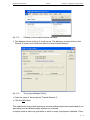
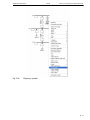
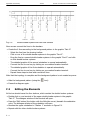
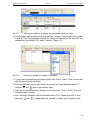
Right-click the external grid symbol or the asynchronous machine. The context
sensitive menu appears (see Figure D.6).
Left click the Flip At Busbar option. The symbol is rotated 180 degrees around its
busbar connection.
Flipping is also possible with non-straight connections.
This concludes the creation of the power system elements and the topology. Please check
that all symbols are positioned correctly. Use 'Move', 'Resize' and/or 'Flip at busbar' to
correct the single line diagram.
The elements, however, have not been edited yet, and are all using default parameters.
Entering the parameters is the next step.
We don't need the background pattern anymore. To hide it, we have to disable the
graphical layer on which it is drawn. For every group of graphic symbols, such a layer
exists. To hide the background:
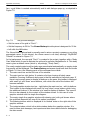
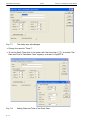
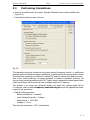
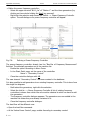
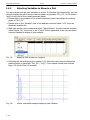
Click on the 'Show Layer' icon (
). The Graphic Layers dialogue appears. The
"Background'' layer is shown in the left pane ('Visible').
Hide the background by moving it to the right pane: left click the 'Background' layer
and press the
button. This moves the background to the list of invisible layers.
Close the layer dialogue with the OK button. The single line graphic will now look
more sharp.
D-8