1
Drivers & Utilities
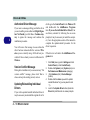
Authorized Driver Message
4
If you receive a message telling you that the driver
you are installing is not authorized (Digital Signature Not Found), just click Yes or Continue Anyway to ignore the message and continue the
installation procedure.
You will receive this message in cases where the
driver has been released after the version of Windows you are currently using. All the drivers provided will have already received certification for
Windows.
Version Conflict Message
During driver installation if you encounter any “file
version conflict” message, please click Yes to
choose to keep the existing (newer) version.
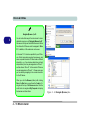
do this go to the Control Panel in the Windows OS
and double-click the Add/Remove Programs
item. If you see the individual driver listed (if not
see below), uninstall it, following the on screen
prompts (it may be necessary to restart the computer). Go to the appropriate section of the manual to
complete the update/reinstall procedure for the
driver in question.
If the driver is not listed in the Add/Remove Programs item:
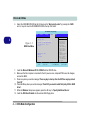
1.
2.
3.
4.
Updating/Reinstalling Individual
Drivers
If you wish to update/reinstall individual drivers it
may be necessary to uninstall the original driver.To
4 - 18 What to Install
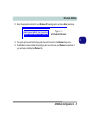
5.
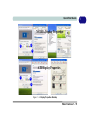
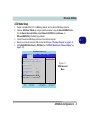
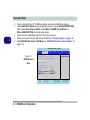
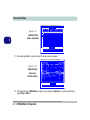
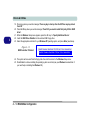
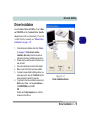
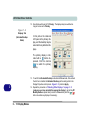
Click Start (menu), point to Settings and click
Control Panel (or click Control Panel).
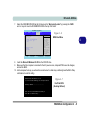
Double-click System (icon); System (icon) is in
Performance and Maintenance (category).
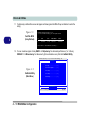
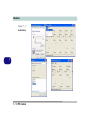
Click Hardware (tab) > Device Manager
(button).
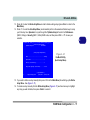
Double-click the device you wish to update/
reinstall the driver for (you may need to click
“+”).
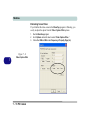
Look for the Update Driver button (check the
Driver tab) and follow the on screen prompts.