1
CHAPTER 1
SIGN IN AND SIGN OUT
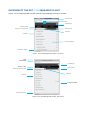
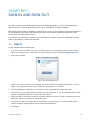
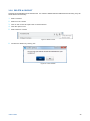
The “Sign in” window will be displayed when the DOT CommManager starts up. Once a password has been
entered, options to “remember the password” and “sign-in automatically” will become available.
Before signing into the DOT CommManager, please ensure you have your “Commpilot” Username and Password
for your business phone ready as they are the same. Note: Your Username and password will be for a User
account and not an administrator account.
If do not know your username or password for your business phone, please contact your Administrator, account
holder or call Telstra Ph 13 2000 and state ‘DOT’.
1.1. SIGN IN
To sign in please use the following steps:
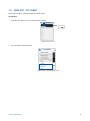
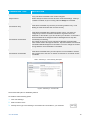
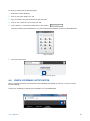
1. If signing in for the first time, enter your username. However, on subsequent logins you may need to
select your Username from a drop down list. The username format is 03xxxxxxxx@digitalbusiness
2. Enter your Password
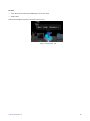
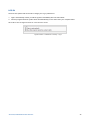
Figure 3: DOT CommManager Sign in
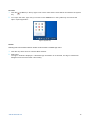
3. When a new version of the client is available, a prompt will appear to upgrade at this stage. For more
details on the upgrade process refer to section 6.3 Upgrading to a new version
4. For CommManager to remember your password, check the checkbox to enable this option.
5. This option can be changed within the Preferences menu after sign in. For more details refer to section
Chapter 5 Settings/Preferences and Security/Confirmations
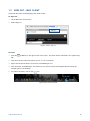
6. When the option to Remember password has been selected, the option to Sign in automatically will be
displayed. Check the checkbox to enable this option.
7. This option can also be changed within the Preference menu after sign in. For more details refer to
section Chapter 5 Settings/Preferences and Security/Confirmations
8. Click Sign in
SIGN IN AND SIGN OUT
9