1
IDE
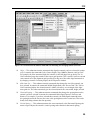
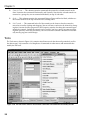
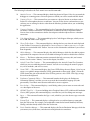
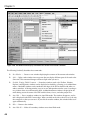
The following list describes the Tools menu’s most useful commands:
❑
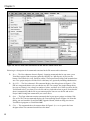
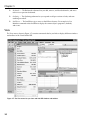
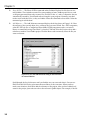
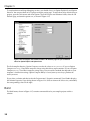
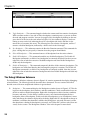
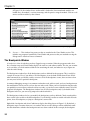
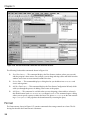
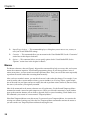
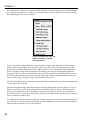
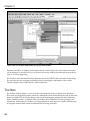
Attach to Process — This command displays the dialog shown in Figure 1-22 to let you attach the
debugger to a running process. Select the process to which you want to attach and click Attach.
❑
Connect to Device — This command lets you connect to a physical device or emulator such as
Pocket PC or Smartphone devices or emulators. You can use the devices and emulators to test
software you are writing for devices other than the Windows platform where you are building
the application.
❑
Connect to Database — This command displays the Connection Properties dialog, where you
can define a database connection. The connection is added to the Server Explorer window.
You can later use the connection to define data adapters and other objects that use a database
connection.
❑
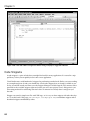
Code Snippets Manager — This command displays the Code Snippets Manager, which you can
use to add and remove code snippets.
❑
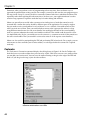
Choose Toolbox Items — This command displays a dialog that lets you select the tools displayed
in the Toolbox. For instance, by default the OleDbDataAdapater and OleDbConnection components are not included in the Toolbox. You can use this command to add them if you will use
them frequently.
❑
Add-in Manager — This command displays the Add-in Manager, which lists the add-in projects
registered on the computer. You can use the Add-in Manager to enable or disable these add-ins.
❑
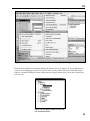
Macros — The Macros submenu contains commands that help you create, edit, and execute
macros. See the section “Macros,” later in this chapter, for details.
❑
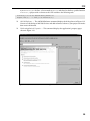
ActiveX Control Test Container — This command displays the ActiveX Control Test Container,
which lets you test and debug ActiveX controls. You can use it to change the control’s properties, call its methods, and raise its events.
❑
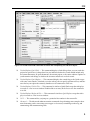
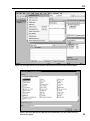
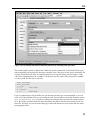
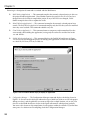
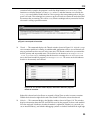
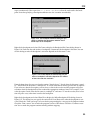
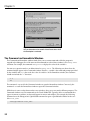
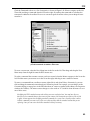
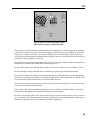
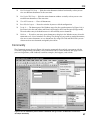
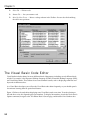
Create GUID — This command displays the Create GUID dialog shown in Figure 1-39 to let you
create a new globally unique identifier (GUID, pronounced to rhyme with “squid”). Select the
GUID format that you need and click New GUID to generate a new GUID. Click Copy to copy
the result to the clipboard.
❑
Dotfuscater Community Edition — This command launches the displays the Dotfuscater
Community Edition, a tool that you can use to make the intermediate language (IL) code
generated by Visual Basic more obscure and harder to reverse engineer.
❑
Error Lookup — This command displays a small dialog where you can enter an error code and
see a description of the error.
❑
ATL/MFC Trace Tool — If you are building Active Template Library (ATL) or Microsoft Foundation
Classes (MFC) projects, this command displays a tool that lets you view debug trace messages.
❑
Spy++ — This command launches the Spy++ tool, which lets you view the messages sent to the
application.
❑
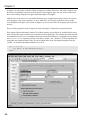
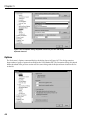
External Tools — This command displays a dialog that lets you add and remove commands
from the Tools menu. For example, you could add a command to launch WordPad, MS Paint,
WinZip, and other handy utilities from the Tools menu.
❑
Device Emulation Manager — This command displays the Device Emulation Manager, which lets
you connect, reset, shut down, and otherwise manipulate device emulators.
37