1
SECTION 4: CONFIGURING THE DVRM6
The space available on the hard drive limits how much disk space can be allocated for each recorder. When the disk space allocated
for a recorder is used up, the DVRM6 will either continue recording by overwriting the oldest recording, or stop recording until space
becomes available through manual deletions, per its configuration setup.
Video can be recorded continuously or recorded only when triggered by events. Event-triggered recording can minimize disk usage,
so that more time can elapse before the recorder space is used up. For example, one second of high-quality recording might require
about 16 KB of disk space. For a full day of high-quality video recording, this translates into 1.3 GB of disk space. By contrast, if there
are 25 events in a day, and the recorder records 20 seconds for each event, only 8 MB of disk space are needed for the day.
VMD, sensor and activator events can function as triggers for event-triggered recording. Each recorder can be configured to respond
to VMD events detected by the camera from which the recorder records, or from any of the sensors connected to the DVRM6.
Event-triggered recording can be configured to record a set number of seconds before and after each event (“pre-alarm” and
“post-alarm”). The DVRM6 always records the specified number of pre-alarm seconds, and then discards this data if no events are
detected. For example, if the pre-alarm option is five seconds, the system always stores the last five seconds of video. If an event is
detected, this video is saved as the pre-alarm recording; otherwise, it is deleted. The total recording time for each event is the sum
of the pre-alarm time, the time of the event itself, and the post-alarm time.
Another way to control disk usage is through the recording quality settings. The system supports three standard quality levels,
high, medium, and low. The lower the quality setting, the less disk space is required for each second of recording. All three standard
quality settings produce recordings in SIF resolution (320 x 240 pixels). High quality is the optimal recording configuration, and is
recommended for use whenever possible.
Configuring video recording
To set up video recording for a camera:
1.
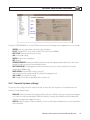
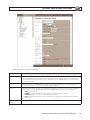
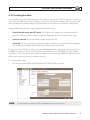
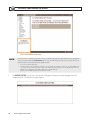
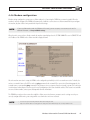
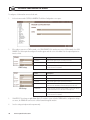
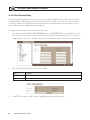
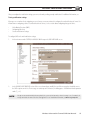
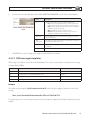
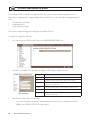
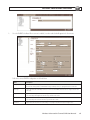
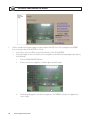
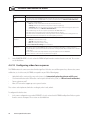
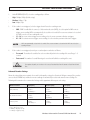
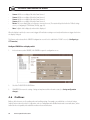
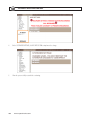
In the camera configuration screen under RECORDING TYPE, select the desired type of recording, as follows:
——
——
——
Continuous: The video stream is continuously recorded.
By Event: Recording occurs only when an event occurs
None: Recording is not activated for the camera
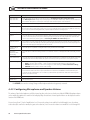
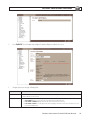
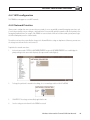
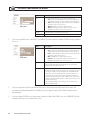
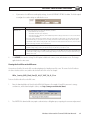
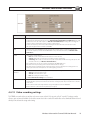
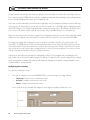
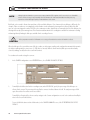
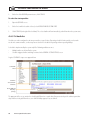
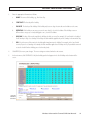
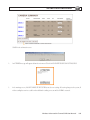
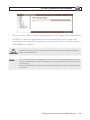
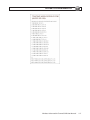
If you select By Event, the fields required to configure the event-triggered recording are added to the screen:
74
www.supercircuits.com