1
46
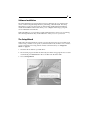
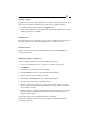
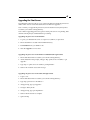
Upgrading the print server from Browser
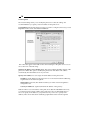
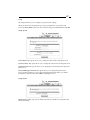
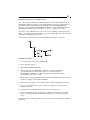
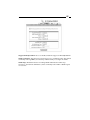
1. Ensure that the bin file is located in your current working directory.
2. Enter the IP address of the print server as the URL.
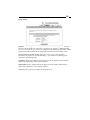
3. Click Misc, and then choose Upgrade From Browser.
4. Click Upgrade from Browser and select the firmware file.
5. Click Upgrade.
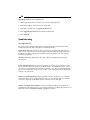
Troubleshooting
LED Light Indicators
The print server is equipped with LEDs to assist in diagnosing problems that are the
result of the network and/or the print server hardware itself.
Status (Red): When the print server unit is powered on, the Status LED will flash five
times as part of the unit’s Power On Self Test (POST). This indicates that the print server
hardware is properly configured. This LED, however, may flicker when data is being
transmitted or printed.
WLAN (Green): This LED indicates that data is being transmitted/received by the
WLAN port.
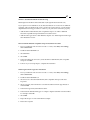
Power Related Problems: The print server requires an external power adapter in order
for it to function. If you have a power problem, check to see whether the power cord or
its connectors are damaged. Also check to see that the power adapter included with the
print server matches the voltage in your country or area. Using an incorrect adapter will
damage your print server.
Printer Port Related Problems: Printing problems may be caused by a loose connection
between the print server and the parallel or USB port of the printer. Make sure that the
connectors are firmly seated. Make sure the connectors are not damaged.
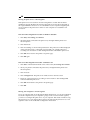
Wireless Communication Problems: If you have problems getting your print server to
communicate with other devices on your wireless network, try putting the print server in
Diagnostic mode. See Diagnostic Mode on page 11 for details.