1
2. Coretalk front screen explained
Now before we go through this overview, keep in mind that your company may use some, or all of the
TEXT features in the Coretalk product so don ’t be intimidated by all the functionality. Coretalk is like some
of the spreadsheet programmes that you use - they have many features but you end up only using the part
that helps you.
So go through the first overview and learn a little about the functionality - just get a general feel of the
product.
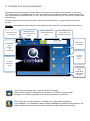
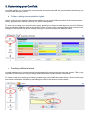
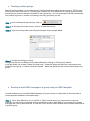
Objective: Understand the general layout of the product and get a feel for the functionality of the product.
Navigation Panel
and Task Bar
GSM Modem and
Internet Connectivity
Status
Modem Signal Meter
and SMS Queue/Sent
Status
Outstanding Items see
what needs to be
dealt with at a glance.
Search for a
Contact Bar
CoreTalk Main
Menu
Settings
&
Preferences
Functions
Shortcut
Menu
CoreTalk
Marketing
Pages
Forward SMS
from
CoreTalk to
your mobile
phone.
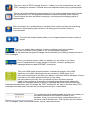
This is your home page icon - you back to the home page
when you are you are in other parts of the system. It is there to help you with
navigation. It’s simple to get back to the home page when you want to.
This is the ‘add a contact’ shortcut - it allows you to add contact details into
Your database. You can easily create a relevant database of contacts, when required. It is
always visible so that you can add a new contact no matter what you are doing!