1
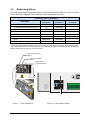
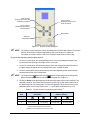
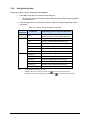
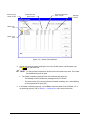
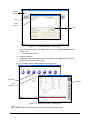
3.6.2 Using the Keyboard To operate position controls using keyboard commands: 1. Press [Ctrl + J] to open the Position Control dialog box. 2. The Dispenser radio button will be selected, indicating that the dispensing head position controls are active. Press the appropriate key combinations shown in Table 3-2 to jog the dispensing head or tooling plate. Table 3-2 Position Control Keyboard Commands Speed of Movement Slow (2) Fast Note: (3) Command (1) Dispensing Head/Tooling Plate Response Ctrl H Moves the dispensing head to the Home position (front left corner of dispensing area) Ctrl ← Moves the dispensing head to the left Ctrl ↑ Moves the tooling plate toward the front Ctrl → Moves the dispensing head to the right Ctrl ↓ Moves the tooling plate toward the back Ctrl Z ↓ Moves the dispensing head downward Ctrl Z ↑ Moves the dispensing head upward Ctrl Shift ← Moves the dispensing head to the left Ctrl Shift ↑ Moves the tooling plate toward the front Ctrl Shift → Moves the dispensing head to the right Ctrl Shift ↓ Moves the tooling plate toward the back Ctrl Shift Z ↓ Moves the dispensing head downward Ctrl Shift Z ↑ Moves the dispensing head upward (1) Simultaneously press the keys shown. (2) Slow is the same as clicking on a single arrow in the Position Control dialog box. (3) Fast has the same effect as clicking on a double arrow Operation in the Position Control dialog box. 23