1
Drawing shapes
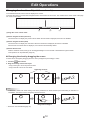
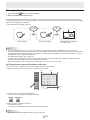
You can draw shapes such as circles, rectangles and triangles.
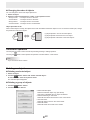
1. Touch the
“Drawing Object” button.
* Touch again to show “Property of figure”. For the properties, see below.
2. Drag on the board to draw the shape.
The shape is drawn in the area specified by dragging.
TIPS
• “Drawing Object” can be displayed on the toolbar using “Customize toolbar” (page 33).
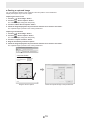
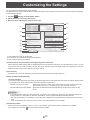
n Property of figure
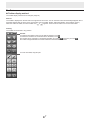
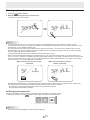
Select the shape that you want to change. The shape settings can be changed from the properties.
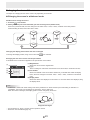
(1)
(2)
(3)
(4)
(5)
(3) Set the line color.
(1) Select a shape to change its setting.
(4) Check this box to make the shape translucent.
The selected shape is displayed in the preview area.
(5) Set the line width.
(2) Set the color to fill in.
Drawing straight lines or arrows
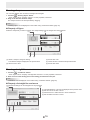
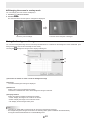
1. Touch the
“Line/Arrow” button.
* Touch again to show “Property of straight line and arrow”. For the properties, see below.
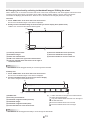
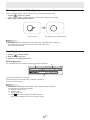
2. Draw a line from the starting point to the ending point with the touch pen.
TIPS
• “Line/Arrow” can be displayed on the toolbar using “Customize toolbar” (page 33).
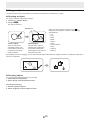
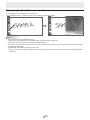
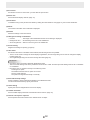
n Property of straight line and arrow
The line/arrow settings can be changed from the properties.
(1)
(2)
(1) The selected lines or arrows are displayed in the preview area.
(2) Set the color of the line or arrow.
(3) Check this box to make the line or arrow translucent.
(4) Set the width of the line or arrow.
(3)
(4)
E
16