1
■ Pasting a captured image
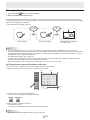
You can capture the display on the computer screen and paste it on the whiteboard.
Display the image that you want to capture.
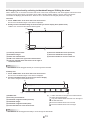
Capturing the entire screen
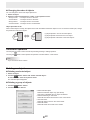
1. Touch the
“Insert Image” button.
2. Touch the
“Screen Capture” button.
The software display disappears temporarily.
3. Touch the “Whole Screen Capture” button.
4. Check the image displayed in the preview area and then touch “Paste to this sheet”.
The captured image is pasted on the working whiteboard.
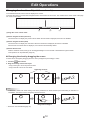
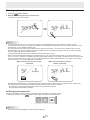
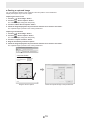
Capturing a selected area
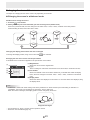
1. Touch the
“Insert Image” button.
2. Touch the
“Screen Capture” button.
The software display disappears temporarily.
3. Touch the “Capture selection” button.
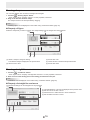
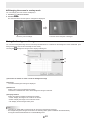
4. Drag the area which you want to capture.
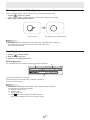
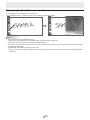
5. Check the image displayed in the preview area and then touch “Paste to this sheet”.
The captured image is pasted on the working whiteboard.
Corporate Profile - Internet Explorer
http://www.xxxxxxxxxxxxxxxxx
Corporate Profile - Internet Explorer
Corporate Profile
Company Name Date of Establishment
Location
XXXXXXXX
XXXXXXXX
XXXXXXXX
Done
Drag the area to capture.
Check the captured image in the preview area.
E
19