1
Copying All Contents (from an 8cm disc)
This mode allows you to record video onto a disc from
an 8cm disc camera connected to the DVDirect with a
single tough of the
(record) button. The entire
contents will be recorded. If you have more than one
8cm disc to copy, you can consolidate and record their
contents onto one 12cm disc.
Before selecting this copy mode, turn on the
DVDirect (page 29), insert a disc (page 30) and
connect a USB cable for recording (page 31).
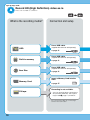
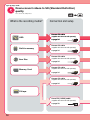
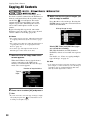
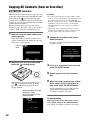
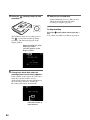
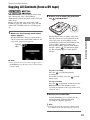
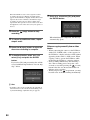
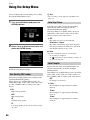
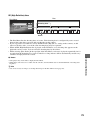
1 Make sure that the copy mode select
screen appears.
When the DVDirect detects a signal from a
camera connecting to the USB port, the copy
mode select screen appears.
b Notes
• You cannot select the type of images when recording
from an 8cm disc. The entire images stored on the 8cm
disc will be recorded (except for “PhotoMOVIE”).
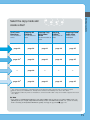
• Both the contents of an 8cm disc containing HD (High
Definition) video and an 8cm disc containing SD
(Standard Definition) video cannot be recorded on a
12cm disc.
• Depending on the combination of images on a disc
inserted into the DVDirect and the 8cm disc inserted
into the camera, images may not be recorded.
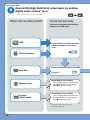
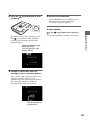
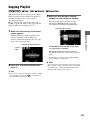
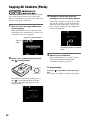
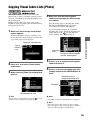
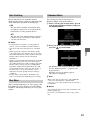
3 Change the 8cm disc of the camera
when prompted.
If you are copying from only one 8cm disc, go
straight to step 6.
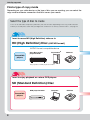
Type of
input
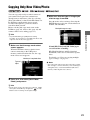
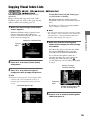
2 Make sure that [All] is selected and
press the
(record) button.
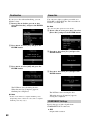
4 Press V or v to select [Continue] and
press the ENTER button.
5 Repeat steps 3 and 4 for each 8cm
disc.
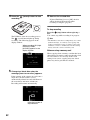
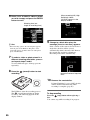
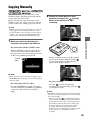
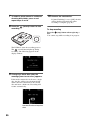
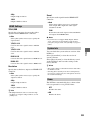
The DVDirect starts the recording process.
The
(record) button lights up during
recording. The following appears in the
display window.
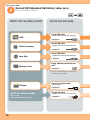
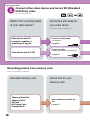
When recording HD (High
Definition) videos,
[AVCHD] appears in the
display window.
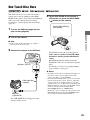
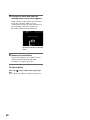
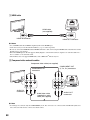
6 When you finish copying from all 8cm
discs, select [Quit] in the display of
step 3 and press the ENTER button.
If [Auto Finalizing] is set to [ON], the disc
will be finalized automatically when
recording is complete (page 67).
To stop recording
When replacing an 8cm disc of the camera,
select [Quit] and press the ENTER button.
You cannot stop while recording is in progress.
40