1
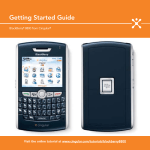
Get Started Using Your BlackBerry 8700c
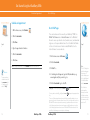
Push to Talk Setup
Push to Talk Setup
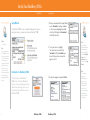
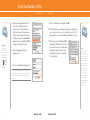
Verify that you have added one or more PTT contacts.
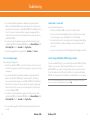
4. Click the contacts that you want in the group call then press and
hold the ptt convenience key to speak to the group. Release the ptt
convenience key to listen to the group.
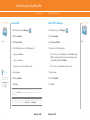
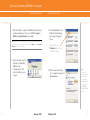
1. On the Home screen, press the ptt
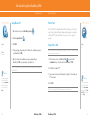
Accept a Push to Talk invitation
Make a Push to Talk call
convenience
key.
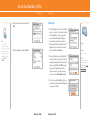
2. Highlight a PTT contact or group and perform one of the following
actions:
•
To speak to your contact, press and hold the ptt
•
To listen to your contact, release the ptt
convenience
convenience
key
key.
To end the PTT call, press and hold the end key.
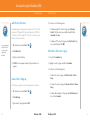
Make a Quick Group call
convenience
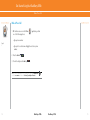
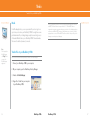
1. On the Home screen, click Push to Talk
.
2. Click Accept.
Note: You can automatically accept all PTT invitations. In the PTT application, set Auto
Accept Invitations to On. Click the trackwheel. Click Save.
Note: To convert your PTT call to a cellular call during the call, press the trackwheel. Click
Convert to Cellular. When you hear the tone, begin speaking without using the PTT
convenience key.
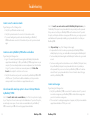
1. On the Home screen, press the ptt
If you are invited to be a PTT contact, the PTT Indicator on the Home
screen changes to the PTT Message Indicator.
key.
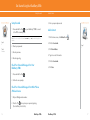
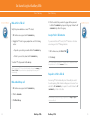
Respond to a Push to Talk call
An incoming PTT call is indicated by a tone followed by the sound of
the caller speaking. Caller information will appear on the screen. Press
and hold the ptt convenience key to speak to the caller. Release the ptt
convenience key to listen to the caller.
2. Click the trackwheel.
Note: Depending on your profile setting, you might need to click Accept or Reject to
initiate or end the call.
3. Click Quick Group.
24
BlackBerry® 8700c
BlackBerry® 8700c
25