1
dotProject Version 2.0.2 Basic User Manual
Section 4: Project Elements – Ancillary Modules
De Bortoli Wines
Post Reply
New Topic
Create a reply to a topic
Create a New Topic
Starting Topics
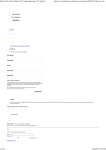
To start a topic you must first select the forum. You can then either create a new topic or reply to an existing
one (as we'll outline up next). To create a new topic you click on the start a new topic option (just under the
forum summary) and you'll need to provide:
Subject
Message
Subject line for the topic
Body of the topic
Use the submit button to record your topic.
At the top of this screen there is a date / time for the message, a Subject and Message box. These are
used when you are replying to a topic - see Replying to Topics for details.
Replying to Topics
To reply to any topic within a forum, firstly select that topic. A list of the original topic and any associated
previous replies will be displayed.
At the top right hand side of the listing of replies there is an option for Post Reply (in between Sort by Date
and New Topic). Click on post reply and the same screen as is used when creating a topic will be displayed,
only this time, the original topic will be displayed in the top part of the screen and the last reply will be
automatically incorporated into the Message box at the bottom (prefaced with > to indicate included text).
Type your response into the bottom message box according to the established protocol for your site (ie
some people may remove the text being responded to, others may choose to leave it in position). Use the
submit button to save your reply.
Deleting / Editing Topics
If you have permission to either edit or delete any particular topics there will be an edit icon (a notepad and
pencil) and a delete icon (garbage can) on the last line / right hand side of the topic. Click on either of those
to effect that action.
mailto Link
The user names included in the Detailed Topic listing is a mailto link - click on the user's name to send them
an email. The email you send will not be recorded in the forum.
Watches (Forums and Topics)
Watches can be placed on forums and topics by ticking the box either on the main forum display (against
the forum name) or on the Topic display (beside the topic subject). Once a forum watch has been set the
system will send an email advising you of any updates.
Interface to Projects / Project Tab
Once you have created any forums that are linked to a Project, dotProject will automatically include a
Forum tab on the main Project Detail display. You can use that tab to go straight to the project forums by
clicking on the name of the relevant forum.
dotProject Basic User Guide – v2.0.2 compatible
Page 9
Document Version 1.2