1
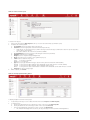
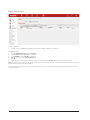
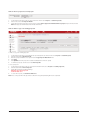
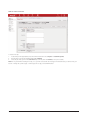
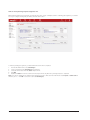
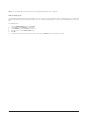
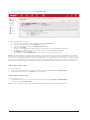
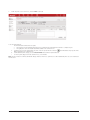
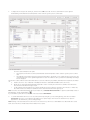
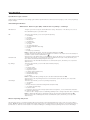
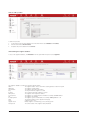
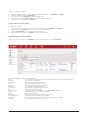
Note: The Print Options section tab is used to display multiple printing options for the same item, for example:
A4 Posters x 1000
OR
A4 Posters x 1500
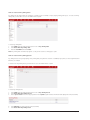
Use the Materials section tab to itemise printing costs or itemise multiple print jobs, for example:
Plates for A4 Posters $100.00
Outputting A4 Posters $100.00
AND
A4 Posters x 1000 $1000.00
Business Cards x 1000 $1000.00
9.
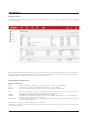
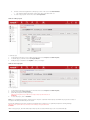
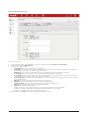
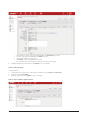
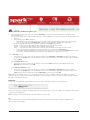
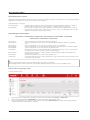
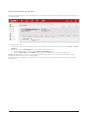
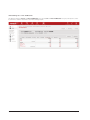
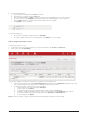
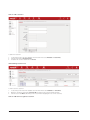
To analyse the proposal, click the section tab Analysis from the proposal menu
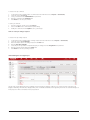
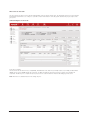
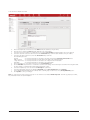
The analysis section tab displays a breakdown of the proposal’s costs and income structure, retained income and profit/loss percentage.
The ideal use of this window is to ensure that the correct income is retained from this job.
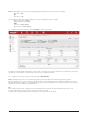
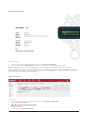
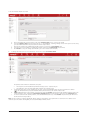
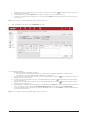
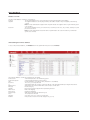
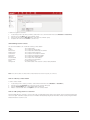
10. To generate the proposal as a PDF, click the action button Generate PDF .
Note: Generating the proposal does not print the proposal, it provides a file that can be printed, faxed, saved or emailed
If some information does not show on the proposal PDF, this does not mean that it has been lost. During the installation process the
PDF template has been designed to use the information specified by your Site Administrator, if a change is required to any of your PDF
templates, please discuss it with your Site Administrator.
TIP:
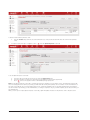
When starting a new proposal, complete the Proposal Detail window then generate the proposal PDF (this allows you to view
the layout and format of your proposal as you progress through the costing).
To update your Proposal with the latest price information, go to the PDF and click on refresh.
Spark - User Manual
Version 5.3
Page 16