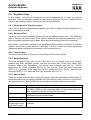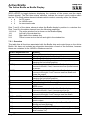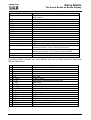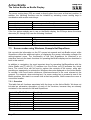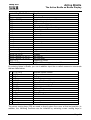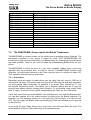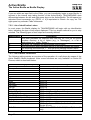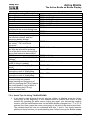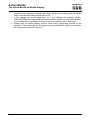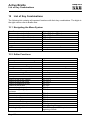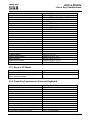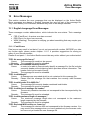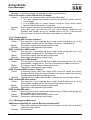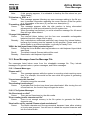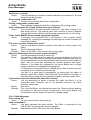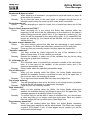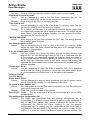
1
User Manual Active Braille Version 3.0 Horb, August 2013 © Handy Tech Elektronik GmbH All Rights Reserved Handy Tech Elektronik GmbH; Brunnenstraße 10; 72 160 Horb, Germany Phone : +49 7451 55 46 0; Fax: +49 7451 55 46 67 E-Mail: inf [email protected] - Internet: www.handytech.d e HandyTech Active Braille Table of Contents ElektronikGmbH Table of Contents 1 2 3 4 5 GENERAL 1.1 Preface 1.2 Active Braille at a Glance 1.3 Conventions Used in This Manual INSTALLATION 2.1 Package Contents 2.2 Software Installation 2.3 Connecting the Power Supply 2.4 Connecting the Interface Cable 2.5 Connecting a external USB keyboard 2.6 The Carrying Case 2.7 Installation of the Bluetooth Tie-In 2.7.1 Bluetooth-PC Tie-In 2.7.2 Bluetooth Apple iOS Device Tie-In 2.7.3 Bluetooth-Cell Phone Tie-In 2.8 Technical Specifications START UP 3.1 Version Information 3.2 Turning the Power On 3.3 Basic Operation 3.3.1 Chords 3.3.2 Signal Tones 3.3.3 System Messages 3.3.4 Check Boxes 3.3.5 Radio Buttons (1 of x) 3.3.6 System Files 3.3.7 Energy Saving Features 3.3.8 The SAVE Mode QUICK START 4.1 The Active Braille as Braille Display 4.2 The Active Braille as Notepad 4.2.1 Navigating the Menu 4.2.2 Writing a Note 4.2.3 Saving a Note 4.2.4 Opening a File 4.2.5 Transferring data between the Active Braille and a PC 4.2.5.1 Transferring a File from the Active Braille to the PC 4.2.5.2 Transferring a File from the PC to the Active Braille OPERATION OF THE ACTIVE BRAILLE 5.1 The Menu System 5.1.1 File (F) 5.1.1.1 New file 5.1.1.2 Previous file 5.1.1.3 New Folder 5.1.1.4 File and Folder list 5.1.2 Calculator (A) 7 7 7 9 10 10 10 11 12 12 12 13 13 14 14 15 16 16 16 17 17 17 17 18 18 18 18 19 20 20 20 20 21 21 21 22 22 22 23 23 23 23 23 24 24 26 Page 2 Active Braille HandyTech Table of Contents ElektronikGmbH 5.1.3 Scheduler (S) 5.1.3.1 Entering a New Appointment (New Entry) 5.1.3.2 Entering and Editing Appointments 5.1.3.3 Entering Appointments with Variables (Recurring Appointments) 5.1.3.4 A Few Notes on Entering Appointments 5.1.3.5 The Appointment Schedule 5.1.3.6 Full Text Search within Appointments 5.1.3.7 Appointment Editing Menu 5.1.3.8 Information Regarding Past Appointments 5.1.3.9 Resources Management 5.1.3.10 Backing up the scheduler data 5.1.4 Clock (C) 5.1.4.1 Display date/time (D) 5.1.4.2 set Alarm (A) 5.1.4.3 set Clock (C) 5.1.4.4 Stop watch (S) 5.1.4.5 count down (O) 5.1.5 MusikBraille (M) 5.1.6 Games (G) 5.1.6.1 BrailleHunt (B) 5.1.6.2 Hangman (H) 5.1.7 PC mode (P) 5.1.8 Braille character sets (B) 5.1.8.1 Creating a Braille Character Set 5.1.8.2 Loading Braille Character Sets 5.1.8.3 Selecting and Activating Braille Tables 5.1.8.4 Delete selected braille set (D) 5.1.9 Info (I) 5.1.9.1 Memory usage (M) 5.1.9.2 Battery statistics (B) 5.1.9.3 Keyboard layout (K) 5.1.9.4 Serial number (S) 5.1.9.5 Versions (V) 5.1.9.6 System information 5.1.10 Options (O) 5.1.10.1 6 dots braille (6) 5.1.10.2 hotkeys Activate objects (A) 5.1.10.3 Highlight hotkeys (H) 5.1.10.4 show system files (Y) 5.1.10.5 Folders first (O) 5.1.10.6 Quick entry (Q) 5.1.10.7 show file attributes (B) 5.1.10.8 auto switch external keyboard (X) 5.1.10.9 Bluetooth on (L) 5.1.10.10 Switch Bluetooth on/off automatically(W) 5.1.10.11 Startup mode (S) 5.1.10.12 Tone signals (T) 5.1.10.13 Date/time format (D) 5.1.10.14 Input indication (I) 5.1.10.15 dot firmness (F) Page 3 28 29 29 30 31 31 33 33 34 34 34 35 35 35 35 36 36 36 37 37 38 38 38 38 39 39 40 41 41 41 42 42 42 43 43 43 43 44 44 44 44 44 44 45 45 45 46 46 46 47 HandyTech Active Braille Table of Contents ElektronikGmbH 5.1.10.16 atc sensitivity (E) 47 5.1.10.17 standby (N) 47 5.1.10.18 Restore factory defaults (R) 48 5.2 The Editor 49 5.2.1 Overview of Editor Functions 49 5.2.2 Dialogs and Confirmation of Actions 49 5.2.3 Entering and Deleting Text 50 5.2.4 Reading Text 50 5.2.5 ATC within the Editor 51 5.2.6 Moving the Cursor 51 5.2.7 Editing Modes (SPC+2 4 = Chord i) 52 5.2.8 Calculator function 53 5.2.9 Status Display (SPC+2 3 4 7 = Chord S) 53 5.2.10 Set Mark (TU+TD) 53 5.2.11 Jump to Mark (SPC+1 3 4 = Chord m) 54 5.2.12 Delete Mark (TU+TD, Select Name, SPC) 54 5.2.13 Block Functions 54 5.2.13.1 Marking the Beginning of a Block [SPC+TRC] 55 5.2.13.2 Copy (SPC+1 4 = Chord c) 55 5.2.13.3 Cut (SPC+ 1 3 4 6 = Chord x) 55 5.2.13.4 Paste (SPC+1 2 3 6 = Chord v) 56 5.2.13.5 Exchange Mark and Cursor (SPC+7 8) 56 5.2.13.6 Deleting a Text Block (SPC+ 1 3 4 6 7 = Chord X, SPC+1 2 = Chord b)56 5.2.13.7 Saving a Block to a File (SPC+2 3 4 = Chord s) 57 5.2.14 Searches 57 5.2.14.1 Incremental Search (SPC+1 2 4 = Chord f) 57 5.2.14.2 Buffered Search 57 5.2.14.3 Backward Search (SPC+1 2 4 7 = Chord F) 58 5.2.15 Replace (SPC+1 2 3 5 = Chord r) 58 5.2.16 Opening Additional Files 58 5.2.17 Switching Between Open Files (SPC+5 6 8 or SPC+2 3 7) 59 5.2.18 Suspending the Editor (SPC+1 2 3 4 5 6) 59 5.2.19 Saving Files (SPC+2 3 4 = Chord s) 60 5.2.20 Closing a File and Quitting the Editor (SPC+1 5 = Chord e) 61 5.2.21 Activating PC Mode from the Editor (SPC+1 2 3 4 = Chord p) 61 5.2.22 Help (SPC+1 2 5 = Chord h) 61 5.2.23 The Editor's Setup Menu (SPC+1 3 6 = Chord u) 62 5.2.23.1 Window Scrolling (Global) 62 5.2.23.2 Scroll time (Global) 63 5.2.23.3 Indicate empty lines (Global) 63 5.2.23.4 Automatic scrolling (Global) 63 5.2.23.5 Dialog Timeout (Global) 63 5.2.23.6 Warn Timeout (Global) 63 5.2.23.7 Result position [c] or [e] 64 5.2.23.8 Keep expression [c] or [e] 64 5.2.23.9 Find Exact (Global) 64 5.2.23.10 Margin Action (Global) 64 5.2.23.11 Right Margin (Global) 65 5.2.23.12 Word Wrap (Global) 65 5.2.23.13 Tab Mode (Global) 65 Page 4 Active Braille HandyTech Table of Contents ElektronikGmbH 6 7 8 9 5.2.23.14 Tab Stops (Global) 65 5.2.23.15 Tab Width (Global) 66 5.2.23.16 Line End (Individual File) 66 5.2.23.17 Insert Cursor (Global) 66 5.2.23.18 Edit Mode (Individual File) 66 5.2.23.19 Scroll Speed (Global) 67 5.2.23.20 Saved Position (Individual File) 67 5.2.23.21 Display Mode (Individual File) 67 5.2.23.22 Step Size (Global) 67 5.2.23.23 Match Column (Global) 67 5.2.24 Important Instructions Regarding the Editor 68 5.3 Controlling the PC from the Active Braille's Keyboard [SPC+1 2 7] (Chord B)69 5.3.1 Table of Key Commands for Controlling the PC 69 EXTERNAL KEYBOARD 72 6.1 General 72 6.2 Keyboard Keys 73 6.2.1 Alphanumerical Character Inputs 73 6.2.2 Numerical Pad 73 6.2.3 Function Keys 73 6.2.4 Navigation Keys 73 6.2.5 Special Keys 73 6.2.6 Status Indicators 74 THE ACTIVE BRAILLE AS BRAILLE DISPLAY 75 7.1 Screen reader using Windows, Example Window-Eyes 75 7.1.1 Overview 75 7.2 Screen readers using Windows, Example JAWS 76 7.2.1 Overview 77 7.3 Screen reader using Windows, Example Hal/SuperNova 79 7.3.1 Overview 79 7.4 VoiceOver: Screen reader for Apple iOS Devices 81 7.5 TALKS&ZOOMS: Screen reader for Mobile Telephones 82 7.5.1 Quick Start 82 7.5.2 List of Identification Letters 83 7.5.3 List of Braille Commands 83 7.5.4 Useful Tips for Using TALKS&ZOOMS 84 OPERATION SETTINGS FOR HANDY TECH BRAILLE DISPLAYS 86 8.1 Connection 86 8.2 ATC 87 8.3 Status Cells 87 8.4 Key Actions 88 8.4.1 Key Lock 88 8.4.2 Fast Keys 88 8.4.3 Repeat Keys 88 8.5 Miscellaneous 89 8.6 Info 89 ACTIVE TACTILE CONTROL (ATC) 90 9.1 ATC Assistant for Reading or Learning 91 9.2 Tips for Utilizing ATC to Learn Braille 92 9.3 Tips for Utilizing ATC for the Experienced Braille Reader 93 9.4 ATC-Monitor Settings 94 Page 5 HandyTech Active Braille Table of Contents ElektronikGmbH 10 BATTERY MANAGEMENT 10.1 Types of Batteries 10.2 Battery Charging 10.3 Battery Capacity Display 10.4 Automatic Recognition of Low Voltage 10.5 Replacing the Batteries 11 IMPORTANT INFORMATION 11.1 Start-Up Procedures 11.1.1 Self check of the File System 11.1.2 Saving Files in Case of Fatal Errors 11.2 Symbols 11.3 Safety Information under the Standards for Medical Devices 11.4 General Safety Information 11.5 Handling the Active Braille 11.6 Warranty 11.7 Technical Support 12 LIST OF KEY COMBINATIONS 12.1 Navigating the Menu System 12.2 Editor Functions 12.3 Keys in PC Mode 12.4 Fixed Key Functions on External Keyboard 13 ERROR MESSAGES 13.1 English Language Error Messages 13.1.1 Fatal Errors 13.1.2 General Errors 13.1.3 Warnings and Messages 13.2 Error Messages from the Message File 13.2.1 General Messages 13.2.2 File System Messages 13.2.3 Editor Messages 14 COPYRIGHT NOTICE 95 95 95 96 96 96 98 98 98 99 99 99 99 101 101 101 103 103 103 104 104 106 106 106 107 107 108 108 108 109 113 Page 6 Active Braille HandyTech General ElektronikGmbH 1 General Thank you for choosing the Active Braille. Active Braille was designed with the focus on easy and intuitive handling. Please take some time to read the Active Braille user manual. It will help you to get the most out of every feature provided. 1.1 Preface Before starting Active Braille for the first time it is important to carefully read the safety instructions regarding the appropriate handling You will find the safety instructions at the end of this manual. Active Braille is a new-generation Braille display with note-taking function. Its note taking function as well as the universal connection options and the latest ATC technology all are patented by Handy Tech. With the 4 GB data storage you can use your Active Braille to take notes at anytime, anywhere. With the HTCom software package (included) the transfer of your notes to your PC and back into Active Braille is easy and straightforward. The Active Braille comes with wireless bluetooth technology allowing you to control a PC or Mobile assistant like a cell phone. To use Active Braille as a Braille display for a PC (Windows or Linux) an output program called screen reader is needed. It is available from your supplier. The screen reader program NVDA will be provided for free if needed. If you have any ideas or suggestions to improve our product please do not hesitate to contact your Handy Tech customer service representative or write to [email protected]. Your opinion is very important to us. Enjoy using Active Braille. 1.2 Active Braille at a Glance This chapter will help you familiarize yourself with your Active Braille and its control elements. We recommend keeping the Active Braille handy, so that you can actively follow the instructions in this chapter. The two space bars are located at the centre front. In the following description the left space bar is called [SPCL] and the right space bar is called [SPCR]. If either the left or right space bar can be used they will be called [SPC]. Above the Braille display you can find 8 ergonomic function keys. These function keys are also used for Braille input. They correspond to the usual Braille keyboard layout and are, from the left to the right as follows: 7 3 2 1 4 5 6 8 Page 7 HandyTech Active Braille General ElektronikGmbH Located in the middle of the device are 40 ergonomic Braille display elements with integrated cursor routing keys. The cursor routing (CR) keys which are integrated as part of each Braille cell enable you to place the cursor directly at the text position of this Braille cell. The Triple Action Keys are to the left and right of and flush with the Braille cells You can activate the Triple Action keys at the top, in the centre, and at the bottom. The Triple Action Key functions are: The left or right Triple Action Key's (Up) position also serves as a reading key to move backward within the text, and will be referred to as [TLU] or [TRU] in the list below. The left or right Triple Action Key's (Down) position also serves as a reading key to move forward through the text, and are referred to as [TLD] or [TRD] in the list below. In the event of the right as well as the left Triple Action Key (Up) can be pressed, it is called [TU]. If alternatively the Triple Action Key left or right (Down) can be used, this is called [TD]. In the case that you need to press both [TU] and [TD] simultaneously, such as setting a mark within the Editor, you may press the keys at the top left [TLU] and bottom right [TRD], or at bottom left [TLD] and top right [TRU]. The centre position of either the left or right Triple Action Key [TLC] and [TRC] can be used for additional functions. In the list below you will find an overview of the symbols used in this manual to represent the Triple Action Key settings: Left Triple Action Key, up: Left Triple Action Key, center: Left Triple Action Key, down: [TLU] [TLC] [TLD] Right Triple Action Key, up: Right Triple Action Key, center: Right Triple Action Key, down: [TRU] [TRC] [TRD] If you move along the right side of the housing towards the back, you will first feel the main power button. Located behind the power button is a USB type A port to connect a USB keyboard. Behind the USB type A port is the outlet for the power supply. On the left side of the device are from the front to the back – another USB type A port to connect a USB keyboard, a Micro SD card for service reasons and a USB type B port to connect a PC. Please do not remove the Micro SD card at any time from the device while it is on. Data on the card can be damaged. Please turn the Active Braille off, before you insert or remove the Micro SD card. Left on the back side you find a round headphone plug (2.5 mm) to connect a headphone or an external loudspeaker. The Active Braille is shipped with an adapter cable to connect also a 3.5 mm connector. Page 8 Active Braille HandyTech General ElektronikGmbH 1.3 Conventions Used in This Manual In this manual, the following conventions are used for inputs and outputs on the Active Braille and on the PC: Single keystrokes on Active Braille: Key/dot combination on Active Braille: Display on the Active Braille modules: [Key1] e.g. [TLU] [SPC + 1 2] 'Display Text' such as 'File' Single keystrokes on PC: Text input on PC: Text output on PC: {Key}, e.g., {ENTER} {input text}, e.g., {HTCOM} "output text" such as "Done" Page 9 HandyTech Active Braille Installation ElektronikGmbH 2 Installation This section contains helpful information about how to install your Active Braille. Please read it carefully to prevent difficulties while setting up. 2.1 Package Contents Please verify that your package contains all of the parts listed below. If one of the components is missing or damaged, please contact us in order to request the missing part or a replacement. You should find enclosed the following: Active Braille Carrying case 2 USB cables (one short, one long) 1 adapter cable for loudspeaker, 2.5 mm to 3.5 mm, about 10 cm long (4 inches) Power supply with power cable to be connected to Active Braille (100 to 240 Volt AC; 9 Volt DC / 1,5 A; FW 7555M/09) Set of 4 NiMH batteries Software Package with drivers for screen readers and HTCom (CD) This user manual printed version This user manual in daisy format on CD User manual for file transfer with HTCom Quick Reference in Braille 2.2 Software Installation Before you can connect the Active Braille to your computer, you should first install the enclosed software package. Please make sure that the screen reader program you intend to use has been installed on the PC and close Word for Windows. Next, insert the CD containing the installation software into your computer's CD-ROM drive. The installation program of this CD will install the latest drivers for your screen reader as well as the file transfer program HTCom and this user manual. Start "setup.exe" on the CD. The installation program follows the Windows Standards. You can choose the following components of the software, to be installed: JAWS driver: latest Braille display driver for JAWS for Windows Window-Eyes driver: latest Braille display driver for Window-Eyes HAL/Supernova driver: latest Braille display driver for HAL/Supernova Active Braille Firmware and Manuals: for updating the internal functions of your Active Braille and this user manual. HTCom (Handy Tech Communication Software): communication program for file transfer between PC and Active Braille We recommend that you use the default setting for the installation. All required software components will be installed and a link for HTCom on the Desktop will be created. If there is no screen reader running when starting the setup program, you have to choose the Page 10 Active Braille HandyTech Installation ElektronikGmbH folder for the installation of your screen reader manually. After completion of the installation program you will find a group named "Handy Tech" in programs in the start menu. Here you find the following subfolders: BrailleDriver: here you find the key settings of your Active Braille for your screen reader. Active Braille followed by the version number: for version 1.0 it is for example "Active Braille 1.0". Here you find this user manual, the uninstall program, the program for updating the firmware and important remarks. HTCom: here you find the description of HTCom, the program HTCom itself and the uninstall program. After installing successfully you can hook on your Active Braille on to your computer. In the installation folder of your Active Braille firmware you will find the following subfolders (when installed completely): Braille tables: contains the various Braille character sets for different Country versions. Firmware: contains four files for the internal programming of your Active Braille as well as system files. Manuals: includes this user manual and important information KeyboardLayouts: contains different keyboard files for different countries. Uninstall: contains the uninstall program for this software. USB_driver: contains the USB driver for Windows98 and Windows-NT Beside the start menu you can start HTCom wire the link on your desktop or wire the preset key combination {Ctrl+Shift+H}. A detailed description of how to use HTCom you will find this in the separate user manual "File transfer between PC and Active Braille" which can be found in the sub folder "HTCom". 2.3 Connecting the Power Supply The power supply included in your package is used to recharge the batteries and for providing power to the Active Braille. The Active Braille can be used without restrictions even while the batteries are recharging. When connecting the power supply, please plug the round, thin plug into the power supply port behind the USB Type A port on the right side of the housing first. You can feel the plug snapping into place. Now you can connect the power supply to an easily accessible wall outlet. When disconnecting the power supply cable, please reverse the order of steps above. When connecting the power supply cable while the device is off, you get the message ’Battery quick charging’ and the Active Braille turns off again. If you plug in the power supply while the Active Braille is switched on, a signal tone indicates that the device runs no longer on Batteries. WARNING: Should you decide to use non-rechargeable batteries in the Active Braille for any reason, you must remove these from the device before connecting the Active Braille to a power outlet via the power supply cable. The integrated charging circuitry cannot recognize whether the batteries are rechargeable or not and will try to recharge the batteries. This Page 11 HandyTech Active Braille Installation ElektronikGmbH can result in the batteries bursting, which may not only damage the device, but could also be hazardous to your health. If you are not sure whether the batteries you are using are rechargeable or not, you can recognize rechargeable batteries by an indentation in the casing near the top button (plus pole). 2.4 Connecting the Interface Cable Your Active Braille can communicate with the PC either via USB interface, or through the wireless bluetooth interface. If the Active Braille is used as a medical device, the connected PC needs to comply with the medical device directive or needed to be additional grounded or needs to be connected via a separating transformation. Please make sure, that you have installed the enclosed software package, as described in chapter 2.2 before you connect the USB cable. To connect the Braille display to the PC via the USB interface, please identify the enclosed USB interface cable first. The USB interface cable features a small, almost square plug on one end. The other end features a small, flat plug. Now plug the square plug into the leftmost port on the left side of your Active Braille. The flat plug is then plugged into the PC's USB port. When both the Braille display and the PC have been turned on, the Braille display will automatically be recognized by USB enabled operating systems. When connecting the USB cable while the device is off, you get the message ’Battery charging’ and the Active Braille turns off again. WARNING: Should you decide to use non-rechargeable batteries in the Active Braille for any reason, you must remove these from the device before connecting the Active Braille to a PC via the USB cable. The integrated charging circuitry cannot recognize whether the batteries are rechargeable or not and will try to recharge the batteries. This can result in the batteries bursting, which may not only damage the device, but could also be hazardous to your health. If you are not sure whether the batteries you are using are rechargeable or not, you can recognize rechargeable batteries by an indentation in the casing near the top button (plus pole). 2.5 Connecting a external USB keyboard You can also connect a standard USB keyboard to your Active Braille. Therefore plug in the USB cable of the USB keyboard in the right or left USB Type A port of the Active Braille. For more information please refer to chapter 6 External Keyboard. 2.6 The Carrying Case An extra compartment is provided on the cover of the carrying case, which can be closed with a velcro fastener. This compartment can store the cables and your mobile phone. Page 12 Active Braille HandyTech Installation ElektronikGmbH On the right and left side of the case are openings for the power cable, the USB interfaces and the main power button, so that the Active Braille can be operated inside its case. These outlets are protected by a Velcro fastened cover, which can be flipped upwards. To completely open the carrying case, also open the Velcro fastener on the bottom. All of the control elements are now accessible. If you open the two Velcro fasteners at the right and left back side, the Active Braille can be pulled out backwards of the case. When you replace the Active Braille in the carrying case, please make sure that the sides of the case fully enclose the Active Braille, and that the Velcro fasteners are proper closed, because otherwise the Active Braille could fall out when the case is opened. 2.7 Installation of the Bluetooth Tie-In Because your Active Braille features a Bluetooth transmission module, you can also establish a wireless connection between the Active Braille and a computer or a cell phone, if they are equipped with wireless Bluetooth technology. You need to make sure that the wireless Bluetooth interface on your Active Braille is active, by enabling the option “Bluetooth on” in the option menu like described in chapter 5.1.10.9. The wireless transmission radius is approximately 10 meters (10 yards or 33 feet). 2.7.1 Bluetooth-PC Tie-In 1. Please make sure, that the Active Braille is switched on, the Bluetooth function in the option menu is enabled and no USB cable is connected. 2. Select "Bluetooth Devices" from the control panel or from your system tray. A window "Bluetooth Devices" will open. 3. Select on the tab sheet "Devices" the button "Add…" 4. "Add Bluetooth Device Wizard" will appear. Select "My device is set up and ready to be found" and press "Next". 5. All detected Bluetooth devices will be listed. Select the Active Braille from the list and press "Next". 6. Select "Let me choose my own passkey", insert into the text field the 5 digit pairing code. Press "Next". 7. Now the pairing will be done and the COM Port will be assign. Please wait a moment. All available COM Ports will be displayed. Please confirm by pressing "Finish". 8. The Braille Star is shown in the window "Bluetooth Devices". Please confirm by pressing "OK". Now the device is ready to use. Your Active Braille now has a wireless connection to the PC, and you can utilize all of its functions, as if it were connected via the USB cable. Note: If you move the Active Braille beyond the Bluetooth connection's communications radius (10 meters/yards), the connection to the PC will be interrupted. The connection will automatically be re-established by Handy Tech's Braille device driver once you move back within range. For this you need to have installed the latest Braille display driver (see chapter 2.2). Page 13 HandyTech Active Braille Installation ElektronikGmbH 2.7.2 Bluetooth Apple iOS Device Tie-In Mobile Apple devices, such as the iPhone or iPad, include a screen reader by default, which enables blind people to operate the devices by speech and Braille output. In order to connect the Active Braille via Bluetooth with an Apple device, you have to activate VoiceOver first. Please follow these steps: 1. Please make sure that the Active Braille is turned on, USB cable is not connected and the Bluetooth option in Config mode is turned on. 2. Open “Settings” on the home screen of your iOS device.. 3. Choose „Accessibility from the „General“ page. 4. Turn VoiceOver on. 5. Choose “Braille” on the Accessibility page. 6. If Bluetooth is off, the iOS device will remind you and you should turn it on now. 7. The iOS device is now searching for Bluetooth Braille displays. Please choose the Active Braille from the list. 8. Now you have to enter the 5 digit pairing code. 9. The Bluetooth connection will be established and you can read the text from the iOS device on the Braille display. Note: if the Bluetooth connection was interrupted because the Active Braille or the Apple device was turned off or in sleep mode, please activate the Active Braille first. The connection will be reestablished automatically, when turning on the Apple device. 2.7.3 Bluetooth-Cell Phone Tie-In If your cell phone uses the Symbian operating system (for example the Nokia E50) your cell phone also includes a wireless Bluetooth interface. Please make sure, that you use the Braille driver from Version 2.1 of TALKS&ZOOMS By executing the following steps, you can tie in your Active Braille wirelessly with your cell phone to utilize Talks Premium: 1. In the cell phone's "Connections" menu, select the menu item "Bluetooth". Under the tab "Paired Devices", select "Options". 2. Select "New Paired Device". All available Bluetooth devices will be displayed. If you receive the message "Bluetooth is off. Turn on?" you should enter "Yes". Make sure that your Active Braille's power is switched on and that the small sliding switch between the two keyboard outlets is in the right position towards the edge of the housing. 3. Now select the Active Braille from the list of devices. If the Active Braille is not included on the list, activate the "More Devices" option. The Active Braille is designated as Active Braille AB4/A0, followed by its serial number. 4. Once you have selected the Active Braille from the list, you will be prompted to enter a password. This password is the five-digit pairing code. 5. Finally, select "Handy Tech" from the "Braille" tab in the TALKS&ZOOMS settings menu. Your Active Braille now has a wireless connection to your Symbian mobile phone, and you can utilize all of the functions of your telephone with Braille input/output capability, as described in the Section "TALKS&ZOOMS: Screen reader for Mobile Phones". Page 14 Active Braille HandyTech Installation ElektronikGmbH 2.8 Technical Specifications 40 concave piezoelectric Braille cells 40 cursor routing keys 2 Triple Action Keys 8 function keys 2 space keys 2 USB Type A port 1 USB Type B port 4 GB memory 1 plug for loudspeaker 2.5 mm Battery duration ca. 20 hours; ca. 14 hours for Bluetooth operation Quick charge circuitry (less then 3 hours) Power: 9 V / 1.3 A Measurements: 31.9 cm width, 12.4 cm depth, 2.9 cm high (12.56" width, 4.88" depth, 1.14" high) Weight 930 gr (2.05 lbs.) Page 15 HandyTech Active Braille Start Up ElektronikGmbH 3 Start Up 3.1 Version Information As of this Section, all common characteristics of the Active Braille will be described. This information applies to firmware Version 3.5 of your Active Braille. 3.2 Turning the Power On Press the on/off button to turn the Active Braille on. You can now work independent of a power source, because the batteries are fully charged. You will hear a short, high-pitched beep, and the following start up message will be displayed on the Braille display: 'Handy Tech ACTIVE BRAILLE 3.5'. At the end of this string is the version number of the firmware that you are currently working with (e.g., 1.0). The high-pitched beep, followed by a second lower beep at start up, indicates that you are now in work mode. As soon as you hear the lower beep, also called startup sound, you can begin working. Please note that the Active Braille is equipped with protection against accidently turning on. This means that the Active Braille is turning off automatically after 60 seconds if you don’t read four characters in a row on the Braille display. It doesn’t turn off automatically if it is connected via USB or power supply or if it is connected via Bluetooth to a screen reader. The Active Braille is not fully ready for operation until the startup sound appeared. The device can only begin exchanging data or reacting to any other external events, such as keystrokes, after the low beep. You can change the startup sound by yourself using MusikBraille for composing your own melody. Please refer to chapter 5.1.5 MusikBraille (M). You are now in the Active Braille's main menu, which allows you to activate its various functions. Should you receive a message beginning with the words 'FER:', 'Warning', or 'WRN:' instead of the work mode start up string shown above, then the Active Braille's software has become corrupted. You will find detailed information and trouble-shooting tips in the sections on firmware updates and error messages. Now, before you can finally get started, we would like to familiarize you with some of the basic concepts pertaining to your Active Braille. Page 16 Active Braille HandyTech Start Up ElektronikGmbH 3.3 Basic Operation 3.3.1 Chords The Active Braille's keyboard is very easy to use. The keystroke functions are not activated until the key is released. If a character is composed by several keys, it will be created after releasing all keys. In order to make functions available to you which require their own function keys on standard keyboards, while also providing efficiency of operation, we have introduced the so-called chord functions. Chords are letters or Braille dots that are used in combination with the space bar. For example, in the Editor you can use Chord-i [SPC+2 4] to toggle between insert and overwrite mode. With Chord Commands it is enough to release one key in order to activate the function. When entering characters all keys need to be released. You will find a list of all available key combinations in chapter 12. 3.3.2 Signal Tones The Active Braille utilizes various signal tones to indicate its status or to alert you to prompts or possible errors. 1. Startup sound: This is a low tone which sounds during start up. If the startup sound is preceded by a very short, high tone, followed by a pause, then the Active Braille is in work mode. 2. Warning signal: This consists of two rapid, consecutive tones and may sound, for example, when you have reached the beginning or the end of a text in the Editor, or when you are canceling a search. 3. Error signal: This is a series of warning signals, which may be emitted, for example, before you delete a file. Note: You can specify which types of acoustic signals you want the Active Braille to emit (see chapter 5.1.10 and 5.1.10.12). In this manual, the assumption is that this setting is set to 'action Confirmations'. This is also the factory default. 3.3.3 System Messages The Active Braille will display messages to indicate the successful completion of an operation or to alert you to possible operating errors. If the message is an error message or if it is an important message, a beep will also sound. We recommend carefully reviewing these messages before continuing with your work. They frequently contain instructions on how to proceed. Most error messages will be in your local language however, there are some system messages that are only provided in English. In regard to these messages, all messages beginning with 'fatal', 'fer:', 'error' or 'wrn:' should be attended to. After you have read the message, you can exit by pressing [TLC], which in most cases will return you to the place from which the message was initiated. If the message text does not fit on the Braille display, you can scroll through it by means of the [TD] and [TU] keys. In chapter 13 you will find a list of the most important messages with explanations. Page 17 HandyTech Active Braille Start Up ElektronikGmbH 3.3.4 Check Boxes Check boxes are switches that can be in either an "on" or "off" state. A check box consists of a symbol indicating its state, and a designation. The symbol "[X]" indicates that the check box is "on", or active, whereas "[ ]" is an inactive, or "off" check box. Toggling the state of the check box between on and off is accomplished by pressing [SPC] or [TRC]: the state is toggled upon each keystroke. Alternatively, you can also press the cursor routing key above the check box to toggle it. As soon as you move on to a new menu item, the last state indicated by the check box remains in force. However, the settings are not permanently saved until the 'Options' menu is closed. Check boxes are used for controlling your Active Braille's functions and are found in the Options menu. For example, you can choose either 6 dot or 8 dot Braille this way. Note: If the Active Braille is turned off without having closed the Options menu, the last changes to be entered will be lost. The new settings are saved only upon exiting the Options menu! 3.3.5 Radio Buttons (1 of x) Radio buttons are similar to incremental dials, e.g., from 0 to 10. They are groups of buttons that can be set to either an on or off state, of which only one can be selected at any given time. A radio button consists of a symbol indicating its state, and a designation. The symbol "(X)" indicates that the button is active, whereas "( )" represents an inactive, or "off" button. A radio button is selected by pressing [SPC] or [TRC]. Alternatively, you can also press the cursor routing key above the radio button to toggle it. An example is the frequency setting for acoustic alerts, which can be set to one of several levels. Note: As noted above, any new settings are saved only upon exiting the Options menu! 3.3.6 System Files The Active Braille's firmware requires its own files for keeping track of settings and for saving information. These system files always have the extension "HSF" (Handy Tech System File). Some examples of system files are the message file (MSG.HSF), and the layout file for the external keyboard (KBDLYOUT.HSF). By default, system files are not displayed. However, the display of system files can be activated via the Options menu (see chapter 5.1.10.4). 3.3.7 Energy Saving Features Since the Active Braille is battery operated, it is designed specifically for efficiency in energy consumption. Whenever possible, various components of the Active Braille are deactivated in order to conserve energy. If no key is pressed on the Active Braille for several minutes, it will enter sleep mode. In sleep mode, the Braille display is turned off and some of the electronic modules are also deactivated. As soon as any key is pressed, the Active Braille "wakes up" within a fraction Page 18 Active Braille HandyTech Start Up ElektronikGmbH of a second, and will be fully operational. You will recognize this because the tactile pins will be pushed backup. Further explanations concerning the set-up of the energy saving features are contained in chapter5.1.10.17 standby (N) 3.3.8 The SAVE Mode In SAVE Mode, the Active Braille can only be operated as a Braille display. The SAVE Mode is comparable to the save mode in Windows. To get into SAVE Mode, press the on/off Button for more than 5 seconds or take out the micro SD card before turning the unit on. Instead of the startup sound you will hear a different sound and on the Braille display you can read: ’Handy Tech ACTIVE BRAILLE Save Mode 1.3’ The number at the end of the string is the version of the Save Mode. To get back into work mode, just switch the Active Braille off/on again. Page 19 HandyTech Active Braille Quick Start ElektronikGmbH 4 Quick Start 4.1 The Active Braille as Braille Display In order to operate the Active Braille as a Braille display under Windows, you need a special program called a screen reader to control the display, which is not included with the Active Braille itself. To use the Active Braille as a Braille display connect the USB cable to the USB port on your PC or use the wireless Bluetooth connection. Please make sure that your Active Braille is properly connected and switched on before starting up the screen reader program, because otherwise the screen reader will not be able to detect it. As a rule, the screen reader will display the selected position within the active window on the Braille display. For example, if you are moving through a menu, the selected menu item is displayed. The reading keys [TD] and [TU] allow you to move through text. In word processing programs such as Microsoft Word, you can also position the cursor with the cursor routing keys. In addition, the [CR] keys will also allow you to activate menu items or functions directly (e.g. when you are prompted for a yes or no answer with 'Y/N', pressing the [CR] key above the "y" has the same effect as entering "y"). The screen reader program converts the text and graphic contents of the Windows screen into speech and Braille. Generally, the computer's built-in sound card is employed for the speech output function. The display of Braille is achieved with the help of your Active Braille, after the screen display information has been forwarded from the screen reader to the Braille display. All standard screen readers are compatible with Handy Tech's Active Braille. During the installation of the screen reader software, all you need to do is to select Handy Tech. The Braille display then automatically adjusts correctly to your Active Braille. When starting your screen reader the first time, a small start up window appears which displays the name of the Braille system detected by the program, the interface used for communication, and the country currently selected. The various screen reader program functions are assigned to specific keys on your Active Braille. How to operate your Active Braille as a Braille display using Window-Eyes for Windows is described in Section7.1. A summary of the essential functions of JAWS can be found in Section 7.2 and for Hal/SuperNova in Section 7.3. 4.2 The Active Braille as Notepad 4.2.1 Navigating the Menu Turn the Active Braille on and navigate through the menu using the [TU] and [TD] keys. Pressing [TRC] or the [CR] keys activates functions or opens submenus; by pressing [TLC] you can close the functions and submenus. [SPC+1 2 3] or [SPC+4 5 6] sends you to the first or last item on the menu, respectively. A detailed description of the menu items is contained in chapter 5.1. Page 20 Active Braille HandyTech Quick Start ElektronikGmbH 4.2.2 Writing a Note To write a note, begin by pressing [TRC] as soon as the menu item 'File' is displayed. 'New file' will be displayed. If you press [TRC] now, a new file will be opened. The cursor, represented by the blinking dots 7 and 8, appears on the first space of the Braille display. You can now begin writing the note. If you make a mistake, activate the backspace key by pressing [SPC+1 2]. The cursor routing keys are used for easy cursor placement. [SPC+4 5] deletes the character at the current cursor position. [SPC+2 4] is used to toggle between insert and overwrite mode. A low beep indicates that overwrite mode is active, while a high beep indicates insert mode. Also, the cursor appears filled in (all 8 dots) and blinking while in overwrite mode. You can read previously entered text with the reading keys [TD] for forward and [TU] for backward without moving the cursor. If you want to return to the position of the cursor, simply press the [TLC] key. It is also possible to move the cursor to your current reading position by means of the cursor routing keys. Additional editing functions, such as Search and Replace, are described in chapter 5.2. 4.2.3 Saving a Note You have several options for saving your note: 1. To save the current status without closing the file: Enter [SPC+2 3 4] (chord s). The message 'Save file: ' appears, followed by the default file name 'untitled'. The cursor is positioned on the first character of the file name. You may either accept the default file name, overwrite it by entering a name of your choice, or edit the name easily by navigating the cursor and using the delete function. If you enter any character without first moving the cursor, the default file name will be overwritten. To save the file, press the [TRC] key. If a file with that name exists already, you will be notified and can then overwrite that file. 2. To save the current file and then close it: Enter [SPC+1 5] (chord e). The procedure for saving the file is the same as the steps described above in 1. When the file has been saved, it is also closed. Unless you have other files open, you will return to the main menu at menu item 'File'. 4.2.4 Opening a File To open the last previously closed file, activate the menu item 'Previous file' in the 'File' menu. This will open the most recently closed file, with the cursor at the position it was in when the file was closed. To open another existing file, continue navigating through the File menu beyond the items 'New file' and 'Previous file'. A list of files in alphabetical order will be compiled and displayed. Select the desired file using [TD] and [TU], and then press [TRC]. You can then choose either 'Edit', 'View', 'Delete' or 'file attributes'. If you select 'Edit', the file will open within the Editor. Page 21 HandyTech Active Braille Quick Start ElektronikGmbH 4.2.5 Transferring data between the Active Braille and a PC Texts, message files and Braille character sets can be transferred to the Active Braille with the aid of the loader program HTCom, which can be found on the CD-ROM included with the system. This program can transfer files from a PC to the Active Braille via USB or Bluetooth interface and can also transfer files from the Active Braille to a PC. Various file formats can be transferred to the Active Braille with HTCom. When transferring files in the following formats, HTCom extracts the text information: Word format *.doc and *.docx HTML format *.htm, *.html, *.php, *.php3, *.asp and *.jsp (Internet) Text format *.txt, *.java, *.ini, *.hpp, *.h, *.cpp, *.c RTF format *.rtf (Rich Text Format) Optionally, the text information can be converted into Grade 2 during the transfer operation. Files in formats other than those shown above (such as *.exe files) are transferred unchanged to the Active Braille. The Active Braille can thus be used for the transport of data. However, it should be noted that the transfer of large files to and from the Active Braille takes much longer than the transfer to and from a memory stick. HTCom runs under the operating systems WINDOWS 95 / 98 / Me / NT / 2000 / XP / Vista and Windows 7. A special version of HTCom is available for the operating system LINUX, and we will gladly send you a copy on request. Please read the enclosed operating instructions for the transfer of data between a Braille system and a PC. The data-transfer functions of HTCom are described briefly in the following sections. 4.2.5.1 Transferring a File from the Active Braille to the PC Start up the HTCom program on your PC then select the menu item "Receive file" by means of the tab key or the arrow keys, followed by the Enter key. The PC will show all of the files on your Active Braille. You can select one or more files for the file transfer. Use the tab key to move to the input field that allows you to specify where the transmitted files should be saved. Once you confirm this dialog by clicking OK the transfer will start. During the file transfer, the Active Braille displays the following: 'Transmitted m kB of n kB', where m represents the number of Kilobytes already transmitted, n the size of the entire file. Once all the files have been transferred to the PC, you can close HTCom. 4.2.5.2 Transferring a File from the PC to the Active Braille Start the HTCom program on your PC. Select the menu item "Send file" using the tab key or the arrow keys, then press the Enter key. A dialog for choosing the files you want to transmit opens. When you have selected the file you wish to transmit, press the Enter key. Now another dialog opens, and you can specify any desired conversion into grade two Braille. When you press the Enter key this time, the file will be transmitted. When the file transfer is complete, you will again be in HTCom's main menu. The transferred file will be found under the 'File' menu on the Active Braille. You can now open it from here as described above and continue to edit. Page 22 Active Braille HandyTech Operation of the Active Braille ElektronikGmbH 5 Operation of the Active Braille 5.1 The Menu System The menu system is structured hierarchically, containing submenus and functions. In addition, the menu system has its own intelligence, so that only those menu items currently available are displayed. In addition to the keys described in chapter 12, there are also shortcut keys, known as "hotkeys." These permit direct access to menu items within a menu level, without having to navigate clumsily through the entire menu with [TD] and [TU]. A hotkey is one letter of the menu item. It is spelled as a capital letter, but it may also have additional emphasis added. Not only submenus, but functions and check boxes as well may be activated using hotkeys. Furthermore, you can configure your Active Braille such that these objects are not only selected, but also activated by pressing the hotkey. In the following sections, the menu items as well as their sub-items are described in detail, with the hotkeys enclosed in round brackets. If there is no letter indicated within brackets, then there is currently no hotkey available for that menu item. Please note: The hotkeys permit instant access to items within the same menu level; they do not let you move from one menu level to another. Therefore, you cannot access, e.g., the battery voltage indicator from inside the File menu, instead, you have to return to the main menu first then navigate via hotkeys through the menu levels until you have reached the menu item Voltage. 5.1.1 File (F) In the File menu you can choose to create or select a file or folder, and to open, edit, read, rename, copy, move or delete it. In order to copy, move or delete objects, you can also select more than one object. Press [SPC + 2 4] (Chord i) {Insert}, the selected object will be marked with dot 7 and 8. To unmark an object, press, [SPC + 2 4] (Chord i) {Insert} again. To mark all files and folders within the current folder, press [SPC + 1 7] (Chord a) {Ctrl+a}. 5.1.1.1 New file This menu item creates a new file. The file will be empty and can be edited. The cursor is located at the first Braille position. 5.1.1.2 Previous file This command opens the last file that was closed by the Editor. After opening the file, the cursor will appear at the same position it was in when the file was closed. The file automatically opens in the same editing mode in which it was saved. Page 23 HandyTech Active Braille Operation of the Active Braille ElektronikGmbH Please Note: This menu item is dynamic and will appear only if you have already edited a file in the Editor and saved it. The name of the last edited file will remain stored in your Active Braille even when it is turned off. 5.1.1.3 New Folder With the function „New Folder“ you can create folders. You have the opportunity to store your documents into different folders to make it easier to find them again. After calling the “new folder” function, Active Braille proposes “untitled” which you can override by your entries. A folder name cannot be longer than 255 characters and contain no special characters (:*?"<>|+,;=[]/\). The entire path of the folder may not be longer than 259 characters. A folder is marked with a trailing slash. 5.1.1.4 File and Folder list If you move beyond the menu item 'New Folder', a list of the existing files and folders will be displayed in alphabetical order. First the folders, then the files are listed. You can change this setting in the options (see chapter 5.1.10.5 Folders first (O)). You can recognize a folder by the trailing slash. Files usually end in a three-character suffix which is separated by a dot from the file name, E.g. “name.txt”. By pressing [SPC + 4 5 6] or {End} on the external keyboard you jump directly to the end of the file list. With [SPC + 1 2 3] or {Pos1} you can also jump directly to the first object (file or folder) within the list. With [SPC + TU] {Ctrl+Arrow up} you reach the first folder, if the option „folders first“ is set to on. Otherwise you get the first file. With [SPC + TD] {Ctrl+Arrow down} you reach the first file, if the option „Folders first“ is set to on. Otherwise you get the first folder. If you are within a folder, all 8 dots of the first Braille character on the Braille display are set. A full character is added for each additional sublevel. Thus, you can see by the number of preceding full characters, in which sublevel you are. For going back one level, select the two dots “..” item. You can also press the [CR] key on the full Braille character to get back. Normally, only the name of the file or folder will be displayed (short view). To see the whole path with all folders (full view) press [SPC + 1 3 4 6 7] (Chord X) {Ctrl+Shift+x}. In full view, you can jump by pressing the [CR] button over the slash in the appropriate level. To quickly find a file or folder in the current folder, you can enter directly the name. While entering the Active Braille is searching the matching file. A high signal tone indicates that the file was found and the name will be displayed. The more characters you enter the more precise is the search. In the moment the file or folder name is appearing the file is selected. It is not necessary to enter more characters. With backspace [SPC+1 2] you can delete entered characters. If no file is found matching the letters you entered, a warning signal will sound. The warning signal output, however, depends on the settings for signal tones (see chapter 5.1.10.12). Page 24 Active Braille HandyTech Operation of the Active Braille ElektronikGmbH If no file is stored in the current folder, a message 'No files stored on disk!' appears. By pressing [TLC] {Esc} you will return to 'New folder'. If you select an existing file or folder by pressing [TRC]{Enter}, another menu level with the following items appears. 5.1.1.4.1 Edit (E) This menu item is only available for single files and opens the file in the Editor. The cursor is at the beginning of the file, or, if the file was opened and saved before, at the position the cursor was in when the file was saved. The file is automatically opened in insert mode. If this menu item is not available, you have either selected a folder or one or more files (recognizable at set dots 7 and 8). If you open a music file with the extension “.hmf” for editing, the application “MusikBraille” will automatically be launched. (see chapter 5.1.5 MusikBraille). 5.1.1.4.2 View (V) This menu item is only available for single files. This command opens the file in "Read Only" mode. It cannot be modified. If you attempt to enter or delete characters, you will simply generate warning signals, as long as the acoustic signals setting in the Active Braille's Options menu is set to output warning tones. If the file is opened for the first time, the cursor is located at the beginning, if not, it will be located at the previous cursor position If this menu item is not available, you have either selected a folder or one or more files (recognizable at set dots 7 and 8). If you open a music file with the extension “.hmf” for reading, the application “MusikBraille” will automatically be launched. (see chapter 5.1.5 MusikBraille). 5.1.1.4.3 Open (O) This menu item is only available for single folders. With this function you open the folder and view its contents. These are marked with a leading full character. To leave the folder, select the two points which follow the full character. In a folder, you can create new files or folders, and reopen the last opened file. If this menu item is not available, you have either selected a folder or one or more files (recognizable at set dots 7 and 8). However, in order to get into the folder (for example to insert files), press [SPC + TRC] {Ctrl+Enter}. 5.1.1.4.4 cut (U) In order to move a file or folder, you can cut it and insert it to a different place. Use the menu item “cut” or press [SPC + 1 3 4 6] (Chord x) {Ctrl+x}. All marked objects will be copied into the clipboard. Then move to the folder, you want to insert it and press [SPC + 1 2 3 6] (Chord v) {Ctrl+v}. The files and/or folders from the clipboard will be inserted at the desired location and removed at their original location. 5.1.1.4.5 copy (C) To copy a file or folder, choose the menu item „copy“ or press [SPC + 1 4] (Chord c) {Ctrl+c}. All marked objects will be copied into the clipboard. Then move to the folder, you want to insert it and press [SPC + 1 2 3 6] (Chord v) {Ctrl+v}. The files and/or folders from the clipboard will be inserted at the desired location. . Page 25 HandyTech Active Braille Operation of the Active Braille ElektronikGmbH 5.1.1.4.6 Paste (P) If you have marked one or more files and/or folders and executed “cut” or “copy”, you can use the “paste” function to insert objects from the clipboard. Alternatively you can press [SPC + 1 2 3 6] (Chord v) {Ctrl+v}. All objects from the clipboard will be copied into the actual folder. These objects stay in the clipboard, until you execute “cut” or “copy” again. This means, you can copy objects from the clipboard to as many places as you want. 5.1.1.4.7 Delete (D) This command allows you to delete files and folders. First a message 'Sure deleting (Yes/No/Abort)?' appears. By entering [y] for yes or activating the [CR] key above the "y", you will delete the file or folder irrevocably; entering [n], [a], or [TLC] cancels the command. An open file cannot be deleted. Alternatively, files can also be deleted by entering the command [SPC+4 5] or pressing the {Delete} key on an external keyboard. If you have marked several files and/or folders, Active Braille will inform you about the amount of objects. Note: It is possible to display and delete system files (see chapter 5.1.10.4). However, you should only undertake this if you know exactly what you are trying to do. For example, if you were to delete the message file (msg.hsf), you could not work on the Active Braille until you have loaded this file again. Because of this, you will receive the following warning before you can delete any system file: ‘Warning: Deleting this file can cause system instability!' We recommend that you do not delete any system files which could cause the malfunctioning of your Active Braille. 5.1.1.4.8 rename (R) The rename function allows you to rename a file or folder. This menu item is only available for single objects. If this menu item is not available, you have either selected a folder or one or more files (recognizable at set dots 7 and 8). You can also press [SPC + 1 2 3 5] (Chord r) {Ctrl+r} to rename a file or folder. Active Braille prompts the original name, which can be edited or overwritten. 5.1.1.4.9 properties (E) After selecting this menu item, the file's or folders name will be displayed, followed by its size in kB and the date and time at which it was most recently accessed. If you have marked one or more objects, you get the amount of marked files and folders, as well as their size. Folders and several objects have two different sizes: their actual size and the occupied space on the disk. You can exit this display by pressing [TLC] {Esc}, which will return you to the file list. 5.1.2 Calculator (A) The calculator function permits you to carry out calculations with your Active Braille and to save the results or to insert them into a text. The calculator operates with an accuracy of 15 digits, and the decimal point can be positioned anywhere within these 15 digits. It offers the following mathematical operations: + Addition - Subtraction Page 26 Active Braille HandyTech Operation of the Active Braille ElektronikGmbH * Multiplication / Division () Bracketing with up to 10 pairs of brackets, whereby the brackets may be nested % Calculation of percentages When you select the menu item "Calculator", an empty Braille display with a cursor appears, and you can enter the desired expression. Blanks are not permitted in the input. A typical input could be, for example: ’3*5+6’ Pressing [SPC+2 3 5 6] (Chord =) or {Ctrl+Shift+Enter} causes the expression to be calculated and the result is displayed before the expression. In the example above, this looks like this: ’21 = 3*5+6’ In the calculator options (see Sections 5.2.23.7 and 5.2.23.8), you can define whether the result is to be displayed before or after the expression or on its own. By default, the resulted is displayed as in the example above before the expression. You can navigate through the individual calculation steps with [TD] and [TU] if, for example, you wish to modify an earlier expression. This means that you do not have to enter the complete expression again. In our example, we want to insert a pair of brackets: ’3*(5+6)’ Pressing [SPC+2 3 5 6] (Chord =) or {Ctrl+Shift+Enter} now causes the following result to be displayed: ’33 = 3*(5+6)’ You can delete all previously entered calculation steps by pressing [SPC+1 4 8] (Chord c + Dot 8). If you wish to carry out further calculations with the result, this can be done in two different ways: 1. You can delete the equals sign and the original expression and enter a new expression in the same line. 2. You can press [SPC+4 6] or {End} to move to the end of the current line and then press [TRC] or {Enter} to position the cursor at the beginning of the next line. If you now enter a mathematical operator at the beginning of this line, the result from the previous line is automatically inserted in front of it. This method permits you to follow all of your calculations more clearly. You can also save the calculation steps you have entered by pressing [SPC+2 3 4] (Chord s). The calculation is then saved in a file with the default name calc.txt. If desired, you can change this name before saving the calculation. The normal editing functions, such as marking a block of text, are also available in the calculator. You can thus, for example, mark the result of a calculation, copy it to the clipboard and insert it into a text file. If you only want to insert the result of the last calculation into a text file, simply press [SPC+1 4 7] or {Ctrl+Shift+c} while in calculator mode. This copies the result of the last calculation into the clipboard, from where you can insert into any desired text file. You can return to the menu without closing the calculator and thus losing all of the calculations you have carried out. To do this, press [SPC+1 2 3 4 5 6]. The menu items Page 27 HandyTech Active Braille Operation of the Active Braille ElektronikGmbH are then all preceded by ’–C–’ to remind you that the calculator is still active in the background. If you also open a file for editing and then suspend this with the key combination [SPC+1 2 3 4 5 6], the menu items are preceded by ’CE–’. For further details, please read Section 5.2.18. Calculation examples: To add 19% VAT to a net price of 500 €: ’500+19% = 595’ To calculate the net price from the price with VAT: ’595/1.19 = 500’ To calculate the VAT at 19% for a net price of 500 €: ’500*19% = 95’ To calculate the actual price if you receive a discount of 5%: ’595-5% = 565.25’ It is also possible to divide a value by a percentage: ’20/5% = 400’ The following example shows the calculation accuracy of 15 digits: ’123456789/3.3 = 37411148.1818182’ 5.1.3 Scheduler (S) The Scheduler allows you to access the Active Braille's added capability of tracking both unique and recurring appointments. The Active Braille can remind you of your appointment ahead of time, with the lead time specified by you, providing a brief description of the appointment. This feature is very useful, for example, for storing the dates of your family and friends' birthdays on your Active Braille, which will then remind you reliably and in time. The Scheduler provides the following functions: Managing your schedule: enter, edit, delete, and copy appointments. Manage regularly recurring appointments. Display all appointments as a list sorted by date and time, with the additional option of highlighting certain appointments (for example, in order to delete several appointments at once). The calendar week that contains the appointments is also displayed. Full text search of the appointment schedule. Check for appointments that have passed upon power up of the Active Braille. Continuous monitoring of appointments and notification with the specified lead time. When you open the Scheduler from the main menu, you have the option of either entering a new appointment after pressing the [TRC] key (the Braille display shows "New Entry"), or you can enter the command [SPC+4], moving the cursor downward. In this case, the Active Braille will display the next scheduled appointment. If the warning signal sounds to remind you of an upcoming appointment, you can turn it off by entering [SPC+7 8] during the signal. The following paragraphs explain the Scheduler's various functions and capabilities in detail. Page 28 Active Braille HandyTech Operation of the Active Braille ElektronikGmbH 5.1.3.1 Entering a New Appointment (New Entry) After pressing [TRC], a form for entering the particulars of a new appointment will open. Depending on the number of Braille elements available on your system, several input fields will be displayed, which you can use to enter all the data related to that appointment. Just reading the data shown provides information about the contents and the meaning of most of the input fields. Also, whenever possible, the input fields will already contain current data, which makes it much easier for you to enter appointments. Numeric fields, like the weekday, can be filled by entering numbers. 5.1.3.2 Entering and Editing Appointments All the information needed for entering an appointment is displayed on your Active Braille in the following order, moving from left to right: Day of the week in a standard abbreviation (up to 3 characters) Day Month Year (2 digits) Time, in the format "hours:minutes" (military time) Calendar week (calculated automatically): as soon as you have entered the date completely, the calendar week is displayed in the 2-digit format. If the calendar week cannot be calculated for the reasons described below, this field will show two question marks (??). Reminder lead time, in the format "days, hours:minutes". The input fields for the reminder lead time are displayed within parentheses. If you enter a lead time, you will receive a reminder ahead of an appointment, but you will still see the actual appointment time on the appointment schedule. For example, you can be reminded of a birthday two days before, so that you will still have time to get a gift. The default setting for the lead time is 15 minutes. Appointment description (referred to as the text field here). This field can contain up to 120 characters. Only the information relevant to the current data entry is shown on the Active Braille. For example, on a portable Active Braille with 40 modules, you will only see the text field while it is active and can be edited. In the date and time input fields, blinking dots 7 and 8 under the character show that this character can be edited. In the text field, the blinking character indicates the cursor position. Key assignments: [TLC]: Cancel the entry and return to the appointment schedule. [TRC]: Move on to the next input field. If the cursor is still within the previous input field, you will complete your input when you press the [TRC] key. [Backspace/Delete] (Chord b or Chord >): If the cursor is located within the text field, the character preceding or at the cursor position will be deleted. [Cursor to the Left/Right](SPC+7/8): o Activate the previous/next input field. o If the cursor is located within the text field, this will move the cursor to the left or right. o If the cursor is at the first character position of the text field and you move to the left, you will exit the text field and activate the input field preceding the text field. Page 29 HandyTech Active Braille Operation of the Active Braille ElektronikGmbH [Cursor Up/Down] (TU or TD): Increase/decrease the current value in the input field by 1. These commands have no function in the text field. [SPC+2/SPC+5]: Increase/decrease the current value in the input field by 10. [Pos1/End] (Chord k or Chord $): If the cursor is located within the text field, it will jump to the beginning/end of the field. [Cursor Routing Keys]: o If the cursor is located within the text field, it will jump to the position of the cursor routing key you pressed, if that position is within the text field. o If a cursor routing key above a data field is pressed, that field will be activated so that you can edit it. Once you press [TRC] after editing the text field, the Active Braille will first check whether the new appointment conflicts with any other appointment already stored in the data base. If this is the case, you will be notified, and you can then either edit the new appointment some more, or save it anyway. The appointment is entered into the Scheduler's database by first determining the correct place for the appointment and then updating the database. When the appointment is stored, two signal tones are emitted. If there are only a few appointments stored in the database, the two tones will sound very close together, but the more appointments that are contained in the database, the longer the pause between the two tone signals. However, it is important that you wait and listen for both tone signals, or, if you have disabled the tone signals (Options, Signal Tones), that you wait until the appointment schedule reappears on the Braille display. Any premature action or shutting down of the device can damage the appointments file or even the entire file system. To utilize the Scheduler's functions most efficiently, we therefore recommend that you take time now and then to delete appointments that are no longer needed from the appointments data base. There is further information on this topic below. 5.1.3.3 Entering Appointments with Variables (Recurring Appointments) The input fields for an appointment permit the entry not only of numeric values, but also the star symbol (*) for a variable. To enter the star symbol, you can simply move past the maximum or minimum value permitted for the input field. You can also enter the star symbol directly. The Scheduler interprets the star symbol to mean that the appointment is not restricted to a fixed value. Instead, the appointment recurs when the corresponding date input field changes with the actual date. For example, if you enter a star for the day input field for your appointment, that appointment will recur every day. A few examples will illustrate the management of appointments with variables. A description of the example is followed by the settings entered into the Scheduler's input fields in the following examples. Every Friday at 4:15 PM: "Fr *.*.* 16:15" On every 5th of the month at 10 AM: "* 05.*.* 10:00" On every 1st of the month during the year 2005 at 12 noon: "* 01.*.05 12:00". On 02/01/04, with notification upon power up: "02.01.04 *:*". The day of the week does not need to be set, because it is updated automatically after the date has been entered. Once you enter a variable appointment, or confirm it after it has occurred, the Scheduler will inform you when that appointment will occur the next time. Page 30 Active Braille HandyTech Operation of the Active Braille ElektronikGmbH Please note: If you want to be reminded of an appointment when you turn the power on, the only input field that contains variables should be the time field. If you accidentally enter a star for every input field, that appointment cannot be processed. You will receive an error message describing this problem. 5.1.3.4 A Few Notes on Entering Appointments There are a few things to keep in mind when entering appointments: Any dates that are in the past cannot be processed, which also includes the lead time for notification. The Scheduler will inform you that the time of the appointment or reminder has already passed. The Scheduler checks for any overlap between appointments for the lead time, both before and after the new appointment. Of course, any conflicts with variable appointments are also taken into account in this conflict check. If there are conflicting appointments, you will receive the message: "Appointment already scheduled, continue (yes/no)?". If you answer yes, your new appointment will be entered into the Scheduler's database. If you respond no, you will be able to edit the appointment. If two appointments fall at exactly the same time, a warning will appear ("Appointment already scheduled"). As before, you will now have the option of either confirming the appointment and entering it into the database, or changing the appointment by answering no. Every editable input field except for the lead time can contain either the star symbol (*) or else a valid numeric value. The star symbol indicates a variable. An incorrect entry (e.g., appointments with too many variables) will result in an error message ("Too many variables for this appointment"). If you edit appointments that contain variables later, the variable input fields will show the original variables instead of the current data values for those fields. If the time input field is filled entirely with star symbols, then that appointment is considered as occurring upon power up of the Active Braille on the specified date. The time input field can contain either all numerical data or all star symbols. No other kinds of input are valid. The weekday can be specified only if one of the input fields for the day, month, or year is variable. Otherwise, the weekday is calculated automatically based on the date. For all variable appointments, the calendar week is not calculated. 5.1.3.5 The Appointment Schedule The appointment schedule shows all the appointments, sorted by date. As already mentioned, when you open the Scheduler, you will first see "New Entry". If you press the {Cursor Down} key now, the Scheduler will display the next appointment due, if the database contains any scheduled appointments. If there are only past appointments in the database, the appointment schedule will begin with the appointment that is the longest past. If there are no appointments in the database, you will remain at "New Entry". The sequence of the data fields shown on the schedule corresponds to the sequence of data input fields, except that the calendar week and the lead time are not displayed. The first column of the display contains a symbol indicating the type or status of the appointment. Page 31 HandyTech Active Braille Operation of the Active Braille ElektronikGmbH The following list explains the meaning of these symbols: m: This appointment is marked. If you enter the delete command and respond yes to the prompt, all marked appointments will be deleted from the database. Up to 20 appointments can be marked at the same time. Exclamation mark (!): Indicates the next scheduled appointment in the future. Star (*): Indicates that this appointment contains variables, meaning it is either a recurring appointment, or it is due upon power up of the Active Braille. Hyphen (-): This appointment has passed already. i: Indicates that this appointment is not yet past, but you have already confirmed your reminder alarm. This is only applicable to appointments that include a notification lead time. To optimize the display, only one character is ever used for these status symbols. This means that only the status most relevant to you is actually indicated. For example, if the appointment in question contains variables (star symbols), but is also the next scheduled appointment, it will be marked with an exclamation mark. If you mark the next scheduled appointment by pressing the space bar, only the symbol for a marked appointment is shown. The [TRC] key allows you to select a specific appointment, whereupon a submenu will open. This gives you the option of either editing deleting, or copying the appointment. Key assignments within the appointment schedule: [TLC]: Exit the Scheduler and return to the main menu. [Cursor Down/Right]: Display the next scheduled appointment in time. [Cursor Up/Left]: Display the previous scheduled appointment in time. If you are already on the oldest scheduled appointment in time in the database, this command will return you to "New Entry". [TRC]: Open the appointment editing menu. [SPC+1 2 3]: Jump to "New Entry". [SPC+4 5 6]: Jump to the appointment farthest in the future. [SPC+1 2 3 4 5 6]: Display the next appointment due. This is the same effect as opening the Scheduler and entering the [Cursor Down] command. [SPC+1 2 4] Open the full text search (s. below). [SPC]: marks or un-marks the appointment. Reading Keys: Enable you to read the currently selected appointment entry. By entering [TU], you will move on to the previous appointment. [TD] lets you read the entire appointment entry, and then move on to the next appointment, if there is another one. This capability means you can leave your fingers on the Braille display and still move on from one appointment to another. [SPC+1 4] (Chord c): Go directly to the copy function of the appointment editing menu. You will find a more detailed description of the appointment editing menu and its functions in a subsequent section. [SPC+4 5]: Go directly to the delete function of the appointment editing menu. [SPC+TRC]: Go directly to the edit function of the appointment editing menu. Page 32 Active Braille HandyTech Operation of the Active Braille ElektronikGmbH 5.1.3.6 Full Text Search within Appointments A full text search is available for your appointments. It is activated by entering [SPC+1 2 4] in the appointment schedule. This command will call up a search prompt, where you can enter a search string of up to 40 characters. Your input position is indicated by a cursor symbol. Key assignments: [TLC]: Cancel the search string input and return to the appointment schedule. [TRC]: End the search string input and start the search. [Cursor Left/Right]: Move the cursor left/right within the search input field. [Backspace/Delete]: Delete the character to the left of or at the cursor position. [SPC+1 3 or 4 6]: The cursor jumps to the beginning/end of the search string. When you finish entering the search string by pressing [TRC], the search will start. The following characteristics apply to these searches: Searches are not case-sensitive. The search starts at the most recently displayed appointment. Once the search reaches the end of the appointment file, the search will continue from the beginning of the file. The search fails and is canceled when the currently selected appointment is reached again without another appointment containing the search string having been found. If the search fails, you will receive a message indicating ("Not Found"). After exiting this message by pressing [TLC], the appointment displayed before the search function was initiated will be displayed again. If the search string is found within the text field, the display will switch to the found appointment, just as if that appointment had been selected manually. Calling up the search function again will also display the previous search string. However, the search string is only stored as long as the Scheduler is open. 5.1.3.7 Appointment Editing Menu This menu opens after you press [TRC] while an appointment is selected. The editing menu provides the following functions: "Edit": The data of the appointment can now be changed. The input sequence is the same as for a new appointment, but all input fields contain the data of the selected appointment. If you edit an appointment that contains variables, the variable input fields will show the star symbol, not the current data values. Any changes you enter will overwrite the original values immediately after you confirm the input without any further prompts. As in the case of new entries, a conflict check will be executed, and you will receive information about any overlaps. Using the [TLC] key will return you to the appointment editing menu without saving the edited information. "Delete": Delete that appointment. This option is identical to deleting a file in terms of the procedures and functions. Aborting the procedure or responding No to prompts will return the display to the appointment editing menu. Confirmation of the procedure will result in deleting that appointment or all marked appointments, if applicable. "Copy": The appointment is opened as a copy, which you can edit as described above. When this appointment is saved, it will become a new entry in the Scheduler's database instead of overwriting the original appointment. Page 33 HandyTech Active Braille Operation of the Active Braille ElektronikGmbH Please note: The Delete function is the only function that applies to marked appointments. The other functions in this submenu apply only to the currently selected appointment. Key assignments in the appointment editing menu: [TLC]: Return to the appointment schedule. [TRC]: Activate the selected menu item. All commands that can be used within the menu system are also valid. 5.1.3.8 Information Regarding Past Appointments Whenever the Active Braille is powered up and on an ongoing basis during the operation of the system, it monitors the appointment schedule to determine whether an appointment is due or has passed while the Active Braille was switched off. In either case, a repeating warning signal is emitted to indicate the appointment, and the description of the appointment is displayed blinking. The alarm signal can be turned off by entering [SPC+7 8], but the appointment must still be confirmed by pressing [TLC]. The Active Braille then returns to whichever function was active before the appointment information was displayed. If the appointment you just confirmed was a variable appointment, its next occurrence is automatically calculated based on the current date and time, and entered into the appointment schedule. The next occurrence of this appointment is also displayed on the Active Braille and needs to be confirmed by pressing the [TLC] key. The text for the appointment may stay till your next operation. If you want to skip the checking for appointments when switching on the device, you have to hold down [6] for some time while switching on. An additional high signal tone before the low signal tone will confirm this. 5.1.3.9 Resources Management Depending on how you use the Scheduler, it may reduce the available memory on your Active Braille. You can prevent this from becoming excessive by deleting appointments that have passed as soon as possible. The Scheduler will then utilize the freed-up memory space to store new appointments. The marking function (the [SPC] key within the appointment schedule) can be used to efficiently delete several appointments simultaneously. Up to 20 entries together can be deleted with one command with this function. Since recurring appointments can result in the accumulation of a lot of data, the Scheduler automatically deletes these while updating the variable values. This means that an appointment containing variables is saved only once on the Active Braille, under the next due date. 5.1.3.10 Backing up the scheduler data If you use the scheduler intensively, we recommend that you back up the related data regularly. The scheduler data are kept in the file "PLANER.HSF". This is a system file (HSF = Handy Tech System file) and is therefore not normally shown in the file list. Just like any other file, the scheduler data can be transferred to a PC with the program HTCom. Further details of this can be found in the operating instructions "Transferring data between the Active Braille and a PC". In the file selection dialog of HTCom, there is a checkbox for displaying the system files. After activating this checkbox, you can select the file "PLANER.HSF" and transfer it to your PC. We recommend that you deactivate the checkbox again after transferring the file. Page 34 Active Braille HandyTech Operation of the Active Braille ElektronikGmbH Please note that you can only back up the file "PLANER.HSF" on your PC; you cannot edit it there. 5.1.4 Clock (C) The Clock function allows you not only to display the current date and time, but also to activate an alarm function. In addition, this function provides a stopwatch and countdown feature. When you select this menu item by pressing [TRC], another menu level appears, which contains the following options: 5.1.4.1 Display date/time (D) Once you select this option, the time and then the date are displayed. The time is shown in the format: hour:minute:second (military time), each separated by a colon. The next item in the display is the day of the week, abbreviated as customary in your language, followed directly by the date, in the format day.month.year; each indicated by two digits and separated by a period. 5.1.4.2 set Alarm (A) This option provides you the opportunity to display and set a time at which you want the Active Braille to emit an alarm. When the time set by this option arrives and the Active Braille's power is on, a rhythmic alarm tone sounds. You can press any key to turn the alarm tone off (snooze) for five minutes until it sounds again or you turn it off by pressing [SPC+7 8]. At the same time, the Active Braille displays the message 'Clock alarm'. This message remains on the Braille display even after the sound has been shut off until you press [TLC]. If you turn off the Active Braille, an active clock alarm will be deactivated. If an alarm time was entered previously, this time will be displayed after selecting this menu item. The '[X]' displayed before the time indicates that the alarm function is currently active. The alarm is activated and deactivated by pressing the [SPC] key. It is also possible to activate or deactivate an alarm by pressing the [CR] key above the shown alarm time or above the checkbox to change the status of the alarm. To change the alarm time, enter [SPC+7 8]. Then the message 'New alarm time:' appears, followed by the currently set time in the format hour:minute:second, each separated by a colon. Dots 7 and 8 will blink at the location of the hour. The hour can be changed by using the [TD] and [TU] keys. The [TU] key decreases the hour by one, the [TD] increases the hour by one. To switch to the minutes setting you may press either [TRC] or [SPC+8]. Entering [SPC+7] will move you to the previous setting. Minutes and seconds are changed in the same way as hours with the [TD] and [TU] keys. When you have finished setting the seconds, you can return to the alarm time display by pressing the [TRC] key, and the alarm is now set. If you want to make sure, simply select the same menu item again. The alarm time you just set will be displayed, preceded by '[X]'. 5.1.4.3 set Clock (C) You can set both time and date in this submenu. First, 'Time:' is displayed, followed by the time as currently set. Dots 7 and 8 will blink at the location of the hour, which can be Page 35 HandyTech Active Braille Operation of the Active Braille ElektronikGmbH changed by pressing the [TU] and [TD] keys. [TU] decreases the hour by one, [TD] increases the hour by one. To switch to the minutes setting, you may press either [TRC] or [SPC+8]. Entering [SPC+7] will move you to the previous setting. Minutes and seconds are changed in the same way as hours with the [TD] and [TU] keys. When you have finished setting the seconds, pressing the [TRC] key lets you move on to the date, 'Date:' is shown, followed by day.month.year; each indicated by two digits and separated by a period. These values can also be increased or decreased with the [TD] and [TU] keys. When you have set the desired value, you may confirm it by pressing the [TRC] key. When the year has been set, pressing the [TRC] key lets you return to the Time menu. 5.1.4.4 Stop watch (S) The Stopwatch feature means you can time any period in hours, minutes, and seconds. An '[X]' preceding the most recently stopped time indicates that the stopwatch is running. To start and stop the stopwatch, press the [SPC] key. The stopwatch automatically starts running from 0 when you release this key. The stopwatch can be reset by entering [SPC+7 8]. You can also start and stop the stop watch by pressing the CR key above the time displayed or the checkbox. You can cancel the Stopwatch display by pressing either [TRC] or [TLC]. This means the stopwatch will continue to run in the background while you work on your notes or in PC Mode. 5.1.4.5 count down (O) The Countdown feature can be used to set any time period up to 24 hours in hours, minutes, and seconds. After starting the Countdown function, the countdown period will begin to count down. When 0 has been reached, a rhythmic alarm will be emitted until you shut it off by entering [SPC+7 8]. At the same time, 'Countdown alarm' is displayed on the Braille display. This message remains on the Braille display even after the sound has been shut off until you press [TLC]. When you select this menu item, 'New count down time: 00:00:00' is displayed. As before, dots 7 and 8 will blink at the location of the hour, which is changed by pressing the [TU] and [TD] keys. To switch to the minutes setting, you may press either [TRC] or [SPC+8]. Entering [SPC+7] will move you to the previous setting. Minutes and seconds are changed in the same way as hours with the [TD] and [TU] keys. After setting the seconds and then pressing the [TRC] key, the countdown is initiated. You can recognize this by the '[X]' preceding the display showing the remaining amount of time. To stop the countdown and reset the countdown time, press [SPC+7 8]. You can also start and stop the countdown by pressing the [CR] key above the time displayed or the checkbox. If the countdown time has reached 0 and you press [TRC], the countdown starts again, beginning at 24 hours. 5.1.5 MusikBraille (M) MusikBraille is the first Braille music editor that not only plays each note as you type it, but also as you read, using ATC technology. Because MusikBraille is an editor, it is behaving similar as described in chapter 5.1.1File (F). You can edit, read, copy, delete, rename etc. Page 36 Active Braille HandyTech Operation of the Active Braille ElektronikGmbH music files, as well as create, open, copy, move and rename folders. In the application MusikBraille only music files and folders are displayed, no text documents or other files. You start MusikBraille by selecting its entry from the main menu of the Active Braille, then selecting "New file" or an existing music file. You can then begin typing notes immediately, and hear each note as you type it. In addition, each note will be played back to you when you read it on the Braille display. In this way you can quickly and easily learn the notation by listening to the notes as you read. Or you might type your favorite scale and then use your reading finger for improvisation, turning your Braille display into a musical instrument. Use the triple action keys to navigate through the music you entered, and press cursor routing keys to place the cursor just like in any other editor. In addition, MusikBraille currently recognizes the following commands: [SPC + 1 5] (Chord e): Exits MusikBraille and takes you back to the main menu. [SPC + 1 2] (Chord b): Backspace; deletes the note or symbol to the left of the cursor. [SPC + 2 3 4] (Chord s): Saves the current contents of the editor to a file. Please note, that music files have the extension “.HMF”, which cannot be changed. [SPC + 1 2 3 4] (Chord p): Plays the music you entered, following the position of playback with the cursor, and scrolling when appropriate. [SPC + 1 2 3 6] (Chord v): Toggles entry of shorter note values, enabling you to type notes of lengths shorter than 8th. [SPC + 1 2 3 4 5 6]: MusikBraille exits and plays music in the background. Press [SPC + 1 3 4 6] (chord x) from the main menu to go back to MusikBraille and stop the music. MusikBraille files are saved on Active Braille as files with the extension .HMF. They can be placed into folders in the same way as text files (see chapter 5.1.1 File (F)). You can also compose an individual startup sound, which sounds when the Active Braille is switched on. Therefore please save your music file under the name “startup” in the root directory of your Active Braille. The extension “.hmf” will be added automatically if you save music files. Please note that the melody for the startup sound should not be too long. 5.1.6 Games (G) For supporting the learning of Braille with Active Braille, we have implemented two different games. At the game “Hangman” you have to guess letters composing a word. The “Braille Hunt” helps to improve the tactile reading skills. 5.1.6.1 BrailleHunt (B) The game “Braille Hunt” relies on the reading position detected by ATC as the only means of control. Braille Hunt is the first game to be playable without ever pressing a single key. When the game starts, there will be thirteen dot patterns on the Braille display, each of them preceded by a full form to make them easier to identify. You should start by reading the leftmost pattern. Remember it well; because this is the pattern you need to search among the other twelve patterns to the right. Once you have memorized the leftmost pattern, you can go on reading to the right, searching for it. If you think you found it, simply let your finger rest on it. You will hear a series of three beeps. As long as you hear beeps, you may still change your mind and continue searching to the left or the right of your current position. If you do not change your Page 37 HandyTech Active Braille Operation of the Active Braille ElektronikGmbH reading position during the three beeps, you will hear a little victory sound if you were right or a little warning sound in case you were wrong. In any case, a new round of game begins with a new dot combination to be hunted. Attention: In this game, speed is required. If you have not found the right dot pattern within a few seconds, the round is considered lost and a new dot pattern appears. The game ends after 7 rounds. If you missed the right dot pattern three times in a row, the game also terminates. 5.1.6.2 Hangman (H) This is a variation of the classic game of Hangman, in which the Active Braille generates a mystery word. Your goal is to guess the word by finding its individual letters. When Hangman starts, there will be a number of dots on the Braille display. Each dot represents a letter of the mystery word. Now, it is time to make your first guess by typing a letter on the Braille keyboard on the Active Braille or, alternatively, on an external USB keyboard. If the letter you typed in is a part of the mystery word, then all instances of it will be revealed on the Braille display, and you will hear a little victory sound. On the other hand, if the letter you typed in is not part of the mystery word, you will lose a point, and hear a little warning sound. With every point you lose, the warning sound will increase in pitch. To win the game, you will have to reveal the entire word. In this case the Active Braille shows ’Congratulations. You have won!’ You lose the game when you make 7 wrong guesses. In both cases the game is over and you have to restart it by calling the menu item. To exit the game at any time, simply press Chord e (or {Ctrl+e} on an external keyboard). The mysterious words are saved in the file “hangman.lst” in the root directory of the Active Braille. You can add your own words into this file. Please note that a word consists of maximum 20 letters and only lowercase letters are allowed. After each must be a newline character (CR/LF). After editing the file „hangman.lst“, you must re-start the Active Braille for the changes to take effect. 5.1.7 PC mode (P) This menu command activates Braille display mode. During the start up of the screen reader program, the PC mode is activated automatically. Activating PC Mode via the menu is necessary only if you have previously switched from PC Mode into menu mode with [SPC+1 3 4] (Chord m). Please note that you must press the (SPC+1 3 4) keys for about one half second in order to return to menu mode from PC mode. A quiet clicking sound will indicate that you have returned to menu mode. 5.1.8 Braille character sets (B) This section discusses the creation, loading and activation of Braille character sets. In addition to the default German character set, nine other character sets may be loaded into the Active Braille. 5.1.8.1 Creating a Braille Character Set The easiest way to create a custom Braille character set is to modify an existing character set. You will find several Braille character sets on the media delivered with the Active Page 38 Active Braille HandyTech Operation of the Active Braille ElektronikGmbH Braille. For easier orientation, a subdirectory called "Brailletables" is created during installation, which contains the character sets. For example, if you wanted to edit the ibm437 character set and store it as a new, customized character set, you would open the text editor supplied with Windows by selecting "Execute" from the Start menu, and then entering "Notepad" followed by {Enter}. Once the text editor is open, you can open an editable version of the ibm437.asc file by activating the menu item "Open" from the File menu. More detailed information is contained in your Operating System Manual. The file ibm437.asc will open and can be edited. Please do not modify the file structure, but you may change the Braille characters as desired. The Braille dot combinations are given as their number equivalents on each line, along with the designation of the character. However, the first line in the file contains a description of the character set in that file. The characters are in ASCII character order. You can modify the dot combinations for any character by changing the numbers. For example, if you want to represent the digit 4 with dots 2 3 5 instead of dots 1 4 5 6, you would change the numbers 1 4 5 6 to 2 3 5. Please note that at least one space must be entered between the dot combinations and any comments, because otherwise the conversion of the Braille table while transferring it to the Active Braille may fail. When you have finished changing characters, you can save the modifications under a new name. 5.1.8.2 Loading Braille Character Sets As mentioned above, nine additional Braille tables can be loaded into the Active Braille in addition to the default character set. For example, if you have created a table under the designation Mytable.asc, you can load it into the Active Braille with the HTCom program. Start up HTCom and activate "Load Braille Table." A dialog enables you to specify the character set to be transferred by selecting or entering the name. After pressing the {Enter} key you can specify the Braille table slot where you want the table to be saved. Pressing the {Enter} key again will initiate the file transfer. Please note: If you work with the 6-dot character sets delivered with your Active Braille, writing texts in the Editor, these texts will be stored entirely in upper case letters. The reason for this is that the capital letters' ASCII codes are found first while searching through the character set table. 5.1.8.3 Selecting and Activating Braille Tables Once you have activated the menu item 'Braille character sets' on the Active Braille, you can select a character set and activate it by pressing [TRC]. The Active Braille contains only the standard character set as shipped. Foreign language versions of the Active Braille (e.g., English, French etc.) also provide character sets for those languages. An X enclosed by square brackets indicates which character set is active. The menu consists of the following items: [X] Standard character set: The default character set, which is always available. Character set (1): [empty] to Page 39 HandyTech Active Braille Operation of the Active Braille ElektronikGmbH Character set (9): [empty]: Positions for the nine additional loadable character sets. The designation [empty] shows that there is currently no character set stored at this position. If a character set has been downloaded, a name appears instead of [empty], listing the file name under which the character set was loaded into the Active Braille. If you attempt to activate an empty slot, the Active Braille will respond with the message: 'Braille set n is empty', where n is the number of the currently selected character set. If the selected character set exists, it will be activated immediately, and you will be returned to the main menu, menu item 'Braille character sets'. The character set has already been switched. Note: When using a custom character set, it is possible that messages or menu items suddenly become partially or entirely unreadable. This may be due to one of the following causes: The Braille character assignments in the custom character set do not correspond to the assignments in the character set used for generating messages. A custom character set contains errors. For example, if you have deleted a line in a character table, the table no longer consists of 256 definitions. This causes all character definitions following the deleted line to be moved up by one character. This could cause the word "info," for example, to turn into "jmen". If you cannot read the Active Braille's messages at all, you have the following options: 1. Use the communications program HTCom's Monitor Mode. Under Monitor Mode, the output is not affected by the Braille character set selected on the Active Braille. With the assistance of a sighted person or your screen reader's speech output, you can monitor the output from the Active Braille on the PC screen and restore the standard character set. Switching into Monitor Mode is possible only if the screen reader's access to the Braille display has been deactivated. 2. Create a situation where you are back in the main menu, so that you can navigate from there to the menu item 'Braille character sets' by using the [TD] key. If you are sure that you are somewhere in the menu system, you can simply press the [TLC] key several times, and then [TD] exactly five times. Then press [TRC], which opens the submenu. Pressing [TRC] again will activate the default character set. 5.1.8.4 Delete selected braille set (D) If the loadable character set feature is used extensively, all slots will eventually be filled. In order to delete a given Braille character set, please proceed as described below: 1. Activate the character set to be deleted in the menu item 'Braille character sets'. 2. Open 'Braille character sets' again and move through it to the end. You will arrive at the menu item 'Delete selected braille set'. Once you have activated this command, you will be asked whether you really want to delete the character set. If you answer "Yes" the character set selected in the previous step will be deleted, and the default character set will be activated. Page 40 Active Braille HandyTech Operation of the Active Braille ElektronikGmbH 5.1.9 Info (I) You can check flash memory usage and the remaining charge and status of the batteries in the 'Info' menu. You can also check the firmware version and serial number and determine the configuration of the external keyboard. 5.1.9.1 Memory usage (M) The Active Braille contains 4 GB of text memory, which equals text consisting of more than 4 billion characters. The number of files that can be saved depends on their size. The file system's smallest addressable unit (one sector) on the Active Braille is currently approximately 8000 characters, and there are 512 sectors available to the file system. However, if you save a file requiring less space than one sector, an entire sector will still be used for this file. We therefore recommend collecting small notes together in one file if possible and marking them with search marks. After you select 'Memory usage', the size of free disk space is displayed in KB (kilobytes) as follows: '3863136 KB of 3864064 KB (99%) free space'. You can exit this menu item by pressing [TLC]. 5.1.9.2 Battery statistics (B) This menu provides various data regarding the batteries contained in your Active Braille. It consists of the three functions described below. Please note that the values displayed by these functions are not updated dynamically. You should close them by pressing [TLC] and reactivate them with [TRC] in order to display updated information. 5.1.9.2.1 Capacity (C) Here you can check the charging state of the batteries indicated by one of the fife following values: Fully charged: The batteries are 100% charged. High: Much more than 50% battery charge remaining. Medium: About 50% battery charge remaining. Low: The battery charge is low but still sufficient. We recommend plugging in the charger. Empty: The battery charge is almost empty, a warning sound appears. Please plug in the charger immediately. 5.1.9.2.2 Voltage (V) This menu item provides information on the voltage remaining in the batteries. The voltage of fully charged batteries is approximately 5.6 V. If battery voltage falls below ca. 4.0 V, the Active Braille turns itself off. You can thus use Voltage to estimate your batteries' status. We recommend replacing the rechargeable batteries if you notice the voltage decreasing unusually rapidly after having used them for some time. Page 41 HandyTech Active Braille Operation of the Active Braille ElektronikGmbH 5.1.9.2.3 Status (S) This function displays the battery status. This can be one of the following values: ’Running on battery’: The Active Braille receives its power from the batteries, which are being discharged. ’Fast charging’: the batteries are receiving a high recharge voltage for fast charging from the power supply. ’charging’: the batteries are only receiving a maintenance charge. ’On USB power’: Active Braille is connected via USB with the PC. There is no charging or discharging of the batteries. The power is provided by the USB interface. ’On power supply’: The power supply is plugged in and connected. There is no charging or discharging of the batteries. The power is provided by the power outlet. In order to recharge the batteries, simply connect the included power supply to a power outlet. The batteries will recharge in two to three hours. Recharging occurs entirely automatically — it is not possible to overcharge the batteries. The Active Braille automatically switches from initially high recharging voltage to a very low charge just to maintain a full charge. 5.1.9.3 Keyboard layout (K) This function displays the language currently implemented on the Active Braille via the keyboard layout table. Keyboard tables are available for several languages, and the included Keyboard Layout Compiler (BKC) can be used to create custom key assignments. 5.1.9.4 Serial number (S) With this function you can check the serial number of your Active Braille. This can be useful for service purposes. 5.1.9.5 Versions (V) Here you can check the versions of several software modules of the Active Braille. 5.1.9.5.1 Firmware You can use this function to display the version number of the firmware. This is the same version number that is displayed when you power up your Active Braille. 5.1.9.5.2 Braille io This module handles the Braille input/output. 5.1.9.5.3 USB Host This module controls the connection of USB devices. At the moment only USB keyboards are supported. 5.1.9.5.4 Bluetooth This module deals with the wireless communication via Bluetooth. Page 42 Active Braille HandyTech Operation of the Active Braille ElektronikGmbH 5.1.9.6 System information This function displays important system information in almost any situation. It is NOT provided as a menu item, but has to be called by pressing [SPC+2 3 4 7 8] or {Shift+Enter}. The following information is displayed: Date and time (updated continually) Battery voltage Free memory. The above information is not displayed in a single message, but sequentially. To move from one line to the next, you must press [TRC]. Pressing [TLC] after the free memory has been displayed terminates the function. [TLC] can also be used to terminate the display at any time. If, for example, you want to see only the data and time, you can press [TLC] immediately after display of the first line and return to wherever you were working before you called the function. The system information function can be called from almost anywhere (editor, file list, etc) in the Active Braille. The only exceptions to this are: The menu "Clock" and its sub-menus The menu "Info" The system information function is also not available during communication with other devices (e.g. file transfer) and when a file is being printed. 5.1.10 Options (O) The options described below are used for customizing your Active Braille's features. The various options are specified by using check boxes or radio buttons contained in the submenus. You can review additional information regarding check boxes and radio buttons in chapter 3.3.4 and 3.3.5. The Options menu is closed as usual by pressing [TLC]. Closing the menu will automatically save the new settings, so that they will still be in force even when the device is turned off and then on again. After closing the menu, the Active Braille will display 'Saving configuration, please wait!'; however, since saving the configuration usually takes less than one second, you will normally only notice that the Braille display changes. 5.1.10.1 6 dots braille (6) This option allows you to toggle between 8 dot Braille (computer Braille) and 6 dot Braille. The 6 dot representation suppresses dots 7 and 8. Even if you enter text in 8 dot Braille, e.g., for capitalization, your entries will be saved correctly. 5.1.10.2 hotkeys Activate objects (A) If this option is active, menu items in the same menu level are activated by their hotkeys. This means: In the case of submenus, that the menu items are both selected and immediately opened by pressing their hotkey. In the case of check boxes, that they are both selected and toggled. In the case of radio buttons, that they are both selected and activated. Page 43 HandyTech Active Braille Operation of the Active Braille ElektronikGmbH 5.1.10.3 Highlight hotkeys (H) When 'Highlight hotkeys' is active, the hotkeys are highlighted by being enclosed in round brackets, as in the titles in this section. This is useful while you are working in 6 dot Braille or while you are still learning the hotkeys. 5.1.10.4 show system files (Y) If you activate this check box, the system files needed by the Active Braille will be displayed in the file list, along with the files created by you. !!!!WARNING!!! We recommend not activating this option. There are several reasons: 1. You only need a display of system files under rare circumstances, and navigating through the file list will be much faster without the system files displayed. 2. Displaying them also makes it possible to delete system files. You will receive a warning if you attempt to delete system files, however, if you delete, for example the message file, you can no longer work on the Active Braille until this file has been downloaded again. You should therefore delete system files only if you are sure you know what you are doing. You take on a great deal of responsibility by being given the option of deleting system files. Handy Tech Elektronik GmbH therefore accepts no warranty claims arising from any damage caused by deleting system files. 5.1.10.5 Folders first (O) This option determines whether the folders or files are listed first in the file list. By default, this option is set which means the folders are listed first. If you want the files listed first, you can deactivate this option by pressing [SPC]. 5.1.10.6 Quick entry (Q) If you activate this option, keys [7] and [8] will have a different function: pressed individually, [7] is now the backspace key, and [8] by itself is the TRC key. When pressed together with other keys, [7] and [8] retain their original function. For example, [SPC+7] still moves the cursor to the left, and capital letters can also be typed as usual. 5.1.10.7 show file attributes (B) This option controls whether file attributes are displayed on the file list or not. If this option is activated, the file list will show the size as well as the date and time of the most recent access to the file in addition to the file name. This function will slow navigation through the file list a little, however. 5.1.10.8 auto switch external keyboard (X) When active, the Active Braille automatically switches an external keyboard connected to it into external keyboard mode when the operating mode is set to PC Mode, i.e., the keyboard can now be used to operate the PC. When the Active Braille is switched back into menu mode, the keyboard is automatically reset to internal keyboard mode. You can therefore use the keyboard now to write notes on the Active Braille. Page 44 Active Braille HandyTech Operation of the Active Braille ElektronikGmbH Switching the external keyboard manually between internal and external operation is effected by entering [SPC+2 5] (Chord :). 5.1.10.9 Bluetooth on (L) This control enables the Bluetooth interface. It need to be enabled in order to connect the Active Braille via Bluetooth to your PC or mobile phone. 5.1.10.10 Switch Bluetooth on/off automatically(W) If this option is enabled and no Bluetooth connection was established for 15 minutes, the Bluetooth interface will be switched off. This saves battery life if you have forgotten to deactivate the Bluetooth interface after use. 5.1.10.11 Startup mode (S) Startup mode determines what the Active Braille will do after it starts up in work mode. The startup mode options are provided in the form of radio buttons. One of the four possible settings described below is always active. 5.1.10.11.1 Main menu (M) After start up, the Active Braille opens the main menu. From here, you can manually navigate to the various submenus. This setting represents the classic Active Braille operation. 5.1.10.11.2 autonew (N) This option makes use of the Active Braille's capability to automatically open a new, empty file within the Editor immediately upon startup in work mode. This option comes in handy if you frequently use the Active Braille for entering notes in a new file after switching it on. 5.1.10.11.3 autoedit (E) This option activates the Active Braille's capability to automatically open the most recently closed file in the Editor upon startup in work mode. After opening the file, the cursor will be at the same position it was at when the file was closed. Please note that this option will not open the file that was last opened, but the file that was last edited and saved. This option is the most useful one if you frequently use the Active Braille to make notes in the same, already existing file after switching it on. 5.1.10.11.4 PC mode (P) This feature enables the Active Braille to automatically activate its PC Mode after starting up in work mode, so that the display is immediately available to a screen reader, this is similar to manually activating the menu item PC mode. You cannot utilize the System's internal functions, such as the Editor, until you have switched back to internal mode. You can reactivate internal mode by pressing [SPC+1 3 4] (Chord m) for about half a second. Page 45 HandyTech Active Braille Operation of the Active Braille ElektronikGmbH 5.1.10.11.5 Calculator (C) This option activates the ability of the Active Braille to automatically start the calculator function when it is switched on in work mode. We recommend using this option if you plan to use the Active Braille primarily for calculations in the near future. 5.1.10.12 Tone signals (T) The Active Braille generates a range of sounds in certain operational conditions in order to alert the user unmistakably to successes, errors, or critical situations. Depending upon the user's experience, or the location in which the Active Braille is being used (e.g., seminar room, commuter train), these sounds may be inconvenient or even annoying. The Active Braille therefore features various levels of sound outputs. The tone signal options are provided in the form of radio buttons. One of the four possible settings described below is always active. These signal tone settings apply only within work mode. In SAVE mode all signal tones are turned on. The various levels listed below apply only as of the Active Braille's startup sound. Any errors or warnings during startup are generally of a more serious nature, and will therefore always be indicated. 5.1.10.12.1 None (N) The Active Braille generates no sound signals, not even during file transfers or reformatting. 5.1.10.12.2 Errors (E) The Active Braille generates a tone only if an error has occurred. In addition to internal errors, errors could also result from operator mistakes, but these are usually not supported by any message in Braille. 5.1.10.12.3 Warnings (W) The Active Braille generates a tone only in case of errors or warnings. 5.1.10.12.4 action Confirmations (C) All signal sounds are turned on. This is default setting. 5.1.10.13 Date/time format (D) Any settings specified here will affect the entire System, including the Editor. If you specify the 12-hour format, the time will be displayed in the 12-hour format everywhere; otherwise the 24-hour military time format will be used. Also, if English dates are specified, the international convention for date (day and month reversed from German) and time will be used. 5.1.10.14 Input indication (I) By changing the search direction within a Braille table, it is possible to input language specific characters using the same Braille dot combination like normal alphanumeric characters. Page 46 Active Braille HandyTech Operation of the Active Braille ElektronikGmbH For example in Arabic, dot combination 1 2 4, are used for a certain Arabic character. The same dot combination is also used for the letter “f”. Within the Arabic Braille table using 256 characters, you find the Arabic letters above position 128. To enable to enter Arabic characters by using a specific dot combination, it is possible to change the direction. Braille table will be searched for the matching character instead of using the standard forward direction that means searching from position 0 to 256. Braille table can also be searched backwards from 256 to 0. In case of Arabic, when using the backwards search direction, the corresponding Arabic character can be found when entering a certain Braille dot combination. In order to change the search direction, there are the following two chord commands: [chord 2 3 6] activates the backwards search direction which is indicated by a lowpitched tone. [chord 3 6 8] activates the forward search direction which will be indicated by a high-pitched tone. In order to have an indication which search direction is activated, this option allows you to set an indicator signal. Using a radio button, one of the following three settings can be activated: “No indication”: No indicator tone will appear when entering Braille dot combinations “Latin mode”: When entering Braille dot combination at active forwards search direction, a deep indicator tone appears. “nOn latin mode”: Entering Braille dot combination at active backwards search direction, a high-pitched signal tone will appear. We recommend you to preset the search direction for the characters you normally use. For example for entering Arabic text it is better to activate backwards search direction. For the Indicator tone we recommend to select Latin mode. When entering Latin characters in Arabic text, a signal tone will appear. If you use a Braille table from Handy Tech, the search direction is automatically in the right way. 5.1.10.15 dot firmness (F) While reading text, it can be helpful to adjust the dot pressure of the Braille pins to your individual needs. You can choose between the three settings soft, middle and hard. The default setting is middle. Experienced Braille readers often read the Braille cells with a light touch. Here we recommend using the setting “soft”. This setting also improves the detection of the reading position by ATC. You can also adjust the dot firmness within the setting dialog of the Handy Tech Braille driver (see chapter 8.5). Please be aware, that the settings are saved on the device, not on the PC. 5.1.10.16 atc sensitivity (E) When using ATC we recommend adjusting the ATC sensitivity to your individual needs. You can choose a value between 1 and 7. The standard setting is “4”. Note: If the automatic scrolling via ATC is not working properly, we ask you to increase the ATC sensitivity. 5.1.10.17 standby (N) With the option standby you can set the time for the activation of the sleep mode. This will save Battery life and lowers power consumption. If you set it off, the Active Braille will not Page 47 HandyTech Active Braille Operation of the Active Braille ElektronikGmbH shut down. For activation you can choose between 15, 30, 45 or 60 minutes. If you are not working with the Active Braille or press any button, the Active Braille will automatically switch off. When pressing any button the Active Braille wakes up and you can continue working. No data will be lost when the sleep mode becomes active. The default setting is 15 minutes. 5.1.10.18 Restore factory defaults (R) By pressing the [TRC] key for this item, factory defaults will be restored for all Options items without prior confirmation. The default settings are as follows: 6 Dots Braille: off Hotkeys Activate Objects: off Highlight Hotkeys: off Show System Files: off Folders first: on Fast Input: on File Attributes: off Automatically Switch External Keyboard: on Bluetooth off Bluetooth off automatically: off Radio button submenu Startup Mode:Main Menu Radio button submenu Tone Signals: Action Confirmations Date/Time Format: 12-hour AM/PM and English Date: on Input Display: No display Dot firmness: middle ATC sensitivity: 4 Standby: 15 minutes Page 48 Active Braille HandyTech Operation of the Active Braille ElektronikGmbH 5.2 The Editor The Editor allows you to read and edit files. Up to five files can be open at the same time. Any file can be opened from within the Editor if the exact name of the file is known. 5.2.1 Overview of Editor Functions The Editor provides the following features: Text input, moving the cursor, and setting bookmarks Insert, overwrite, and read-only modes Status display Block functions (copy, cut, paste, exchange mark and cursor) Text search functions, both forward and backward Replacing of text (forward direction only) Calculator within the editor Open additional files and switch between files Suspend the Editor temporarily while attending to other tasks Close and save files Help Setup menu for the Editor Automatic scrolling while reading with ATC. The following paragraphs describe each of these features in detail. 5.2.2 Dialogs and Confirmation of Actions For many functions, the Editor provides a dialog, to allow you to select or enter the desired value. In addition, the Editor provides confirmation messages in order to inform you about the results of your actions. While you are in a dialog field, the Editor features several functions to help you enter values quickly and efficiently: The Paste command [SPC+1 2 3 6] (Chord v) allows you to copy the current contents of the clipboard directly into the field. A parameter's default setting, or the most recent setting of that parameter, can be restored using the Copy command [SPC+1 4] (Chord c). The text contained in a field will be deleted starting from the cursor position to the end of the field if you enter the Cut command [SPC+1 3 4 6] (Chord x). If you move the cursor towards the right within an input field, the existing input characters will not be deleted. Therefore you only need to enter the characters that you want to change. You have several options for exiting any dialog or message: 1. You can confirm your input with the [TRC] key, which activates the desired function. 2. If you press the [TLC] key, you can close a dialog without implementing any changes, or exit a message when you have finished reading it. 3. You can simply wait a short time, until the dialog or message closes automatically. The duration of the timeout can be customized in the Editor's Setup menu. Page 49 HandyTech Active Braille Operation of the Active Braille ElektronikGmbH The Editor uses the following tone signals to alert you to successful actions, or to errors. (You can turn off the tone signals in the Active Braille's Options menu.) Confirmation (single beep): A function has been executed successfully. Warning (two short, high beeps): Sounds if no input has occurred for longer than expected, or when the display's contents have changed, for example, because a status message has been issued. The warning signal also sounds if you attempt to move the cursor beyond the beginning or the end of the file. Error (several consecutive warning beeps): Alerts you to the fact that an error message is being displayed. 5.2.3 Entering and Deleting Text The input keys are used to enter Braille. If you have entered a valid character, that character is displayed at the cursor position. The cursor is represented as dots 7+8 on the Braille display. When a character has been entered, the cursor moves to the next position. After a character has been entered in the last position on the display, the cursor returns to the first Braille position. The length of a line is not limited while entering text. You can specify the end of a line at any time by pressing the [TRC] key. To delete any character, you can either use Backspace, [SPC+1 2], to delete the character to the left of the cursor, or Delete, [SPC+4 5], to delete the character at the cursor position. If the delete function you entered is not possible because you are at the beginning or end of a text file, you will hear the warning tone, which indicates that this action is not possible. You can insert the current date into the text by entering {Ctrl+d} or [SPC+1 4 5], while inserting the current time is effected by entering {Ctrl+t} or [SPC+2 3 4 5]. 5.2.4 Reading Text You can navigate to the left with the [TU] key and to the right with the [TD] key for reading text. If an external keyboard is connected to the Active Braille, you can also use the navigation keys on the keyboard. A tone indicates that you have reached the beginning or end of the text the specific functioning of the reading keys can be customized in the Editor's Setup menu. If you have been reading the text and want to return to the cursor position, you can accomplish this by simply pressing the [TLC] key. Alternatively, you can just begin to enter text or execute other types of actions. The Active Braille will then automatically display the area where the cursor is located. On the other hand, you can also quickly move the cursor to your current position by using the cursor routing keys, and then continue to enter changes there. If a word does not fit at the end of the display, you can instruct the Editor in the Setup menu to automatically suppress that word and display it fully on the next line after moving the display towards the end of the file. It is also possible to have the current character displayed in various ASCII formats (hexadecimal, octal representation). This function is initiated with the [SPC+1 4 5 6] (Chord D) command. To exit this display mode, simply press the [TLC] key. Page 50 Active Braille HandyTech Operation of the Active Braille ElektronikGmbH The Editor also provides an automatic reading mode. In this mode, the text scrolls forward automatically by one entire display line. The reading speed can be adjusted individually in the Editor's Setup menu, but you can also adjust the speed while you are reading by using the [TU] or [TD] key. To activate automatic reading mode, enter [SPC+TD]. The cursor is not moved along with the text during automatic scrolling. Pressing any cursor routing key will position the cursor at that location within the text and stop the automatic scrolling. You can also move the display section manually by pressing the [SPC] key without affecting the automatic scrolling speed. 5.2.5 ATC within the Editor With [SPC + 1 7] (Chord A) you can activate and deactivate the automatic scrolling via ATC. If activated, Active Braille detects when you have read the last Braille character displayed and scrolls on automatically without pressing any button. With this version we have further improved the reading experience by providing additional convenience features. These are all turned off by default but can be toggled using their respective chord commands. 1. End of line marking: This feature will display a full form at the end of the displayed text if the line is not already completely filled. Using this function you always know when you have reached the end of the currently displayed text. You can toggle this function by pressing [SPC + 1 6]. 2. Waiting longer for shorter lines: Some users reported that short lines of text tend to scroll off the display too quickly. When this feature is turned on, Active Braille will wait slightly longer before scrolling beyond a short line of text. Use [SPC + 1 2 6] to toggle this function. 3. Tone signal: Plays a short beep every time the display scrolls automatically. This can be toggled with [SPC + 1 4 6]. 4. Flicker: This feature causes the Braille display to be cleared for a short time before automatic scrolling takes place. The effect can be described as similar to what a sighted user would experience with a flickering display. This is less obtrusive than a tone signal but still makes it easier to determine when the display scrolls. 5.2.6 Moving the Cursor To move the cursor without changing any text, you can use the so-called cursor routing keys. These keys, also known as [CR] keys, are built into the Braille elements. A small fin on the Braille elements is used to press the [CR] keys. The [CR] keys' shape is designed to facilitate navigation. If you attempt to use the [CR] keys to move beyond the end of a line, the Active Braille will beep and the cursor will be positioned such that you can continue to enter characters. The Editor provides the following functions for moving the cursor: When you enter [SPC+1 2 3], the cursor jumps to the top of the file. Use [SPC+4 5 6] to move the cursor to the end of the file. You can move the cursor to the beginning of a sentence by entering [SPC+2], or to the beginning of the next sentence by entering [SPC+5]. The cursor will move to the nearest period, colon, exclamation mark or question mark. You can also jump to the front or back of the current line of text by entering [SPC+1 3] to move to the front of the line, and [SPC+4 6] to move to the end of the line. Page 51 HandyTech Active Braille Operation of the Active Braille ElektronikGmbH After entering [SPC+3], the cursor jumps to the beginning of the previous word, and after entering [SPC+6], it jumps to the beginning of the following word. The cursor can also be moved one character at a time as follows: with [SPC+7] one character to the left with [SPC+8] one character to the right with [SPC+1] one line up with [SPC+4] one line down If you move the cursor towards the left past the beginning of a line, the cursor is positioned at the end of the previous line. If you move it past the end of a line, moving towards the right, it will be positioned at the beginning of the next line. When you move the cursor up or down, it is always positioned at the beginning of the corresponding line. Please note that Tab characters are displayed as a certain specifiable number of spaces. Tabs are saved in the file either as tab characters, or they can be replaced by a number of spaces. You will find more detailed information regarding tabs in chapter 5.2.23.13 seqq. If a tab is saved as a tab character in the text and you move the cursor to the first position of the tab and on through the tab, the remaining spaces will be skipped, and the cursor moves directly to the first position after the tab. If you position the cursor inside a tab using the CR keys, it will be positioned at the tab's first character, and a warning tone will also be issued. It is also important to remember that jumping by words or sentences may be difficult or impossible in grade two texts, because words can contain punctuation marks. When a file is closed, the current cursor position is also saved. When you open the same file again later, the cursor will be positioned at the same location it was in when the file was closed. However, in certain cases the saved cursor position may be lost. Further information may be found in chapter 5.2.19. 5.2.7 Editing Modes (SPC+2 4 = Chord i) By entering [SPC+2 4] (Chord i) you can toggle between insert and overwrite mode. The default is insert mode, i.e. input characters are entered at the cursor position and the following text is pushed back. In overwrite mode, the present text is overwritten by input characters after the cursor position. When you reach the end of a line in overwrite mode, any additional input characters will be added to the line, without overwriting the next line. If you want to delete a section of text that consists of more than one line, it would therefore be easier to mark that section as a block and then delete it. You can subsequently enter your new text in insert mode. Insert and overwrite mode are indicated by different cursor shapes. In the default insert mode, the cursor is an under-bar (dots 7+8), while appearing as a block cursor (all 8 dots) in overwrite mode. Both cursor shapes blink. You have the option of assigning cursor shapes differently in the Setup menu, but only these two shapes are possible. There is one more editing mode, the read-only mode, in which the text can only be displayed, not modified. If you are in read-only mode and attempt to enter text, the Active Braille will only generate warning beeps. Read-only mode is specified while opening a file, Page 52 Active Braille HandyTech Operation of the Active Braille ElektronikGmbH and once the file has been opened, the editing mode cannot be changed. You can set a file to read-only mode in the Editor's Setup menu, or you may open any file in read-only mode from within the Editor. 5.2.8 Calculator function If you wish to carry out a calculation while you are writing a text, you can do this directly in the editor. Simply enter the expression anywhere in the text and press [SPC+2 3 5 6] (Chord =) or {Ctrl+Shift+Enter}. The expression is evaluated and the result is inserted in the text, taking the current settings of the options "Result position" (see Section 5.2.23.7) and "Keep expression" (see Section 5.2.23.8) into account. Example: My office has a floor area of 3.2*4.1 = 13.12 square metres Remember that you may not enter spaces in a calculation expression. For further details, see the Section 5.1.2 “Calculator”. Note: If you modify a previously calculated expression and have it evaluated again, the new result will be inserted into the text without deleting the old result. For this, the cursor must be located within the calculation expression. 5.2.9 Status Display (SPC+2 3 4 7 = Chord S) The [SPC+2 3 4 7] command allows you to activate the Editor's status display for the current file. The following information is displayed in list form: The name of the current file The current editing mode (insert, overwrite, read-only) The file's modification status (modified or not) The beginning and end of a marked block The position of the character in the text which is the current cursor location The number of the current column 5.2.10 Set Mark (TU+TD) By pressing [TU+TD] at the same time, the current cursor position is remembered as a "mark." You can use this mark like a bookmark to easily find that place in the text. Up to 10 marks can be set for any file. A dialog will open asking you for the name of the mark. You can enter up to 24 letters, or you can select a name from the list of marks you have already created for this file. By pressing [TRC] the mark will be set and remembered under the designated name. If you have entered a name which already exists as a mark, you will receive a message asking whether you wish to overwrite that mark. By entering [y] you permit the overwriting of the previous mark. If you have already set 10 bookmarks, your only options are to select and rename or overwrite one of the existing marks. If you select the name of an existing mark at the beginning of this dialog, you will not receive any additional questions about overwriting that mark. When a mark has been set, a beep confirms your action. Page 53 HandyTech Active Braille Operation of the Active Braille ElektronikGmbH If you edit the text after you have set a mark, the position of the mark will be adjusted to reflect such changes. This means: If you enter or delete any text, all marks located between the cursor position and the end of the text will be adjusted accordingly. When you jump to any mark, you will move to the desired location. If you delete a character which had been set as a mark, the mark will still be retained. 5.2.11 Jump to Mark (SPC+1 3 4 = Chord m) Entering [SPC+1 3 4] (Chord m) lets you jump to a mark you have previously set by pressing [TU+TD]. A list of all available marks will be displayed, and you will be positioned at the end of the list. Now you can navigate through the list by moving the cursor up and down, or you can enter the name of the desired mark. If you move down after opening the list, you will reach the top of the list. To jump to the selected mark, press [TRC]. The Editor keeps track of the position from which you jumped to the mark as the beginning of a block. This enables you to return to your original position immediately. How to use blocks is described in the sections below. If you entered a name which does not exist as a mark, you will receive the message 'Bookmark x does not exist'. You can now enter or select a new name. If no marks have been set in the current file, you will be notified with a message 'No bookmarks set'. Please note: In certain situations, your previously stored marks may no longer be available. You will find details about this in chapter 5.2.19. 5.2.12 Delete Mark (TU+TD, Select Name, SPC) If you want to delete a mark, activate the function for setting a mark by pressing [TU+TD] at the same time, and then select the mark you wish to delete from the list using [SPC + 1] or [SPC + 4]. Enter a space to delete the name of the mark, then press [TRC]. You will be asked whether you really want to delete the mark. If so, answer with [y], and the mark will be deleted. 5.2.13 Block Functions This feature enables you to work with entire blocks of text at a time. The procedures for working with blocks resemble those familiar from modern PC operating systems: You mark a certain selection of the text. The selection may be either copied or cut and is temporarily stored on a clipboard. From here, the selection may be pasted at a different place in the same file or even in another file. You also have the option of saving a marked text block directly to a new file. A block can also be deleted, or pasted in a new file or an input field. Block operations sometimes cause the Editor to run slow. The following paragraphs describe the use of blocks in detail. Page 54 Active Braille HandyTech Operation of the Active Braille ElektronikGmbH 5.2.13.1 Marking the Beginning of a Block [SPC+TRC] To mark the beginning of a block, place the cursor at the desired position and enter the key combination [SPC+TRC] or press the cursor routing key twice. You do not need to set a special mark for the end of a block. Simply move the cursor one position to the right of where you want the block to end and press the cursor routing key. While moving the cursor, you will notice that all text between the beginning of the block and the current cursor position appears underlined with dots 7 and 8. Let us assume you had typed the text "This is a test" and wanted to mark the words "This is" as a block. Before undertaking any block operations, the cursor should be moved to the space between the words "is" and "a." Marking text as a block is possible in either direction. You can therefore set the beginning of a block and then move back towards the top of the file. In this case, the end of the block is located just left of the cursor. In other words, the character at which the cursor is currently located is part of the block. Instead of marking a block by moving the cursor character by character, you can also jump from a desired block location to a mark. Another way to quickly mark off a block is by using one of the search functions described below, if the first word appearing after the desired block is known. Simply mark the beginning of the block by pressing [SPC+TRC] simultaneously, and then execute a search for that word. If you press the [TLC] key while marking a block, the underlines indicated by dots 7 and 8 will be removed, but the beginning of the block is still saved. If you change your mind and decide to copy or cut the marked text block after all, you must first restore the underlining. To do this, you can use the function "Exchange Mark and Cursor," which is described in chapter 5.2.13.5. After activating this function, the underlines reappear, and the cursor will be located at the beginning of the block. Activating the function again will position you at the end of the block. 5.2.13.2 Copy (SPC+1 4 = Chord c) Once you have positioned the cursor at the end of the block, you can copy the block to the clipboard by entering [SPC+1 4] (Chord c). A message from the Editor displays the percentage of the block that has been written to the clipboard. The Copy command has a different meaning while you are in an input field: it will restore the default settings. 5.2.13.3 Cut (SPC+ 1 3 4 6 = Chord x) You can cut a block with [SPC+1 3 4 6] (Chord x). This results in the block being deleted from the file and stored on the clipboard. While cutting the block, the Editor informs you about the percentage of the block that has been written to the clipboard. If you enter [SPC+1 3 4 6] (Chord x) while you are in an input field, all characters from your current cursor position to the end of the dialog field will be deleted. Page 55 HandyTech Active Braille Operation of the Active Braille ElektronikGmbH 5.2.13.4 Paste (SPC+1 2 3 6 = Chord v) Any text contained on the clipboard can be pasted at the current cursor position by entering [SPC+1 2 3 6] (Chord v), or you can open another file and paste the selection there. Please remember that the block is always pasted exactly before the current cursor position. Since pasting does not delete the block from the clipboard, you can paste a block several times over. The Editor displays a percentage while pasting, indicating how much of the block has already been written, and that it is being written from the clipboard. The paste command can also be used for writing to input fields. For example, if you want to use a chapter title as the name of a bookmark, you can mark that title in the file as a block, copy it to the clipboard with [SPC+1 4] (Chord c), then move the cursor to the desired position for the mark, press [TU+TD], and respond to the dialog prompting you for the name of the mark with [SPC+1 2 3 6] (Chord v). The contents of the clipboard remain intact as long as the Active Braille is in operation, so that you may paste several times, including in other files. However, once the Active Braille is turned off, the contents of the clipboard are deleted upon turning the device back on. The memory available for the clipboard is limited by the remaining free memory in the file system. 5.2.13.5 Exchange Mark and Cursor (SPC+7 8) You can use this command to return to your original position after executing the following functions: When you have jumped to the beginning or end of the file. When you have marked a text block in order to copy or cut it. In this case, you will return to the beginning of the block, where you can use one of the block functions. When you have pressed [TLC] while marking a block. When you have pasted text from the clipboard into the file. The Exchange Mark and Cursor function will set a mark at your current position in the text, and the cursor will be returned to the position it was in before one of the functions listed above was executed. The section of text between this mark and the cursor will now be marked as a block. You can easily cancel the underlines if desired by pressing the [TLC] key. If you enter the command again, the previously set mark and the cursor position will be exchanged again. You can therefore use this function to jump from the beginning to the end of your text block and back, or to jump back and forth between your current and the previous cursor position. 5.2.13.6 Deleting a Text Block (SPC+ 1 3 4 6 7 = Chord X, SPC+1 2 = Chord b) If you want to delete a large section of text which you do not want to paste anywhere else, you can enter the [SPC+1 3 4 6 7] (Chord X) command, which cuts the block without writing it to the clipboard. Alternatively, you can also use the backspace command (SPC+1 2 = Chord b). Again, you will be notified in terms of a percentage value that the text is being deleted. Page 56 Active Braille HandyTech Operation of the Active Braille ElektronikGmbH 5.2.13.7 Saving a Block to a File (SPC+2 3 4 = Chord s) When you have marked a block, you can save it in its own file by using [SPC+2 3 4] (Chord s). The text block will not be deleted from the current file. Additional details regarding the saving of files are contained in chapter 5.2.19. 5.2.14 Searches You can look for a search string in a text file in two different ways: with an incremental search, or with a buffered search. Both searches can move either forward or backwards. Any search begins at the cursor position. 5.2.14.1 Incremental Search (SPC+1 2 4 = Chord f) The command [SPC+1 2 4] (Chord f) initiates an incremental search for a certain text in forward direction, i.e., moving from the current cursor position towards the end of the file. The message 'I-Search:' appears, followed by the cursor. As you enter the search string, the search already begins. You are automatically positioned at the first occurrence of the search string you have entered so far. If you erase a character from the search string using the delete command, you are transported backwards to the place where the remaining search string can be found. While the search is in progress, the entered string is displayed as blinking. If the search string cannot be found, you will receive the following message: 'Search failed, wrap around (Y/N)?'. If you answer by entering [y], the same search begins again from the beginning or end of the text, respectively. If the search string still cannot be found, you will receive the same message again. You can now enter [n] to end the search. When the desired string has been found, press [TRC] to continue editing your text at that location. If you want to search a text starting at the beginning, you can first move the cursor to the beginning of the text with [SPC+1 2 3]. By entering [SPC+1 2 4] (Chord f), the search will be repeated and the last search string will already be entered. If you are at the first occurrence of the desired string, you can immediately reinitiate the same search by pressing [SPC+1 2 4] (Chord f) again, as long as you do not press [TLC]. However, this only applies to the current editing session. Once the Editor is closed or the Active Braille switched off, the search string will be deleted. Any search can be aborted while entering the search string or during the search by pressing the [TLC] key. Every time the text is found, a signal tone sounds, and the cursor will be placed one character to the right of the found search string. You can distinguish between upper and lower case letters while searching if you change the corresponding setting in the Editor's Setup menu. 5.2.14.2 Buffered Search A buffered search means you first enter the entire search string, and the search does not begin until you press [TRC]. To initiate a buffered search enter the command for an incremental search, [SPC+1 2 4] (Chord f), followed by [TRC]. You will then receive the message 'Search:'. Enter the search string. The search begins when you press [TRC] again. Page 57 HandyTech Active Braille Operation of the Active Braille ElektronikGmbH To indicate the difference between an incremental and a buffered search, the Active Braille displays 'Search:' while you enter the search string. An incremental search is indicated by the prefix "I", a search in reverse direction by the prefix "R". If you are executing an incremental search in reverse direction, the prompt for entering the search string will look like this: 'I-Search back:'. When the search string has been found, the cursor will be at the first character of the search string and you can immediately begin working, without having to first press [TRC] as you need to in the case of an incremental search. If you want to repeat the search, please position the cursor to the right of the found string and then activate another buffered search as described above. 5.2.14.3 Backward Search (SPC+1 2 4 7 = Chord F) With [SPC+1 2 4 7] (Chord F), you can initiate a backward search through the text towards the beginning of the file. The procedures are the same as for a forward search. When the search string has been found, the cursor will be located at the first character position of the search string. In both types of searches described above, you can even change the direction of the search during the ongoing search by entering the appropriate command after being placed on the search string. 5.2.15 Replace (SPC+1 2 3 5 = Chord r) If you want to search and replace a term, enter the command [SPC+1 2 3 5] (Chord r). Just as in a buffered search, you will be asked to enter a search term. The message 'Replace:' appears on the Active Braille. Enter the search term. By pressing [TRC], you indicate that you have finished entering the search string and the message 'Replace X with:' appears instead, (X is the previously entered search string). Type in the text with which you want to replace the search term. Again, as in a search, pressing [TRC] initiates the replacing procedure. When the first occurrence of the search string has been found, you will be positioned at that place in the text. You now have the following options: Enter [y] to replace the search string with the replacement text. If you enter [n], you will move on to the next occurrence of the search string and the previously found text will not be replaced. If you enter [g] for global replace, the found and all subsequent occurrences of the search term will automatically be replaced without prompt. During this procedure, the message 'Replacing, please wait...' is displayed. When the Editor has reached the end of the file, it indicates how many occurrences of the search string were replaced. The message 'Replaced n occurrences' appears, where n is the number of occurrences of the search term that were replaced. When replacing the setting of the option “Find Exact” (see Section 5.2.23.9) has no influence. You have to enter the exact expression for the replace function. Replacing is only possible in forward direction, from the cursor position towards the end of the file. 5.2.16 Opening Additional Files More than one file can be open within the Editor at the same time. There are two methods available for opening a file from within the Editor: 1. Without write protection: The file can be edited after it is opened. 2. In read-only mode: The file is write protected and cannot be edited. Page 58 Active Braille HandyTech Operation of the Active Braille ElektronikGmbH Files may be opened from within the Editor as follows: 1. The [SPC+1 3 5] (Chord o) function opens a file which can then be edited. The Active Braille will show: 'Open file:'. Alternatively, you can open a file in read-only mode with [SPC+1 3 5 7] (Chord O). This file cannot be modified. This is indicated by the prompt 'View file:'. 2. Enter the name of the file to be opened in the input field. Please remember that the file name must be entered exactly as it is stored on the Active Braille, otherwise the file is not found and cannot be opened. 3. After pressing [TRC], the file will be opened. There are several possibilities here: If the file name does not exist, and you are opening the file in edit mode, the Editor assumes that you wish to create a new file under the name you entered. If you are attempting to open a file in read-only mode and the file name does not exist, the message 'File x not found' will appear, where x is the file name entered. If you are opening an already open file, the Editor will simply switch to that file without reloading it again. 5.2.17 Switching Between Open Files (SPC+5 6 8 or SPC+2 3 7) If you have several files open, you can switch between them with [SPC+5 6 8] or {Alt+Tab}. Let's assume you have opened three files in the following sequence: "a.txt" first, "b.txt" next, and "c.txt" last. You are reading "c.txt" at the moment. If you enter [SPC+ 5 6 8] now, you will switch over to the "b.txt" file. A message 'Current file:' followed by the file name notifies you of the name of the file you have switched into. If you enter [SPC+5 6 8] again, you will subsequently be in "a.txt," the next time in "c.txt" again, etc. If you want to work in or read the current file, you must first press [TRC]. Using [SPC+2 3 7] or {Alt+Shift+Tab} allows you to switch between open files in the reverse order. This is even possible after closing a file, when the message 'Current file:' appears. Note: A file can only be transferred to the PC if it is not open in the Editor! Before it can be transferred, it must be closed and saved. 5.2.18 Suspending the Editor (SPC+1 2 3 4 5 6) You can temporarily suspend the Editor with [SPC+1 2 3 4 5 6], for example, if you want to change menu settings, check battery status or other indicators, or delete a file. When you suspend the Editor, you will automatically return to the main menu, where all menu options are available to you. You can even enter into PC Mode. The first few positions of the Braille display will show the symbol '-E-'. This is to remind you that the Editor is still open. It may be a little irritating that the menu items are only displayed following this symbol, but that is actually its purpose. It could be extremely annoying for you if you inadvertently lose data because you did not remember that the Editor is still open and that your data have not been saved, and switch the Active Braille off. To return to the Editor, enter [SPC+1 2 3 4 5 6] again. It should be noted that you can only return to the Editor from the main menu. Page 59 HandyTech Active Braille Operation of the Active Braille ElektronikGmbH !!!IMPORTANT!!! Never attempt any file transfers with the Editor open or suspended. The active or suspended Editor utilizes certain regions of memory which are needed during file transmissions for processing data. Also, the transfer of certain files causes the Active Braille to restart. Any open files would not be saved, and all changes would be lost. 5.2.19 Saving Files (SPC+2 3 4 = Chord s) To save a file without closing it use [SPC+2 3 4] (Chord s), you will then receive the following notification 'Save file:' followed by the name of the file. If you have loaded this file into the Editor, this would be the name of the downloaded file. If you generated the file you are saving, the default file name will appear. If you press [TRC] now, the file will be saved. However, you also have the option of overwriting the given file name in part or entirely, if you want to save the file under a different name. If you do this, please remember the following: All changes to the file entered after it was saved apply only to the file you specified while saving it. The reason for this is that a file must be reloaded into memory after it has been saved. If you save a file called "Text1.txt" under the file name "Text2.txt," you will be editing "Text2.txt" after the save. Therefore, if you want to save a file temporarily in its current state, you should proceed as described below. If you do not make any changes to the file name, or if you enter a name that does not yet exist, the file will be saved without any further prompts when you press [TRC]. If you enter the name of an already existing file, the following prompt will appear: 'File x exists, overwrite (Y/N) ?'. You can either to agree to overwrite the file by entering [y] followed by [TRC], or decline, either by answering [n] followed by [TRC], or by pressing. [TLC]. A file name may not be longer than 255 characters and contain no special characters (:*?"<>|+,;=[]/\). The entire path including all the folders but exclusive the file name may not be longer than 259 characters. Please note: If you have marked a text block, this save function will not apply to the entire file, but only to the marked text block. This is indicated by the dialog 'Save block to file:', followed by the file name. As mentioned above, if you want to save a temporary copy of your text under a different name in its current state, please proceed as follows: 1. Move to the top of the file with [SPC+1 2 3]. 2. Set the beginning of a block with [SPC+TRC]. 3. Move to the end of the file by entering [SPC+4 5 6]. 4. Activate a save operation with [SPC+2 3 4] (Chord s). 5. Enter the name under which you wish to store the current status of your file. 6. Press [TRC]. The file will be saved, but the new file will not be loaded. As soon as you cancel the block markings by pressing the [TLC] key and activate the Save command again, the dialog described at the beginning of this chapter appears, and the save operation now applies to the entire file again. Page 60 Active Braille HandyTech Operation of the Active Braille ElektronikGmbH When a file is closed and saved, all marks set for that file as well as the current cursor position will be remembered. If a file is then transferred to a PC, edited on the PC, and then retransmitted to the Active Braille, the marks and current cursor position are no longer valid. In addition to the marks and the cursor position, the Active Braille also notes the file's current size while saving it. When the file is opened again, the Active Braille checks the size, to see if it is the same as that recorded at the last save. If it is, the marks and the cursor position will be restored. If the current size deviates from the size noted before, the Editor assumes that the file has been modified on the PC in the meantime, or that it is dealing with a file of the same name, but different contents. In this case, the cursor will be positioned at the beginning of the file upon opening it, and the bookmarks associated with this file will be discarded. 5.2.20 Closing a File and Quitting the Editor (SPC+1 5 = Chord e) Use [SPC+1 5] (Chord e) to save and then close the current file. If the file was modified, the Editor will ask: 'Save changes (Y/N)?' "n": The file is closed, changes are not saved. "y": If the file is already named, it is saved under that name and closed. If it is a new file which does not yet have a name, the Editor will suggest the name “untitled”. You can either change or accept this name. Please note: 1. The Editor is open until all open files have been closed. 2. Before you switch off your Active Braille, all files that are open in the Editor must be saved and closed. Shutting down the Active Braille while files with unsaved changes are open is not possible. Only if all changes are saved or reject, you can switch off the Active Braille. 5.2.21 Activating PC Mode from the Editor (SPC+1 2 3 4 = Chord p) With [SPC+1 2 3 4] (Chord p), you can activate PC Mode directly from the Editor. Let's assume your Active Braille is connected to your computer and you are looking for an address in the Active Braille's internal Editor. At this moment, the PC notifies you via acoustic signal that an e-mail has arrived. You are expecting an important e-mail, and would like to quickly look at your mailbox. You can do this immediately by switching over to PC Mode with [SPC+1 2 3 4] (Chord p) and then operating your PC. The Editor, in the meantime, will be suspended, so that the Braille display is available to the screen reader. You can open your mailbox, read the e-mail, and also take care of other tasks. You can return to the Editor with [SPC+1 3 4] (Chord m). To do this, hold down [SPC+1 3 4] (Chord m) for a little while (approximately one half second). !!!WARNING!!! Before the Active Braille is turned off, the Editor must be closed, with all edited files saved. You should therefore always return to the Active Braille's internal menu by using [SPC+1 3 4] (Chord m), in order to ascertain the status of the Editor. 5.2.22 Help (SPC+1 2 5 = Chord h) Whenever you enter [SPC+1 2 5] (Chord h), the Editor starts looking for a file named "HELP.HSF" and opens it in read-only mode. This file contains the user manual. Using Page 61 HandyTech Active Braille Operation of the Active Braille ElektronikGmbH either an incremental or buffered search, you can look up solutions to any problems, information, or key assignments. You cannot directly jump to any chapter; however, you can find the chapter you need quickly by moving to the beginning of the file, reviewing the Table of Contents, and then executing an incremental or buffered search with the section number as the search string. Please note: The help file is write-protected to prevent the accidental overwriting of important information. This means it is not possible to add your own notes to this file. 5.2.23 The Editor's Setup Menu (SPC+1 3 6 = Chord u) The Editor provides a Setup menu, called up by entering [SPC+1 3 6], which allows you to customize Editor functions to reflect your needs and habits. Some of the settings are global, i.e., the chosen setting applies to all files. Other settings apply only to individual files. The settings parameters for up to 20 files are stored individually when the files are properly saved. If you modify a file whose parameter settings have not yet been stored, the default setup parameters will be applied to this file. Before you save a new file, you should therefore adjust the values in the Setup menu according to your requirements. Each of the individual parameter descriptions below indicates whether that setting is global or valid only for individual files. The Setup menu contains a list of parameters. You can navigate through the list by moving the cursor up and down with [SPC+1] and [SPC+4]. The desired parameter can be selected by pressing [TRC]. Alternatively, you can also input the name of the parameter you wish to change then confirm with [TRC]. Once you have selected a parameter with one of these two methods, a list of possible settings will appear. By navigating up and down through this list, you can get to the value you wish to set. Set that value by pressing [TRC], and you will then return to the list of parameters. Instead of a list of settings, a field may also appear which is used to input numerical values or text. Again, the input must be confirmed by pressing [TRC]. You can also return to the list of parameters without making any changes by pressing [TLC]. If you want to restore the default value for any parameter, you can do this by typing [SPC+1 4] (Chord c). In the case of parameters which were recently modified, [SPC+1 4] (Chord c) will restore the previous settings. The following subsections discuss each item on the Setup menu. 5.2.23.1 Window Scrolling (Global) This value specifies by how many positions the display will be scrolled to the side when the cursor moves beyond the currently displayed text. Valid settings for this parameter are 0 through the number of Braille positions available (40). The default value is 3/4 of the available Braille elements. If you should enter a value outside of the valid range, this will result in an error message. This parameter can be used to obtain various effects. For example, you can enter 1; this causes the display to scroll with every character you enter that falls beyond the current display. In contrast, if you specify the highest possible value (40), the Active Braille will react just like the older versions of Braille system software: the entire line will be rebuilt Page 62 Active Braille HandyTech Operation of the Active Braille ElektronikGmbH every time you move beyond it. If you move the cursor beyond the display towards the right, the cursor will next appear at the first Braille element. If you move the cursor beyond the display towards the left, it will appear on the last Braille position. 5.2.23.2 Scroll time (Global) This option is relevant only when using ATC and can be set to a value in the range from 1 to 10. It determines how long Active Braille will wait before automatically scrolling to the next line of text. Lower values are better for skimming, while higher values prevent you from missing characters at the end of the displayed text. The default value is 3. 5.2.23.3 Indicate empty lines (Global) For the automatic scrolling with ATC it is necessary to mark empty lines. This allows detecting the reading finger even for blank lines for the automatic scrolling. An empty line is indicated by three Braille cells, where all dots are set. By default, empty lines are not marked. If you want to use automatic scrolling, we recommend setting this option to “yes”. 5.2.23.4 Automatic scrolling (Global) If this option is activated the Braille display will automatically scroll by ATC. ATC detects the position of your reading finger and scrolls on automatically, when you have read the last character displayed. When using automatic scrolling, we recommend also activating the option “indicate empty lines” to be able to scroll on at empty lines. By pressing [SPC + 1 7] (Chord A) you can toggle both options “indicate empty lines” and “automatic scrolling” together without using the setting dialog. 5.2.23.5 Dialog Timeout (Global) This value specifies the number of seconds you remain in any Editor dialog if you do not enter anything. If the specified time limit has been exceeded and no input was made, the dialog is closed without any changes being made or functions initiated. The valid settings are between 0 and 999, and the default is 100 seconds. Note: It is not advisable to set the timeout value to less than 10, because then the dialog closes too quickly after being opened for you to have a chance to react to it or enter any response. The timeout function does not apply to the Setup menu itself. This would be undesirable, since you might not have the opportunity to enter any changes. In the Setup menu, you therefore must press [TLC] to exit the menu. 5.2.23.6 Warn Timeout (Global) This menu item determines the number of seconds for displaying messages and warnings. Remember, you can quit a message at any time by pressing [TLC]. If you press any other key while a message is being displayed, the timeout period is reset, and you have more time to read the message. Possible values for this parameter are 0 through 999; the default here is 30. Note: It is not recommended to set this parameter to less than 10, because in most cases this would not display the message long enough to read it. Page 63 HandyTech Active Braille Operation of the Active Braille ElektronikGmbH 5.2.23.7 Result position [c] or [e] This option applies to the calculator function of your Active Braille and is used to specify the position of the result, both in the actual calculator and in the calculator function within the editor. The letter [c] stands for the setting in the calculator and the letter [e] stands for the setting in the editor. The possible settings are in each case: Before expression: the result is displayed before the expression, for example: 5 = 2+3. This is the default setting for the calculator. After expression: the result is displayed after the expression, for example: 2+3 = 5. This is the default setting for the editor. 5.2.23.8 Keep expression [c] or [e] This option applies to the calculator function of your Active Braille and is used to specify whether the expression you enter is to be displayed together with the result, both in the actual calculator and in the calculator function within the editor. The letter [c] stands for the setting in the calculator and the letter [e] stands for the setting in the editor. The possible settings are in each case: Yes: the complete expression is displayed, for example: 5 = 2+3, taking the setting for the option "Result position" into account. This is the default setting for the calculator. No: only the result is displayed, for example: 5. The setting for the option "Result position" has no effect in this case. 5.2.23.9 Find Exact (Global) This parameter specifies how precisely a search string must match the search term during searches (does not apply to replacing). There are two possible settings: 1. If you set 'Find Exact' to 'Yes', the search term must be entered with exactly the same capitalization to be found in the text. For example, if you enter the search string "Table" capitalized, the same word without the capitalization, "table," will not be found. 2. If you set this parameter to 'No', words with upper and lower case letters will still be found, even if you only enter lower case letters. Please Note: If the option 'Find Exact' is set to 'No', and your search term contains umlauts or special characters, the Editor will only find the upper and lower case equivalent of the character if the standard character set is active. The standard character set is "ANSI Latin1". If you are not using the standard character set, an umlaut or special character will only be found in the exact format in which you entered it (either upper or lower case). As a default, this option is turned off. 5.2.23.10 Margin Action (Global) You can choose one of three different types of actions when the right edge of the display is reached within the Editor: "None": No action. "Bell": Emit a beep, depending on the settings for signal tones. Page 64 Active Braille HandyTech Operation of the Active Braille ElektronikGmbH "Wrap": Look for the beginning of the word currently being typed and wrap it to the next line. A beeping signal is also emitted. The default setting for Edge of Display Line is "None". 5.2.23.11 Right Margin (Global) To facilitate text input, you can specify a right margin. Possible values are from 0 to 32767, with the default value set to 75. The previous option, "Margin Action", determines what the Editor will do when the right edge is reached. 5.2.23.12 Word Wrap (Global) For this parameter, you can choose either “Yes” or “No”. “Yes” means that a word that does not fit completely on the end of the Braille display is suppressed, if the cursor is not located in the currently displayed line. If the cursor is not in the current line of text, the word will be displayed in part, and then again completely after the display has wrapped by using the reading keys. If word wrap is turned off (set to “No”), as many letters of the word as possible are displayed on the Braille elements. The default setting is “Yes”. Note: This word wrap function applies only to the reading of text; it is not active while entering text. 5.2.23.13 Tab Mode (Global) This setting determines which characters will be inserted by the Editor when you input a tab character. Two options are available: "Tabs (\\t)": Preferably, tab characters will be inserted, but this depends on the currently active setting for 'Tab Stops' (see next section). This option is especially useful if you desire to keep your files as compact as possible. "Blanks": For each tab character, the number of spaces specified under 'Tab Width' will be inserted into the text. This option is appropriate if you want to ensure that a file is formatted exactly like it was on the Active Braille once it has been transmitted to your word processing program on the PC. The disadvantage here is that you cannot delete the tab character with one keystroke. All of the spaces inserted for the tab must be deleted individually. Remember, the representation of tab characters on the Braille display is always by a number of spaces, regardless of the option specified in Tab Mode. 5.2.23.14 Tab Stops (Global) Valid arguments for this value are from 0 up to the maximum number of positions on your Active Braille (40). If you specify 0, either a tab character or the number of spaces set under 'Tab Width' (see next section) will be inserted into the text each time you input the tab character, independent of your position within the text. Any value greater than 0 results in the current line being filled up with either tab characters or spaces in such a way that a tab stop is set at every nth position (e.g., every 5th position). The following example will clarify this parameter: Page 65 HandyTech Active Braille Operation of the Active Braille ElektronikGmbH If you have set 'Tab Stops' to 5, and the cursor is located at column 1, then the cursor will move to column 6 as soon as you enter a tab character. If you enter a tab again, you will be located in column 11 and so on. If you type in a word here consisting of 7 letters and then enter tab from that position, which would be column 18, then the cursor will move to column 22. 5.2.23.15 Tab Width (Global) This parameter determines the number of spaces used for displaying a tab on the Braille display. It also specifies the number of spaces used to represent a tab character that is entered on the Active Braille if the option 'Tab Mode' is set to "Spaces". Valid entries for this setting are 1 through the maximum number of positions available on the Active Braille (40). The value in this menu item affects all tabs in a given file. In other words, you cannot set a tab width of 4 characters in one place, and a tab width of 32 characters at another place within the same file. Whenever you open a file for the first time or create a new file, the default setting of 4 spaces applies. Note: When a file is transferred to the PC, tab characters will not be replaced by the number of spaces specified for that file, but instead will be transmitted as tab characters. If you open the file later on the PC in a word processing program, the tab characters may be handled in several different ways. Many programs convert tab characters into a number of spaces that is a multiple of 2 (e.g., 4 or 8). Others display tab characters without converting them at all, or provide several options for conversion. Please consult the documentation for your word processing program for details. 5.2.23.16 Line End (Individual File) This menu item provides three options for representing the end of a line when you save a file to the flash disk. The following displays are available: Carriage return with line feed, CRLF (\\r\\n, ^M^J), used by DOS and Windows. Carriage return only, CR (\\r, ^M), used by Macintosh OS. Line feed only, LF (\\n, ^J, used by Unix-based operating systems. In the case of files transmitted to the Active Braille, this setting is obtained from the file itself and cannot be changed. However, you can specify this parameter for all files created on the Active Braille. 5.2.23.17 Insert Cursor (Global) Here you can specify the form the cursor should take in insert mode. This means you also specify the cursor shape in overwrite mode at the same time, since the overwrite cursor always takes the opposite shape from the insert cursor. The two cursor formats are: an underline “Underline” or a block “Block”. Both shapes are blinking cursors, and that feature cannot be changed. 5.2.23.18 Edit Mode (Individual File) Dependent on which mode (edit or view) you opened this file, you find one of this three settings: "Insert": All text input is inserted at the cursor position the existing characters in the file are not deleted. Page 66 Active Braille HandyTech Operation of the Active Braille ElektronikGmbH "Overwrite": The characters existing at the cursor position are overwritten by the input characters. "Read Only": The file cannot be modified. Any commands that would modify the file generate beeps, as long as acoustic output is activated in the Options menu. If the file was opened in editing mode, you can choose between the settings “Insert” and “Overwrite”. You can also change the edit mode by pressing [SPC+2 4] (Chord i) without opening the menu. Please note that you cannot switch back out of read-only mode once it has been specified for a file while you are in that file. If you do wish to turn off read-only mode, you must quit the file and then open it again — either from the Editor or from the file list. You can then change the Edit Mode in the Setup menu. 5.2.23.19 Scroll Speed (Global) This setting allows you to preset the speed for automatic reading mode. You may choose any value from 1 to 10, where 10 is the slowest. The default value is 5. 5.2.23.20 Saved Position (Individual File) Since the cursor does not move during automatic reading mode, two options are available here for how to save the cursor when the file is closed. There are two possibilities: "Cursor": This is the default. The current position of the cursor is remembered, and when the file is opened again, the cursor will be at that position. "Display": The cursor position is remembered at the text last shown on the display. 5.2.23.21 Display Mode (Individual File) This item allows you to choose one of several modes of display: "Text Only": Special characters are represented by a period, control characters by ^ with the appropriate letter (e.g., ^d for return). "Special": Special characters are displayed in hexadecimal representation (e.g., 0xfd for 253). "Normal": All characters are displayed according to the currently active character set. The default setting for this parameter is “Normal”. 5.2.23.22 Step Size (Global) This parameter specifies by how many characters the display moves when the reading keys are used. Valid arguments are from 1 to the maximum number of positions available on the Active Braille (40). The default setting is the highest value possible. It should be remembered that the setting specified in the "Word Wrap" parameter (see chapter 5.2.23.12) also influences the movement of the display. 5.2.23.23 Match Column (Global) This setting contains the value for the position on the Braille display where a found search term will be displayed. Here the valid settings are between 0 and the maximum number of positions available on the Active Braille (40), but both 0 and 1 refer to the first Braille module. The default setting here is always the center of the display (20). Page 67 HandyTech Active Braille Operation of the Active Braille ElektronikGmbH This function allows you to view the search term within its context. Depending on whether the text just before or after the found term has priority, you can position the column for the match further to the right or left on the display. Positioning the matching search term at the match column occurs whenever the matching term in the text appears to the right of the match column. If we assume that you have set the match column to position 25, that you are searching for the word "Help" and that the word "Help" has been found at column 36, then the Editor adjusts the display on the Active Braille in such a way that the word "Help" is shown beginning at the 25th module on the Braille display. Assume further that you search for the word "Help" again, and that it is located at column 10 in the text. This time the Braille display will not be adjusted, because the word appears to the left of the match column. 5.2.24 Important Instructions Regarding the Editor The Editor's powerful features provide a comfortable, high-performance tool for you, but at the same time, it is important to handle it properly. This chapter therefore contains many useful tips for using the Editor. 1. Handling of files: Always save your files to the PC at regular, brief intervals. This not only prevents the loss of important data, but it will also enable you, if necessary, to delete one of your unedited files, if you need to free up some memory. While working with large files, such as manuscripts or lecture notes, the available memory may not be sufficient for writing the edited file. If you are not making changes within the entire document, but only adding text to the end of the large file (e.g., a new chapter, or your notes for the most recent lecture), you can circumvent this problem by creating a new file and writing your continuation there, while keeping the larger file open in read-only mode. In this way, all of the information is available to you, and it is more likely that you will be able to save the additional texts. At a later time, you can open both files in edit mode and attach the contents of the new file to the larger file by using the appropriate block operations. If you find that you cannot save the file after having attached the additional notes, you can transfer both files to the PC, concatenate them there, and then retransmit that file to the Active Braille. The Editor determines while you are working whether there is enough memory left for saving the changes you are entering. Should this not be the case, the Editor will notify you. If you have opened and edited several files, you can increase available memory by first attempting to save and close smaller files. If you succeed, you will then be able to also save and close larger files. Another possibility is to suspend the Editor in order to delete any files not immediately needed. However, the prerequisite for this procedure is that you regularly save your data to the PC. Remember that a file cannot be deleted if it is open in the Editor. Close the file before suspending the Editor if it is open. One of the files needed by the Editor is the "$clipboard$" file. This file, if it exists, is deleted when the Active Braille's power is turned on to provide as much memory as possible for your data, but you can also delete it while working within the Editor. You can do this by suspending the Editor and deleting this file from the file menu. Please note, however, that you will not receive any special warning other than the standard dialog while deleting this file. You should Page 68 Active Braille HandyTech Operation of the Active Braille ElektronikGmbH therefore delete the clipboard only if you are sure that you will no longer require its contents. Again, only files that are not currently open can be deleted. When you are attempting to open an editable file with [SPC+1 3 5] (Chord o) or via the menu item 'Edit' from the file list, the Editor will check whether enough memory is available for editing the file. Should this not be the case, the file will be opened in read only mode, and a message will be issued. As long as there is enough memory left for managing the appropriate pages, a file can always be opened in read only mode, because no swap file needs to be created to keep track of changes. 2. Block operations may cause a slowdown of the Editor when working with large amounts of data. This means that you may have to wait a little until a block has been either, copied, cut, or pasted, if you are working with very large amounts of text. Navigation within the Editor may slow down in the case of very long lines. 5.3 Controlling the PC from the Active Braille's Keyboard [SPC+1 2 7] (Chord B) It is possible to use the Active Braille's keyboard for inputs to the PC by utilizing the screen reader. Therefore it is necessary to install the latest Handy Tech Braille display driver for your screen reader, which you can find on the enclosed CD. You can also activate and deactivate PC control specifically. This is necessary because the Active Braille's function keys must be available both as input device for the PC and for initiating screen reader functions. The following functionalities are available to you: Turning PC control on and off Input of characters Use of the control key (Ctrl), including for keyboard shortcuts: One example is the copy function, which is implemented on a standard keyboard as a keyboard shortcut consisting of Ctrl+C Use of the ALT key, including for keyboard shortcuts: One example is activating the menu bar under Windows programs, or initiating hotkeys Initiating the "Windows" and "Context" keys Initiating the Enter key Initiating the Escape key Initiating the Backspace key Initiating the Delete key Moving the cursor Initiating the Pos1 and End keys Initiating the Page Up and Page Down keys Initiating the Shift key: One example is entering CTRL+Shift+f Caps lock, for example in order to select blocks Initiating the function keys, including in combination with CTRL, Shift, and ALT. This means it is possible, for example, to close certain windows or entire applications via function keys. 5.3.1 Table of Key Commands for Controlling the PC The key combinations for controlling the PC are listed below in the form of a table. We have included as many combinations as possible; however, if a combination is not shown, Page 69 HandyTech Active Braille Operation of the Active Braille ElektronikGmbH it does not mean that it is not possible. All key combinations with [SPC] can either be pressed by [SPCL] or [SPCR]. Key combinations are represented by the plus sign (+), e.g., Ctrl+Alt+a. Consecutive key strokes are separated by a comma, e.g., 1, 2 or SPC+2 3 7, z. The cursor routing keys are abbreviated as CR (e.g., CR12 = cursor routing key above Braille module 12). PC Key(s) Activate/deactivate PC control Backspace Delete Paste Alt Alt + character Alt for next character Activate/deactivate Alt Enter Ctrl + character Ctrl for next character Activate/deactivate Ctrl Tab Shift + Tab Ctrl + Tab Ctrl + Shift + Tab Escape Shift + Escape Ctrl + Shift + Escape Shift + character CapsLock on/off Cursor keys Mark Chord Commands Chord B Emulated on the Active Braille by Chord b SPC + 1 2 or 7 SPC + 4 5 SPC + 2 4 TRC + SPC TRC + character SPC + 7 8 SPCL + SPCR + 7 8 8 or TRC TLC + character SPC + 3 6 SPCL + SPCR + 3 6 SPC + 2 3 4 5 SPC + 2 3 4 5 7 TLC + SPC + 2 3 4 5 TLC + SPC + 2 3 4 5 7 SPC + 1 5 or TLC SPC + 1 5 7 TLC + SPC + 1 5 7 SPC + 2 3 4, character SPC + 2 3 4 7 Up: SPC + 1, Left: SPC + 7, Down: SPC + 4, Right: SPC + 8 SPC + 2 3 4 7 "holds down" the shift key until SPC + 2 3 4 7 is input again. It is therefore possible to work with all cursor movements, such as Home, End, etc. If you wanted to mark two characters to the right of the cursor, you would enter SPC + 2 3 4 7, SPC+8 (cursor right) twice, and SPC + 2 3 4 7 again SPC + 3 Chord i Chord t Chord T Chord e Chord E Chord s Chord S Chord S Previous word (Ctrl + Cursor left) Next word (Ctrl + Cursor right) Page Up Page Down Ctrl + Page Up Ctrl + Page Down Pos1 Chord k SPC + 1 2 7 SPC + 6 SPC + 2 SPC + 5 TLC + SPC + 2 TLC + SPC + 5 SPC + 1 3 Page 70 HandyTech Active Braille Operation of the Active Braille ElektronikGmbH PC Key(s) End Ctrl + Pos1 Ctrl + End Function Keys F1 to F12 Left Windows Key Context Key Windows Key + character Windows Key blocked/released PAUSE key Windows key + PAUSE key Space Screen Reader Key + character Screen Reader Key blocked/released Page 71 Chord Commands Chord l Chord w Chord W Chord p Emulated on the Active Braille by SPC + 4 6 SPC + 1 2 3 SPC + 4 5 6 SPC + CR1 to CR12 SPC + 2 4 5 6 SPC + 2 4 5 6 7 SPC + 2 4 5 6 8 followed by character SPCL + SPCR + 2 4 5 6 8 SPC + 1 2 3 4 SPC + 2 4 5 6 8 followed by SPC + 1 2 3 4 SPCL or SPCR SPC + 2 3 4 8 followed by character SPCL + SPCR + 2 3 4 8 HandyTech Active Braille External Keyboard ElektronikGmbH 6 External Keyboard An external keyboard may be connected directly to the Active Braille. Keyboards of any make or model may be used, provided they comply with the following requirements: USB connection low current consumption (recommended 30 mA with LEDs turned off) The external keyboard transmits your key strokes to the Active Braille in the same way as the internal Braille keyboard. You can therefore operate both an external and the internal keyboard in parallel. Please refer to Chapter "Installation" for the procedure for connecting an external keyboard. Please remember that all the information described in this section applies only to an external keyboard, not to the built-in Braille keyboard. 6.1 General Any keyboard transmits encoded data indicating which key has been pressed or released. These data do not in themselves contain any information about what this key stroke means, i.e., which character it should generate. That information is assigned by the socalled keyboard driver, and depends on the desired language. This means, for example, that if a U.S. English keyboard layout has been selected, the character ":" is realized by pressing "Shift ö" on a German keyboard. Depending on the language (which means on the keyboard layout currently in force), the Active Braille's keyboard driver needs further information indicating how it is to implement the encoded key stroke information. Therefore a table for assigning key strokes to characters must be present in the Active Braille, the keyboard layout table. The Active Braille already contains a fixed, programmed keyboard layout table for a German keyboard, as well as a downloadable keyboard layout table. This table is called "kbdlyout.hsf" for all languages. The internal keyboard layout table is always activated when no downloadable keyboard layout is found. This is the case, for example, when no files at all are stored on the media after the Active Braille has been reformatted. When the Active Braille is turned on, it checks whether an error-free, downloaded table is present: if not, it generates the warning message 'Warning: No keyboard layout file found. Using standard layout.' and switches automatically to the default internal table. The warning is even generated when no external keyboard is connected to the Active Braille, because in this case it is still possible to attach the keyboard later. The keyboard layout table appropriate to your country is already loaded into the Active Braille for shipping. However, you can also modify this file, or create a new one and then load it into the Active Braille. This means that the existing keyboard layout will be overwritten. Page 72 Active Braille HandyTech External Keyboard ElektronikGmbH 6.2 Keyboard Keys In this section, you will find comments on some characteristics of using an external keyboard. They are generally caused by the fact that there are keys on a keyboard that make no sense when used in conjunction with the Active Braille. 6.2.1 Alphanumerical Character Inputs There are no special characteristics regarding the input of alphanumerical characters on the central keyboard area. 6.2.2 Numerical Pad The keys on the numerical pad function just like the alphanumerical keys. The NUM key has no function. All keys except Enter can be assigned your desired characters. In the factory provided keyboard layout tables, these keys are assigned numerical meanings. Alternatively, any desired characters can be implemented by means of the ALT+x function (where x can be any number between 0 and 256). This ALT function is used for generating characters that are not directly accessible on the keyboard layout. 6.2.3 Function Keys The function keys have no function in conjunction with the Active Braille. 6.2.4 Navigation Keys The term navigation keys refer to the 6-key block as well as the cursor keys located between the main keyboard section and the numerical pad. These keys retain their functions without any restrictions. You should note, however, that the key "POS1" implements the chord command [SPC+1 3], and the key "End" the chord command [SPC+4 6]. If pressed at the same time as the control key (Ctrl), "POS1" executes the command [SPC+1 2 3], while the "End" key executes [SPC+4 5 6]. 6.2.5 Special Keys There are several special keys on many keyboards, which are described in detail below. It should be noted that on some keyboards, the right shift key does not work in conjunction with the right Alt key. The left Shift key can be used for these combinations instead. Shift Activates the secondary function until the key is released. ShiftLock / CapsLock After pressing this key, the secondary functions remain active until the Shift or ShiftLock key is pressed again. All keys are switched to their secondary function, not only the letter keys. ALT / ALT left No function. If the key is held down continuously, ASCII codes may be entered via the numerical pad. ALT Gr / ALT right Activates the tertiary function until the key is released. Ctrl Only remains active until the key is released. WINDOWS and These keys are not supported and cannot be assigned any context menu keys, functions. print, scroll, pause Page 73 HandyTech Active Braille External Keyboard ElektronikGmbH 6.2.6 Status Indicators LED status indicators are not used. This circumstance should be pointed out to sighted assistants. If the keyboard reacts in an unfamiliar manner, press the Shift and Control keys to ensure that no undesirable state has been activated. Page 74 HandyTech Active Braille The Active Braille as Braille Display ElektronikGmbH 7 The Active Braille as Braille Display The Active Braille is supported by various screen output programs that include drivers for the device, e. g.: WINDOW EYES JAWS HAL (Dolphin Systems) NVDA VoiceOver Blinux (SuSE LINUX) If these programs are used, all of the Active Braille's functionality is assured. 7.1 Screen reader using Windows, Example Window-Eyes Window-Eyes by GW Micro is one of the most commonly used screen readers worldwide. It enables access to all kinds of different applications, without complicated scripts. Window-Eyes is highly customizable, so you can control how to display the monitor information. When you use Window-Eyes with a Braille display, you can track both the focus as well as the mouse cursor. In addition, there is also an invisible cursor, the so-called WE-cursor. If you bind the Braille display to the WE-cursor, you can move the position of the Braille display relative to the screen without changing the position of either the focus or the mouse cursor. 7.1.1 Overview Your Active Braille, just like all the other Handy Tech Braille displays, is supported by Window-Eyes. The following table provides an overview of Window-Eyes commands that can be entered with the control keys on the Braille display. We have not included an exhaustive description of each of the functions, because they are already contained in the Window-Eyes manual. Control Key/Braille Dot [7] [3] [2] [1] [SPCL] or [TU] [SPCR] or [TD] [4] [5] [6] [8] [7 8] [3 8] Page 75 Function Go to focus Go to the active window's title bar Toggle Braille tracking on/off Move Braille display section one line up Braille display section to the left Braille display section to the right Move Braille display section one line down Toggle between Window-Eyes-cursor and mouse cursor Go to the active window's status line Drag mouse to focus Specifies whether type of control element will be indicated or not Toggle Browser Mode on/off HandyTech Active Braille The Active Braille as Braille Display ElektronikGmbH Control Key/Braille Dot [2 8] [1 8] [4 8] [5 8] [2 3] [5 6] [6 8] [1 2 3] [4 5 6] [5 6 8] [TLC] [TRC] [SPC + 1 2 7] [SPC + 1 7] [SPC + 1 2 3] Function Toggle between 6/8 dot Braille Handy Tech configuration dialog Toggle blank spaces Drag cursor to mouse Beginning of line End of line Toggle Show Attributes on/off Top of file End of file Run through attributes Tab Shift +Tab Toggle Braille input on/off ATC on/off ATC reading protocol on/off By entering letters in Braille, you can in addition input the so-called mnemonic commands that are listed below: w [2 4 5 6] % [1 2 3 4 5 6] d h $ k g m s + = z c C e ? v [1 4 5] [1 2 5] [4 6] [1 3] [1 2 4 5] [1 3 4] [2 3 4] [2 3 5] [2 3 5 6] [1 3 5 6] [1 4] [1 4 7] [1 5] [2 6] [1 2 3 6] Activate the Window-Eyes settings menu Activate the screen reader settings menu (WindowEyes) Desktop minimizes all applications Activate Window-Eyes Help Tab Shift Tab Grade 2 on/off Alternative for activating the menu bar Windows Start menu Toggle 6/8 dot Braille System Tray Announce date and time Ctrl + Tab Shift + Ctrl + Tab ESC Enter Set level of Braille contractions The cursor routing keys (CR) are used to directly place the cursor at that text position. 7.2 Screen readers using Windows, Example JAWS The functionality of JAWS for Windows is so extensive that only the basic functions for operating the Braille display can be described in brief in this section. The status modules of a Braille display contain important data regarding screen positioning. Since your Active Braille does not include status modules, you can use Page 76 HandyTech Active Braille The Active Braille as Braille Display ElektronikGmbH [SPCL+SPCR] to toggle between displaying the contents of the screen and the status module display. The first three status elements indicate the cursor's pixel position within the line. The fourth status element indicates which mode is currently active, as follows: p for PC cursor j for JAWS cursor s for structured mode Dots 7 and 8 of the status elements show the Braille display's position in a window line. Dots 7 and 8 in the status element have the following meanings: 1+2+3+4: The entire window line is shown on the Braille display 1+2: Left half of the window line 3+4: Right half of the window line 2+3: There is more text on the left and right in the window line 7.2.1 Overview This table lists all functions associated with the Braille dots and control keys on the Active Braille. We have not included an exhaustive description of each of the functions, because these are contained in the JAWS for Windows manual. Control Key/Braille Dot [7] [3] [2] [1] [SPCL] [SPCR] [4] [5] [6] [8] [TU] [TD] [SPCL + SPCR] [7 8] [3 8] [2 8] [1 8] Page 77 Function Activate PC cursor tracking. Display the first line in the window (title). Move the Braille display to the left. Move the Braille display section one line up without changing the horizontal position. If there is any text to the left of the Braille display section, it moves to the left, if not, it moves one line up and moves the cursor. If there is any text to the right of the Braille display section, it moves to the right, if not, it moves one line down and moves the cursor. Move the Braille display section one line down without changing the horizontal position. Move the Braille display to the right. Display the last line in the window. Drag the JAWS cursor to the PC cursor and activate the JAWS cursor. If there is any text to the left of the Braille display section, it moves to the left, if not, it moves one line up. If there is any text to the right of the Braille display section, it moves to the right, if not, it moves one line down. Toggle status modules on and off. Switch between structured mode, section output and speech output. Change cursor representation (dots 7 and 8, all 8 dots, blinking and non-blinking). Toggle between 6/8 dot Braille. Handy Tech configuration dialog (as of Handy Tech JAWS Driver version 3.x) HandyTech Active Braille The Active Braille as Braille Display ElektronikGmbH Control Key/Braille Dot [4 8] [5 8] [2 3] [5 6] [1 2 3] [4 5 6] [3 6 7] [3 6 7 8] [TLC] [TRC] [TLC + TRC] [SPC + 1 2 7] [SPC + 1 7] [SPC + 1 2 3] [SPCL + 1 2 3 7 ] [SPCR + 4 5 6 8] [SPCL + SPCR + 1 2 3 7] [SPCL + SPCR + 4 5 6 8] Function Toggle between focused text on Braille display/same text as on screen. Activate the JAWS cursor. Beginning of line End of line Top of file End of file Speech interruption on/off Output task bar Tab Shift + Tab Enter Toggle Braille input on/off Toggle ATC on/off Toggle ATC reading protocol on/off If there is any text to the left of the Braille display section, it moves to the left, if not, it moves one line up. If there is any text to the right of the Braille display section, it moves to the right, if not, it moves one line down. Move the Braille display section one line up. Move the Braille display section one line down. By entering letters in Braille, you can in addition input the so-called mnemonic commands that are listed below: j % d h $ k g m s + = z | c C e ? b f v [2 4 5] [1 2 3 4 5 6] [1 4 5] [1 2 5] [4 6] [1 3] [1 2 4 5] [1 3 4] [2 3 4] [2 3 5] [2 3 5 6] [1 3 5 6] [3 4] [1 4] [1 4 7] [1 5] [2 6] [1 2] [1 2 4] [1 2 3 6] Activate the JAWS settings menu Activate the screen reader settings menu (JAWS) Desktop minimizes all applications Activate JAWS Help (paste + F1) Tab Shift Tab Grade 2 on/off Alternative for activating the menu bar Start menu Toggle 6/8 dot Braille System Tray Announce time Status cells on/off Ctrl+Tab Shift Ctrl+Tab ESC Enter Braille cursor tracking on/off Active cursor tracking on/off Set level of Braille contractions Page 78 HandyTech Active Braille The Active Braille as Braille Display ElektronikGmbH The cursor routing keys (CR) are used to directly place the cursor at that text position. In addition, the following functions can be initiated by activating cursor routing keys in combination with certain control keys. [CR + 1] or [CR + 4] [CR + 6] [CR + 8] [CR + TU] or [CR + TD] Mark a text block (beginning and end of block) Describe object at the CR position Right mouse click at the CR position Describe the font If the four status modules are in use on the Braille display, the CR keys above the status elements (S1 through S4) have the following functions: [S1] [S2] [S3] [S4] 7.3 Toggle attribute / text mode Change attribute representation, underline with dots 7+8 Toggle unconditional / conditional cursor tracking Toggle active cursor tracking on/off Screen reader using Windows, Example Hal/SuperNova Hal converts the information on the PC screen into speech and into Braille output, while SuperNova offers the additional option of displaying the screen information enlarged for seeing-impaired users. The functionality of Hal and SuperNova for Windows is so extensive that only the basic functions for operating the Braille display can be described in brief in this section. In addition to navigating, the most important keys for operating Hal/SuperNova with the Active Braille are [7] and [3]. [7] switches into Live-Focus, and [3] activates the virtual focus. The virtual focus can be used to explore the contents of the screen, while also providing an opportunity to activate the Windows-elements displayed on the Active Braille. In contrast, Live-Focus tracks whichever Windows-element is the most relevant at the moment. For example, when entering text, if a cursor routing key is pressed at one of the Braille modules, this result in a mouse click at that text position, which means the cursor is now at this location. 7.3.1 Overview This table lists all functions associated with the keys on the Active Braille. We have not included an exhaustive description of each of the functions, because they are already contained in the manuals for Hal and SuperNova. Control Key/Braille Dot [7] [3] [2] [1] [SPCL] or [TU] [SPCR] or [TD] [4] [5] Page 79 Function Use Live-Focus Top Left by one width One line up Back Forward One line down Right by one width HandyTech Active Braille The Active Braille as Braille Display ElektronikGmbH Control Key/Braille Dot [6] [8] [SPCL + SPCR] [7 8] [3 8] [2 8] [1 8] [4 8] [5 8] [2 3] [5 6] [1 2 3] [4 5 6] [5 6 8] [TLC] [TRC] [TLC + TRC] [SPC + 1 2 7] [SPCL + 1 2 3 7] [SPCR + 4 5 6 8] [SPCL + SPCR + 1 2 3 7] [SPCL + SPCR + 4 5 6 8] [SPC + 1 7] [SPC + 1 2 3] Function Braille down Go to Live-Focus Toggle status modules on/off Physical / logical mode Braille cursor style Eight dot / six dot Braille Handy Tech configuration dialog Expand gap on/off Use virtual focus Beginning of line End of line Top of file End of file Run through attributes Tab Shift + Tab Enter Toggle Braille input on/off Back Forward One line up One line down Toggle ATC on/off Toggle ATC reading protocol on/off By entering letters in Braille, you can in addition input the so-called mnemonic commands that are listed below: % h $ k g m s + = z c C e ? f v [1 2 3 4 5 6] [1 2 5] [4 6] [1 3] [1 2 4 5] [1 3 4] [2 3 4] [2 3 5] [2 3 5 6] [1 3 5 6] [1 4] [1 4 7] [1 5] [2 6] [1 2 4] [1 2 3 6] Activate system control Help Tab Shift Tab Literary Braille on/off Alternative for activating the menu bar Start menu Eight dot / six dot Braille System Tray Announce date and time Ctrl + Tab Shift Ctrl + Tab ESC Enter Tracking on/off Set level of Braille contractions The cursor routing keys (CR) are used to directly place the cursor at that text position. In addition, the following functions can be initiated by activating cursor routing keys in Page 80 HandyTech Active Braille The Active Braille as Braille Display ElektronikGmbH combination with certain control keys. If the four status modules are in use on the Braille display, the CR keys above the status elements (S1 through S4) have the following functions: [S1] [S2] [S3] [S4] 7.4 Run through attributes Set level of Braille contractions Tracking on/off Physical / logical mode VoiceOver: Screen reader for Apple iOS Devices You can also use your Active Braille as a Braille display for your iPhone, iPod, iPad or Mac. Please establish a Bluetooth connection as described in chapter 2.7.2 Bluetooth Apple iOS Device Tie-In. In the following table you find the key commands for controlling your iOS device with the Active Braille using VoiceOver: Control Key/Braille Dot [SPC + 1] [SPC + 4] [SPC + 3] [SPC + 6] [SPC + 2 3] [SPC + 5 6] [SPC + 3 6] [SPC + 1 2 5] [SPC + 1 3 5] [SPC + 2 4 6] [SPC + 1 4 5 6] [SPC + 1 2] [SPC + 1 2 3] [SPC + 4 5 6] [SPC + 2 4 5 6] [SPC + 1 2 3 5] [SPC + 2 3 4] [SPC + 3 4] [SPC + 4 7] iPad only [SPC + 1 7] iPad only [SPC + 4 or 5] [SPC + 2] [SPC + 5] [SPC + 1 2 3 4] [SPC + 1 3 4] [SPC + 1 2 3 4 5 6] [SPC + 2 3 6] [SPC + 1 2 4 5] [SPC + 3 4 5] [SPC + 1 2 6] [SPC + 1 2 3 4 6] Page 81 Function Move to previous item Move to next item Move to previous item using rotor setting Move to next item using rotor setting Select previous rotor setting Select next rotor setting Activates the selected object Activates the Home button Scroll right one page Scroll left one page Page down Activates the Back button if present Move to the first element Move to the last element Read page starting at the top Read page starting at selected item Goes to the status bar Speak page number or rows being displayed Move to next container Move to previous container Moves through the list Pan Braille to the left Pan Braille to the right Pause or continue speech Toggle speech on and off Toggle Screen Curtain on and off Toggle between 6-dot and 8-dot Braille Switch between contracted and uncontracted braille Activates the Volume Up button Activates the Volume Down button Set label HandyTech Active Braille The Active Braille as Braille Display ElektronikGmbH Control Key/Braille Dot [SPC + 1 3] [SPC + 2 3 4 5] [SPC + 1 2 5 6] [SPC + 1 5] [SPC + 8] [SPC + 1 4 5] [SPC + 7] [SPC + 2 5 6] [SPC + 2 3 5] [SPC + 1 4] [SPC + 1 3 4 6] [SPC + 1 2 3 6] [SPC + 1 3 5 6] [SPC + 1 4 6] [SPC + 3 4 5 6] [SPC + 1 4 5 6] 7.5 Function Keyboard help Activates the Tab key Activates Shifl Tab Activates the Return key Activates the Return key Activates the Delete key Activates the Delete key Select text Deselect text Copy Cut Paste Undo typing Activates the Eject key Scroll up one page Scroll down one page TALKS&ZOOMS: Screen reader for Mobile Telephones TALKS&ZOOMS is a screen reader for the mobile phone operating system Symbian. The information contained on the screen is output as voice. With TALKS&ZOOMS, the information is also converted into Braille, and Braille inputs for controlling the mobile phone are made possible. There for you need to install the corresponding Braille driver on your phone. TALKS&ZOOMS is active as soon as it has been installed, neither does it need any separate start up procedure later. In order to use the TALKS&ZOOMS features most efficiently, we recommend listening to the Talks manual, which is included on audio CD. This manual is also provided in printed form. 7.5.1 Quick Start Dependent on which model of mobile phone you are using, the edit, menu or CHR key is used as the Talks key. This means that if you press the Talks key first and then other keys, you are entering Talks commands. For example, if you press Talks, followed by ”0”, you will activate the training mode. This allows you to become familiar with all of your cell phone's keys without actually initiating their functions. To exit training mode, press Talks, then ”0” again. To stop the voice output, keep pressing the Talks key for a little while. If you have connected your Active Braille to the mobile phone via a wireless Bluetooth link, you can also operate all of the mobile phone's functions from the Braille keyboard. For example, you can navigate forward or to the right with [TD] and back or to the left with [TU]. You can toggle the Braille output by pressing the Talks key followed by a long press on the End key. If you press the right Triple Action Key in the center, this will mean Enter as usual. The center position of the left Triple Action Key is the backspace key. Page 82 HandyTech Active Braille The Active Braille as Braille Display ElektronikGmbH If you are within an input field or the Editor, you can immediately begin to enter Braille. In contrast to the internal note taking function of the Active Braille, TALKS&ZOOMS does differentiate between the left and right space keys on the Active Braille. The left space key activates Chord commands, e.g., [SPCL + 1 4] is equivalent to Chord c for copy, etc. The right space key activates Talks commands. 7.5.2 List of Identification Letters In most cases, the Braille display for TALKS&ZOOMS will begin with an identification letter, indicating the type of text output displayed. This is a simple method for you to stay oriented. The following types of text output are currently defined: Identification Description F: This letter precedes the selected item from any list, such as the phone numbers directory, a list of folders (e.g., in "Messages"), or a list of applications (e.g., under "Extras"). M: The prefix "M" indicates the selected item from a menu. T: This identification letter precedes the line of text that contains the cursor. S: The meaning is the same as "T", with the block marking function active. === These characters appear before and after the title of the active window. 7.5.3 List of Braille Commands The following table provides an overview of the operation of a cell phone by means of the Active Braille's Braille keyboard. Note: some functions are only available on Series 80 Phones, which is also listed below: Mobile Phone Keys (Description) Space key Backspace Enter Menu Left Right Up Down Ctrl+Left Ctrl+Right Ctrl+Up Ctrl+Down Alt+Left (Pos1) Alt+Right (End) Ctrl+Alt+Up (top of file) Ctrl+Alt+Down (end of file) Backspace Shift+Backspace (Delete) Tab Shift+Tab Page 83 Active Braille Keys SPCL or SPCR (SPC) SPCL + 1 2 (Chord b) or 7 8 or TRC SPCL+1 2 3 4 5 6 SPCL+7 SPCL+8 SPCL+1 SPCL+4 SPCL+3 SPCL+6 SPCL+2 SPCL+5 SPCL+1 3 (Chord k) Series 80 only SPCL+4 6 Series 80 only SPCL+1 2 3 (Chord l) SPCL+4 5 6 SPCL+1 2 (Chord b) SPCL+4 5 SPCL+5 6 or SPCL+2 3 4 5 (Chord t) Series 80 only SPCL+2 3 or SPCL+2 3 4 5 7 (Chord T) Series 80 only HandyTech Active Braille The Active Braille as Braille Display ElektronikGmbH Mobile Phone Keys (Description) Ctrl+c (Copy) Ctrl+x (Cut) Ctrl+v (Paste) Ctrl+f (Search) Help Esc Display the command keys; can be initiated with the cursor routing keys Display the active window's title Grade 2 on/off Display phone reception strength, the selected network, and the remaining battery charge. Switch between the cursor formats "no cursor", "78", and "block character". Display function keys. The function can then be selected by pressing one of the three cursor routing keys above that function's abbreviation. TALKS Open the window "TALKS&ZOOMS Settings" Toggle "Speak With Closed Cover" on/off (if using a headset) Press a command key [Key1] to [Key4] Move Braille display up/left: also moves the cursor or highlighting. Move Braille display down/right: also moves the cursor or highlighting. Place the cursor at the corresponding text position. Begin marking text (beginning of block) by pressing the CR key above the cursor position (end of block is set by activating any CR key). Activate a menu item. Active Braille Keys SPCL+1 4 (Chord c) SPCL+1 3 4 6 (Chord x) SPCL+1 2 3 6(Chord v) SPCL+1 2 4 (Chord f) SPCL+1 2 5 (Chord h) SPCL+1 5 (Chord e) SPCR+2 SPCR+1 SPCR+4 SPCR+5 SPCR+6 SPCR+8 Series 80 only SPCR+2 3 4 5 SPCR+2 3 4 5 7 SPCR+2 3 4 Series 80 only SPCR+CR1 to 4 TLU or TRU TLD or TRD CR 7.5.4 Useful Tips for Using TALKS&ZOOMS If you want to mark a block of text for copying, cutting, or deleting, press the cursor routing key at the beginning of the desired block to position the cursor at that location. By pressing the same cursor routing key again, you activate the marking function, and the identification letter on the Braille display changes from "T" to "S" to indicate this. Next, press the cursor routing key at the end of the desired text block. The marked block will now be underlined with dots 7 and 8. You should execute whichever block function you were planning now, before moving the Braille display Page 84 Active Braille HandyTech The Active Braille as Braille Display ElektronikGmbH anywhere else, because otherwise the cursor will be moved along with the Braille output, and thus the marked block will be lost. If you change the active application, or if you change the marked position, TALKS&ZOOMS will automatically show the marked position on the Braille display. If no marked block is available, the title of the active window will be displayed. Utilizing only the Braille display, without voice output, significantly speeds up the operation of the mobile phone. As long as you are using Braille output, we therefore recommend turning voice output off. Page 85 HandyTech Active Braille ElektronikGmbH Operation Settings for Handy Tech Braille Displays 8 Operation Settings for Handy Tech Braille Displays The universal Handy Tech Braille display driver features several optional settings for operating your Active Braille with your PC and screen reader. In order to open the Settings window activate the [1 8] keys simultaneously. The Settings window can also be started up from the Start menu, under "Programs – Handy Tech – Configure Braille display driver." The Braille display driver does not need to be running. There are the following six tabs in the Settings window: Connection ATC Status Cells Key Actions Miscellaneous Info Your changes in the settings of the different tab sheets will be saved by pressing the OK or Apply Button. If you choose the OK Button, the dialog will be closed. The following sections provide more details about the settings that are available under these six tabs. 8.1 Connection The check box "Activate Driver" is checked to enable your Active Braille to be driven by the screen reader. If you uncheck this box, the driver will be deactivated, and you will not be able to drive any Handy Tech Braille display. The field "Device Detection" provides two options: "Automatic" means that your screen reader will detect the Braille display regardless of the interface through which it is connected to your PC. The second option is to specify a fixed interface at which the screen reader should look for the Braille display. In the corresponding combo box you can choose one of the existing COM interfaces. The type of the interface (e.g. USB or Bluetooth) will also be shown. The field "Show Pop-Up Braille Display Information" allows you to specify whether you want to be informed which Braille display system is connected to which of your PC's interfaces at the start-up of the screen reader. If this setting is activated, there will be a small pop-up box during start-up containing the Braille display driver's version number, any detected Braille displays, and the interface designation. You have the following three options: When changing device or interface: The pop-up box appears only if you have connected a different Handy Tech Braille display to the PC, or if you have connected the same Braille display to a different interface on your PC. Never: The pop-up box will not be displayed during start-up. Always at start: Every time your screen reader starts up, the pop-up box will be displayed. Page 86 Active Braille HandyTech Operation Settings for Handy Tech Braille Displays ElektronikGmbH If the check box "Connect Braille display even when switched on after start up" is checked, the Braille display may be connected to the computer while the screen reader is already running, and the Braille display will be recognized. The default setting is for this check box to be unchecked. Checking the check box "Reconnect Braille display automatically when disconnect" instructs the screen reader to search for the Braille display in brief intervals if there has been a disconnection. For example, if you turned off the Braille display in order to remove the keyboard or to install the power cable, the screen reader will continuously search for a Braille display until you turn the power back on. By checking the check box "Notify when searching for connection" you can cause the screen reader to inform you of this process. If you do, you will receive the message e.g. "Searching Active Braille" in short intervals. 8.2 ATC The Active Braille's integrated ATC technology detects your reading position on the Braille display, which opens up innovative features in the operation and control of the PC. This tab is shown only if your screen reader supports the ATC functions through the Handy Tech Braille display driver. ATC functionality is so extensive that we have dedicated a separate section to the ATC features. Please review the settings available under this tab in the next Chapter 9, Active Tactile Control (ATC). 8.3 Status Cells The so-called status modules on your Braille display are used to indicate where your current position is on the screen, for example, within a menu or within a text field. Exactly what information is shown on the status modules depends on the screen reader. Under the "Status Cells" tab, you can specify some of the options for these status modules yourself. The field "Device" allows you to specify which Handy Tech Active Braille or Braille display you are using. By default, the actual connected device is recognized and becomes the default setting here. However, this setting provides you with the option of configuring other Handy Tech Braille displays, even though they are not currently connected to the computer. In the next field, you may specify the size of the status display section. As a default, four Braille elements are used as status modules. There is automatically one blank position inserted between the status modules and the remaining positions on the Braille line. The blank element has no function. The field "Position of status cells" allows you to determine whether the status modules should be displayed on the left or right side of the Braille line. As a default, they are displayed on the left. The check box called "Display status cells" lets you enable and disable the status display. The status information is not displayed by default. There is a quicker method for enabling and disabling the status display: pressing [SPCL + SPCR] simultaneously. When you use this method you don't need to open the Settings menu. Page 87 HandyTech Active Braille ElektronikGmbH Operation Settings for Handy Tech Braille Displays 8.4 Key Actions This tab sheet allows you to adjust the behavior of the single keys strokes of your Active Braille in the following three different ways: Key Lock: Keys, defined as locked, will be ignored when pressed. Fast Keys: Keys, defined as fast keys, performs their action already when pressed and not – as usual – when released. Repeat Keys: Keys, defined as repeat keys, will repeat their action continually while be pressed. 8.4.1 Key Lock Single keys of the Active Braille can be locked to prevent unintentional functions by pressing a key by mistake. This is helpful when starting to learn how to use the Active Braille. With the checkbox “Use Key Lock“, you can activate this function. The button “Locked Keys…” will open the dialog “Define locked keys for device”. In the list box “Device” the connected Braille display is already preselected. In the list box “Available keys” you choose the keys to be locked. With the “Add” button you move the selected key into the list box “Locked keys”. The “Remove” button removes the key back to the available keys. By default, no keys are locked. 8.4.2 Fast Keys Fast keys, also known as hot keys, refer to keys that implement the function associated with that key as soon as the key is pressed, instead of when the key is released. If one of the keys to be used in a key combination is a fast key, the fast key must therefore be pressed last. The check box "Use Fast Keys" is used for enabling this function. The button “Fast Keys…” will open the dialog “Define Fast Keys for device”. In the list box “Device” the connected Braille display is already preselected. In this dialog you can then select the keys you want to define as fast keys from the list box "Available keys" and move them by pressing the “Add” button into the list box “Fast Keys”. By default, no keys are defined as fast keys. There are no fast keys available for Braille input. 8.4.3 Repeat Keys With the settings under "Repeat Keys" you can specify the repeat interval at which a function initiated by a key is repeated when that key is continually pressed. This feature makes it easier, for example, while you are trying to navigate through a list, because you do not need to keep pressing the forward or backward key for each item in the list, but keep holding down that key until the cursor is at the desired item. The check box "Use Repeat Keys" is used for enabling this function. The default setting is that key repeats are disabled. The button “Repeat Keys…” will open the dialog “Settings for repeat keys”. In the list box “Device” the connected Braille display is already preselected. In this dialog you can then select the keys you want to define as repeat keys from the list box "Available keys" and move them by pressing the “Add” button into the list box “Repeat Keys”. For the Active Braille, the keys [1], [4], [TLU], [TLD], [TRU] and [TRD] Page 88 Active Braille HandyTech Operation Settings for Handy Tech Braille Displays ElektronikGmbH are implemented with a default repeat interval of 500 milliseconds if you activate key repeats. There is no key repeat available for Braille input. 8.5 Miscellaneous Under the tab "Miscellaneous", you can adjust the dot firmness and specify whether your actions should be tracked in a protocol file. Protocol function is available in case you enlist Technical Support. Please check this box only when asked to do so by your customer service representative. You will then also be able to specify where this protocol file should be saved, in the field called "Protocol file". The check box "Quick Entry in PC mode by Dot 7 as Back Space and Dot 8 as Enter" results in the [7] key functioning like a Backspace key during Braille input, and the [8] key as Enter. If you want to disable this option, you can do so by unchecking this box, which is checked by default. 8.6 Info In the ”Info“ tab sheet you find important information about your Active Braille and the driver software, you are using. In the field ”Active Braille display“ you find the type of Braille display, you are using, as well as the interface it is connected to and the serial number of your Braille display. In addition you find a reference when the next recommended maintenance of your Braille display is due. In the field “Driver properties” the type of screen reader, you are using is listed, as well as the version of your driver. At “Your dealer” you get the contact details of your Handy Tech dealer with postal address, telephone number and E-mail. Page 89 HandyTech Active Braille Active Tactile Control (ATC) ElektronikGmbH 9 Active Tactile Control (ATC) The Active Braille's integrated ATC technology now makes it possible for the first time to detect the Braille dots that you touch. By evaluating the nature of individual tactile contacts, your reading position on the Braille line can be determined. Using various assistant functions that can be customized, your reading position can be employed to control the screen reader. Depending on your current reading status, certain actions can be initiated. ATC can recognize four different reading behaviors: Normal reading: The reading position is moving from left to right. Fast reading: Reading speed is faster than at a pre-determined rate of characters per second. Resting: Detected when one character is touched for longer than a specified time period. Reading backwards: The reading position is moving from right to left. A certain action can be assigned to each of these four behaviors. There are two customizable modes for the so-called assistant functions. The two modes are "Reading" and "Learning". The tab "ATC" in the Settings menu of the Handy Tech Braille system is used to specify what your Active Braille and your screen reader should do when each reading behavior is detected, depending on whether you selected either Reading or Learning mode. Under the ATC tab, the check box "Use ATC" allows you to enable or disable the ATC functionality. There is also a quicker way to do this, by pressing [SPCL + 1 7] (Chord A). By default, this function is unchecked. The sliding "Sensitivity" control is used to set the sensitivity of the ATC sensors to match your personal reading style. You can increase or decrease, respectively, the sensitivity by activating the "right" or "left" cursor key. Advanced Braille readers with a light touch while reading Braille could experience that the reading position is not detected reliably even with high sensitivity. In this case we recommend to lower the dot firmness to “weak” (see chapter 8.5 Miscellaneous) to improve the detection. The field "Assistant Mode" is used to specify whether you want to take advantage of the assistant functions for reading or learning Braille. If you have selected one of the two functions in the combo box, you can use the "Settings" button to determine how the screen reader should react to your reading behavior. More details on these settings are provided below in Section 9.1, ATC Assistant for Reading or Learning. The ATC-monitor enables the text currently being displayed on the Braille line to be shown in a window corresponding to the size of the Braille line on the monitor, as well, so that a seeing person is able to follow what is going on on the Braille display. The Settings button in this field allows you to specify the color used for displaying the reading position. A different color can be specified for each reading behavior. More details on these settings are provided below in Section 9.4, ATC-Monitor Settings. Page 90 Active Braille HandyTech Active Tactile Control (ATC) ElektronikGmbH If the check box "Show monitor after start-up" is checked, the ATC-monitor will automatically start upon the screen reader's start-up. If you want to turn on the ATCmonitor at a later time, you can go into this menu and activate the button "Start monitor now". If you check the "Generate protocol" check box at "Reading protocol", everything you enter or read on the Braille display will be logged in a protocol file as of the moment when you click "OK" or "Apply". It’s faster to use the short key combination [SPCL + 1 2 3] (chord l) to activate the logging function. If ATC was off, it will be activated. You are free to choose any name for this protocol file. The default file name is HtAtc.log. Generating the reading protocol stops only when you deactivate this "Generate protocol" option again, or when you quit the screen reader. The protocol file can be scanned and analyzed by an evaluation program later. 9.1 ATC Assistant for Reading or Learning You can specify an action as your screen reader's reaction to your reading status. The following actions are available: no action speak letter: the letter at the reading position will be spoken. speak word: when touching the first letter of a word, the word will be spoken. Optionally it is also possible to change the setting so that the word is spoken when read completely. Here you can also set a delay time. speak Braille display: the text shown on the Braille display will be spoken by the speech output. low signal high signal speak Braille display and move to the next line: When using this setting with "reading fast", you can skip through text by the length of the Braille display till you reach the section, where you want to read without speech. After refreshing the Braille display, the reading of the previous line will be interrupted and the reading starts with the new position. say all and route Braille line: starting to read the whole text and the Braille display will be synchronized with the reading position of the speech output. When detecting any reading position, the speech will stop and the Braille display shows the current position. say current character´s attributes: the attribute at the current reading position will be announced e.g. "bold Arial 12". say character attribute changes: if the attribute at the reading position changes, like from normal to bold, than "bold" will be announced. Also changes of font type and font size will be announced e.g. "bold Arial 12". route mouse cursor to reading position: the mouse pointer will – depending on the reading behavior – be moved with the reading position. This helps to synchronize the magnification area on the screen with the reading position on the Braille display. The following four behaviors can be detected as your reading status: reading fast reading normal Page 91 HandyTech Active Braille Active Tactile Control (ATC) ElektronikGmbH resting reading backwards It is also possible to delay the speech output for a certain amount of time if you do not want the text to be spoken right away. This delay is entered in milliseconds. The possible range for this value is from 0 (no delay) to 5000 milliseconds. You can also determine the reading speed after which the ATC-function should define your reading speed as "fast". For this specification, you can enter any value from 0 to 200 characters per second. The time period after which the ATC-function should identify your reading status as "resting" can also be customized. This value is specified in milliseconds. You can further control the speech output by checking or unchecking the check boxes "Speak word only at end of word" and "Also spell word". If "Also spell word" is checked, you can then also insert a delay before speech output starts by activating the check box "Use delay while spelling word". These settings are implemented only if you have assigned the action "Speak word" to any one of the four possible reading behaviors. You can control what happens when you reach the end of the Braille line in the field "Action when line has been read". Three check boxes are available. If you check "Signal tone", a signal tone will be emitted when you have read the last character on the line. If the check box "Automatic scrolling after x milliseconds" is checked, you don't need to press [TRD] to advance when you reach the end of the line, instead, the next line will automatically be displayed after the specified time has elapsed. If you activate the check box "Indicate empty lines", blank lines will be shown on the Braille display by setting all the dots of the first three elements on the display. This is useful if you have automatic scrolling enabled, because now you do not have to manually advance through blank lines by pressing [TRD]. 9.2 Tips for Utilizing ATC to Learn Braille In this section, we provide some useful tips for how you can improve your Braille reading skills with the help of ATC. First, enable ATC by entering the key combination [SPCL + 1 7] (Chord A) This will activate the Braille system's reading position detection via ATC. You can turn ATC off again by entering this same key combination. In the default setting, the Assistant Mode is "Reading". Under the tab ATC in the Settings window for Handy Tech Braille displays, change the Assistant Mode to "Learning". Now, after you have read an entire word, the word will be spoken as speech output. In this way, ATC can help you to become more secure in reading text. If you come across any Braille character that you do not recognize, you only need to remain at that character and the speech output will spell the character. Individual letters and characters are also spoken if you are reading backwards. ATC can also be extremely useful when you are learning a foreign language. For example, if you want to learn how to pronounce, let's say, German words, correctly, you can first switch your speech output to German. Then, set the Assistant Mode under the tab ATC in the Settings window for Handy Tech Braille displays to "Learning". We recommend setting Page 92 Active Braille HandyTech Active Tactile Control (ATC) ElektronikGmbH a speech output delay of approximately 2000 milliseconds, i.e., 2 seconds. Now when you activate ATC, you will have two seconds after having read an entire word to pronounce it yourself, before the speech output speaks the word as well. 9.3 Tips for Utilizing ATC for the Experienced Braille Reader In this section, you will find tips on how the ATC technology can help you, as an experienced Braille display user, to operate your PC and your screen reader program even more efficiently. Probably the most important Assistant function made possible by ATC is automatic text scrolling when you reach the end of the Braille line. Enable ATC by entering the key combination [SPCL + 1 7] (Chord A). This will activate reading position detection via ATC. In the default setting, the Assistant Mode is "Reading". You can turn ATC off again by entering the same key combination. Automatic scrolling is the default setting. The active cursor should be tracking the Braille display in order to make automatic scrolling of the text possible. If ATC is active, you will find that the Braille display automatically resets itself to the next segment of text once you have read to the last character represented on the Braille line, just as if you had entered [SPCR] or [TRD]. If you leave the default setting in Reading mode, you can also cause the entire text on the line to be spoken when ATC recognizes fast reading. Simply move quickly across at least three Braille characters from left to right, which will be detected as fast reading, and the speech output will speak the entire text on the display. By default, fast reading is recognized upwards of a reading speed of 15 characters per second. You can customize this value in the Reading Speed profile. At this point, we would like to draw your attention to a special feature: If there is a blank line, the first three elements on the display will be set with all eight dots. This enables the Braille system to provide automatic scrolling even when there are blank lines. If you remain at one character for longer than one second or whichever delay you specify in the Reading Speed profile, that character will be spoken. We recommend the following ATC-settings for you as an experienced Braille reader: With "reading normal" we recommend to use "say character attribute changes". Now you can easily follow attribute changes at the reading position without a hassle switching to attribute information. This is especially useful when checking the layout for example within a word document. With "reading fast" it makes sense to use the action "say all and route Braille line". This allows you to browse fast through a text till you reached the position you were looking for. You can assign the reading behavior "resting" with "say current character´s attributes". This allows you to check the current character´s attributes anytime. Page 93 HandyTech Active Braille Active Tactile Control (ATC) ElektronikGmbH For "reading backward" we recommend to assign the action "route mouse cursor to reading position". This allows you with a small gesture to place the mouse pointer to your reading position. This can be helpful to route the attention of a sighted person to a specific text position. 9.4 ATC-Monitor Settings For the graphic display of the reading modes on the monitor screen, you may assign a different color to each reading status. The following colors are the default assignments for each mode: Finger on line: yellow Reading status fast: light blue Reading status normal speed: green Reading status resting: orange Reading status reading backwards: red You can customize the colors by opening the standard Windows color dialog. Page 94 Active Braille HandyTech Battery Management ElektronikGmbH 10 Battery Management Your Active Braille features four rechargeable NiMH round cell batteries. The Active Braille will operate for about 20 hours with new, fully charged batteries. This maximum run time decreases as the batteries get older. The average useful life of a battery is approximately 2 years with constant recharging and discharging. Batteries are subject to aging, which can be aggravated under adverse conditions. This situation prevails if seemingly fully charged batteries operate for only a short time period before they need to be recharged. You can do a few things to reduce this effect: Try to always let your batteries discharge completely before recharging them again. Always use the recharging device integrated into the Active Braille. 10.1 Types of Batteries The Active Braille utilizes four batteries with the following technical specifications: Type NiMH (nickel-metal-hydride) Size round cell (AA) Rated Voltage 1.2 V Rated Capacity 2700 mAh These batteries are regular, commercial rechargeable batteries, which can be purchased at any appliance store or from Handy Tech. However, please make sure that you are purchasing batteries with this exact designation. The only permissible deviation from the above specifications is in the rated capacity. It is best to always replace all four batteries at once. The rated capacity of the four batteries must be the same. It is possible to install non-rechargeable batteries of the same ratings in the Active Braille instead of the rechargeable batteries. However, it is very important that there be no attempt to charge these batteries, i.e. the power supply or USB cable must not be connected. This could cause the batteries to burst and destroy the recharging circuitry. 10.2 Battery Charging The Active Braille contains integrated, intelligent recharging circuitry for charging the batteries. Recharging starts automatically when the power supply delivered with your Active Braille is connected to a wall outlet. Recharging lasts approximately three hours if the batteries were empty. The Active Braille features electronic recognition and interpretation of the end of recharging, as well as of the permissible discharge. This way, the batteries can neither be overcharged nor excessively discharged. The power supply may therefore remain connected for longer periods of time. Page 95 HandyTech Active Braille Battery Management ElektronikGmbH 10.3 Battery Capacity Display The device monitors battery status in every operating mode. It is therefore possible to display current battery status at any time. There are two options for displaying battery status: display of battery voltage and display of available remaining battery capacity. Battery voltage is an indirect measure of battery status. The end of discharge has been defined as 4.3 V. The device turns itself off at a battery voltage of 4.3 V and can only be turned on again when it has been connected to the power supply or USB for recharging. With fully charged batteries, the voltage may increase to 5.6 V, or even exceed 6 V during charging. If you require information about the batteries, you can display all the important data in the Info menu, submenu Battery Statistics (see chapter 5.1.9.2). 10.4 Automatic Recognition of Low Voltage The Active Braille includes battery voltage recognition in two steps. When the voltage falls to approximately less than 4.6 V, a warning signal sounds every minute. This indicates that battery capacity is nearing its end, and that the batteries should be recharged. You can turn the warning signal off or on in the option menu (see chapter 5.1.10.12 Tone signals (T)). When the lowest limit of battery voltage has been reached, at about 4.3 V, your Active Braille turns itself off. However, even in this state it uses up a small amount of electricity. You should therefore never leave the Active Braille in this state for longer than one day. It would be best if you begin to recharge the batteries immediately, but you should at least turn off the Active Braille. If you expect not to use your Active Braille for several weeks, either recharge the batteries first, or remove the batteries completely from the device. 10.5 Replacing the Batteries The Active Braille contains four rechargeable batteries, which enable you to work for about 20 hours independent of a power source. The batteries are fully charged prior to shipment, so that you can begin working independent of any power source. The power supply included in the package allows you to recharge the empty batteries. Due to aging of the batteries, or if you have been using non-rechargeable batteries, the batteries must be replaced periodically. Please proceed as follows to replace the batteries: 1. Turn off the Active Braille and disconnect the power supply and USB cable. 2. If the Active Braille is inside of its carrying case, disconnect all cables connected to the device and take it out of the case. 3. Turn the device over horizontally, so that the control keys are underneath. 4. The battery compartments on the bottom of the housing are secured by snap catches, which should be pushed towards the batteries in order to open the cover. Please note that the Active Braille features two compartments for 2 batteries each. Page 96 Active Braille HandyTech Battery Management ElektronikGmbH 5. Now you can remove the batteries by lifting them out by the plus side, which has the indent. 6. When inserting the new batteries, make sure that the buttons on the top, which includes an indent (plus pole), point away from the springs contained in the battery compartments. 7. You lock the covers again by inserting their pins into the appropriate recesses on the housing and then pushing down lightly on the catches. The catches snap audibly into place. 8. You may now return the Active Braille to its carrying case and close the Velcro fasteners. Important Notes: 1. Please use only NiMH batteries, as the Active Braille's recharging circuitry has been designed for that type of battery only. 2. If you replace the rechargeable batteries with standard non-rechargeable batteries, you must make sure that you remove these before connecting the Active Braille to a power outlet or via USB to your PC, because the recharging circuitry cannot discern the difference. The batteries would therefore be overcharged (danger of explosion), which may cause damage to your Active Braille, and in certain cases may be hazardous to your health. 3. We do not recommend replacing only some of the batteries. If batteries are only replaced partially, the new cells will be used up more rapidly and cells with a lower capacity may be damaged. The same applies if you are using non-rechargeable batteries. 4. Please refer to the applying environmental law for disposal of batteries. Page 97 HandyTech Active Braille Important Information ElektronikGmbH 11 Important Information This section contains important safety and warranty information. Please make sure you have read this information before starting up your Active Braille. The Braille device's selection circuitry uses a high voltage of 200 V for the operation of the Braille modules. Danger of electric shock exists when the housing is opened or the device is handled improperly. 11.1 Start-Up Procedures After you turn on your Active Braille, the device executes tests of certain of its components. This section contains a description of each of these tests. If you receive any error messages upon turning on the unit, you will find help in understanding these messages in this section. If you encounter problems, please make sure you review chapter 11.1.2. 11.1.1 Self check of the File System The self check of the file system searches the entire serial flash memory. During this test, every file is tested for completeness, whether the data are stored correctly, and whether any two files point to the same sector (concatenation). Also, the two system sectors are checked for contents. This test can conclude with three different possible results, which have varying consequences, as follows: 1. No error was found during the test: no measures need be taken. 2. An error not affecting the entire file system was detected: the file system issues a warning message. 3. A fatal error was detected: it is necessary to reformat the entire flash disk. In the case of a warning, the Active Braille will output the following message on the display: 'Warning when initializing file system, Backup recommended!'. As soon as this message has been confirmed by pressing [TLC], a message appears showing the version number of the file system, the identification number of the error that was detected, and a description of the error. The display will read as follows: 'FsVersion x.y, Error: n: t' where x.y is the version of the file system, n the number of the detected error, and t the description of the error. If a fatal error has occurred, your Active Braille will display the following: 'Fatal: Error in file system. Flash disk must be formatted.' Again, this message is followed by the display of the version number of the file system, the identification number of the error, and the error description. Once this information has been confirmed, the Active Braille will begin reformatting the flash disk. After reformatting, the unit will restart automatically, and you must reload the message file. Page 98 Active Braille HandyTech Important Information ElektronikGmbH Note: If you receive a fatal error of the file system message after loading new firmware, the reason may be that the file system's version number has changed. 11.1.2 Saving Files in Case of Fatal Errors If you receive a fatal error message, but you have not made any changes to the firmware, it will unfortunately not be possible to salvage your files. Although this is a very unlikely scenario, we recommend regularly saving your files on a separate system, e.g. a PC. In addition, it is not impossible that a fatal error of the file system message is received after you have updated the firmware, but relevant data are still stored on the Active Braille. !!! IMPORTANT !!! If this is the case, do NOT confirm the error message by pressing [TLC]! Once the automatic reformatting has begun, you cannot salvage any of your data! Instead, turn off the Active Braille and restart it in SAVE mode by pressing the on/off button for more than 5 seconds. Load the previous firmware version into the Active Braille. Following this, save all of your files on a PC. 11.2 Symbols The symbols located on the underside of the unit have the following meanings: Please read the information in the manual! Applied Part, Type B 11.3 Safety Information under the Standards for Medical Devices Medical electric devices are subject to special precautions in regard to electromagnetic compatibility and must be installed and taken into operation according to the directions contained in this manual. Please review also the general safety information in Section 11.4 below. Portable mobile HF communications facilities may affect electrical devices. 11.4 General Safety Information Avoid contact between your Active Braille and any fluids (rain, coffee...). If fluids enter into the housing, you may be exposed to the danger of hazardous electric shock. In addition, the Braille elements may sustain damage, which can only be remedied by costly repairs. Page 99 HandyTech Active Braille Important Information ElektronikGmbH Only representatives of Handy Tech Elektronik GmbH or its authorized dealers have permission to open the Active Braille. The device contains no user-serviceable parts. In the event of a defect, please contact your dealer, or Handy Tech directly. Only an authorized Handy Tech dealer has permission to service the device. Avoid switching your Active Braille on immediately after moving it from a cold room into a warm environment. Under unfavorable conditions, condensation might ruin the device. Wait until the device has warmed to room temperature before turning it on. Do not expose your Active Braille to extreme temperature fluctuations or high humidity during operation. The operating temperature should be between +10°C (= 50°F) and +40°C (= 100°F) and relative humidity may not exceed 80%. The Active Braille must not be operated in moist rooms, for example, bathrooms, because the device generates voltages up to 200 V. All cables (interface cable, power cable) must be installed such that they do not pose any hazards (tripping hazard). Whenever you want to connect or disconnect the interface cable to or from the Active Braille, always avoid any direct touching of the wire contacts in the plug. Touching the contacts could damage your computer interface through static electricity overload. Before disconnecting the interface cable from the Active Braille, we recommend first disconnecting the cable from the PC. Please use only the power supply unit (type FW7555M/09) and cable supplied with your Active Braille for connecting it to utility power and for recharging the batteries. Never use the included power supply if the Active Braille contains commercial non-rechargeable or nickel cadmium-batteries. When cleaning the device, always disconnect both the power cable and the interface cable. If the Active Braille was dropped, the housing has become damaged, or the Active Braille is malfunctioning, turn the unit off immediately. It needs to be serviced by authorized service personnel. The power supply should be disconnected if the unit will not be used for an extended period of time. Always finish what you are working on before disconnecting the power supply cable from the Active Braille. Switching over from the power supply to battery power takes some time, during which fluctuations in voltage can occur. This device must be disposed of at the end of its useful life in compliance with applicable guidelines for electronic devices. Page 100 Active Braille HandyTech Important Information ElektronikGmbH 11.5 Handling the Active Braille The Active Braille's Braille modules utilize the highly reliable and maintenance-free piezo technology. If handled properly, you will enjoy many years of trouble-free operation. Always operate your Active Braille at normal room temperature and protect it from humidity. Avoid exposing the Active Braille to extreme changes in temperature. Always transport your Active Braille in the included carrying case, which provides impact protection. Do not drop your Active Braille, and avoid exposing the device to strong vibrations. Your Active Braille will be the better for it if you take care to operate it with clean hands, because otherwise the tactile pins can become sticky and may release only if prodded. Please ensure that no fluids enter into the Braille display. The Braille elements are especially sensitive to humidity, because humidity could destroy the high-voltage piezo elements. We recommend covering the Braille display whenever it is turned off, to prevent unnecessary contamination with dust. Clean your Active Braille with a damp cloth. Do not use any cleaners. The Braille elements must be cleaned with a dry, lintfree cloth only. The Braille elements should be cleaned and serviced thoroughly every two years in average operating conditions. In general, during servicing of the Braille elements, all tactile pins and key heads will be replaced and all input elements checked. An endurance test will then be performed. We can provide you with a replacement device during the maintenance period. 11.6 Warranty If you open the Active Braille housing, which is sealed, within the warranty period, the warranty becomes void. The same applies to improper handling or use. In the unlikely event that your Active Braille does become defective, our repair service will be available for repairs. 11.7 Technical Support Your Active Braille is a highly complex product. Although the Active Braille has been optimized to be as easy to use and as self-explanatory as possible, errors in understanding or operation, which may impede your use of the device, may occur. We therefore recommend that you consult this manual first if you encounter difficulties. All procedures as well as error messages are described here. If this does not solve your problem, you have the option of reviewing possible solutions in the download area on Handy Tech's web page, located at www.handytech.de. Page 101 HandyTech Active Braille Important Information ElektronikGmbH As an alternative, you can also contact your dealer or local customer service representative. These agents receive ongoing training and information about the product, beyond what can be included in any manual. If this does not result in the desired solution of your problem, do not hesitate to contact Handy Tech Elektronik GmbH in Horb directly. You have the following options: Mail: Phone: Fax: E-Mail: Handy Tech Elektronik GmbH, Brunnenstr. 10, D-72160 Horb a. N., Germany +49 7451 5546 0 +49 7451 5546 67 [email protected] Page 102 HandyTech Active Braille List of Key Combinations ElektronikGmbH 12 List of Key Combinations The following list contains all important functions with their key combinations. The digits in the right column refer to Braille dots. 12.1 Navigating the Menu System Function One menu item to the left One menu item to the right First menu item within one level Last menu item within one level Move up one menu level Select or move down one menu level Toggle check box Select menu item directly Return to suspended Editor Keys TU or SPC+7 or SPC+1 TD or SPC+8 or SPC+4 SPC+1 2 3 SPC+4 5 6 TLC TRC SPC or TRC or CR keys Hotkeys SPC+1 2 3 4 5 6 12.2 Editor Functions Function Abort operations, cancel markings Read text Start automatic reading Change automatic reading speed Manual scrolling Halt automatic reading Automatic scrolling via ATC on/off Delete character at cursor position Backspace Cursor to top of file (Home) Cursor to end of file (End) Cursor to beginning of line Cursor to end of line Cursor to beginning of next sentence Cursor to beginning of previous sentence Cursor to next word Cursor to previous word Move cursor left Move cursor right Move cursor one line up Move cursor one line down Direct cursor placement Mark beginning of block Page 103 Keys TLC TU or TD SPC+TD TU or TD, if automatic reading is active SPC CR keys Chord A (SPC + 1 7) SPC+4 5 Chord b (SPC+1 2) SPC+1 2 3 SPC+4 5 6 SPC+1 3 SPC+4 6 SPC+5 SPC+2 SPC+6 SPC+3 SPC+7 SPC+8 SPC+1 SPC+4 Cursor Routing Keys SPC+TRC or press CR key twice at beginning of block HandyTech Active Braille List of Key Combinations ElektronikGmbH Cut block Copy block Delete block (without copying) Paste block Exchange mark and cursor Toggle insert/overwrite mode Set mark Jump to mark Incremental forward search Incremental backward search Forward search and replace Display character in ASCII Insert current date Insert current time Save file (without closing it) Open file from Editor Open file in read-only mode Switch to next file Switch to previous file Save and close file Suspend Editor Editor's Setup menu Status display Switch to PC Mode Help Chord x (SPC+1 3 4 6) Chord c (SPC+1 4) Chord X (SPC+1 3 4 6 7), or SPC+1 2 Chord v (SPC+1 2 3 6) SPC+7 8 Chord i (SPC+2 4), insert mode is default TU+TD Chord m (SPC+1 3 4) Chord f (SPC+1 2 4) Chord F (SPC+1 2 4 7) Chord r (SPC+1 2 3 5) Chord D (SPC+1 4 5 7) Chord d (SPC+1 4 5) Chord t (SPC+2 3 4 5) Chord s (SPC+2 3 4) Chord o (SPC+1 3 5) Chord O (SPC+1 3 5 7) SPC+5 6 8 SPC+2 3 7 Chord e (SPC+1 5) SPC+1 2 3 4 5 6 Chord u (SPC+1 3 6) Chord S (SPC+2 3 4 7) Chord p (SPC+1 2 3 4) Chord h (SPC+1 2 5) 12.3 Keys in PC Mode Function Return to menu Switch between Braille display and status module display Keys Hold down SPC+1 3 4 about half a second SPCL+SPCR 12.4 Fixed Key Functions on External Keyboard Function Switch external keyboard to PC Entire Braille display line to left Entire Braille display line to right Cursor to top of file Cursor to end of file Toggle between insert and overwrite Delete current character Delete character left of cursor Set beginning of block Copy block Cut block Delete block (without copying) Key/Key Combinations Chord : (SPC+2 5) Page up Page down Ctrl+Pos1 Ctrl+End Insert Delete Backspace Ctrl+Enter Ctrl+c Ctrl+x Ctrl+X or backspace Page 104 HandyTech Active Braille List of Key Combinations ElektronikGmbH Paste block Exchange mark and cursor Status display Incremental forward search Incremental backward search Forward search and replace ESC function Navigation Cursor to previous word Cursor to next word Cursor to previous sentence Cursor to next sentence Cursor to beginning of line Cursor to end of line Set mark Jump to mark Switch to next file Switch to previous file Suspend Editor Save file (without closing it) Save and close file Help Editor's Setup menu Switch to PC Mode Display character in ASCII Open file from Editor Open file in read-only mode Insert current date Insert current time Page 105 Ctrl+v Ctrl+Tab Ctrl+S Ctrl+f Ctrl+F Ctrl+r ESC Arrow keys Ctrl+cursor left Ctrl+cursor right Ctrl+cursor up Ctrl+cursor down Pos1 End Ctrl+M Ctrl+m ALT+Tab ALT+Shift+Tab Ctrl+Space Ctrl+s Ctrl+e Ctrl+h Ctrl+u Ctrl+p Ctrl+D Ctrl+o Ctrl+O Ctrl+d Ctrl+t HandyTech Active Braille Error Messages ElektronikGmbH 13 Error Messages This section contains the error messages that can be displayed on the Active Braille. Some messages are always in English, because they are not part of the message file. They come directly out of firmware, because they have to be always available. 13.1 English Language Error Messages These messages contain abbreviations, which indicate the error status. Their meanings are: FER (Fatal Error): A serious error has occurred. ERR (Error): An error has occurred. WRN (Warning): The system is notifying you about something that may require your attention. 13.1.1 Fatal Errors Fatal errors may result in lost data if you do not proceed with caution. BEFORE you take any further steps, please review chapter 11.1.2. It provides suggestions for saving as many of your files as possible. Please do not panic — the Active Braille cannot take any action without your authorization! "FER: No message file found." Cause: The message file could not be opened. Remedy: The message file must be reloaded. "FER: Could not read MSG security header." Cause: In order to be able to unequivocally identify a message file, the file includes a security header at the beginning which provides various information. This header could not be read correctly. Remedy: The message file must be reloaded. "FER: Invalid MsgId." Cause: A message was requested which is not contained in this message file. Remedy: Please load the message file that matches the currently used firmware version. "FER: Invalid header ID in MSG file." Cause: The message file's security header contained invalid data. Remedy: The message file must be reloaded. "FER: Invalid size of message file header." Cause: The security header's size does not correspond to the size expected by the firmware. Remedy: The message file must be reloaded. "FER: Invalid maximum length of messages." Cause: The maximum message length does not correspond to the maximum length expected by the firmware. Remedy: The message file must be reloaded. "FER: Expected MSG version xx, found yy." Cause: The message file version does not correspond to the firmware version. You may receive this message when you have updated only the firmware code, but have not yet loaded the new message file. Page 106 Active Braille HandyTech Error Messages ElektronikGmbH Remedy: Load the message file that matches the current firmware. "FER in file system: Flash disk must be formatted." Cause: A serious error occurred while checking the file system. 1. You have updated the firmware and the file system's version number has changed. 2. It is possible that no system sectors could be found, which would indicate that the file system is defective. Remedy: The file system can only be restored by reformatting the medium. Note: In the first case, you can turn off your Active Braille, reload the old firmware, and transfer all of your valuable files to the PC. In the second case you have no remedy other than reformatting the flash disk. 13.1.2 General Errors "ERR reading KBD security structure." Cause: The structure of the keyboard layout table found during start up of the Active Braille contains errors. The table's structure is compromised. Result: The default internal German table will be used. Remedy: Download a valid keyboard layout table. "ERR: Invalid ID in KBD header." Cause: The structure of the keyboard layout table found during start up of the Active Braille contains errors. The table's ID is invalid. Result: The default internal German table will be used. Remedy: Download a valid keyboard layout table. "ERR: Invalid size of KBD header." Cause: The structure of the keyboard layout table found during start up of the Active Braille contains errors. The size of the security header is incorrect. Result: The default internal German table will be used. Remedy: Download a valid keyboard layout table. "ERR: Expected KBD version x, found y." Cause: A keyboard layout table was found which does not match the current firmware version. This can occur following a firmware update, because the firmware expects a different table structure. Remedy: Compile the layout table with the BKC matching the new firmware version. "ERR: Invalid KBD table format." Cause: The structure of the keyboard layout table found during start up of the Active Braille contains errors. The format of the table is incorrect. Result: The default internal German table will be used. Remedy: Download a valid keyboard layout table. "ERR reading KBD table." Cause: Errors occurred while reading the keyboard layout table found during the Active Braille start up procedure. Result: The default internal German table will be used. Remedy: Download a valid keyboard layout table. 13.1.3 Warnings and Messages "WRN when initializing file system, Backup recommended!" Cause: Errors were detected while testing the file system, but they do not indicate a defective disk medium. Remedy: Not necessary Page 107 HandyTech Active Braille Error Messages ElektronikGmbH Note: If this warning appears, it is advisable to backup the files stored on your Active Braille. "FsVersion x.y, ERR: n: t." Cause: This message appears following any error message relating to the file system. It provides information regarding the current version of the file system (x.y), the number of the error (n), and an error description (t). "Formatting, please wait!!!" Cause: This message appears while the disk medium is being reformatted subsequent to a fatal error detected by the file system test. Note: When formatting has finished, you must reload the message file. All saved files will have been deleted. "Change Lithiumbattery" Cause: The internal lithium battery (not the four user accessible rechargeable batteries) has lost voltage due to aging. Remedy: Only manufacturer authorized personnel may change the internal battery, because the housing must be opened for this purpose. Please send your Active Braille to an authorized dealer, or directly to Handy Tech. "WRN: No kbd layout found. Using standard layout." Cause: During the Active Braille's start up procedure no valid keyboard layout table was found. Result: The default internal German table will be used. Remedy: Download a valid keyboard layout table. 13.2 Error Messages from the Message File The messages listed below come from the reloadable message file. They include messages of a general nature, system messages, and Editor messages. 13.2.1 General Messages "Please wait!!!" Cause: This message appears while the system is executing a task requiring some time. For example, this would be the case while the system is generating the file list. "Cannot execute this function" Cause: A function cannot be executed. "Deactivating function keys!" Cause: A reminder that function keys have been deactivated. After turning the unit off and back on, the function keys will again be active. 13.2.2 File System Messages "No files stored on disk!" Cause: There are no files stored on the disk media. "Error creating braille character set file" Cause: There is not enough memory in the file system to generate the Braille character sets. "New braille set file created! Please reload needed sets!" Cause: The Braille character set file was recreated, because it was either missing or its size was incorrect. You will have to reload the required character sets into the Active Braille. Page 108 Active Braille HandyTech Error Messages ElektronikGmbH "Braille set x is empty" Cause: You are attempting to activate a Braille character set numbered x, but that character set slot is empty. "Error writing configuration file" Cause: An error occurred while saving the configuration. "Saving configuration, please wait!" Cause: This message is displayed while the configuration file is being written. "New configuration file created. Please check your settings!" Cause: The configuration file was recreated, because it was either missing or its data were incorrect. The settings have now reverted to factory defaults. You should therefore check the settings and customize them to your liking. "Fatal: Invalid MSGID! Please upload appropriate msg file!" Cause: A message was requested that is not present in the currently loaded message file. Loading the message file matching the current firmware will resolve the problem. "File in use by editor. Please close it first" Cause: You are attempting to delete or transfer a file which is currently open in the Editor. Result: The file cannot be deleted. Remedy: Return to the Editor, then close the file, and try again. "Warning: Deleting this file can cause system instability" Cause: You are attempting to delete a system file. Result: The possible results depend on which file you are attempting to delete. For example, if you delete the file containing the Braille character sets, that file will be regenerated once the Active Braille has been turned off and back on again, and you must then download the needed character sets again. However, if you delete the message file, the Active Braille can no longer operate until you have reloaded the message file. It is therefore recommended that you delete system files only when you are completely clear on what the results will be. You take on a great deal of responsibility by being given the option of deleting system files. Handy Tech Elektronik GmbH therefore accepts no warranty claims arising from any damage caused by deleting system files. "System files cannot be deleted while the editor is active" Cause: You are attempting to delete a system file while the Editor is in its suspended state. However, this is not possible, because the Editor accesses system files. Result: See above. Remedy: First, close the Editor, then delete the system file. Please note that deleting any system file can have serious consequences. Your Active Braille may be inoperable until the system file has been reloaded again. 13.2.3 Editor Messages "Error writing file" Cause: An error occurred while saving the file. "Help not available": Cause: You have activated the Help function. The Editor is searching for the "HELP.HSF" file, but the file cannot be opened. Remedy: Download the HELP.HSF file to the Active Braille. Page 109 HandyTech Active Braille Error Messages ElektronikGmbH "Bookmark M does not exist" Cause: While jumping to a bookmark, you specified a mark that does not exist. M is the name you entered. Remedy: Try to enter the name of the mark again, or navigate through the list of available marks using the cursor-up and cursor-down commands. "No bookmarks set" Cause: You are attempting to jump to a mark, but no marks have been set for this file. "Search failed, wrap around (Y/N)?" Cause: While searching for a text string, the Editor has reached either the beginning or the end of the file (depending on the direction of the search) without having found the search term. If you respond by entering [y], the entire file will be searched for the same string again. If you respond to this prompt by entering [n], the search will be aborted, and you can continue editing the text. "No space to open another file" Cause: You have already opened five files and are attempting to open another one. However, the Editor can administer a maximum of five open files. Remedy: Close any files not currently needed, and then open the desired file. " Variable x unknown" Cause: You have entered an invalid argument for one of the variables in the Editor's Setup menu. X is the variable you entered. Remedy: Reenter the variable, or select one of the variables from the list by using the cursor's up and down functions. "X: valid range [m, n]." Cause: The numerical value of a variable you entered is outside of the valid range. Here, X is the name of the variable, m the minimum value, and n the maximum permissible value. Remedy: Enter a value within the specified permissible range. "Out of disk space" Cause: While you are working within the Editor, the Active Braille determines whether the available memory is sufficient to save all of the open files. If this is not the case, this message is issued. Remedy: Try to save and close smaller files first, then close larger files. "Out of page memory" Cause: You are attempting to open a file, but there is not enough memory available to divide the file into pages or to administer the pages. Remedy: Close any files not currently needed. "Disk almost full" Cause: While you are working within the Editor, the Active Braille determines whether the available memory is sufficient to save all of the open files. This message appears as a warning before it is too late. Remedy: To ensure that you will be able to save all modified files, you should save or close any files you no longer need open right away. Save any smaller files first, which will free up some space, then larger files. "Page memory almost full" Cause: While you are working within the Editor, the Active Braille constantly checks how many pages can still be administered. The Editor can manage a total of 3072 pages. If only 10 more pages can be created, you will be notified with this message. Page 110 Active Braille HandyTech Error Messages ElektronikGmbH Remedy: Close any files not currently needed to make room for more pages. "Switching to read-only mode" Cause: You are attempting to open a file. The Editor determines that with the amount of memory left, the file can be opened, but not edited. Remedy: Close and save any files not currently needed. "File X not found" Cause: You are attempting to open a file in the Editor in read-only mode, but the file was not found. X is the file name you entered. Remedy: Try to reenter the file name. It is important to note that the file name must be entered with exactly the same spelling under which it is stored on the Active Braille. If the result is again negative, you can suspend the Editor and open the file from the file list. "Writing X aborted" Cause: While saving a file, you have pressed the [TLC] key. The saving process has therefore been canceled. "Not enough space on disk" Cause: You are attempting to cut, copy, or save a text block to a new file. While writing the block, the Editor determines that there is not enough memory available for this operation. "X in use, please close it first" Cause: You have opened file X within the Editor, and are currently working on a different file. You are attempting to write to file X, or to read data from file X. For example, you might have opened the clipboard within the Editor in order to make changes in it before pasting its contents to a file. If you try to cut or copy any other text block at this point, without first closing the clipboard, the Editor cannot execute that function and will instead notify you with this message. "Cannot open file X" Cause: You are attempting to open the Editor's swapfile. This is not possible, because this file contains the portions of text that have been edited, and it is only accessible to the Editor itself. X is the name of the swapfile. "Copy to X failed" "Cut to X failed" "Paste from X failed" Cause: You are attempting to execute block operations, but the file system cannot provide the memory needed. X is the clipboard's file name. "No space to open another file" Cause: You tried to open a new file. The editor is not able to do this. The editor can open only 5 files at one time. Remedy: Close files, you do not need at the moment. "End of text" Cause: You are at the end of a file and are attempting to call up ASCII representation. "Recreating editor configuration file" Cause: The Editor has determined that the existing configuration file is incompatible. The Editor's version number is saved in the configuration files. A new Editor version may require a different file format for the configuration file. Should the Editor continue to use the existing configuration files for reading any file configurations, this could lead to complications. The configuration file contains the version number for this reason. If it does not match the Editor's internal version number, the Page 111 HandyTech Active Braille Error Messages ElektronikGmbH configuration file is deleted and then regenerated. Although this causes the loss of all configuration settings saved for a file, such as marks, it is necessary because of safety concerns. Page 112 Active Braille HandyTech Copyright Notice ElektronikGmbH 14 Copyright Notice All rights reserved, copyright Handy Tech Elektronik GmbH. No portion of this manual may be reproduced in any form without prior written permission from Handy Tech Elektronik GmbH. Windows is a registered trademark of Microsoft, Inc. Page 113