1
File Editing
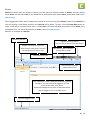
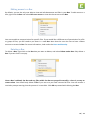
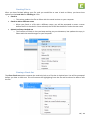
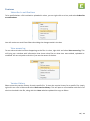
When you are in a Box, you will notice that Edocx has two panes. The left-hand side is the current Box that
you are viewing, or the Edocx side, while the right-hand window is the Local side.
If you open uploaded files on the Edocx side, you will only open a read-only copy. To edit your files on
Edocx, we have incorporated a system where you can Check out a file, edit it, and Check in your changes to
update the uploaded version on Edocx.
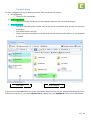
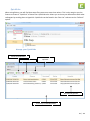
Files can be highlighted to show who is working on each file. This highlighting is shown in the Edocx
application, for both the local and remote sides. Mousing over any checked out file will give you more
information, for instance, the date and time it was checked out. Check the File Highlighting section for
more details.
Checking Files Out
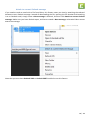
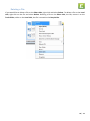
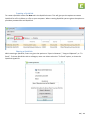
Checking a file out allows you to edit it without actually removing it from the box. Edocx will make a copy
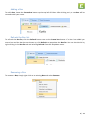
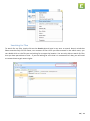
onto your computer that you can edit and Check in after editing. To Check out a file, right-click on a file in a
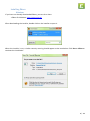
Box, and select Check out. This will copy the file onto the directory currently viewed on the Local side. This
file is now saved to your computer, and is an editable copy of the version on Edocx.
14
| 23