1
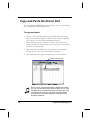
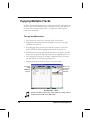
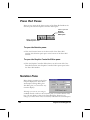
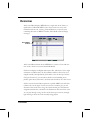
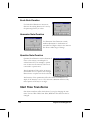
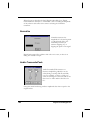
3. Click the Patch name in Track 7 and the spin arrows are restored.
4. By clicking back and forth between the expanded and contracted
Patch column view, you can see the patch number for each name.
Clicking F3 also expands and contracts the Patch column, when it is
highlighted.
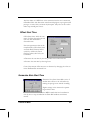
5. There are a number of ways to change the patch assignment to
trumpet:
You can click the arrow until the name appears — or the number
if you know it.
You can use the + and – keys on the numeric keyboard to move
up and down in the list.
You can type in the name or number. If the name is correct,
Digital Orchestrator Pro will set the patch.
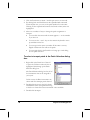
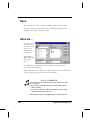
You can right-click in the Patch box to bring up a visual dialog
box for patch selection.
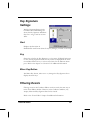
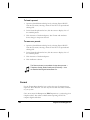
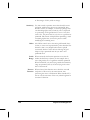
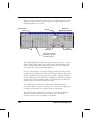
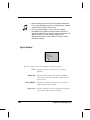
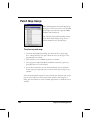
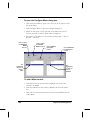
To select a trumpet patch in the Patch Selection dialog
box:
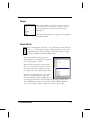
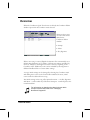
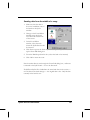
1. Right-click in the Patch box of Track 7
or press the F2 button when the box is
highlighted. This brings up the Patch
Selection dialog box.
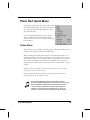
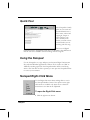
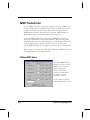
The Patch Selection dialog box lists all of
the instruments that can be assigned to
your synth.
In this screen, the Brass instruments are
shown with the Trumpet patch selected.
2. Double-click the icon in the left column
labeled Brass. This will expand the listing
in the box to show all the brass instrument voices available.
3. Double-click Trumpet.
38
Voyetra Technologies Inc.