1
Clear a Simulation
Why: Clearing a Simulation merely removes or “unloads” it from being currently active. If you are
running several individuals through different Simulations, you may want to remove the previous one
from active viewing so it is not seen by the next participant.
How:
1) Click on the Clear Simulation button.
2) You will receive a confirmation warning. Click Ok to proceed.
Tips: It isn't necessary to Clear a Simulation prior to loading another one.
Loading a Simulation
Why: In order to play a Simulation, you must first Load it into the program.
How:
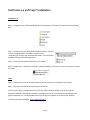
1) In the Present Panel, click on the Load Simulation button.
2) Navigate to the folder with the Simulation you wish to Load.
3) Click on the Simulation file to select it.
4) Click the Open button.
Tips: In Fire Studio 5, you will Load Simulations using the standard Windows interface. This means you
can place your files anywhere you like on your computer. If you are loading a Simulation that was
Exported from another system, make sure the .lbr file is located in the same folder as the .dcs file
(Simulation) you are loading. You will also need to ensure that any Libraries used by the Simulation are
loaded prior, other than the main Library file of the same name, which will be loaded automatically. For
example, if you Export a Simulation named StripMallFire, you will have a StripMallFire.dcs and
StripMallFire.lbr file. This LBR file is the main Library for the Simulation and will load automatically with
the Simulation as long as they are kept together in the same folder.
Print Simulation
Why: If need to make a quick-reference table of contents, you can use the Print Simulation
command to generate an HTML document of your Simulation.
How:
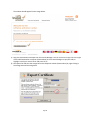
1) With your Simulation loaded, click on the Print Simulation button.
2) Your HTML viewer (usually your web browser) will automatically open up the file.
3) With your browser open, you can go into the File menu and Save the page, or print directly to your
Page 27