1
MathType User Manual
Microsoft Word Users
MathType’s support for
Microsoft Word allows
you to save MathType’s
styles, sizes, and
spacing with a
document, or a
document template. For
Word users, this is
better than using
preference files. See
“Using MathType with
Microsoft Word” in
Chapter 5.
The ability to quickly change style definitions is the most basic example of the
use of multiple Preference files. Suppose you generally write equations in Times
New Roman, but for a particular type of document you want to use Arial
instead. You can create two Preference files: one in which the Text, Function,
Variable, Vector-Matrix, and Number styles are defined as Arial (with the
appropriate character styles), and the other in which these styles are defined as
Times New Roman. Then, by using the Load Preferences command, you can
quickly set up the desired style definitions for either type of document by
choosing the corresponding Preference file.
Loading Preference
FIles
You can also load a
preference file by
dropping its icon onto a
MathType window.
Double-clicking a
preference file also
loads the file. Both
methods only affect new
equations, not any open
MathType windows.
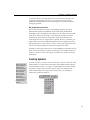
To load a Preference file, you can either choose Load Preferences from the
Equation Preferences submenu of the Preferences menu and use the dialog box
to locate the desired file, or, if the file is one of the four most recently used, you
can load it by choosing its name from the bottom of the Preferences menu. When
you load a Preference file, all the settings it contains will be immediately applied
to the current MathType window. A dialog box also appears, which lets you
apply these settings to new equations as well. Remember that this includes
styles, sizes, and spacing definitions.
Saving and Loading Preference Files
To create a Preference file, first set up the styles, sizes, and spacing as you would
like to save them. Then, choose Save To File from the Equation Preferences
submenu of the Preferences menu. A dialog box will appear, allowing you to
name the file and specify its location. It might be a good idea to save each
Preference file in the same directory as the documents that use it. Or, you may
want to use the Preferences folder in the MathType folder.
Installed Preference Files
MathType Setup installs a set of preference files that we’ve put together to show
you how you might make use of this feature. They’re in the Preferences folder
inside your MathType folder. The names are self-explanatory —
Times+Symbol 10.eqp sets the primary font to Times New Roman, the
Math/Greek font to Symbol, and Full size to 10 pt. The Euclid-based preference
files use Euclid as the primary font and Euclid Symbol for the Math/Greek font.
TeXLook.eqp is based on Euclid 10.eqp, but we’ve also adjusted some spacing
settings to generate equations with a look similar to that of TEX.
Factory Settings
Factory Settings
You can reset just the
styles, sizes, or spacing
by clicking “Factory
settings” in the Define
Styles, Sizes, or
Spacing dialogs.
102
Sometimes, especially if you are a new MathType user, you may want to restore
MathType’s styles, sizes, and spacing to the settings that were in use the first
time you ran it. You can do this for all of the equation preferences at once by
choosing Load from Factory Settings from the Equation Preferences submenu of
the Preferences menu.